This article will guide you on how to setup and use the Search Availability feature located within the Panel Interview.
Requirements
- Panel Interview activated.
For instructions on how to Activate Panel Interview Click Here. - Mail/calendar setup.
For instructions on how to setup your email/calendar with Hirebridge Click Here.
Once your email is linked to Hirebridge and Panel Interviews are activated the interview page will look like below. Resources and Search Availability will be available once you have your Mail/Calendar setup.
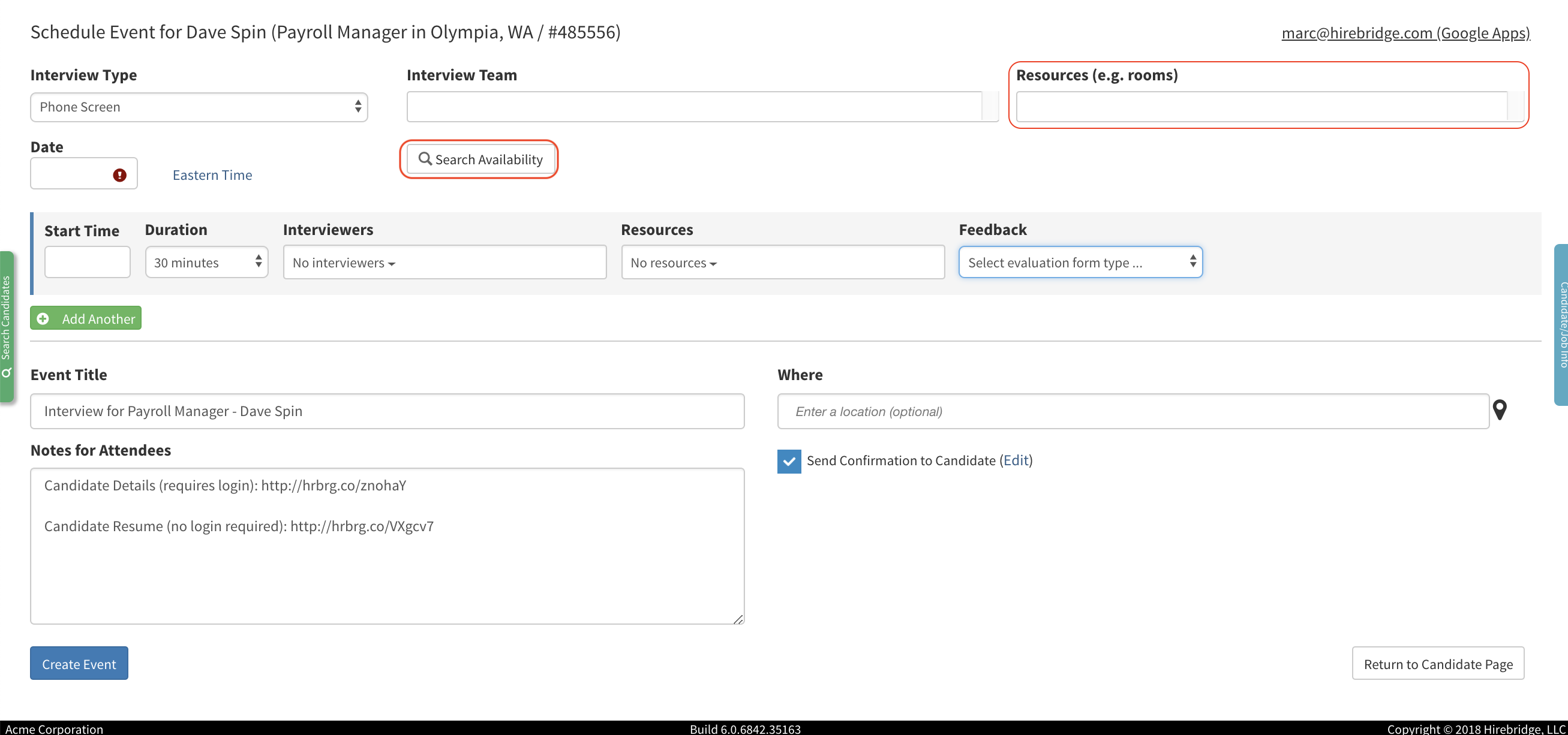
- Resources - items or places that can be scheduled to be used for the interview. To attach resources this can be added via calendar service provider.
For example if the interview requires a projector and room it can be attached in the resources section.
Note:
Resources/Rooms can be added by your email service provider administrator. If you have your calendar connected and do not see resources, please check if Panel Interviews is activated or check if resources are added.
- How to add Gmail Resources - Gmail Resources
- How to add Microsoft Exchange / 365 Resources - Microsoft Resources
- Search Availability - This feature will allow you to search the availability for the Interview Team and Resources.
After selecting the Interviewing Team and Resources required for the interview you can then search their availability by select the Search Availability button.
(Image provided below)

When searching through the availability of the Interview Team and Resources you will see them displayed as columns and the time displayed in rows.
(Sample Image below)
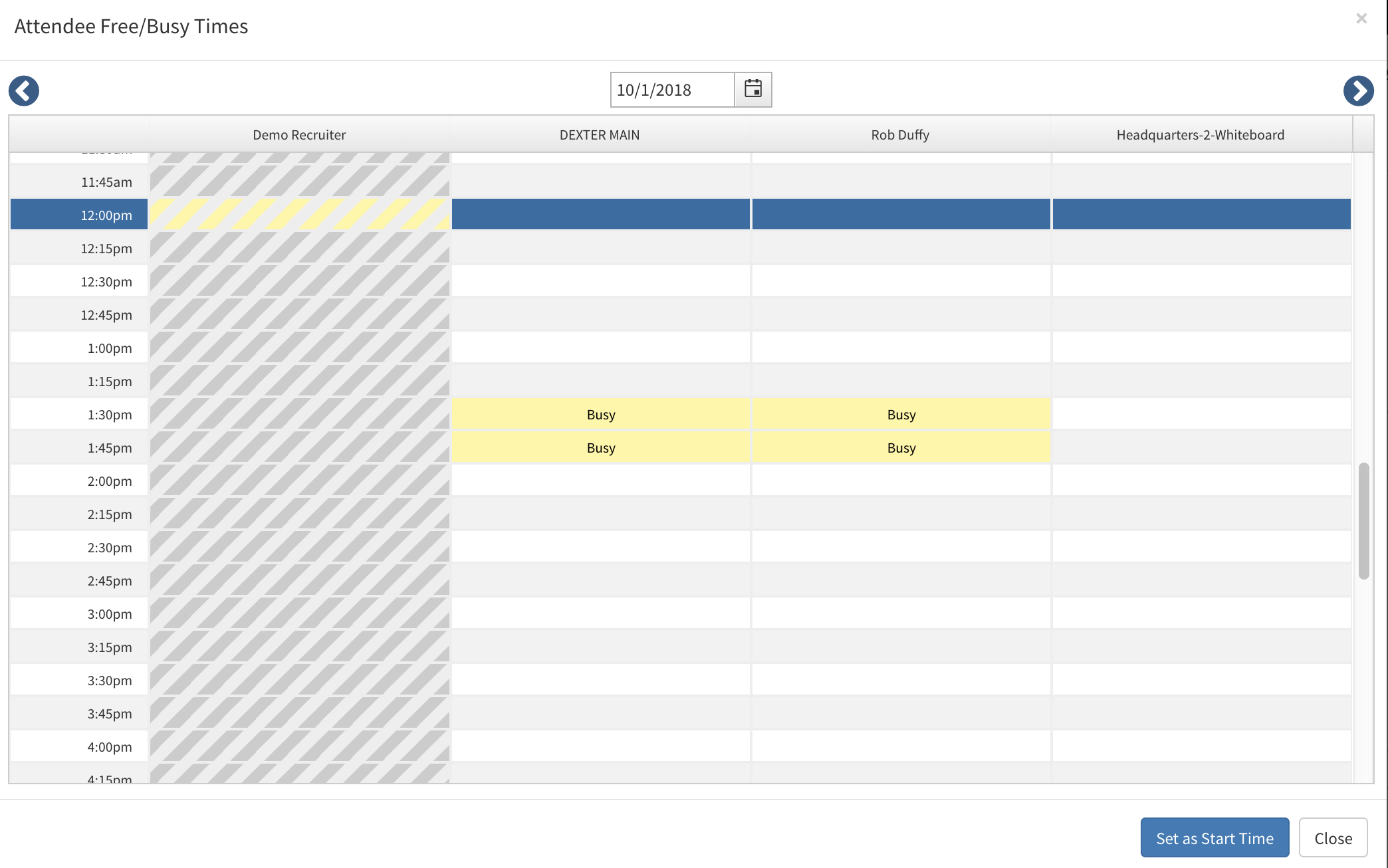
In the image provided above you can see that two of the attached interviewers in the middle are busy between 1:30-1:45pm. While the Demo Recruiter's user calendar is not available and the Whiteboard resource is available. This will give you an idea of all attached users and resources availability timeframe.
| Busy |  |
| Available |  |
| Calendar Not Available |  |
Selecting the dates and blue arrows at the top of the scheduler will allow you to change and select specific dates.
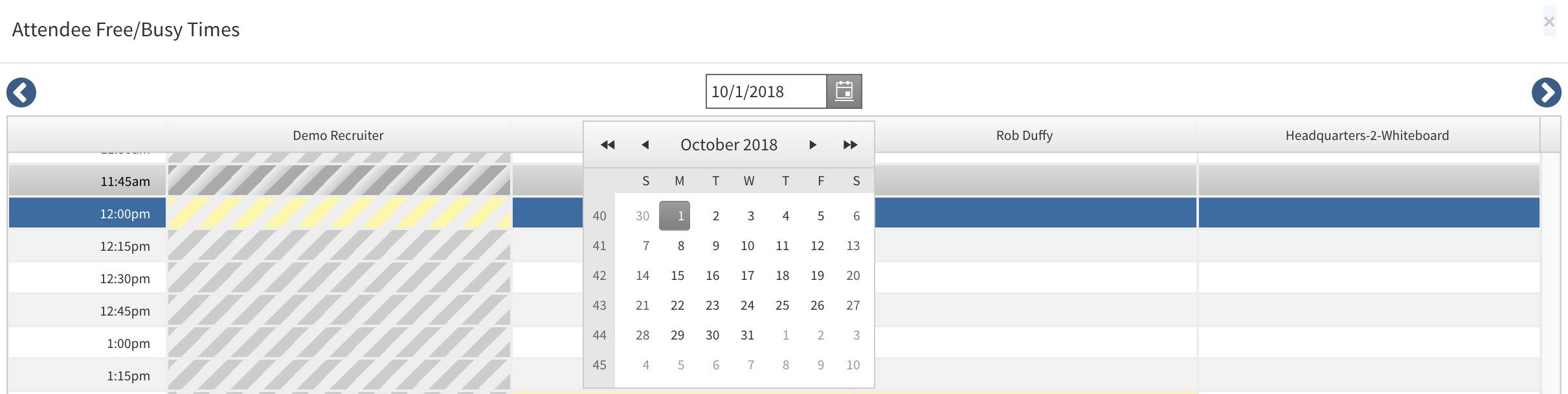
After selecting the specific date you can then review the available time and select the time to start the interview. This will then be displayed as a blue line throughout all interviews and resources
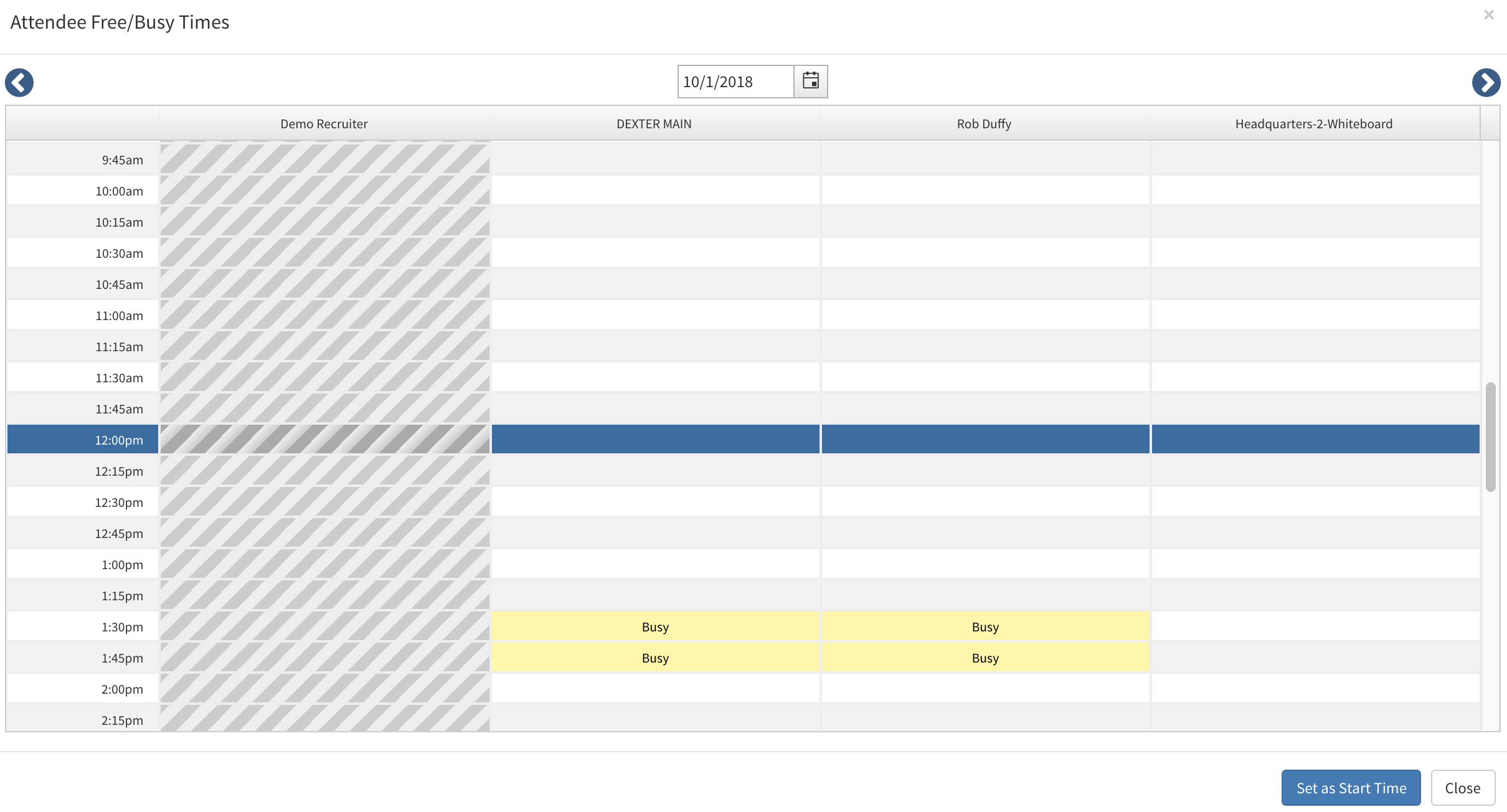
Once an available time slot to start is selected click the blue Set as Start Time. This will then start the interview in the time selected.
Video Tutorial