This article will guide you on how to limit users so they can only see specific jobs and candidates.
There are two ways to restrict users from accessing specific requisitions & candidates:
- Category Method - Restrict users from accessing requisitions by category. Creating a "Confidential" category and restricting access for that user will not allow them to view that specific requisition in that category.
To create a new category use the link provided - Dropdown list manager - Attached User - method is to allow the user to only view requisitions that they are attached to.
Category Method
To restrict user requisition access, the first requirement is to have a category created. For this example, we will use a category called "Confidential".
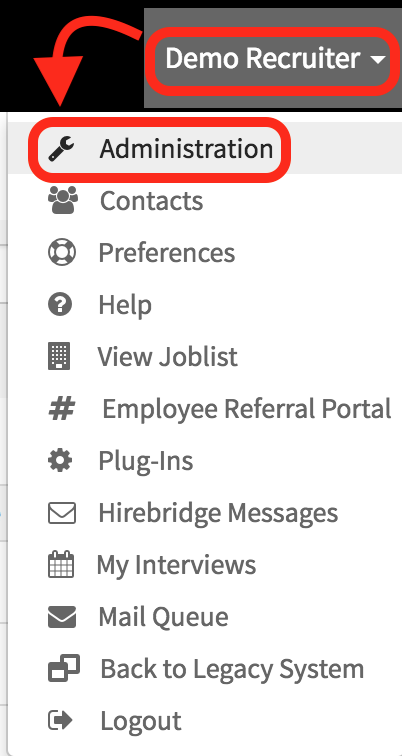
- The first step is to access the user profile account maintenance. Select your username in the top right corner then select "Administration" from the drop menu.
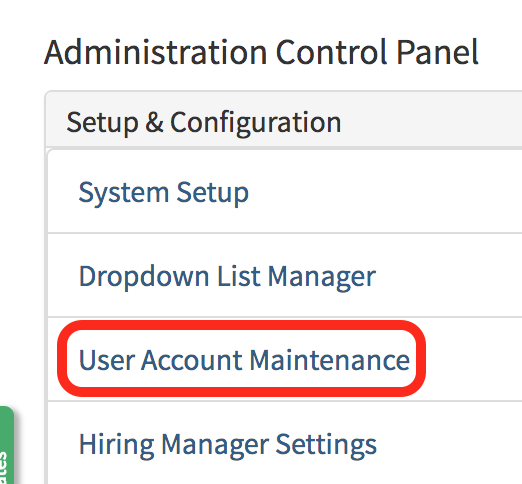
- This will now take you to the Administration Control Panel page where you need to select "User Account Maintenance" under the Setup & Configuration column.
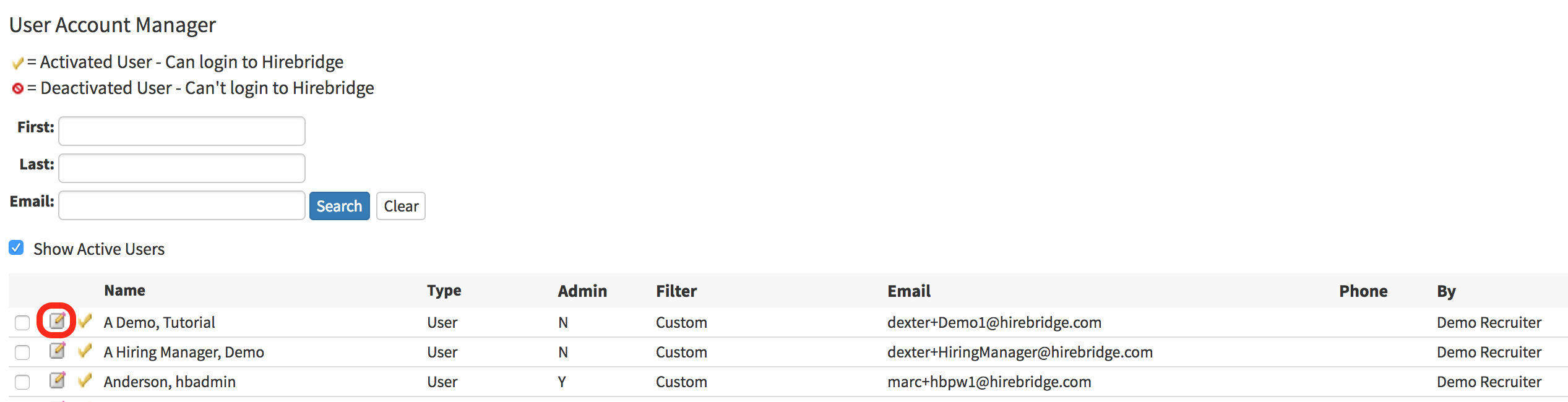
- This page will now allow you to add/edit/deactivate users in Hirebridge system.
- Select the Pencil and Notepad icon on the left to edit the user settings.
(Outlined in in the image below)
- Once in the User profile select the blue "Set User Access Filter" in the Job Requisition Access group.

- This section allows you to set user requisition access.
- The next step is to select the radio buttons on the top left and the access to assign to the user. Below are the options with definitions below.
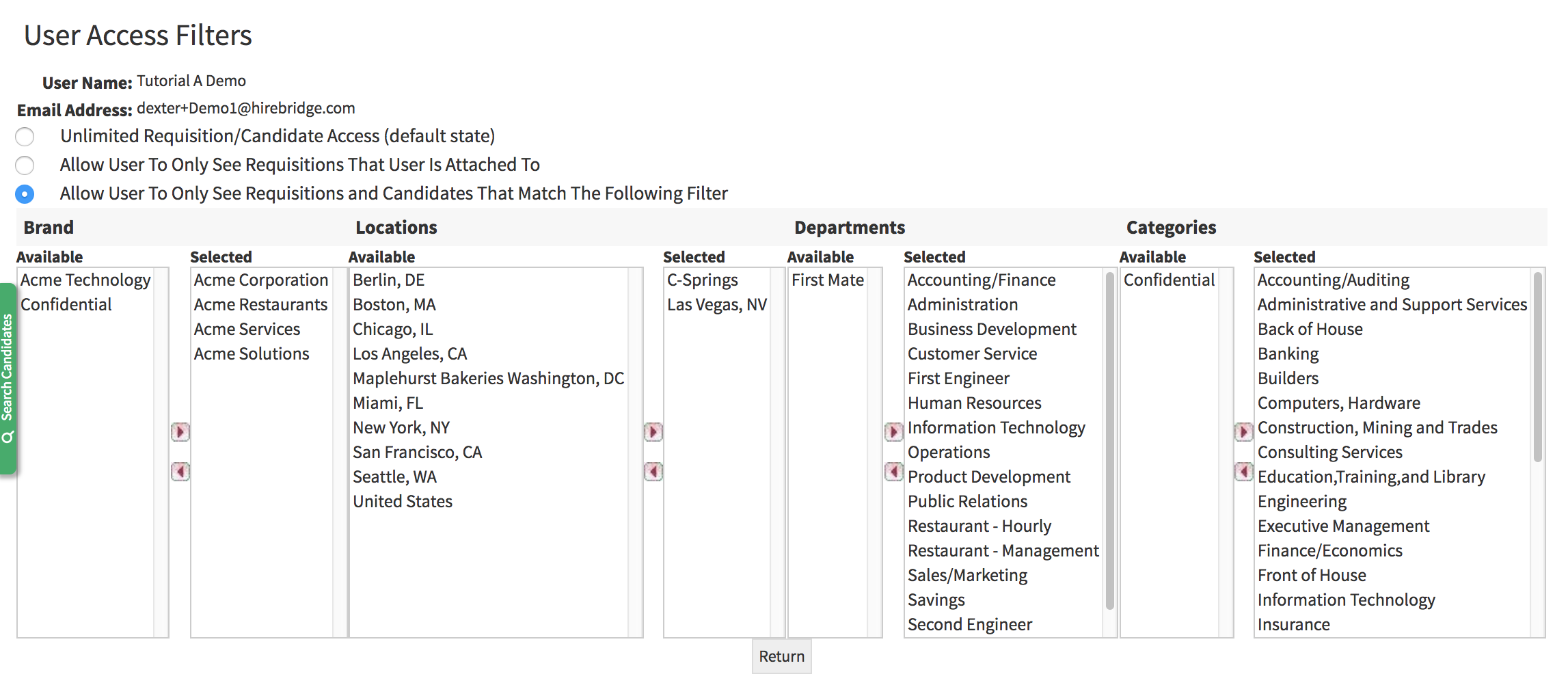
Unlimited Requisition/Candidate Access (default state)
- Allows the users to have all requisition and candidate access.
Allow User To Only See Requisitions That User Is Attached To
- The user can only view requisitions that they are attached to
Allow User To Only See Requisitions and Candidates That Match The Following Filter
(Selecting this will allow you to select a specific brand, location, departments, and category.)
- Allows the user to only see requisitions and candidates assigned to the user.
For this example, we created a "Confidential' option in the categories group. This will now be an option in the available section.
Available (No Access) - Available categories that the user can have access to.
Selected (Access) - Selected filters the user can have access to.
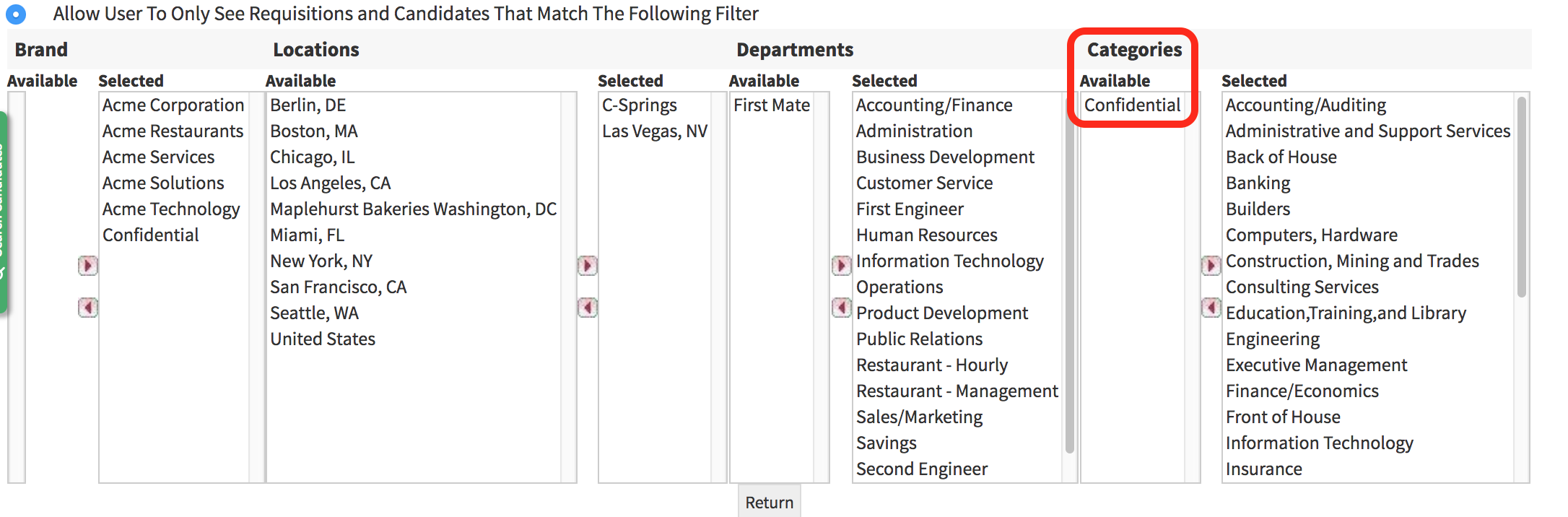
To move access filters to columns select the filter then select the arrow to move it to the column.
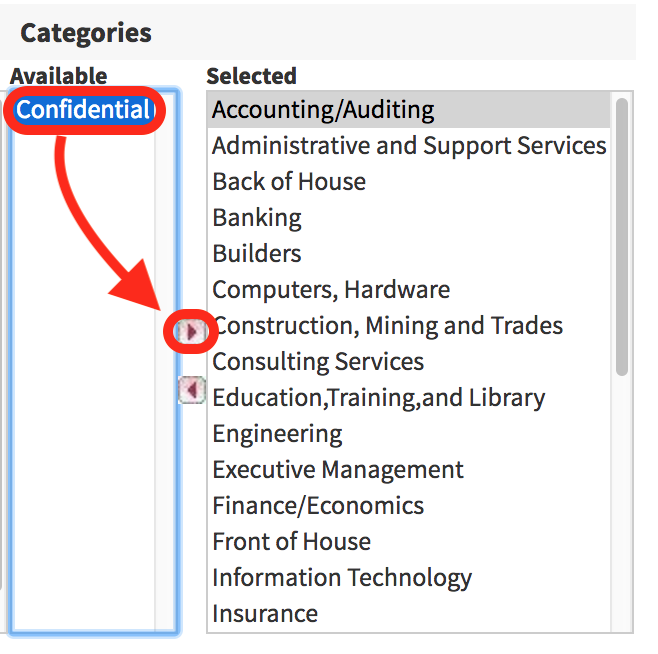
In the image below to give the user access to the "Confidential" category select confidential then select the arrow to move it over to the selected column.
Attached User Method
- To restrict user access using the attached user method follow the same steps as the Category Method.
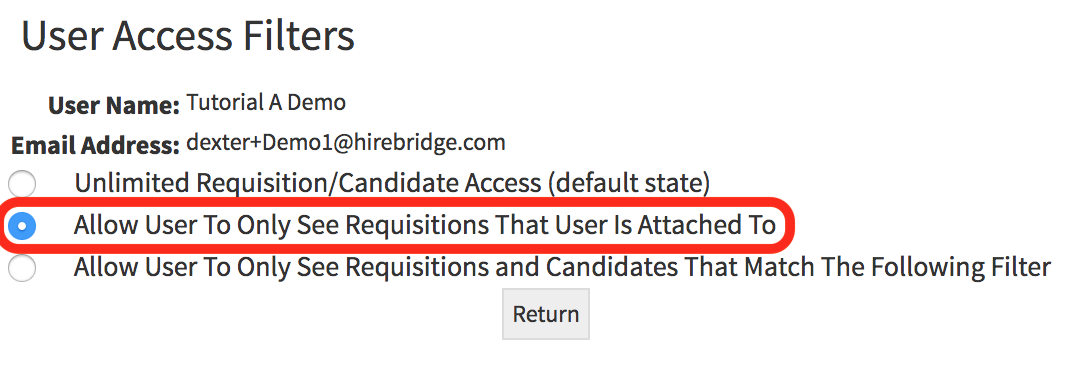
- On the Access Filters page select "Allow User To Only See Requisition That USer Is Attached To" this will now only allow the user to view jobs they are attached to.
- The next step is to attach the user to the requisition.
- Instructions on how to attach users to a requisition can be found using the link provided.
Attach Users to Requisition