Adding Additional Parties to Job Requisition
This article will cover how to attach additional parties to a job requisition.
Attaching additional parties using custom job template
- In order to attach additional parties to a job requisition, you first need to find a job requisition.
- Once you have found a job requisition click on the small “Notepad” Icon to edit the job. (outlined below)
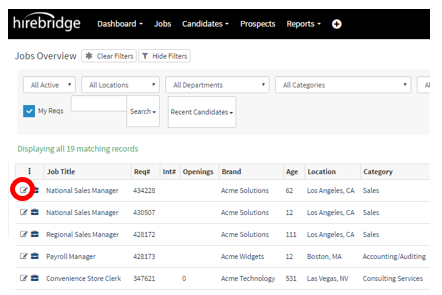
- This will now take you to the Job Requisition Editor page.
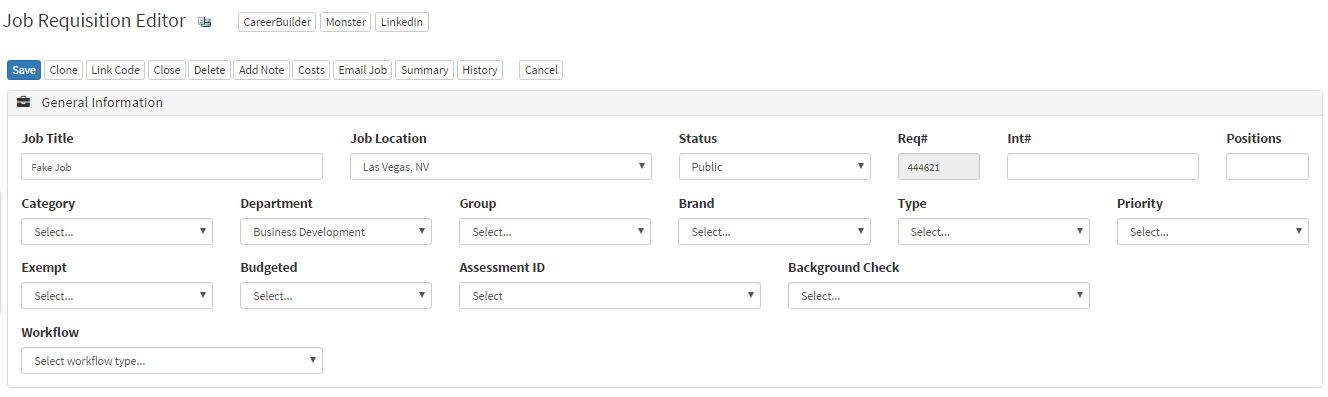
- In the Hiring Team section, this is where you manage the Attached Users, Parties to Notify, and Attach Vendors.
- In the picture below, in the section "Attached Users" is where you enter the names of people you want to attach. Typing the users name will give you a list of users related to the text you have entered. From the list is where you can choose who you would like to attach to the requisition.

- Parties to Notify also has the type-ahead feature where the text you type will give you a list of users with similar text.
- Attached Vendors also has the type-ahead feature where the text you type will give you a list of users with similar text.
- To remove a user simply select the red "X" next to the username.
Attaching Additional Parties Using Briefcase Icon
- Once you select the Briefcase icon it will take you to the requisition overview page.
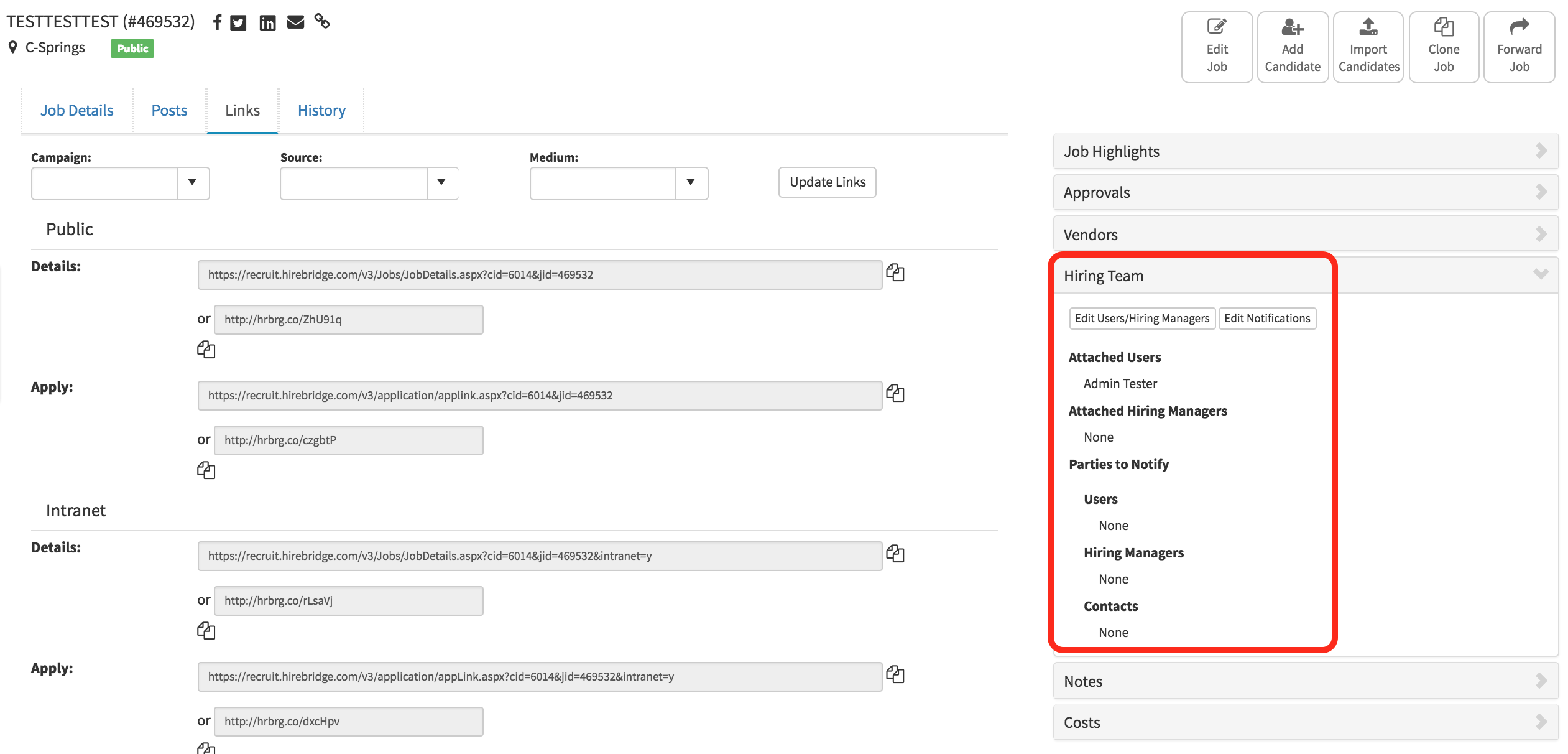
- On this page select the "Hiring Team" tab then select "Edit Users/Hiring Managers"
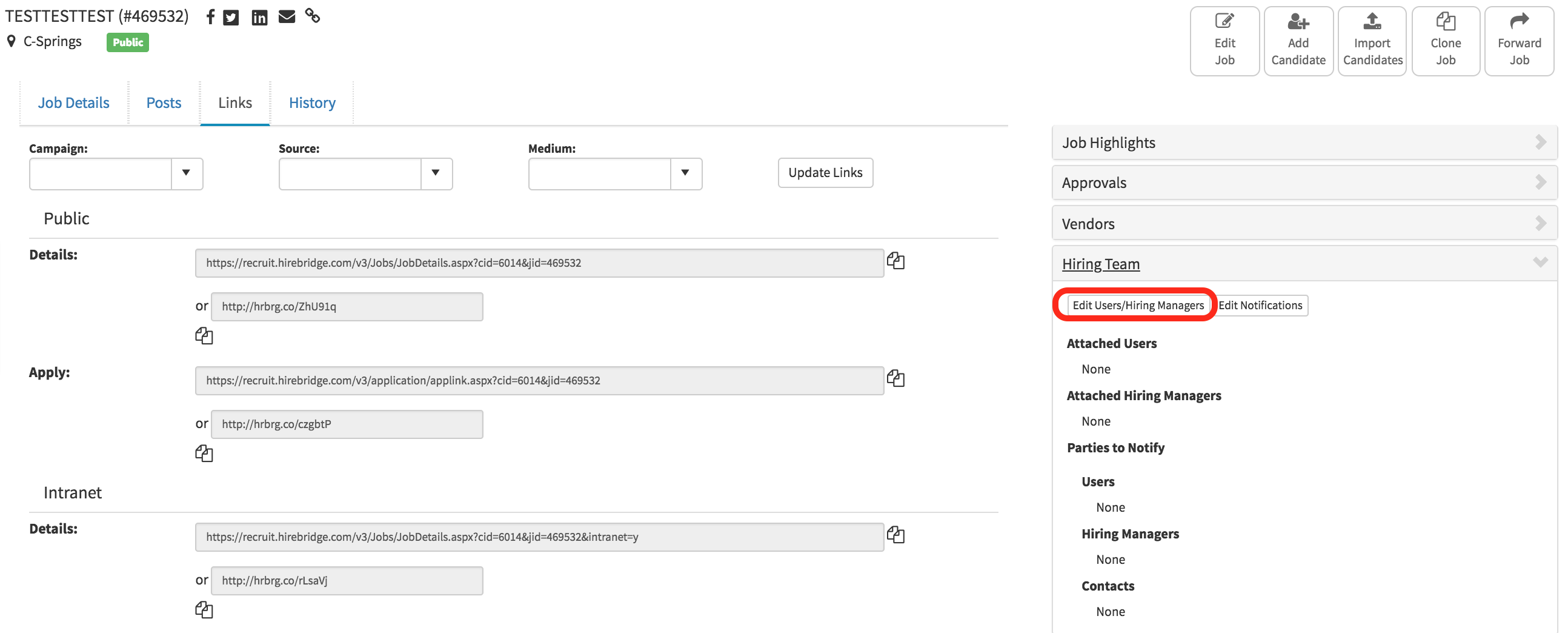
- The next page will then allow you to add additional users to the requisition
- To add a user select a name from the "Available" list then select the arrow to move the user to the "Selected" column.
Available (Not Attached) - Users in this list are not attached to the requisition.
Selected ( Attached ) - Users in this list are attached to the requisition.
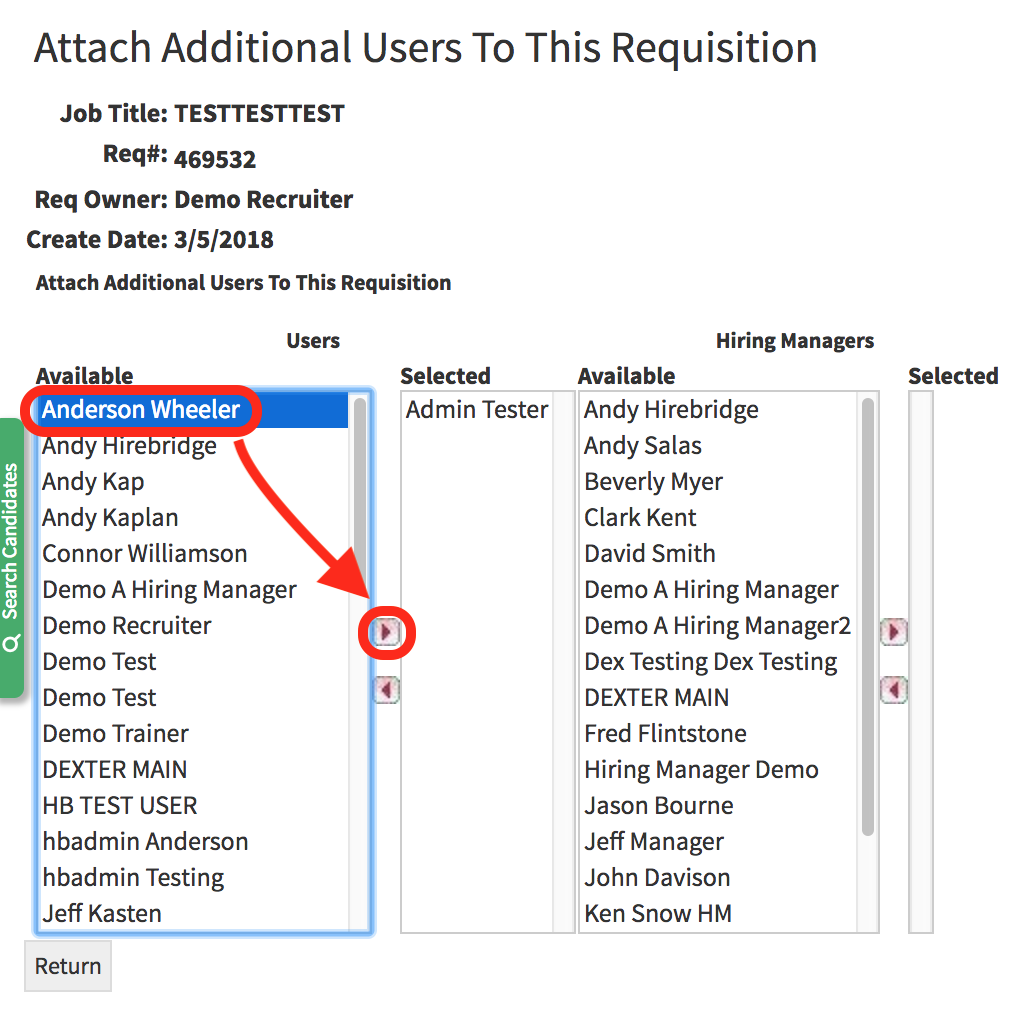
- When complete select "Return".
- The attached users to the requisition will now be displayed in the "Hiring Team" tab.
Video Tutorial