This article will guide you on how to setup your calendar with Hirebridge.
Linking your calendar will allow you Hirebridge to schedule interviews to your calendar. This will also allow you to search the interviewing team availability along with resources for the interview.
Multiple Calendars can also be used to schedule on behalf of individuals.
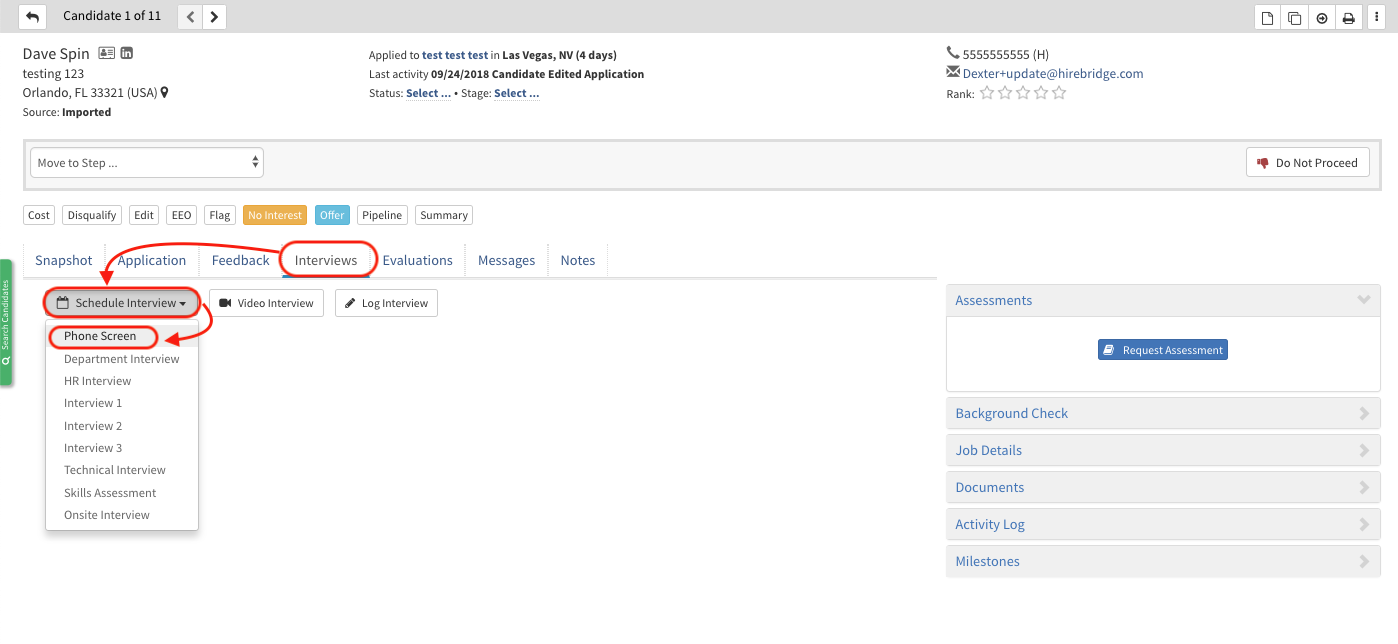
- To access the calendar account manager go into a candidate profile and schedule any type of interview.
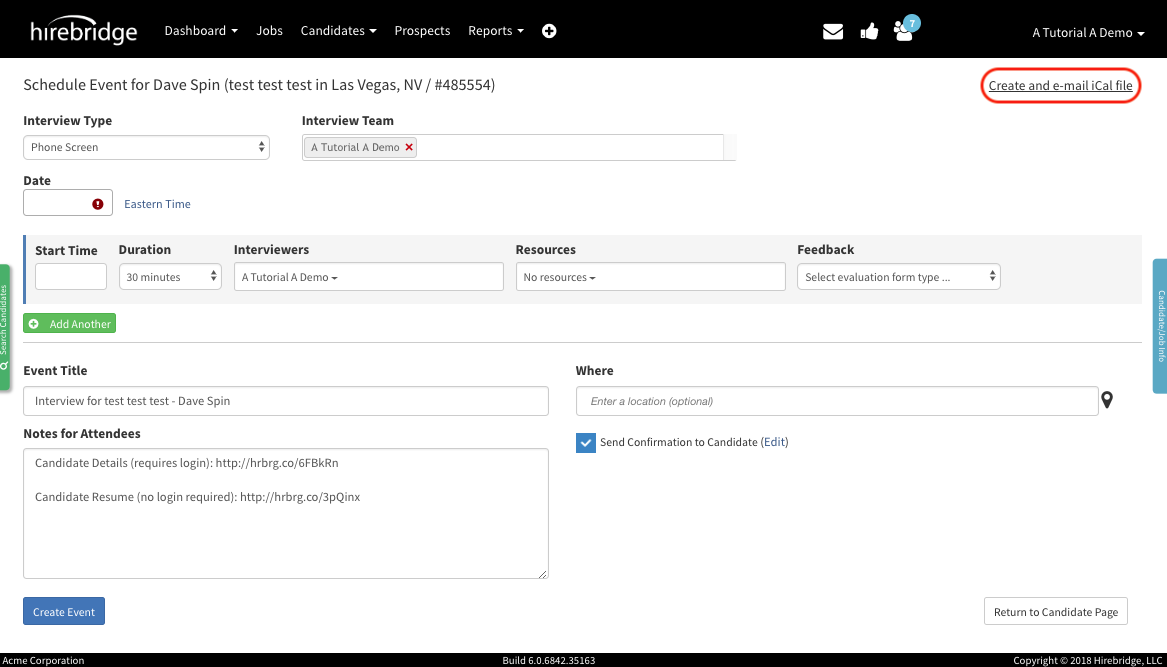
- This will now take you to the candidate interview scheduler where you can link your calendar by selecting Create and e-mail iCal file in the top right corner.
(Your email address will appear if you have an account setup)
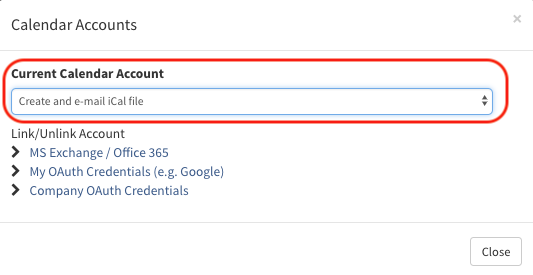
- After selecting the link in the top right corner a pop-up will appear that will give you access you manage your accounts.
- The Current Calendar Account allows you to select from linked calendar accounts.
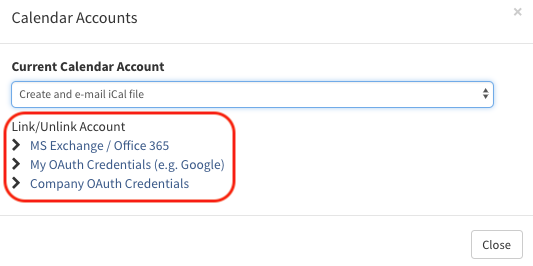
- Selecting your service provider will allow you to add/edit accounts.
- For this example we will use Google the option in the middle. (Image provided below)
- A new page will load that will allow you to add an account or disconnect a current account.
- To add an account select Add Account, this will allow you to log into your mail service to give us access to your calendar.
- To disconnect your Calendar select the broken link icon outlined in red below.
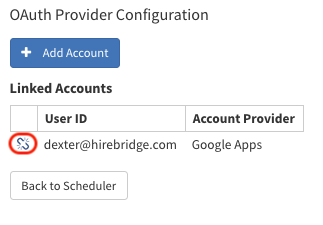
- Once you are connected your email account will be displayed under Linked Accounts.
Note for Microsoft Exchange Users:
Your company may have some restrictions set up that prevents us from being able to write to your calendar & see availability. Please visit the following link for troubleshooting this issue: https://hirebridge.zendesk.com/hc/en-us/articles/360018987791
Video Tutorial