The first step for troubleshooting any issues with Exchange Web Services (EWS) is to use Microsoft’s Remote Connectivity Analyzer at https://testconnectivity.microsoft.com.
Note: If you are unable to connect with this tool then it probably indicates that Hirebridge (and no external services) will be able to connect with your company's Exchange server.

To test Office 365, choose the Office 365 tab and then Service Account Access (Developers) under Microsoft Exchange Web Services Connectivity Tests. If you have an on-premises Exchange server, choose the same option on the Exchange Server tab. Then click Next.
Complete the following page as appropriate for your server configuration. Here we’ve completed for Office 365.
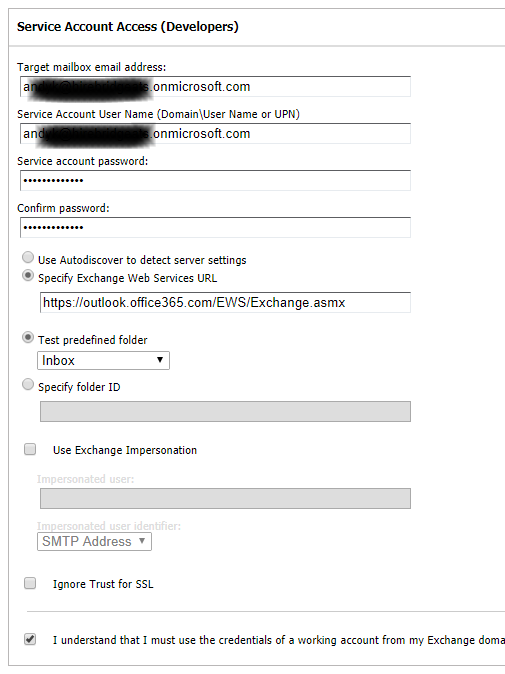
Here we’ve entered a URL rather than using autodiscover (we have had many issues with autodiscover and do not recommend using it).
Complete the Recaptcha verification (not shown) and click Perform Test. When complete you should get a page that looks like this:
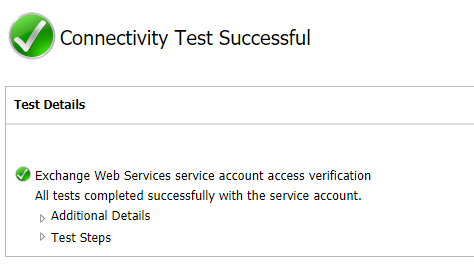
While this should always work (assuming you have a Office 365 account with Exchange, including on business plans, and you are using the correct credentials), if you are hosting your own Exchange Server you may need to whitelist the Hirebridge application and/or specific users, depending on your current security settings.
Microsoft provides a document at https://docs.microsoft.com/en-us/exchange/client-developer/exchange-web-services/how-to-control-access-to-ews-in-exchange that will help you configure your service. The Hirebridge application uses the user agent string ExchangeServicesClient/15.00.0847.030. For whitelisting purposes you should use ExchangeServicesClient/* as the version number may change over time.
Create an app password for Office 365
If your company has 2-factor authentication set up, then please visiting the following link to learn how to create an app password for Office 365 accounts: