In this article, we will guide you on how to create a Role Based approval chain.
Role-Based Approval Chain allows you to create default approval workflows for Requisitions and Offers or create specific workflows based on Location, Department, Job Type, Job Group, or a combination of those.
To access the Offer Approval editor select your Username in the top right corner then select Administration from the drop-down list. This will then take you to the Administration Control Panel page where you need to select Role-based Approval Chain.
(Image provided below)
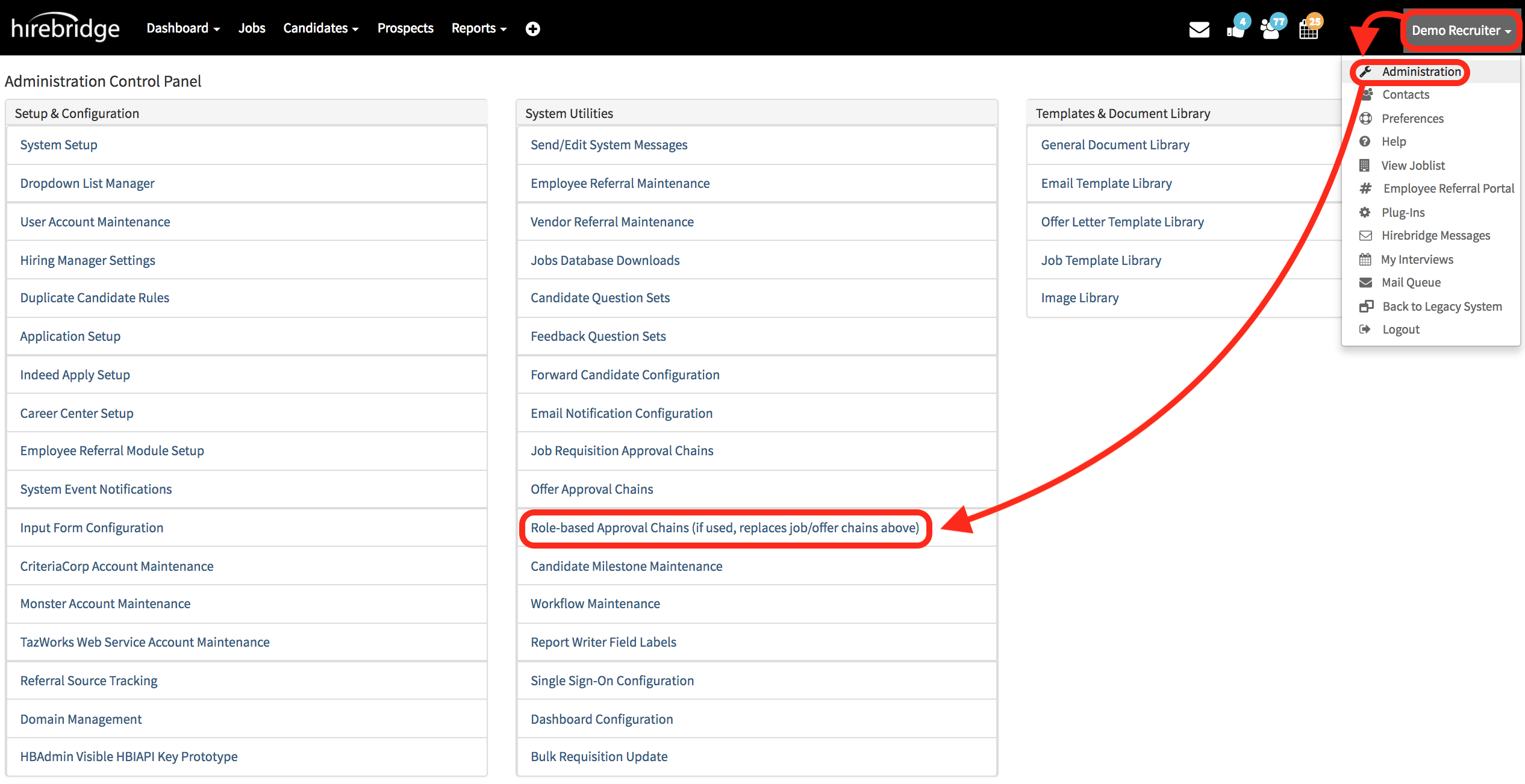
- This page will now take you to the Role Approval Editor page which will display all the saved approval chains.
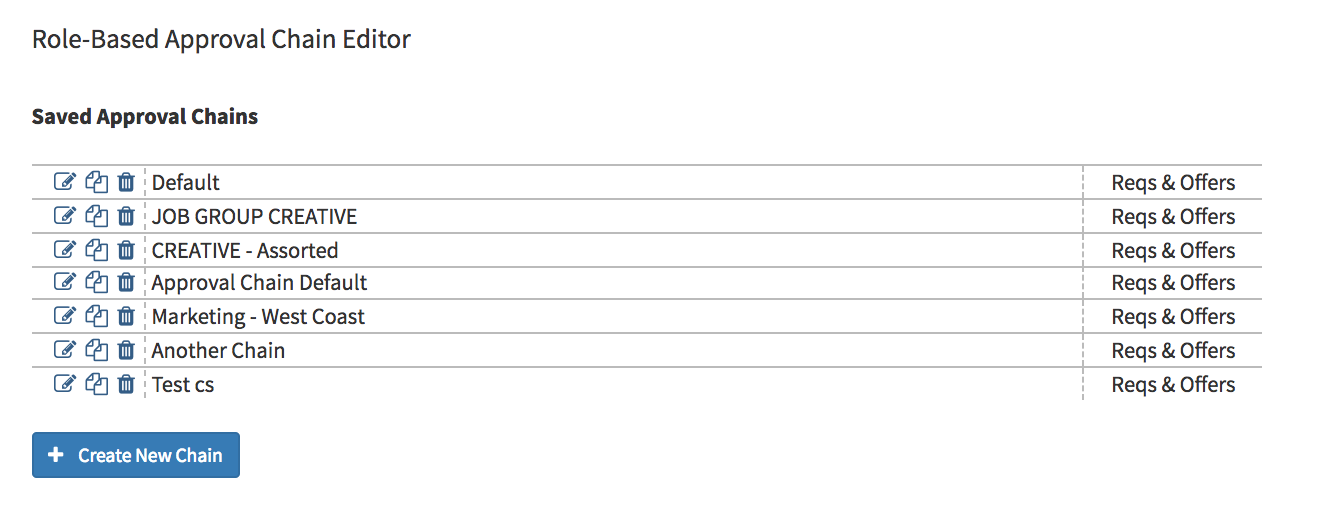
- Next to each approval chain you have the option to edit, copy and delete each chain. Below is the definition of what each icon does.
 |
- Edit approval chain |
 |
- Copy approval chain |
 |
- Delete approval chain |
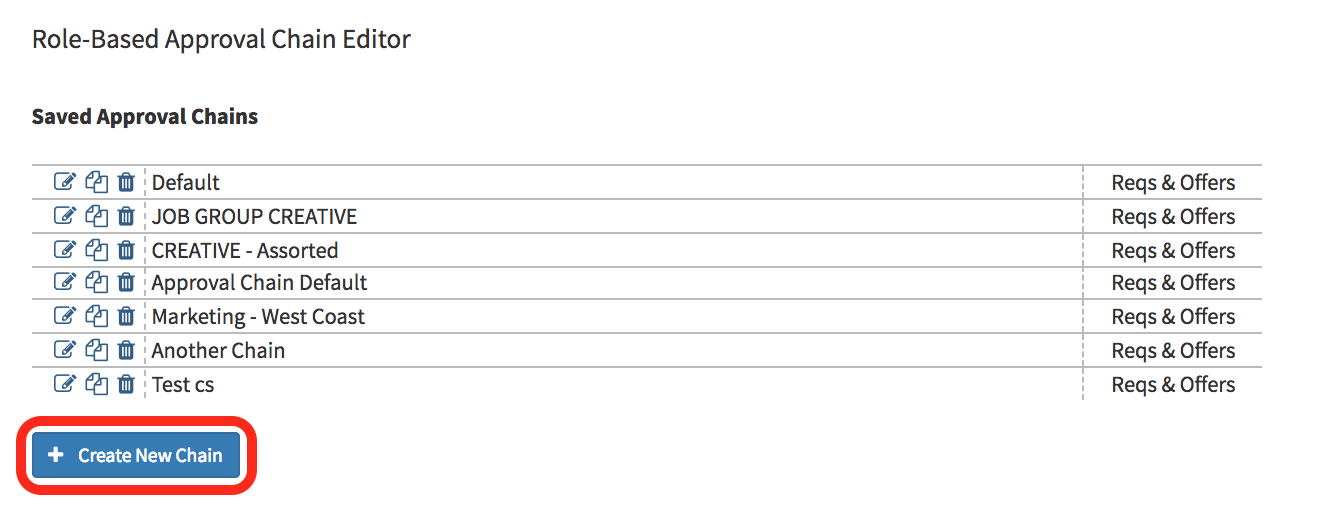
- This page will allow you to create a new chain by selecting the blue Create New Chain button. (image provided below)
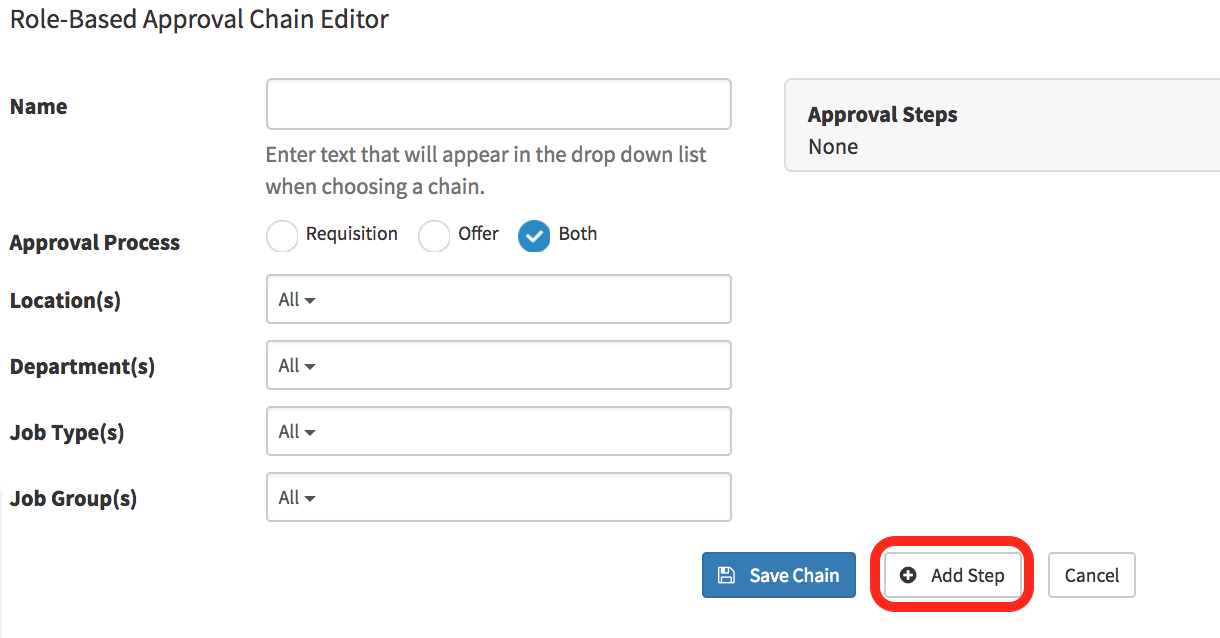
- The Role-Based Approval Chain editor page will allow you to create a new approval chain.
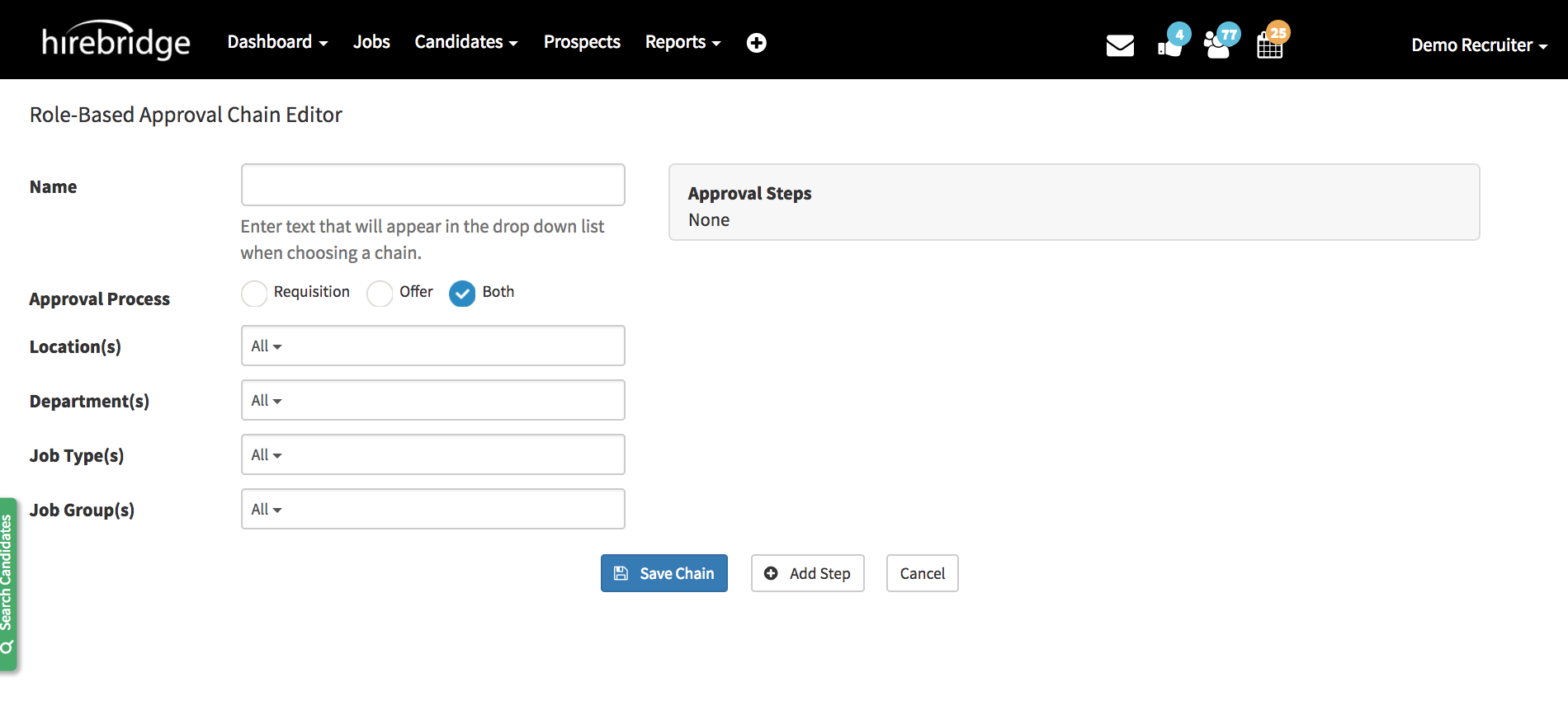
| Name | - Allows you to create the Approval Chain name. |
| Approval Process | - Option to select either Requisition or Offer chain type. |
| Location(s) | - Locations in which the approval chain will be available to select from. |
| Department(s) | - Specific departments in which the chain will be available to select from. |
| Job Type(s) | - Job types in which the approval chain will be available within. |
| Job Group(s) | - Job Groups in which the approval chain will be available within. |
- These options allow you to create a more specific automated approval workflow for specific locations, job types, job groups, departments, or a combination. If your job requisition or offer matches any of the preconfigured approval workflows, it will automatically be
selected. - Once the granular custom selections are made, you can then start creating the approval chain.
- Select Add Step to create an approval step (Outlined red in the image below)
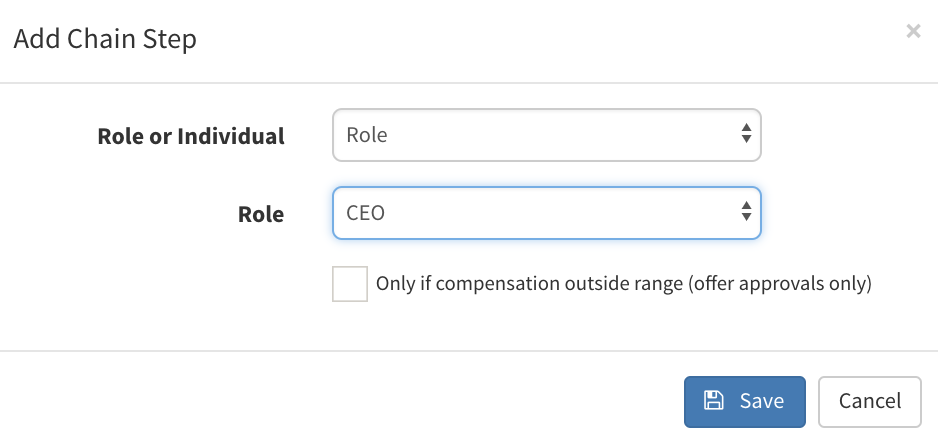
- After selecting the Add Step button a pop-up will appear that will allow you to add an approver by ROLE, ROLE SUPERVISOR, or by the INDIVIDUAL approver.
- In the example below one of the approvers in this chain will need to be in the Human Resources role. When satisfied with the step select the blue Save button at the bottom.
- The Checkbox at the bottom will allow you review and approve an offer only if the compensation is outside set range.
Note -In the HIREBRIDGE USER ACCOUNT manager, there are a series of roles which can be attached to a users account. To add roles to users click the link provided here.
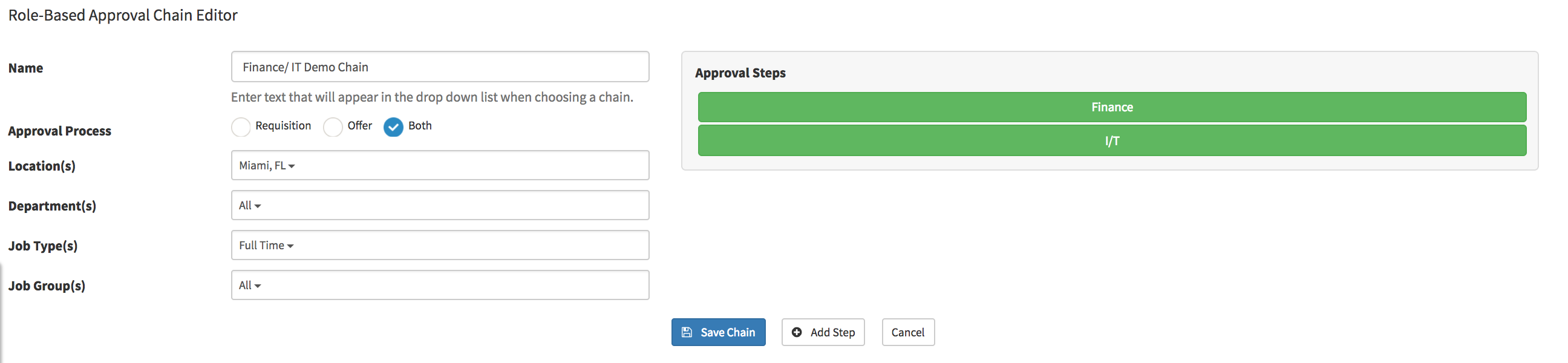
- The step will now be added to the approval chain.
- The approval chain will always start from the TOP and finish at the BOTTOM.
- To change the order of the chain, drag and drop the steps to make adjustments to the approval chain
- To edit a step select one of the green steps.
- Select Save Chain to save the approval chain.

- When creating the job requisition, you have the opportunity to attach Hirebridge users by roles, including Hiring Manager, Recruiter, Finance, CEO, CFO, Executive, etc.
- If you have selected an approval workflow based on USER ROLES, whoever is attached to the requisition in the role is the person who will be a part of the approval chain.
EXAMPLE
- In this example below, we created a requisition and offer chain for Miami, FL locations within the Information Technology department that are Full Time.
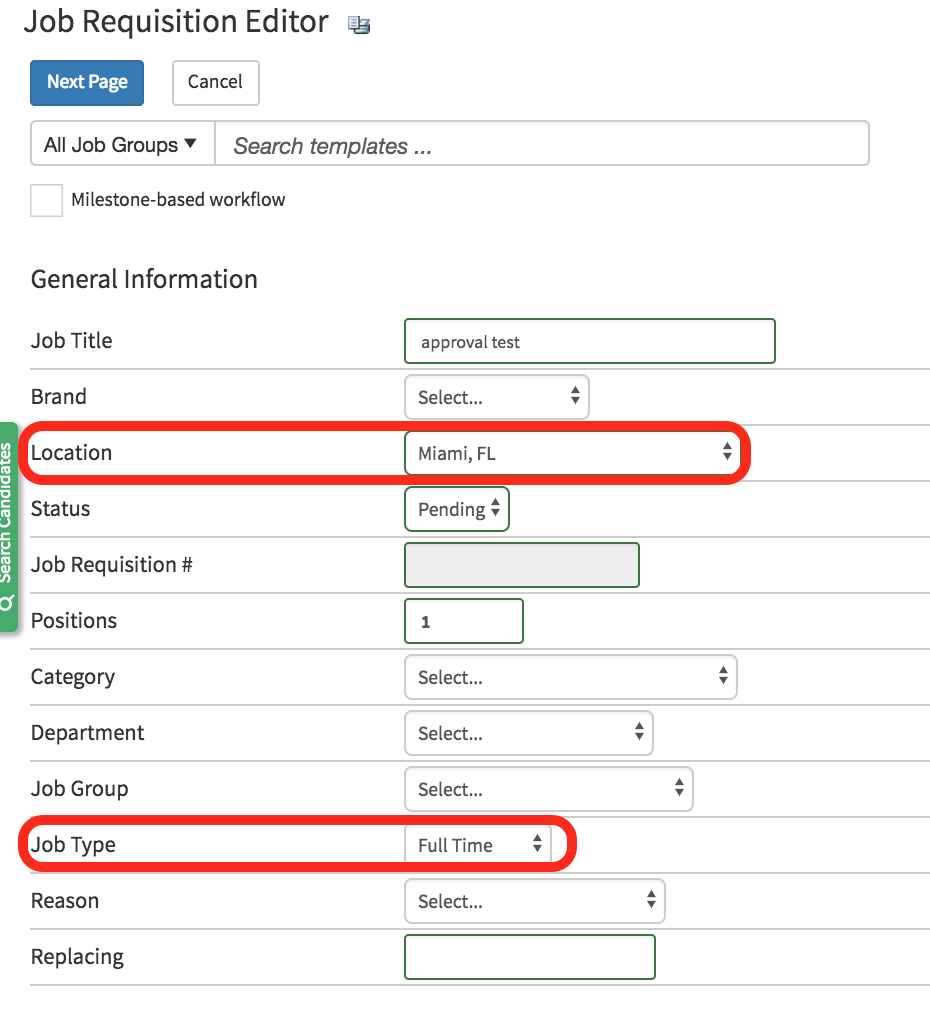
- If the requisition matches with the approval chain specifications approval chain will be automatically selected.
- Below we are creating a requisition located in Miami, FL that is Full Time.
- When we go to approve this requisition the chain will automatically select the appropriate approval chain based on the requisition details.
- Since the approval chain was selected by role, the first approver will give you the list of employees that are in that company role in which the approval request can be sent out to.
- The second approver in the chain is automatically selected since there is only one person within that role.
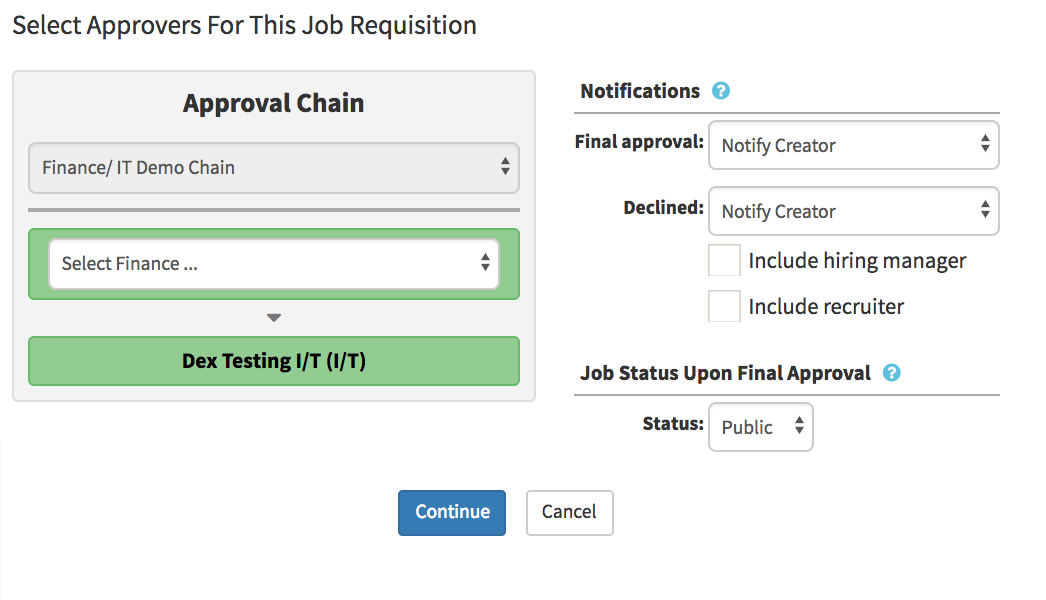
- After choosing the approvers select Continue.
- The next page will allow you to submit supporting requisition documents and start the approval chain.