This article will cover how to attach a role to a user.
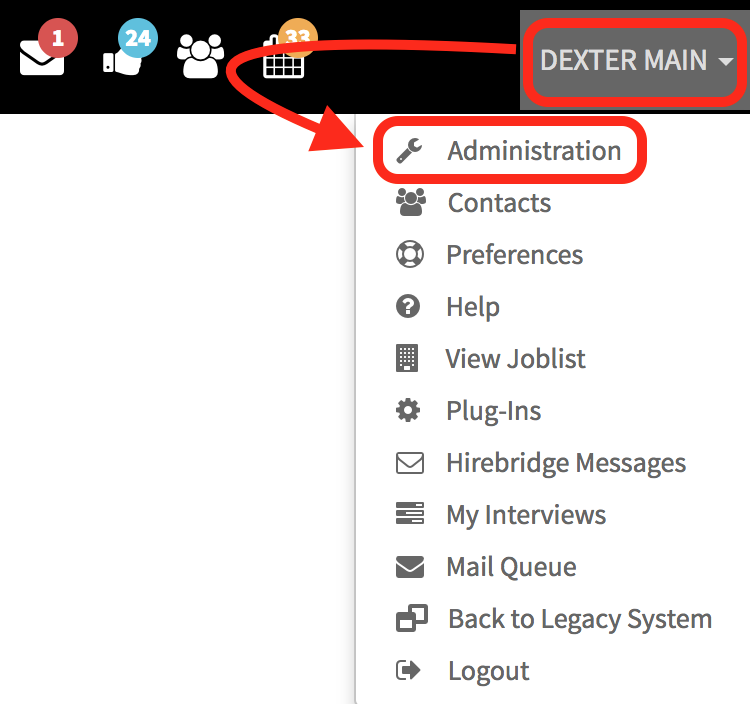
- To attach a role to a user select your username in the top right corner.
- A drop-down menu will appear, from the drop-down menu select "Administration"
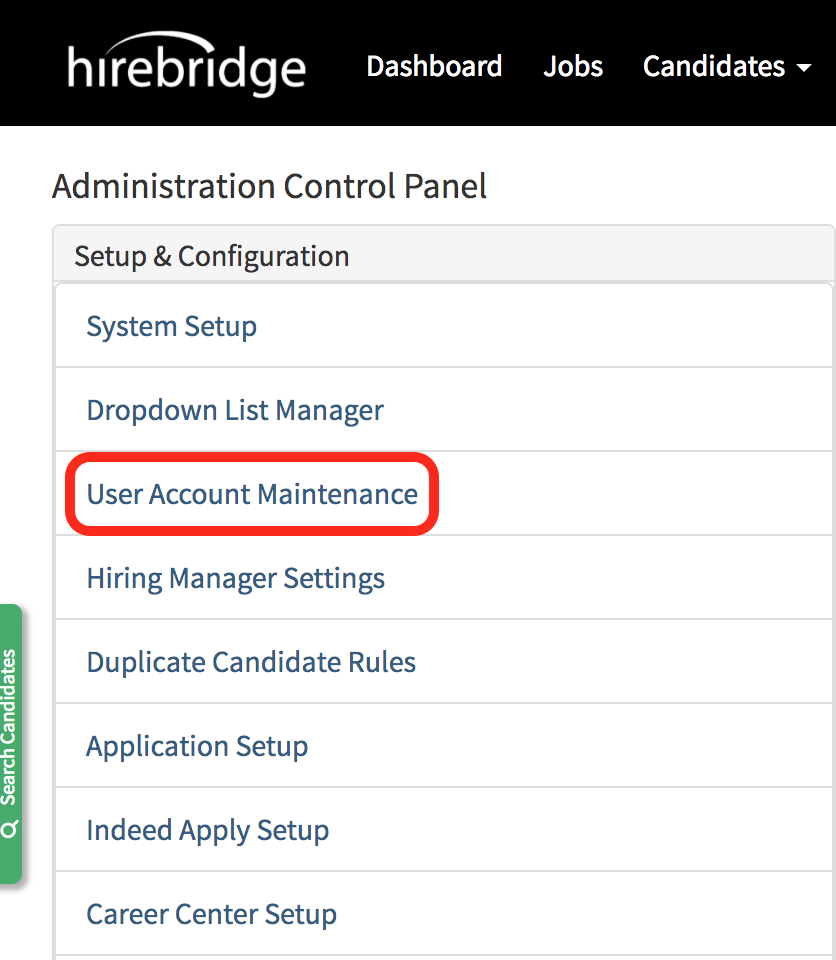
- This will now take you to the "Administration Control Panel"
- On the left side of this page is where you will select "User Account Maintenance"
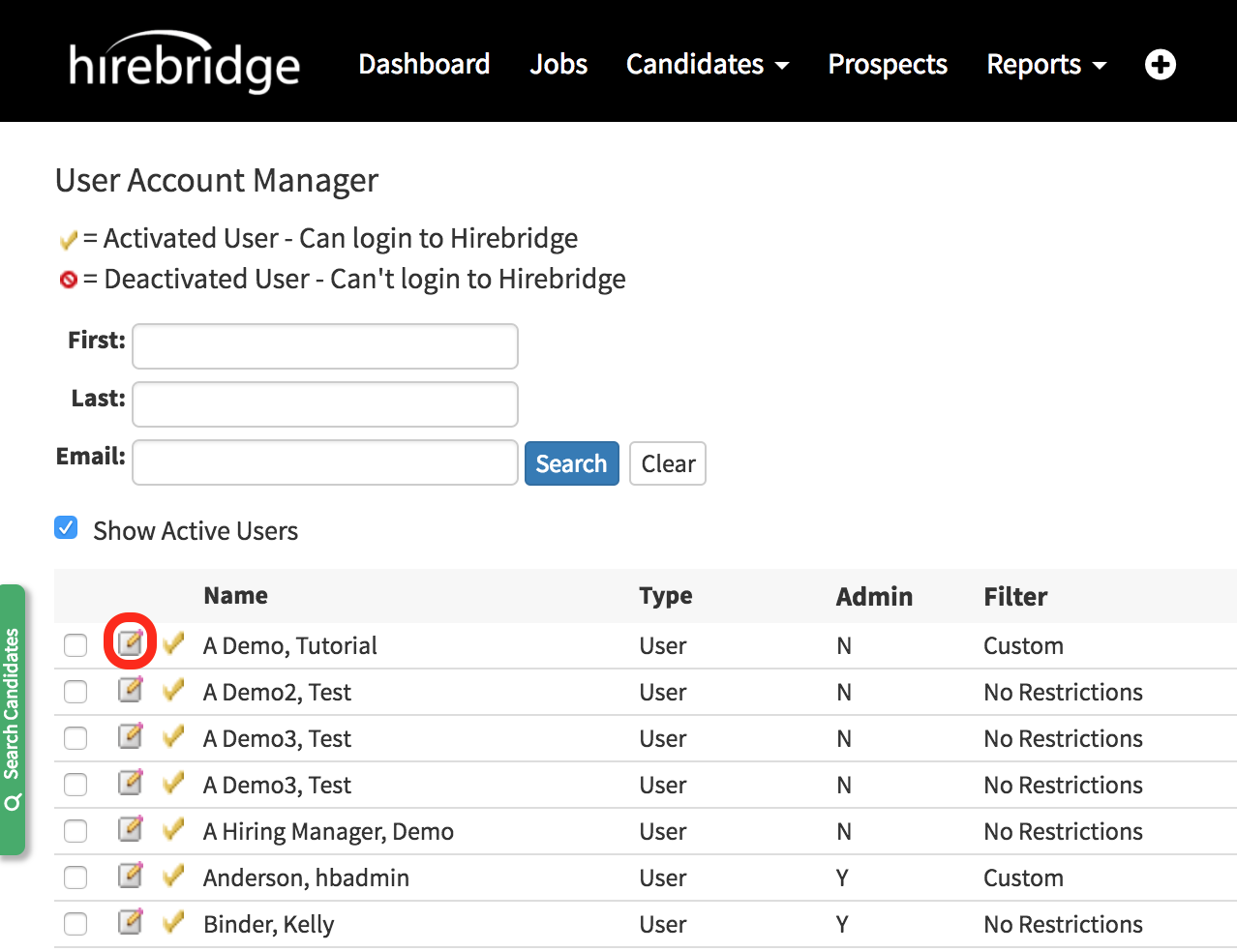
- You will now land on the "User Account Maintenance" page.
- On this page, you will find Hirebridge user/hiring manager accounts
- Select the "Paper & Pencil" icon next to the username to edit the user information. (Outlined in the image below)
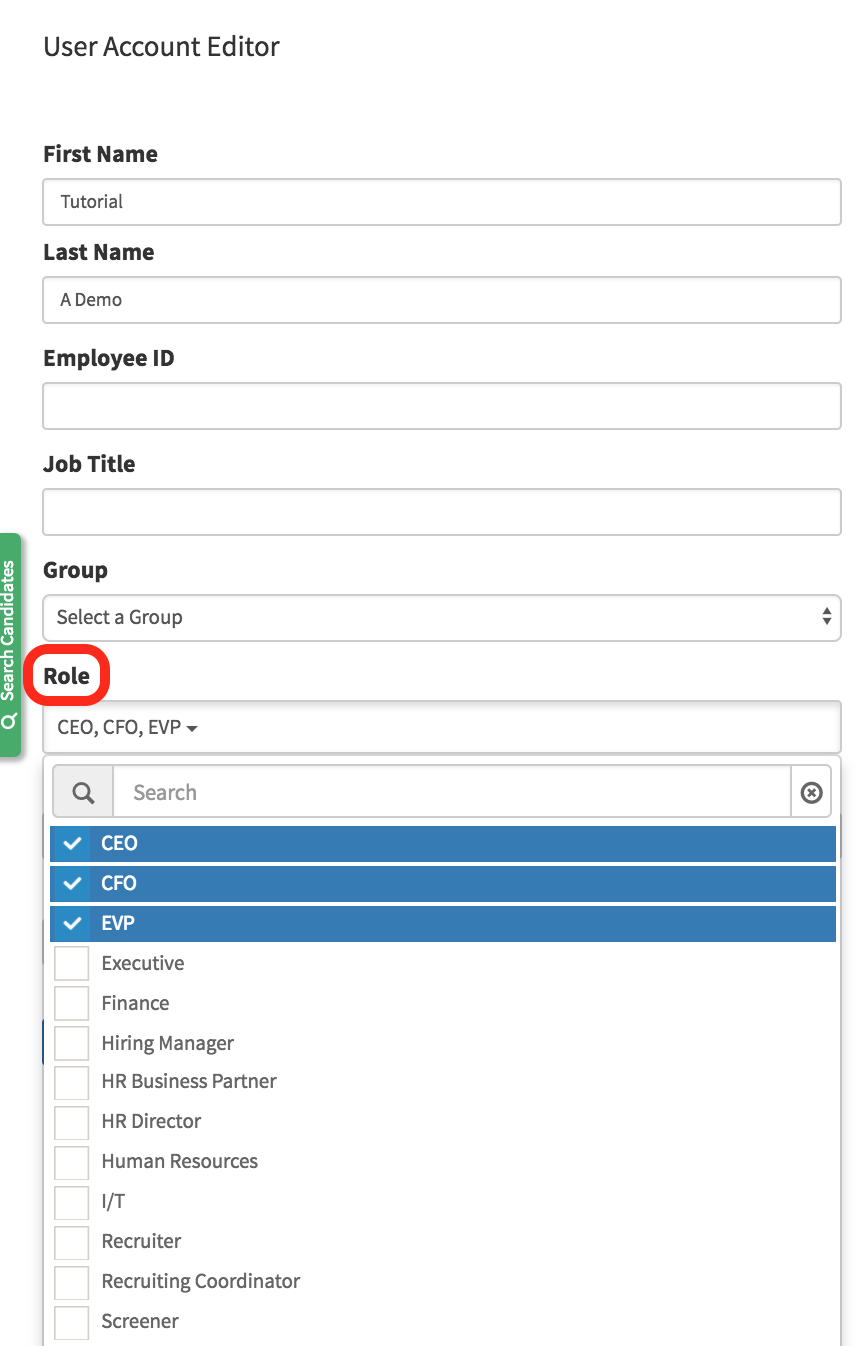
- This will now take you to the "User Account Editor" page
- On the left side of the page in the "Role" section you can check off what roles you would like the user/hiring manager to have.
- You do have the ability to add multiple roles to the user.
- After you have selected the roles for the user at the bottom of the page select "Save"
- The profile will now have the option to be selected when roles are available.
