This article will guide you on how to submit a candidate using the Employee Referral Portal
- To access the Employee Referral Portal selecting your username in the top right corner.
- A dropdown list will appear where you can select "# Employee Referral Portal".

- The "Employee Referral Portal" will now load in a new browser window.

- Enter your login credentials or select "Register" to create credentials to log into the employee portal.
- Once you are logged in the available jobs will be listed.
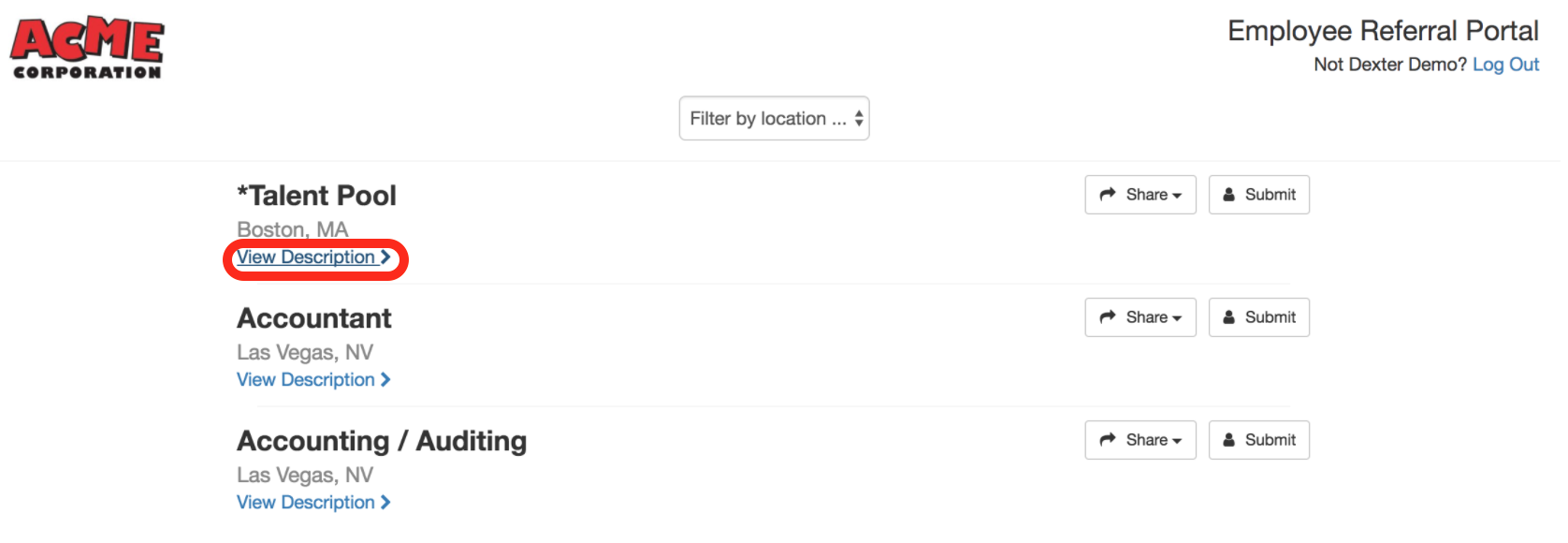
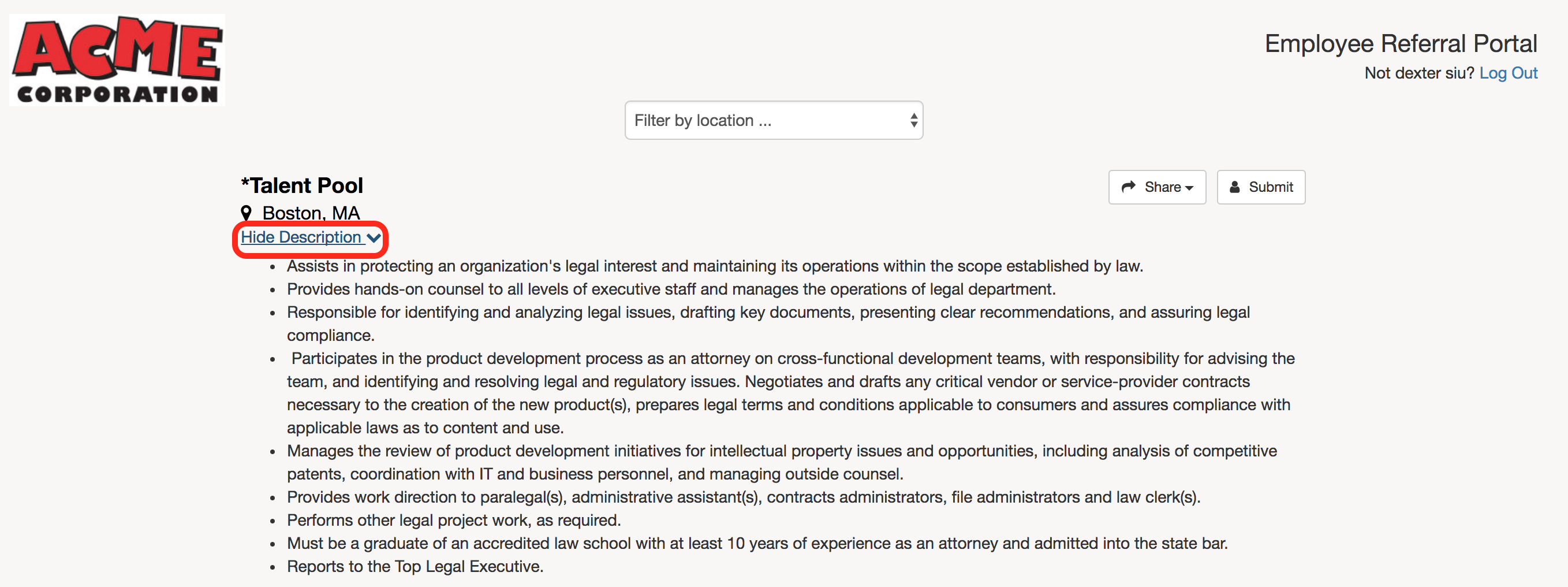
- Selecting "View Description" will show the job description for that specific available position.
- To submit a candidate select the "Submit" button (Outlined in red in the mage below)
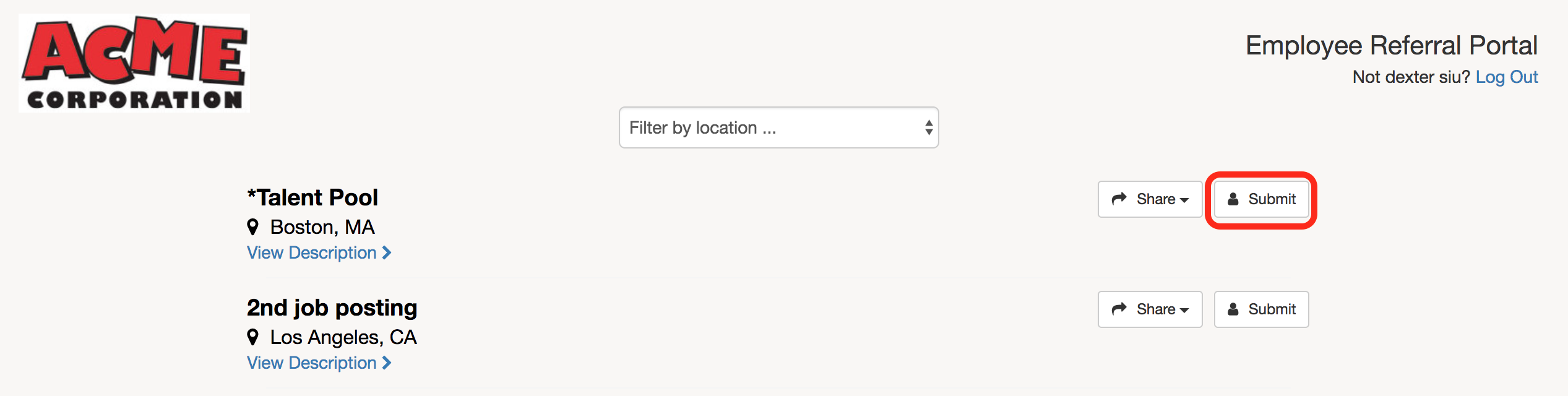
- When you select "Submit" it will allow the employee to submit a candidate to the selected requisition.
- A pop-up will appear where the employee can enter and submit the candidate information.
- Each company can add/edit/require the fields in the "Employee Referral Portal Module Setup" Click here for more information
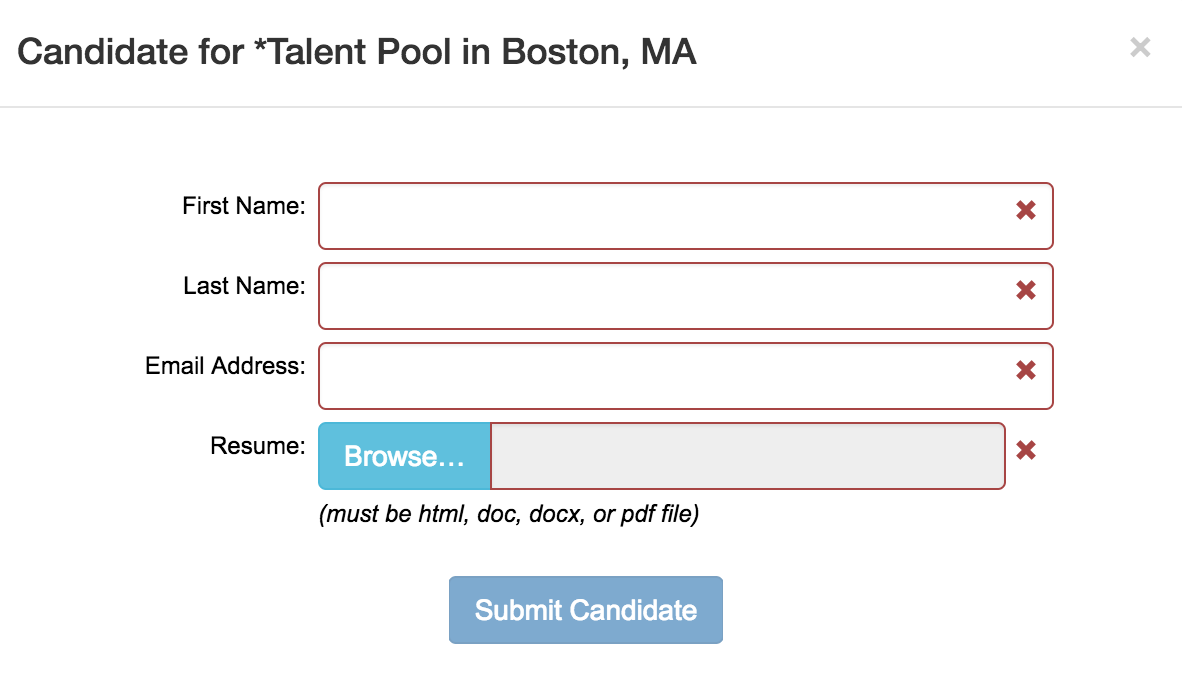
- After populating the candidate information select "Submit Candidate".
- This will now take you to the next page where you will have Feedback question set to answer about the candidate.

- After the questions are answered select "Save"
- A confirmation page will now load and allow you to go back and view all of the jobs.

Video Tutorial