Here's how to create and send an offer letter to a candidate:
Step 1: Click the Manage Offer button.

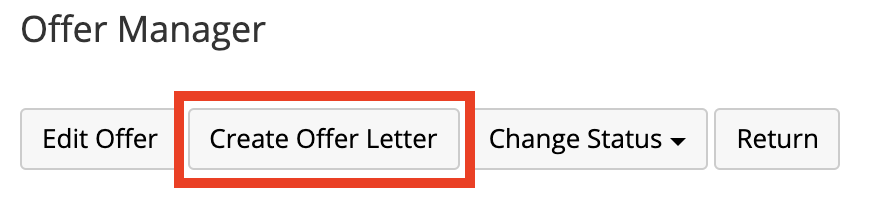
Step 2: Click the Create Offer Letter button.
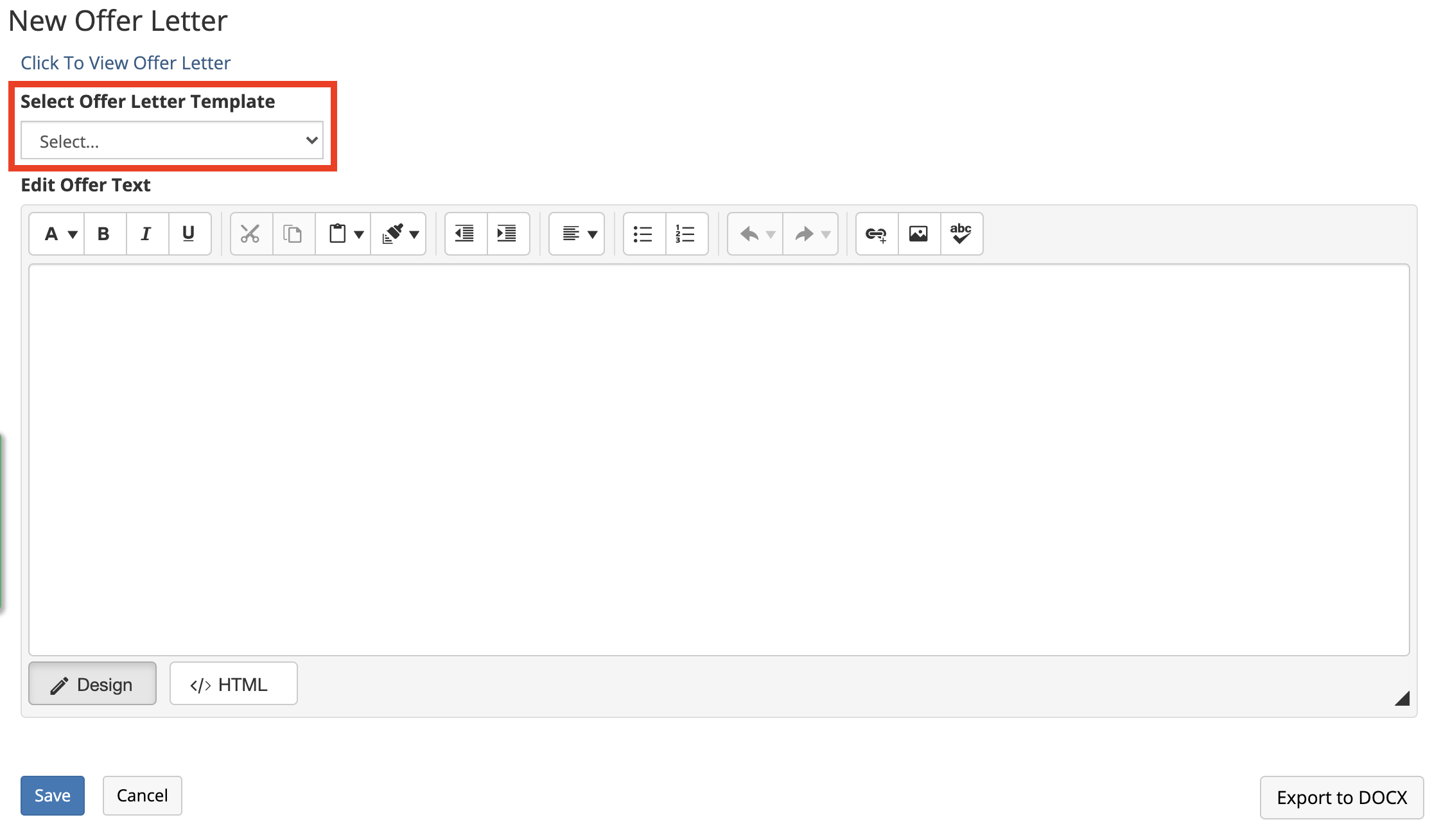
Step 3: Select the offer letter template you want to use from the Select Offer Letter Template dropdown list.
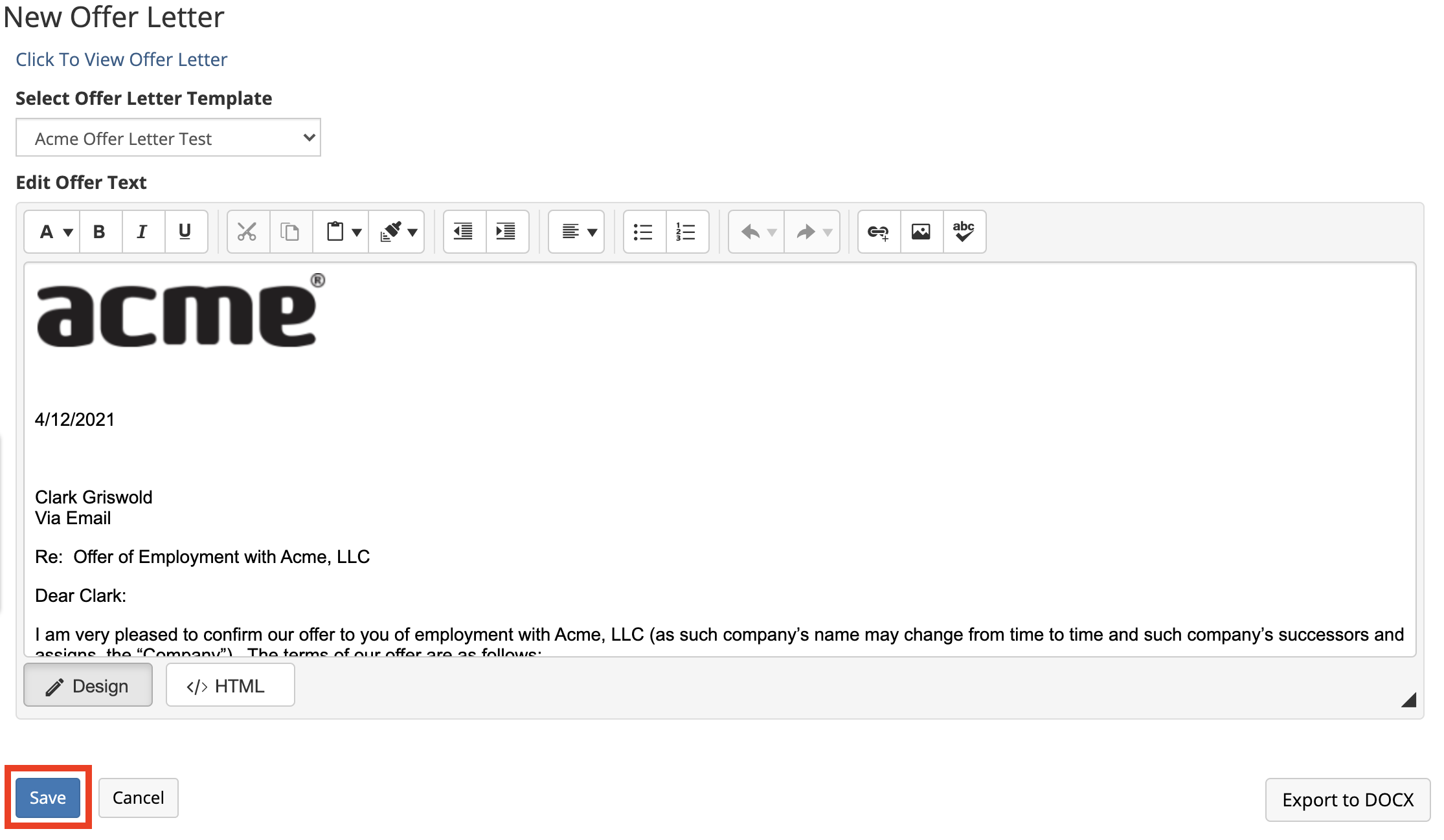
Step 4: Click the Save button.
Step 5: Click the Manage Offer button.

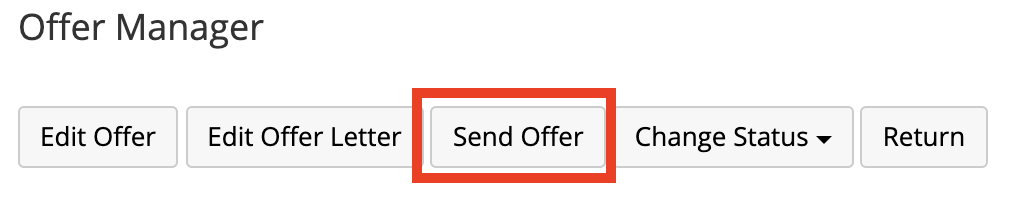
Step 6: Click the Send Offer button.
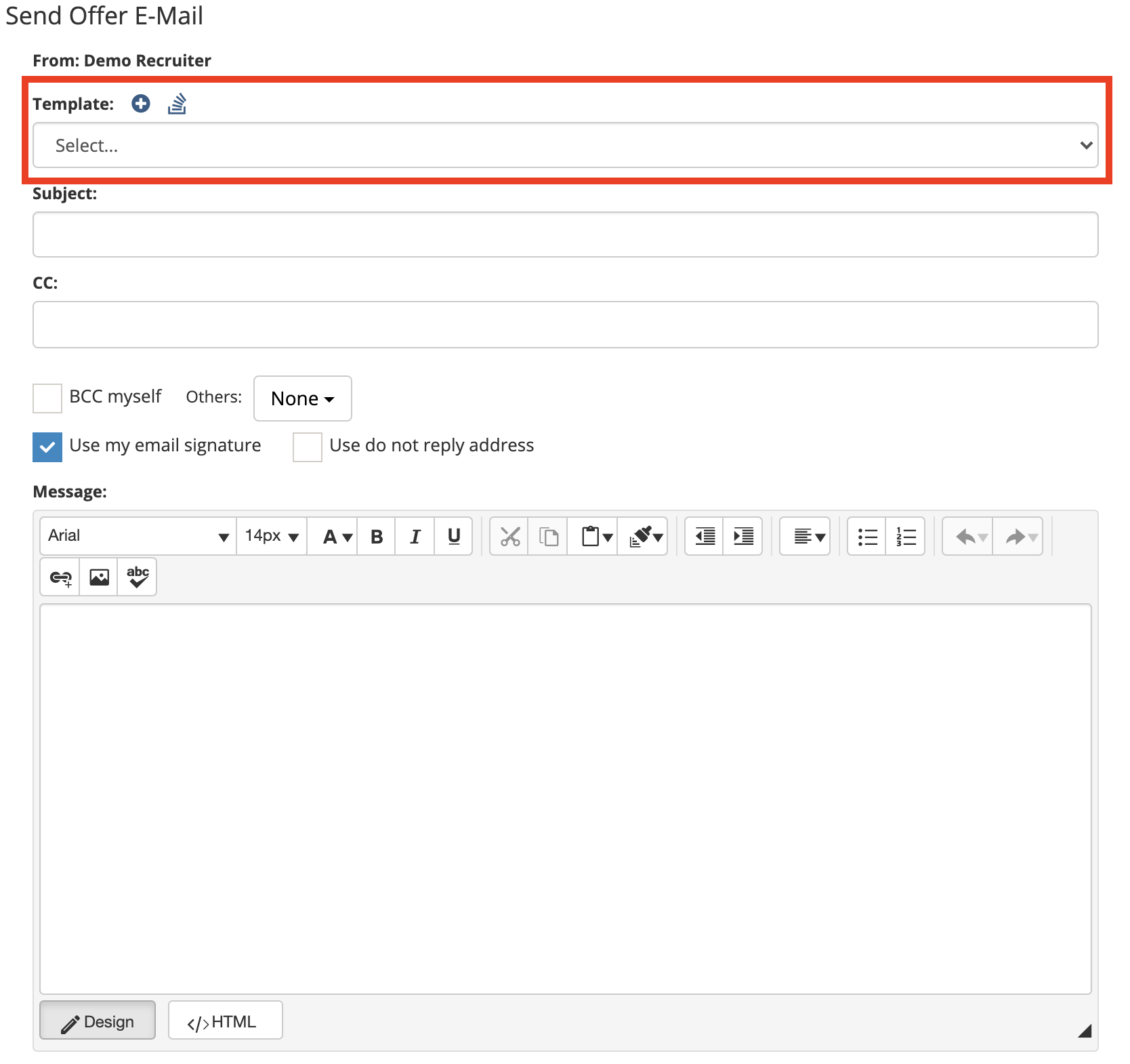
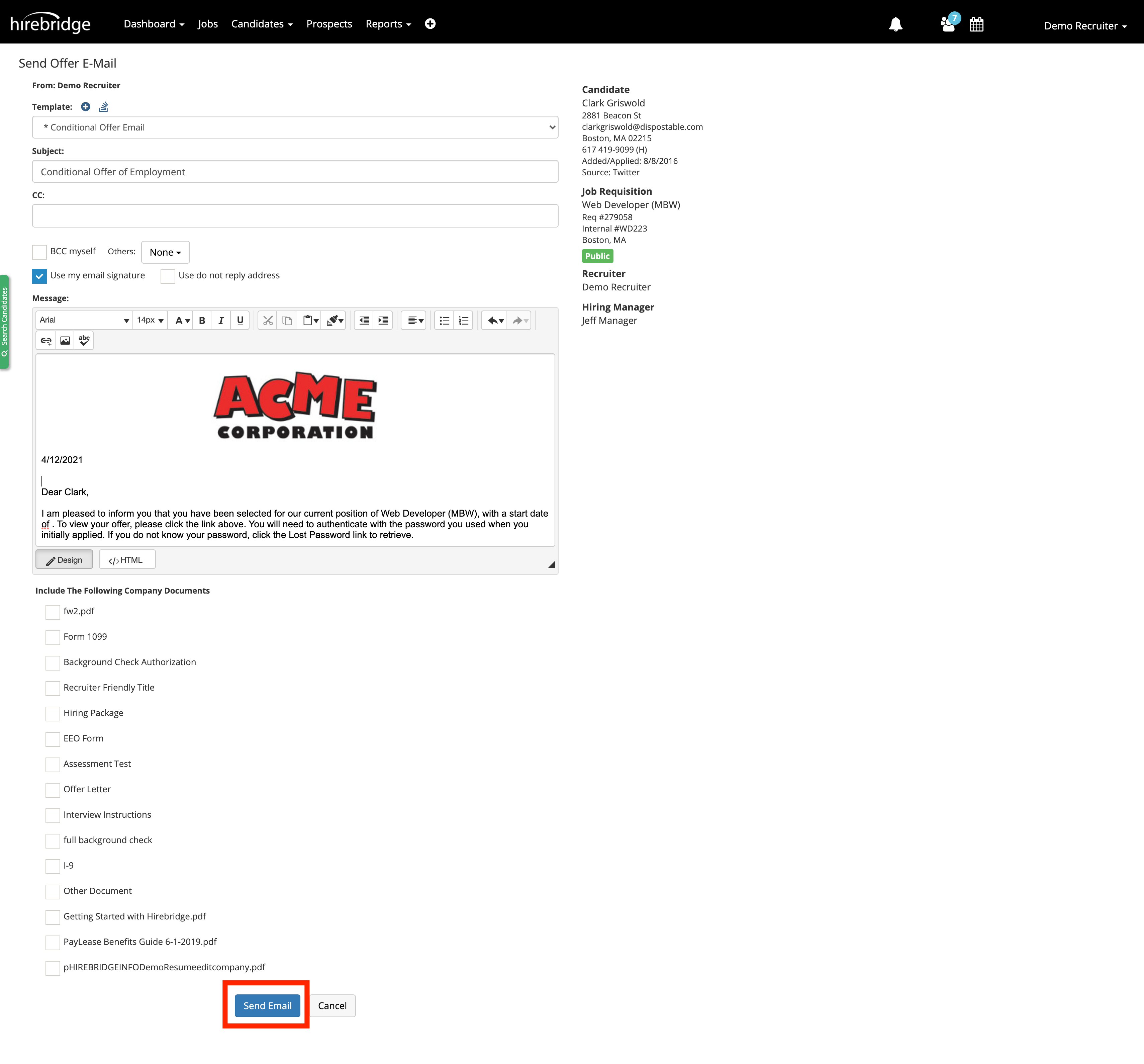
Step 7: Select the email template you want to use from the Template dropdown list.
Step 8: Select any additional documents you would like to include in the notification email from the Include the following company documents list (if applicable), then click the Send button.
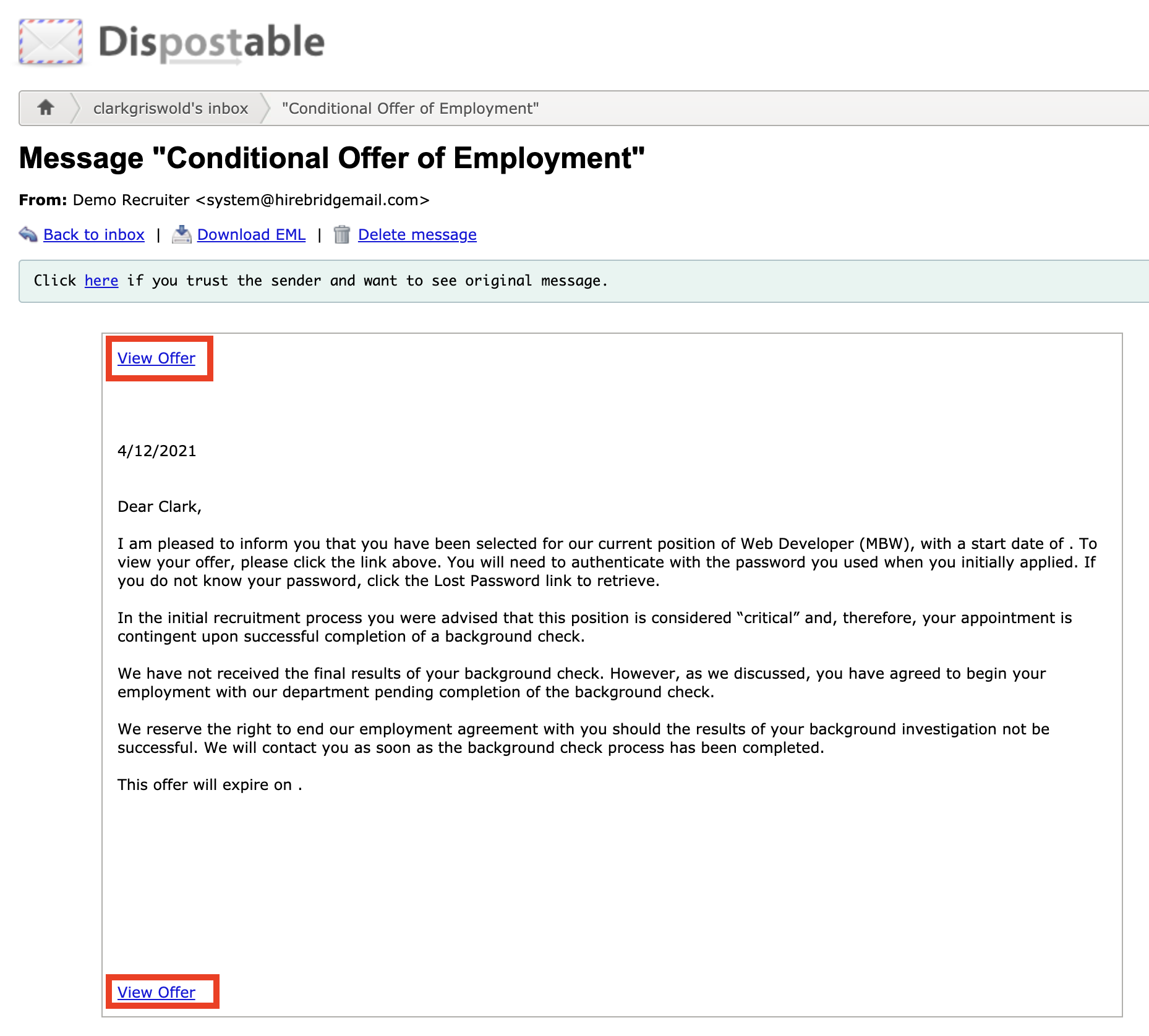
Step 8: The candidate will receive the notification email and will click on the View Offer link to access their offer letter.
Step 9: The candidate is presented with their offer letter where they can review, sign and accept it, or decline it if they choose to do so.
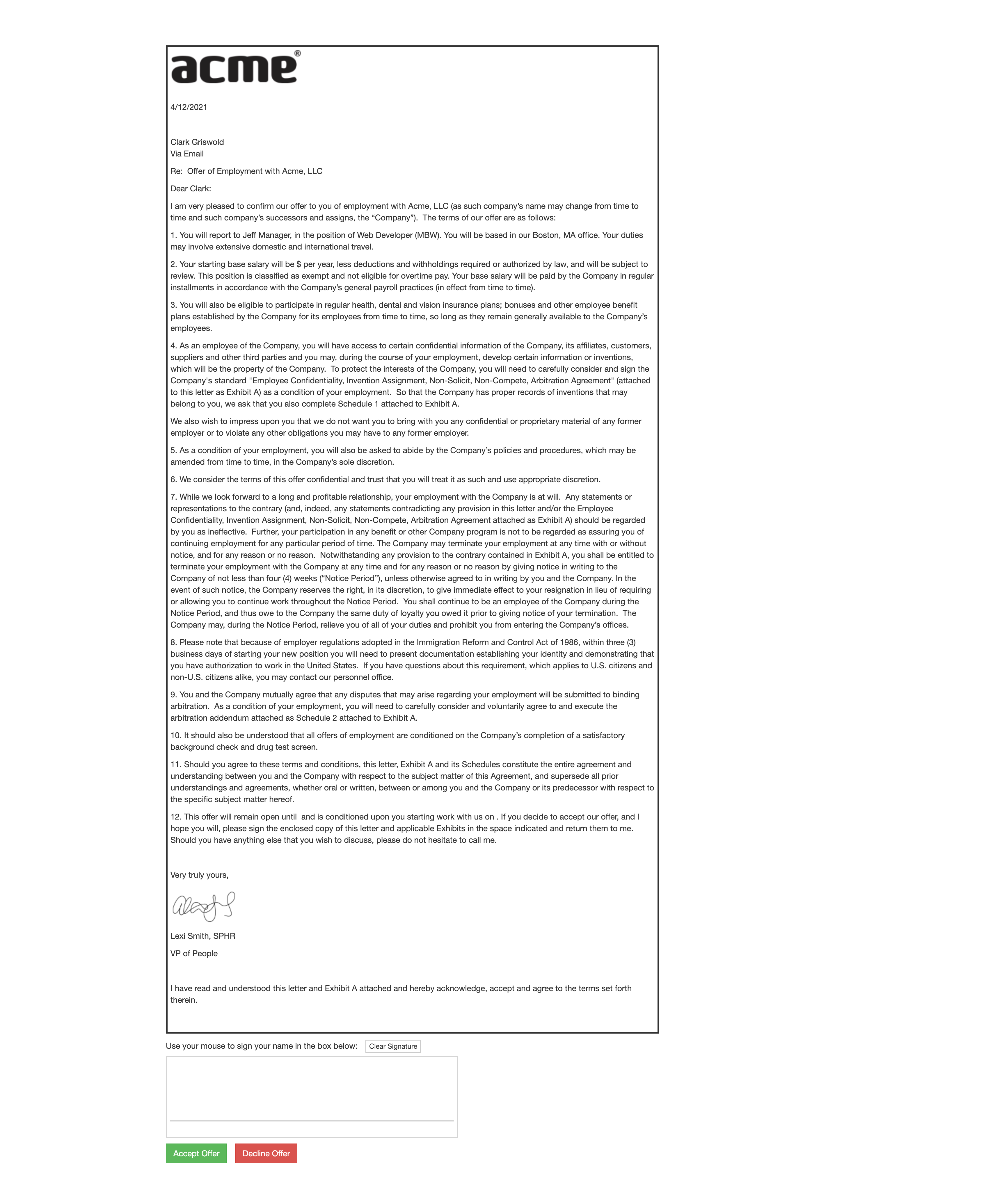
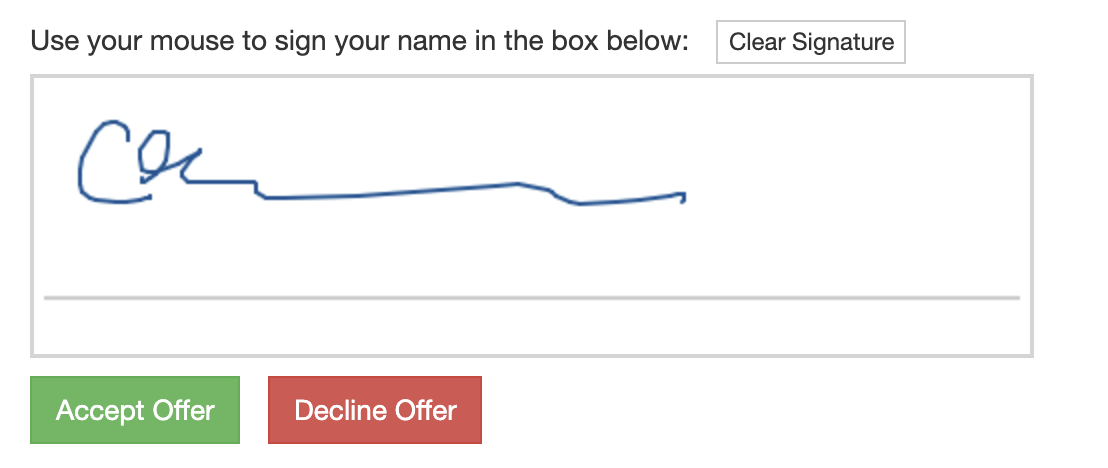
After they sign and accept the offer letter the candidate will be presented with a Download Signed Letter button so they can download a copy of the letter in PDF format.

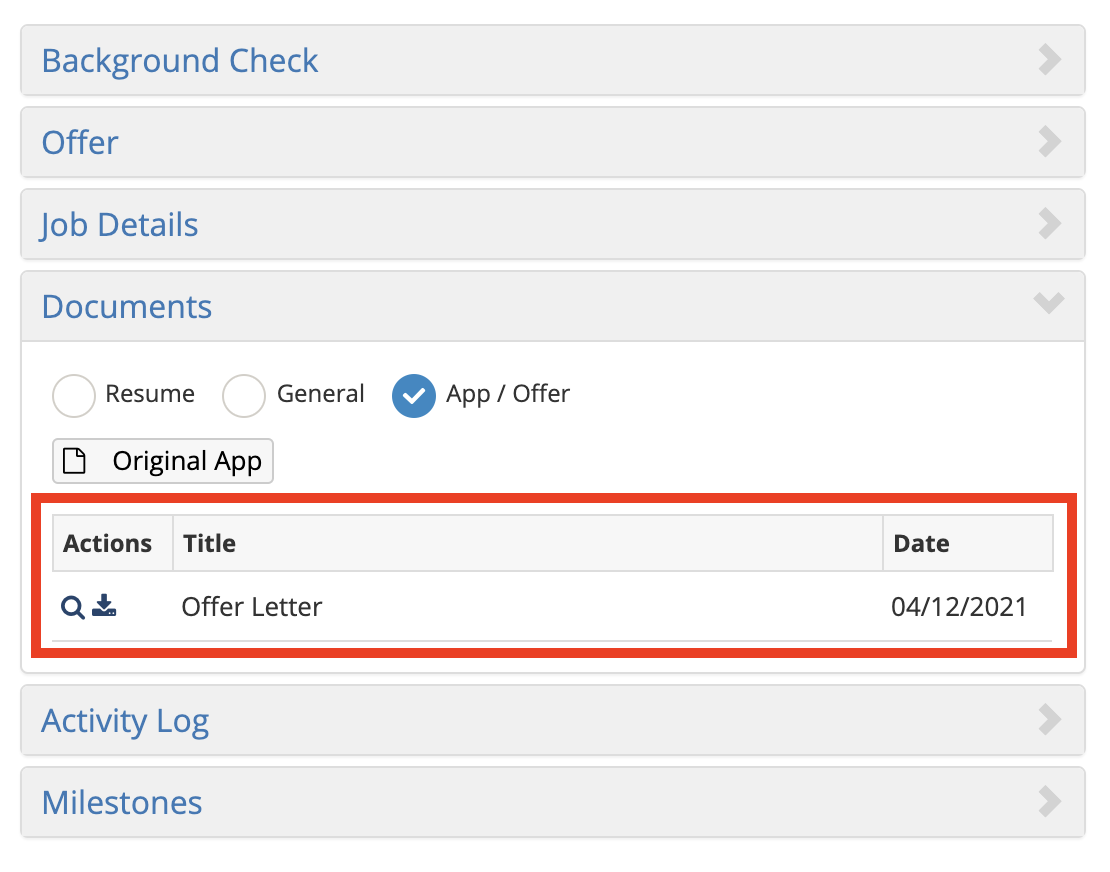
Step 10: A copy of the candidate's offer letter is stored in the candidate record in Hirebridge under the Documents > App/Offer panel where it can be viewed and downloaded.