Here are instructions detailing how to set up your Open Call schedule & preferences:
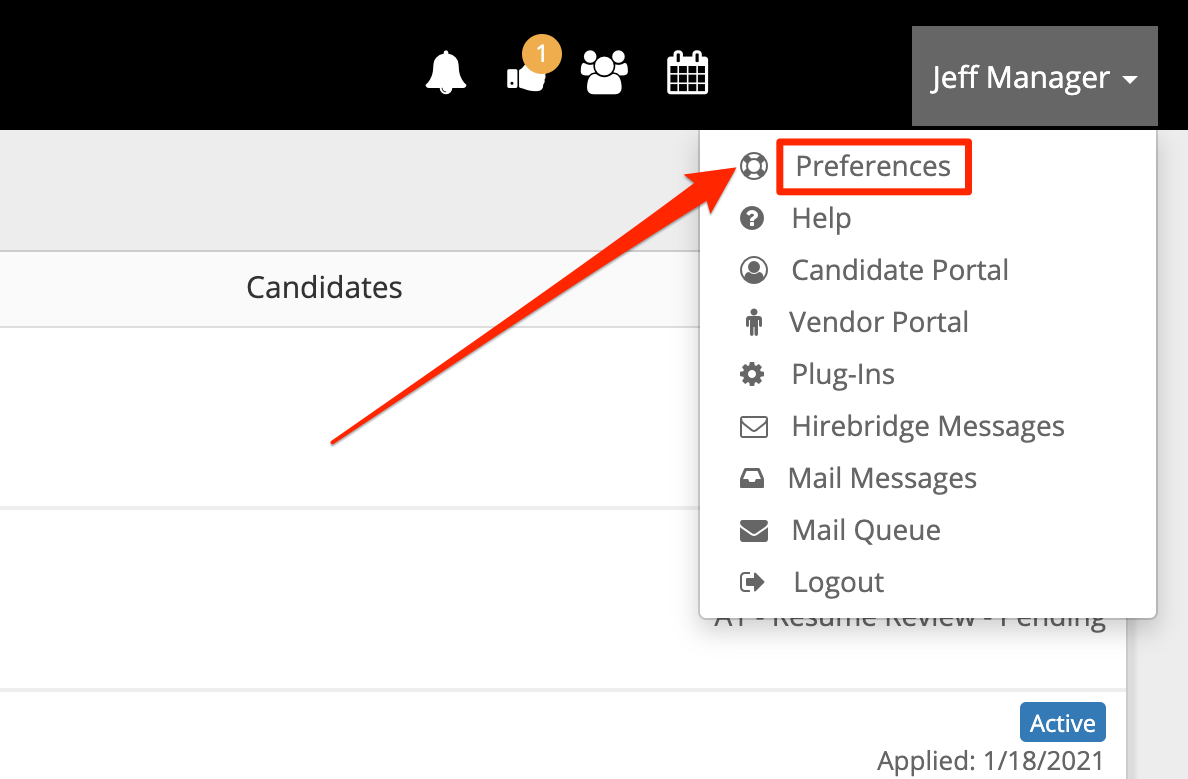
- Click your name on the top right side of your Hirebridge Desktop, the click the Preferences menu:
-
Click the green More Options button on the top right side, then the Open Calls Setup menu item:

-
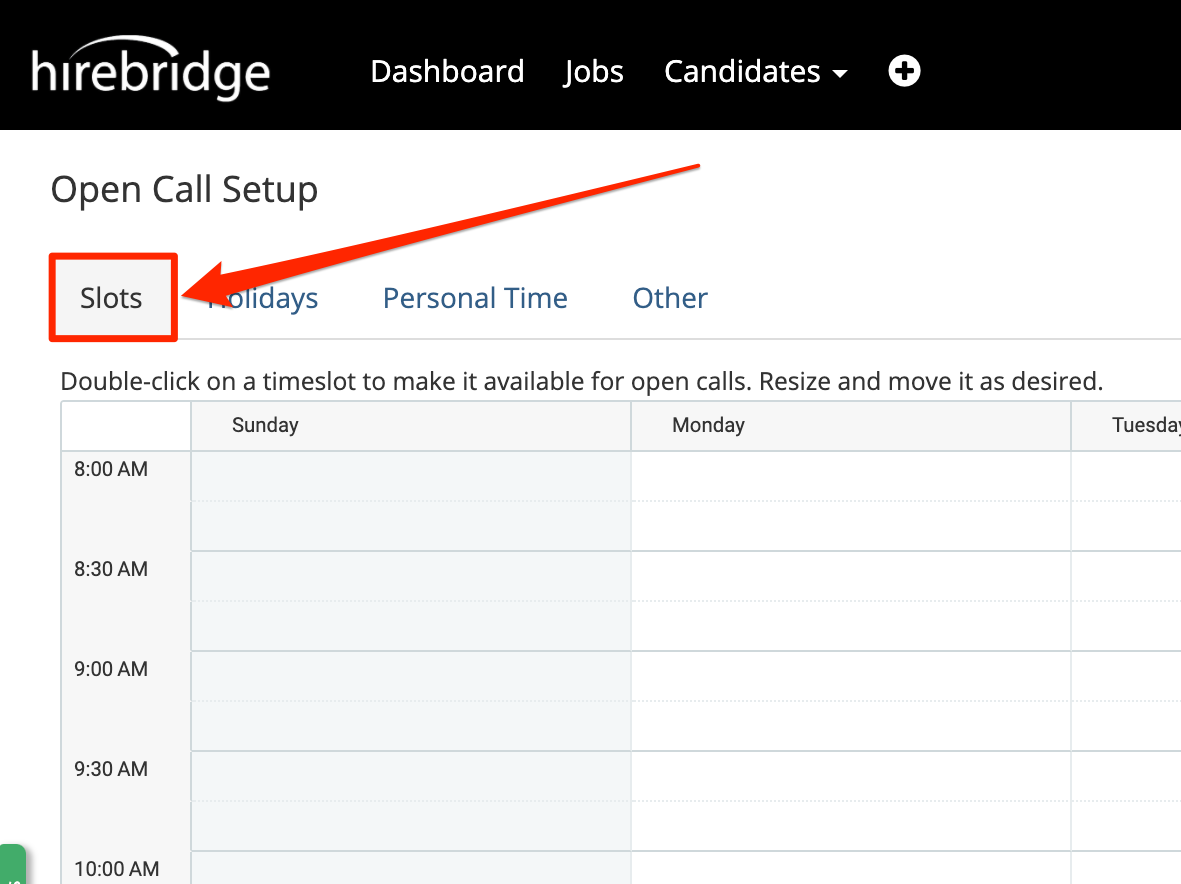
Click the Slots tab to view the weekly schedule grid:
-
To set the days and times when you will be holding Open Calls, double click the first time slot, select Slot Duration (the number of minutes for that time slot), then enter the number of people that will be permitted to attend in the Max Attendees box:

- Repeat this process for on each day so that you have blocked out all available time slots that candidates can choose from:
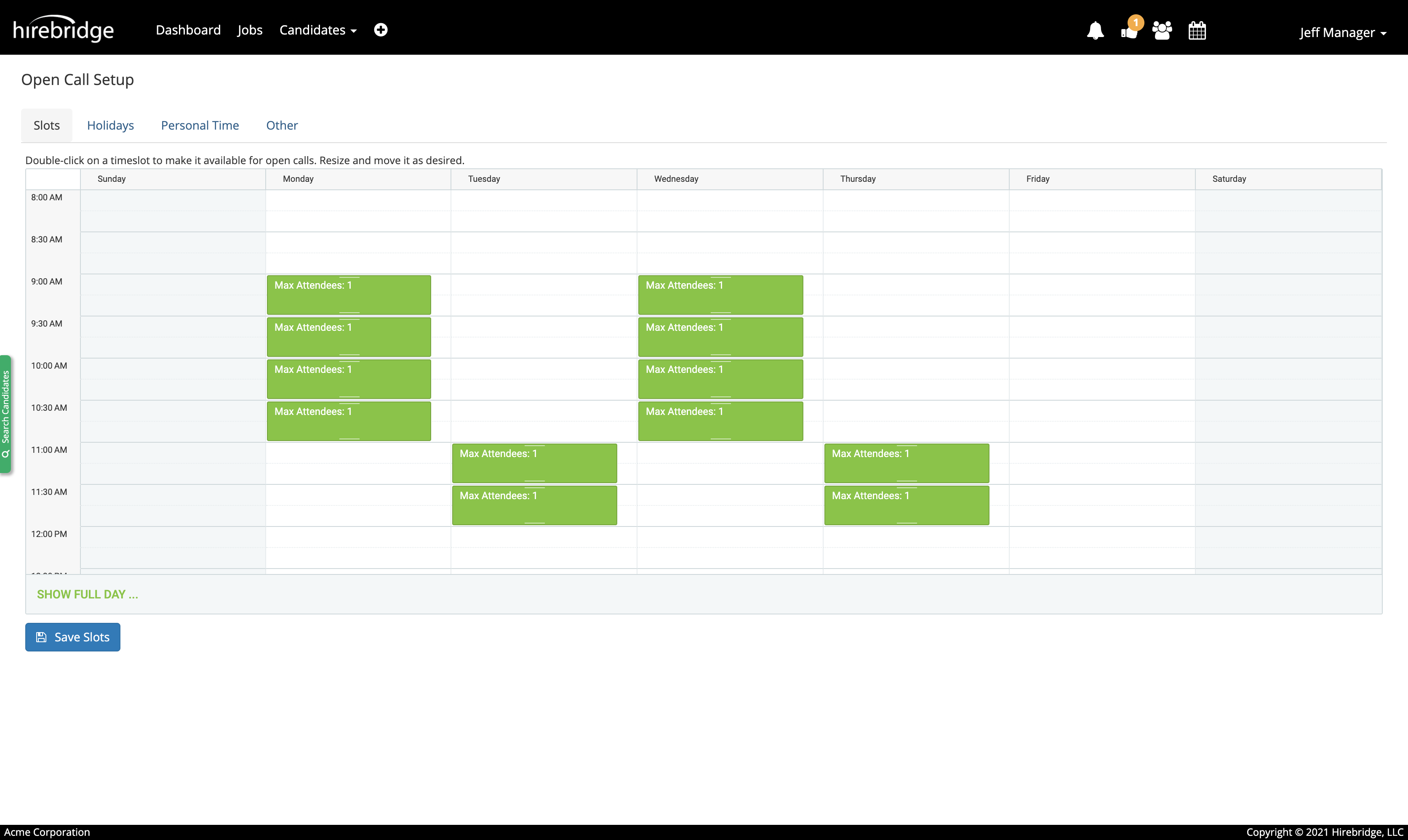
NOTE: When done, be sure to click the Save Slots button to have your schedule saved. - Use the tabs to navigate through the remaining options that can be set:

- Holidays - Choose from a list of holidays that will automatically prevent candidates from registering for an Open Call / Interview.
- Personal Time - Add specific days/times to block off your schedule so that candidates cannot register for an Open Call / Interview.
- Other - Enter the location information (typically your address) for the Open Call / Interview, as well how many days in advance a candidate can select an Open Call / Interview, along with how many hours in advance they will be permitted to cancel and re-schedule. There are additional options to add custom messaging to invitation / cancellation emails.