Tags are simple words or short phrases that can be attached to a candidate profile to describe or better classify their skills, experience or other important characteristics that might better define them. By adding tags, you can group candidates into talent pools with similar skillsets, backgrounds, experience levels, etc.
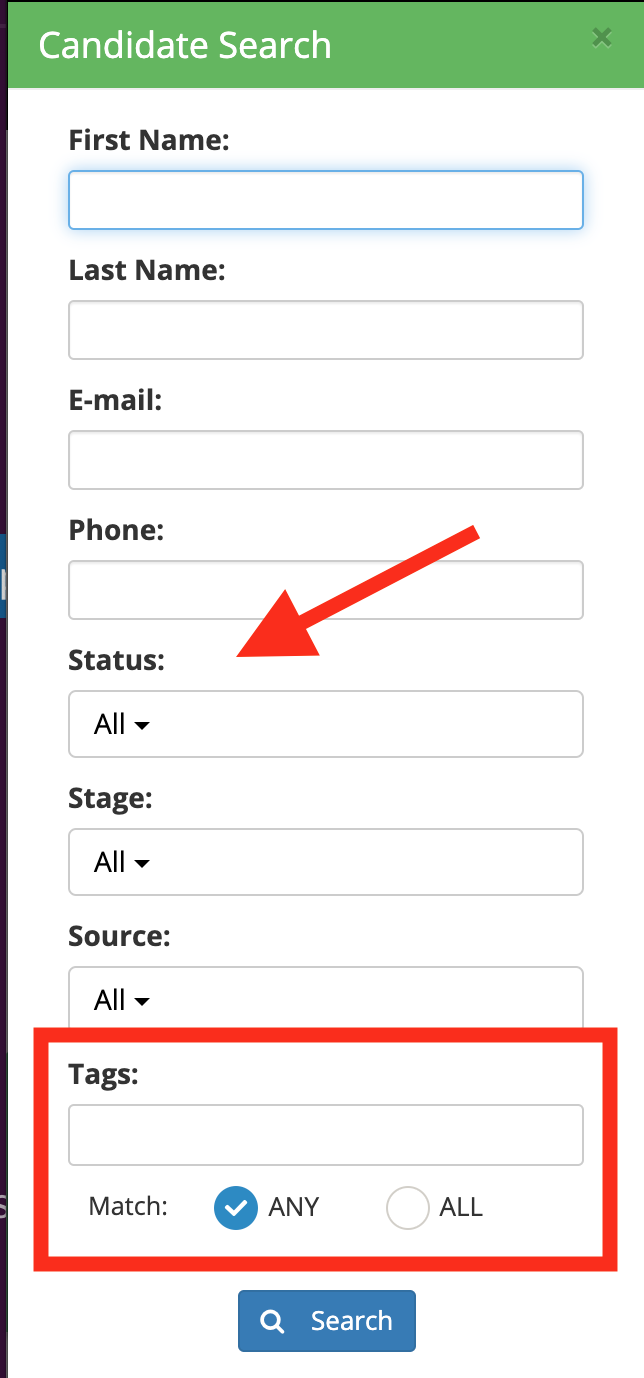
Tags are easily searchable from the candidate search side panel. Tags can be added manually, or can be automatically added based on rules set in the candidate question set.
Manual Tagging
To manually tag a candidate:
- click the Add Tag icon located underneath the candidate name block on the candidate information page.
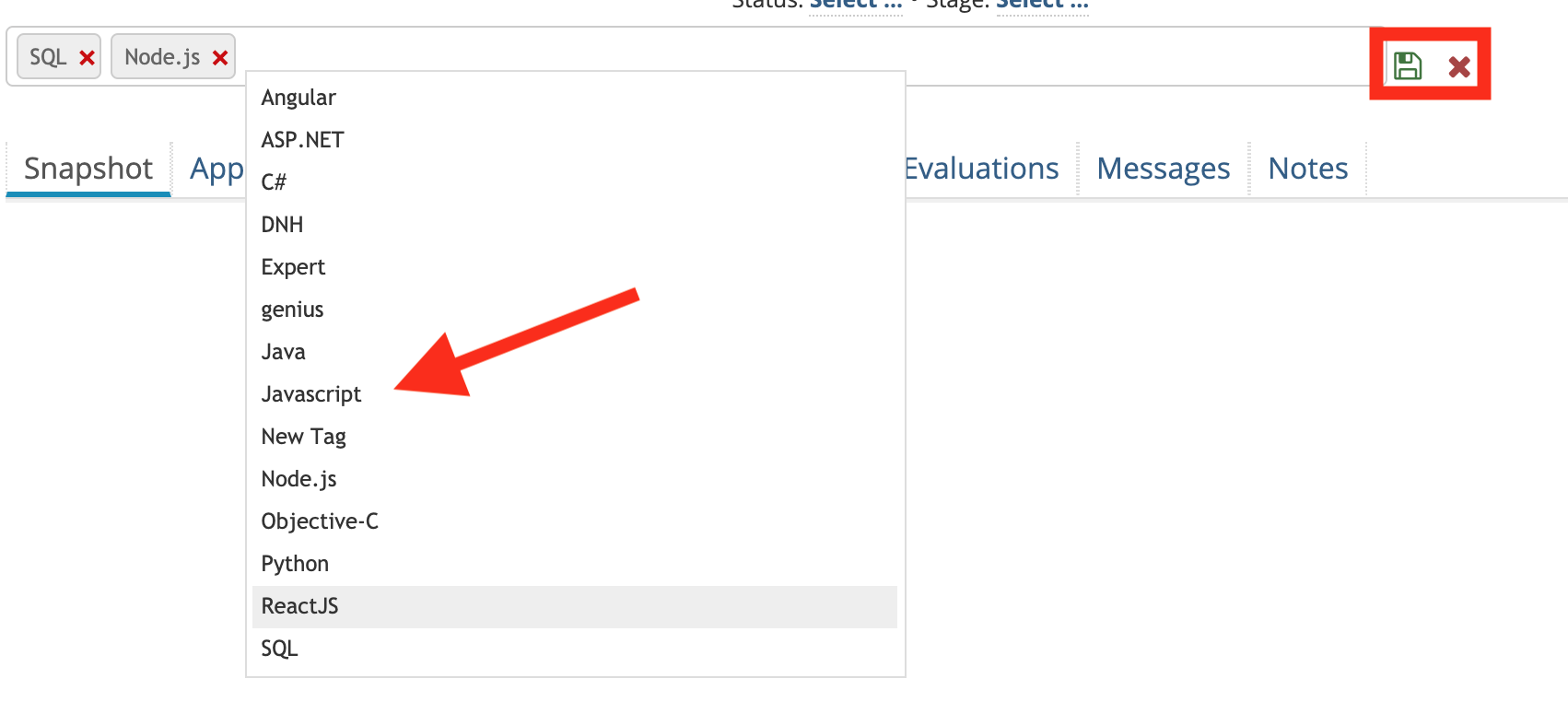
- Begin typing or click the space bar to expose the list of available tags.
- Continue selecting the desired tags and click the SAVE icon. The tags will automatically display in this block.
- Candidates can be assigned more than one tag.
- When you have finished, click the save icon
- To cancel without saving, click the X icon
Searching Candidates Using Tags
Tags are visible to all members of the hiring team with access to that particular candidate record based on their permissions.
From the candidate search side panel, set the search parameters, ie. Candidate Status, Stage, Source, and then enter the desired tags.
Any/All Operator
You can choose to match ANY of the tags in the candidate record, or require ALL of the tags to be present in your search parameter
Example:
- ALL - SQL and Node.js will bring all candidates with both SQL and Node.js in their tag profile
- ANY - SQL or Node.js will bring all candidates with either SQL or Node.js in their tag profile.
Managing Tags
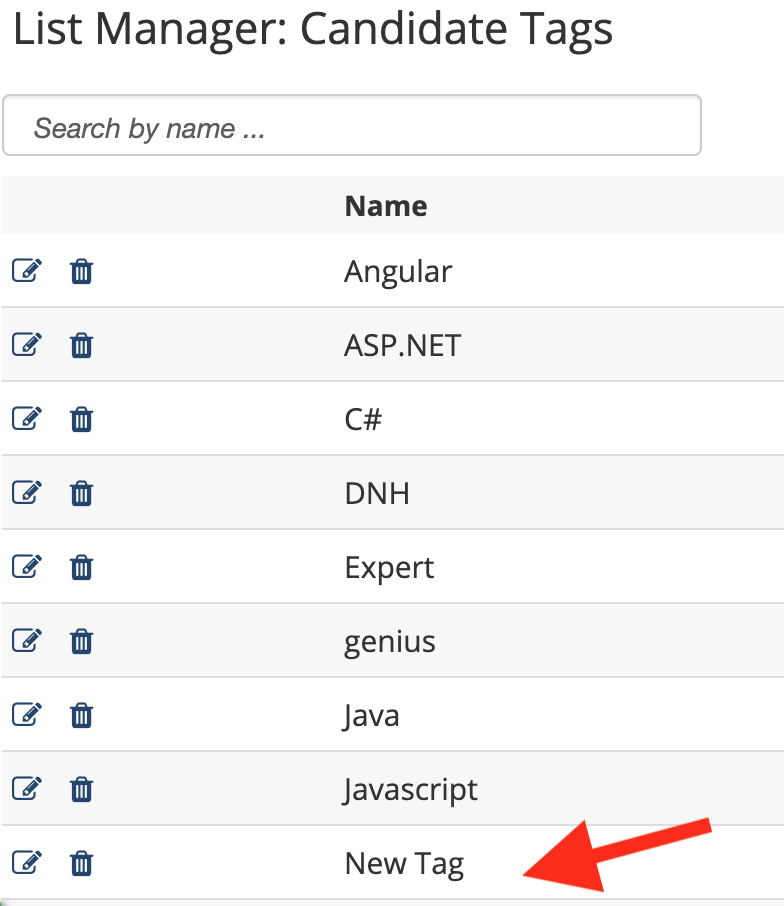
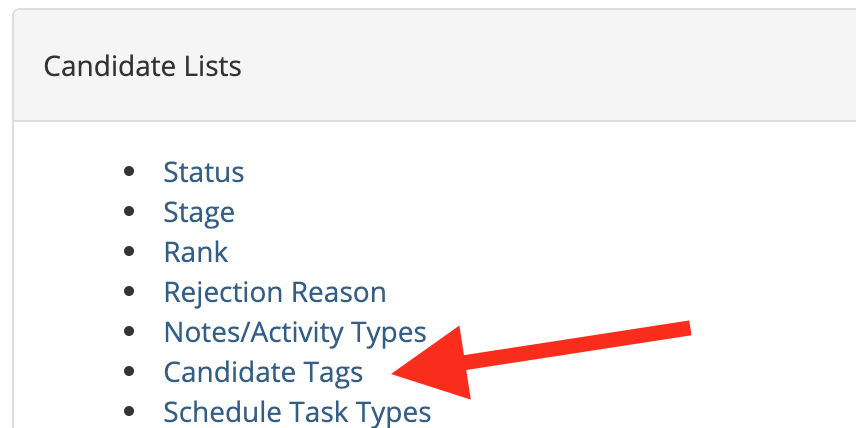
Tags can be managed (added/edited/deleted) by those users with ADMINISTRATOR permissions in Hirebridge through the list manager function.
Removing Tags
When you delete a tag in the Tag Manager, you're deleting it from your Hirebridge account. This should be done carefully, as once that tag is removed, it is removed from the candidate search. The best practice here is to just delete that particular tag from the candidate record.
User Permissions - Adding Tags On The Fly
Tags can be added on the fly by those recruiters or system users with the permission set to perform that function.
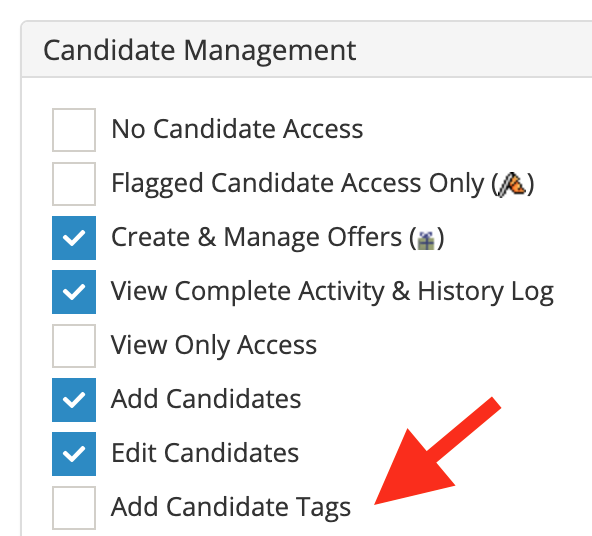
To add a tag to a candidate record on the fly:
- Click the Add Tags or Edit Tags icon, which is located underneath the candidates name block in the Candidate Profile

- Place your cursor in the Tag editor and begin typing. Any currently available tags will appear in line
- Begin typing the word or phrase to be added

- Click SAVE
- The tag will now be added to the existing list and will be available for all users