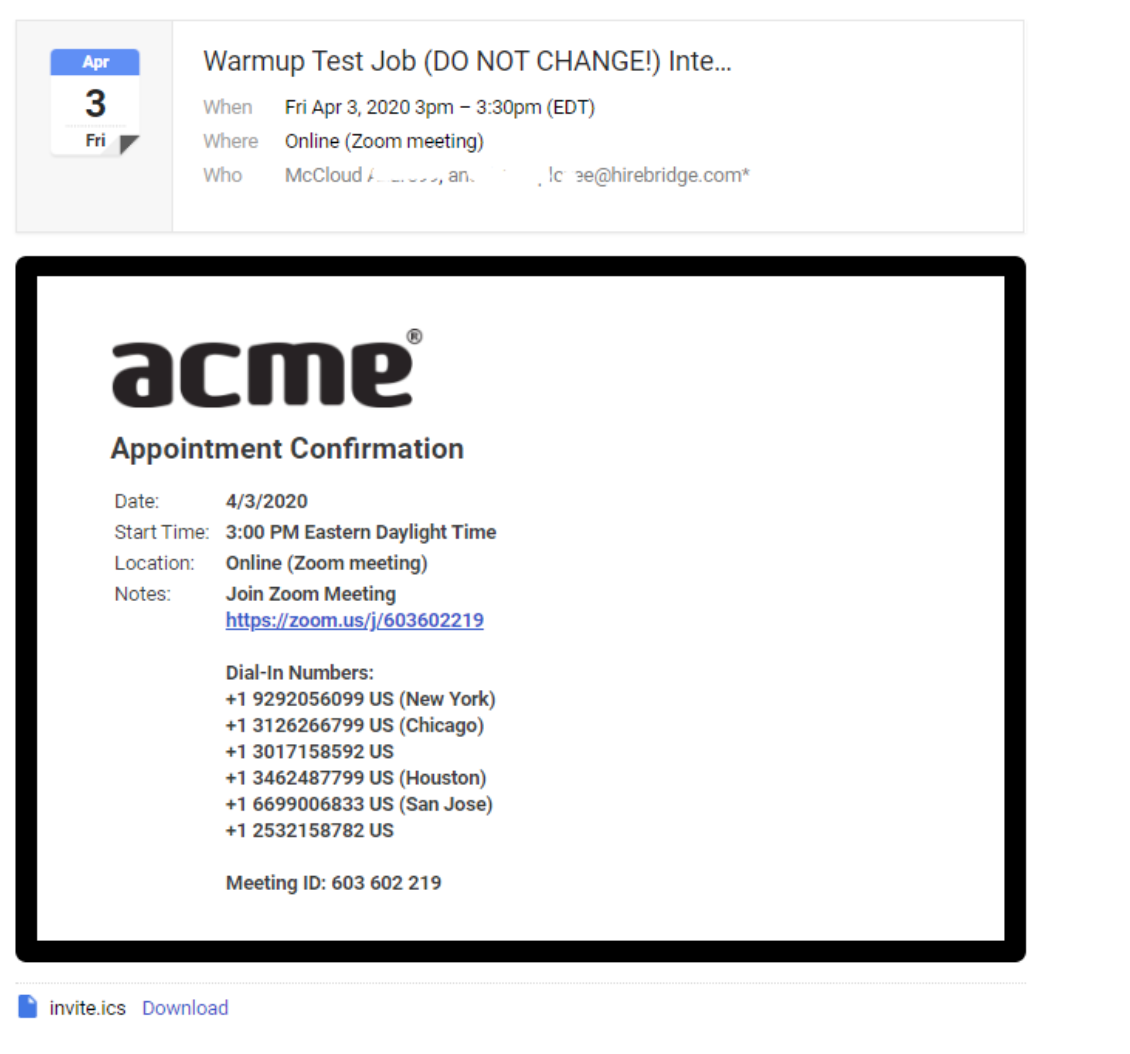
Introducing the NEW Hirebridge-Zoom Integration - Effortless interview scheduling and easy-to-use best in class video conferencing
- Add Zoom links for every interview you schedule - group interviews, one-on-interviews, and bookable interview appointments
- Cut down on the steps it takes to schedule - no more manually adding Zoom links to calendar events
- Automatic updates - Zoom links will update if you reschedule meeting
Here's how to set up your Hirebridge account to use Zoom Meetings.
Link your Hirebridge Account With Zoom (Requires A Zoom Account)
In order to use Zoom from within Hirebridge you must link your accounts, so please follow these steps:
- Log in to your Hirebridge account.
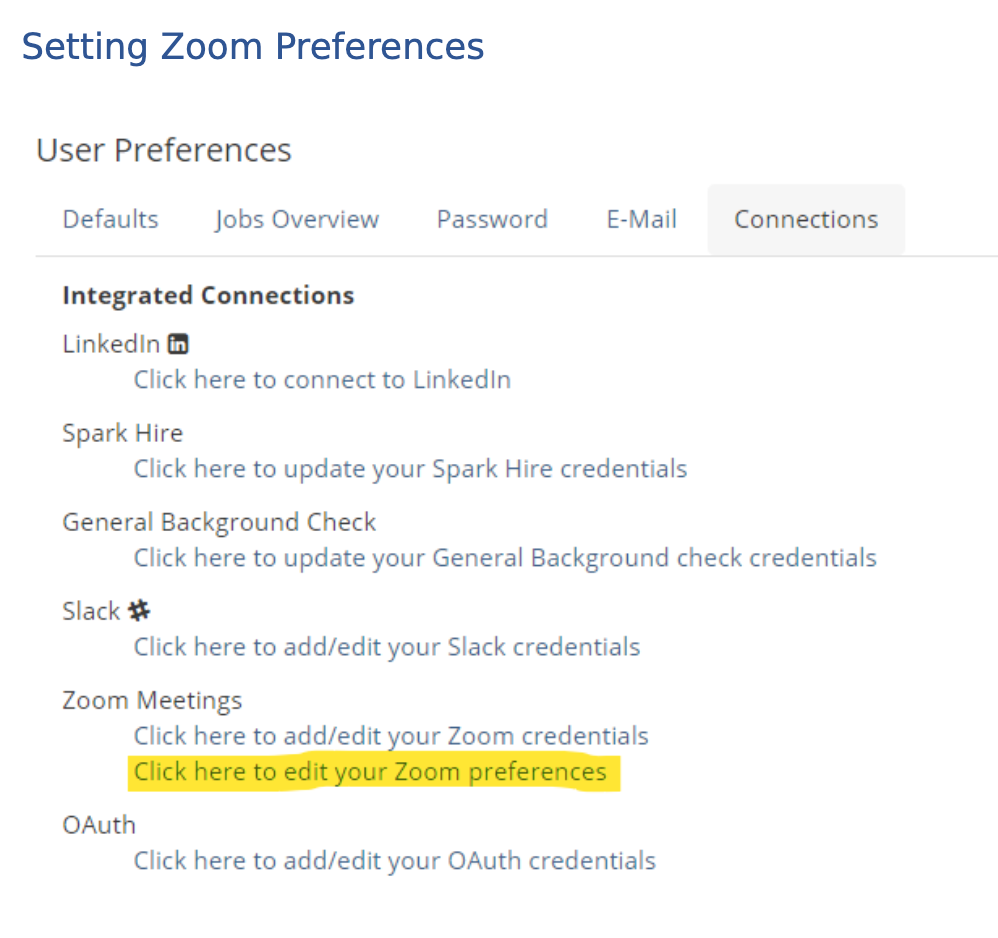
- Click on your name on the top right side of the Hirebridge interface.
- Click Preferences.
- Click the Connections tab
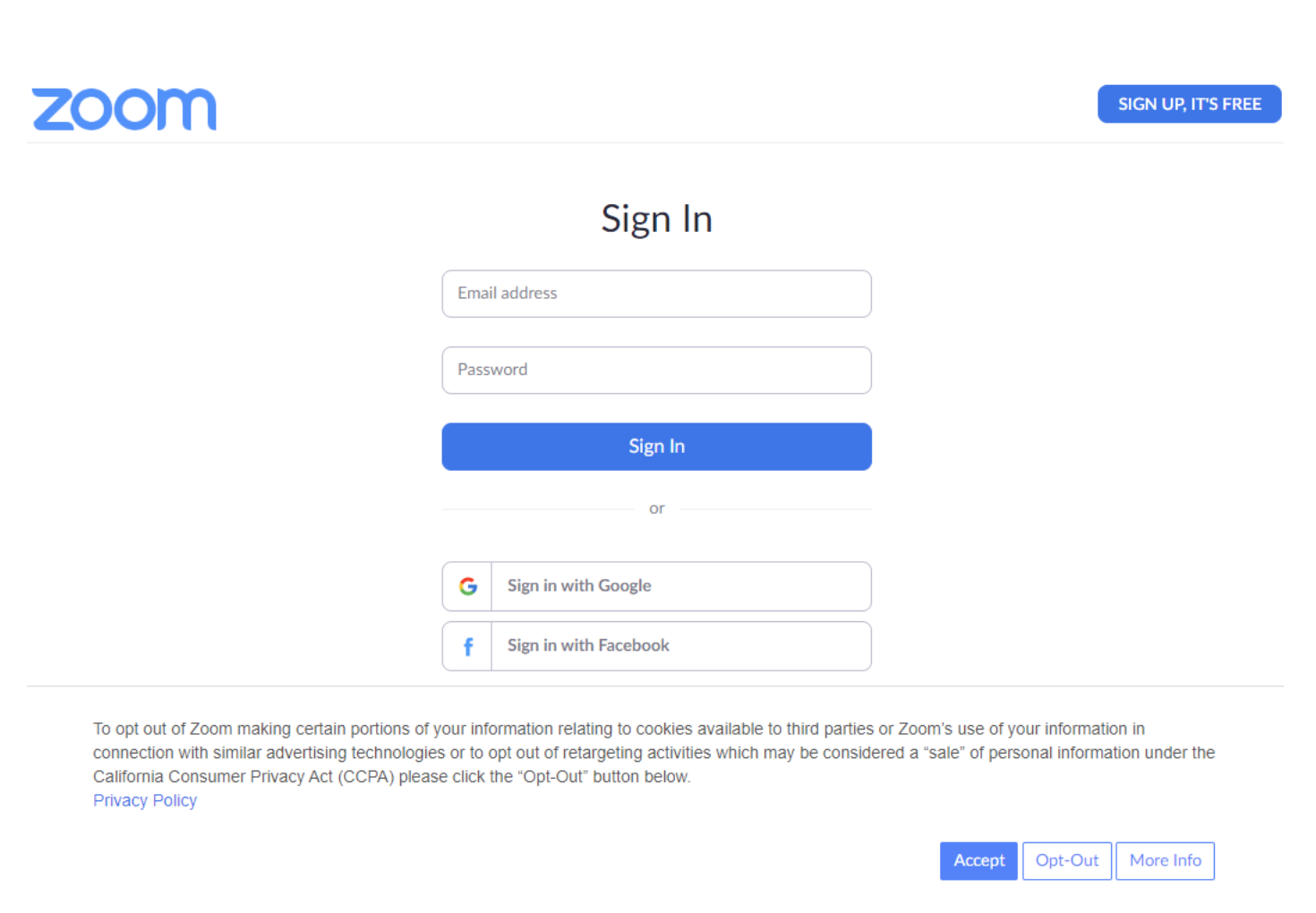
- Under the Zoom Meetings heading, click the Click here to add/edit your Zoom credentials link.
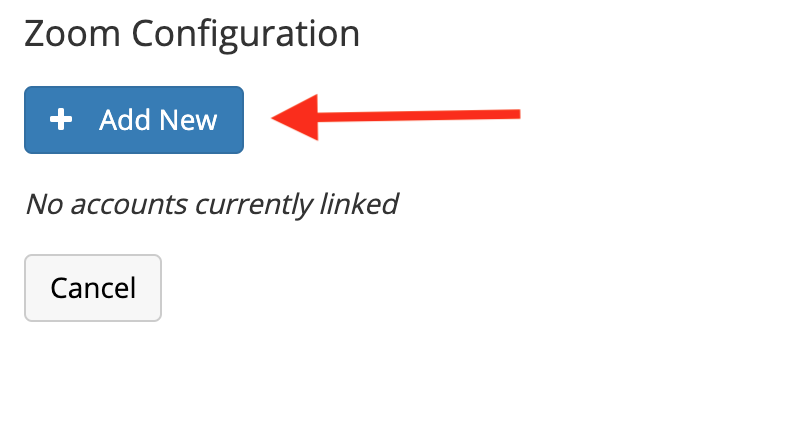
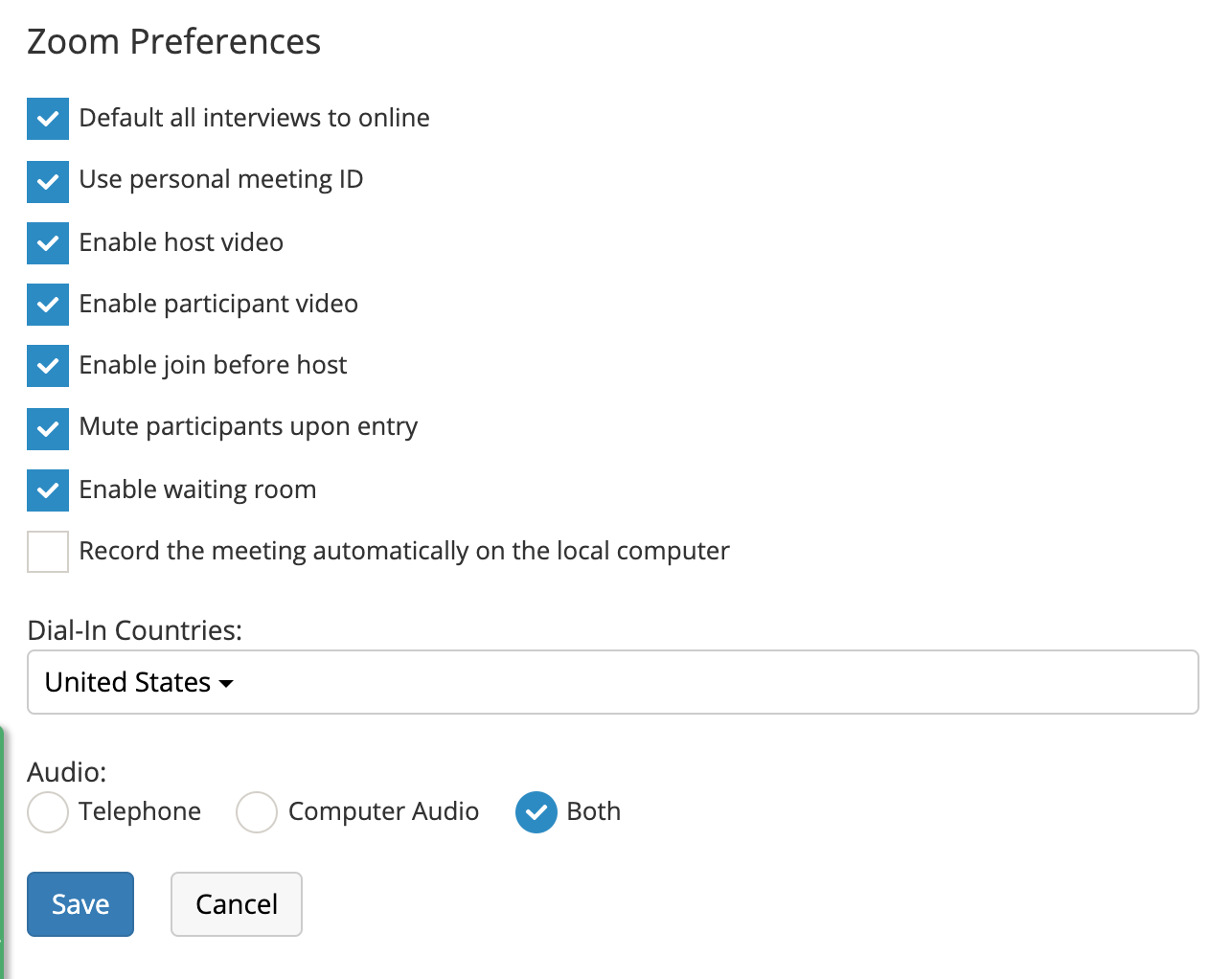
- These options, other the “Default all interviews to online” correlate precisely to options within your Zoom account when creating a meeting. Please see the Zoom documentation for more information.
- Please note that if you have a free Zoom account you may not have support for dial-in numbers. If this is the case, you should set your audio preference to Computer Audio only.
- Additionally, you also will not want to select any countries not supported by your account.
- After you’ve selected your desired options, click Save.
- When you schedule an interview you will have the additional option of scheduling a Zoom meeting simultaneously. This prevents you from having to separately schedule a meeting on the Zoom web site and then paste the meeting information into your interview notes for interviewers and the candidate.
-
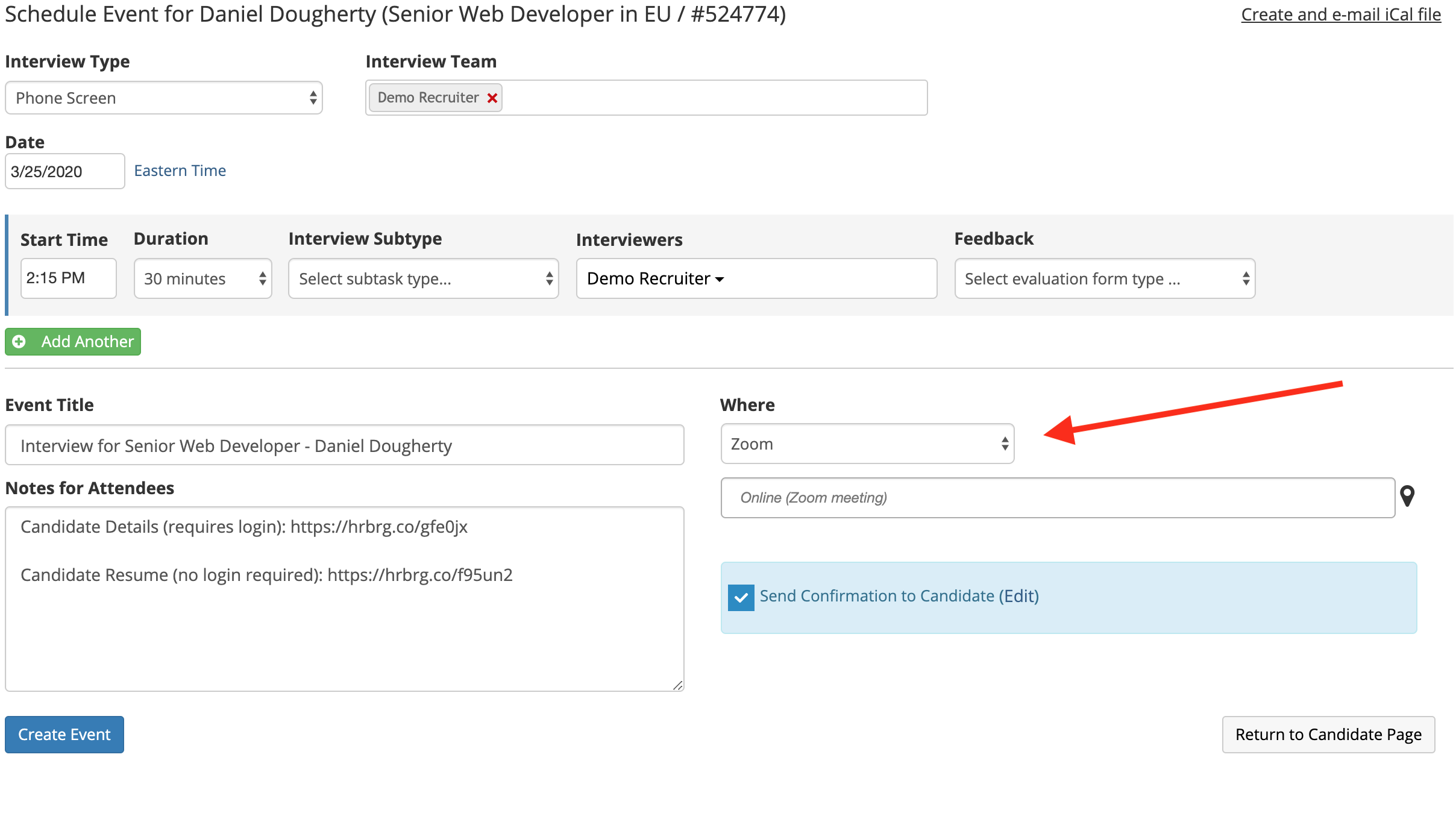
When the scheduling screen appears you will see a dropdown list under the location section. If you set your Zoom preferences to always schedule an online meeting then Zoom will automatically be selected and “Online (Zoom meeting)” will appear for the location. Otherwise, you may select it.
-
If you forget to do this, after the interview is scheduled you can select this option when editing and the meeting will be created.
-
We will automatically insert the necessary meeting information in the “Notes for Attendees” as well as “Notes for Candidate” while saving and scheduling the interview, after the meeting is created.
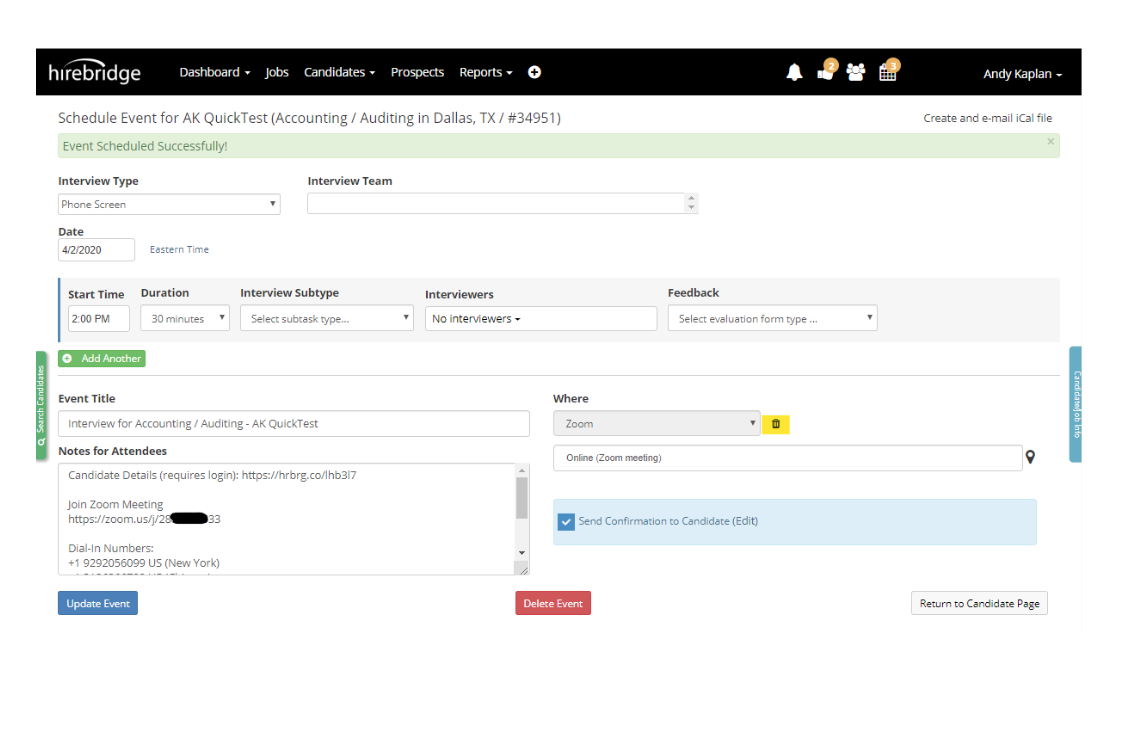 Interview Invitation with Zoom Meeting