Users that have two-factor authentication set up for Office 365 will need to have an app password created for their Hirebridge calendar integrations.
Here's how to create an app password for Hirebridge in your Outlook 365 account:
1. Log in to your Outlook 365 account.
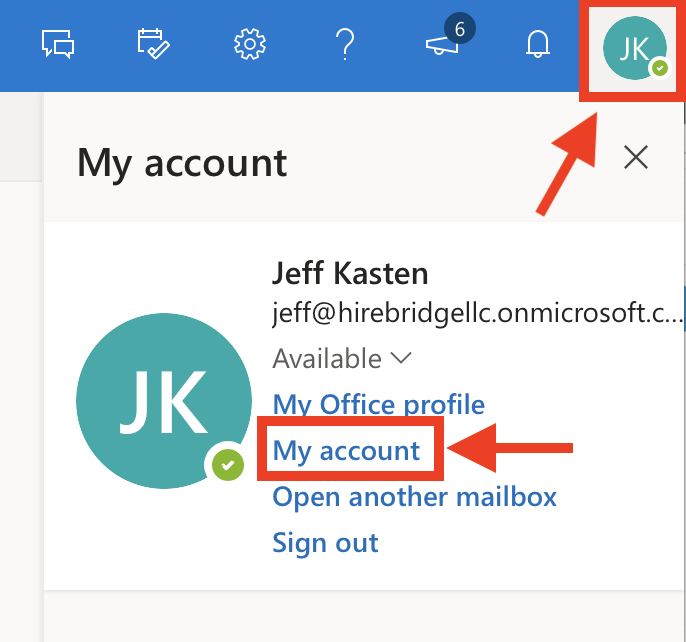
2. Click on your name on the top right side of the window, then click the My Account link:
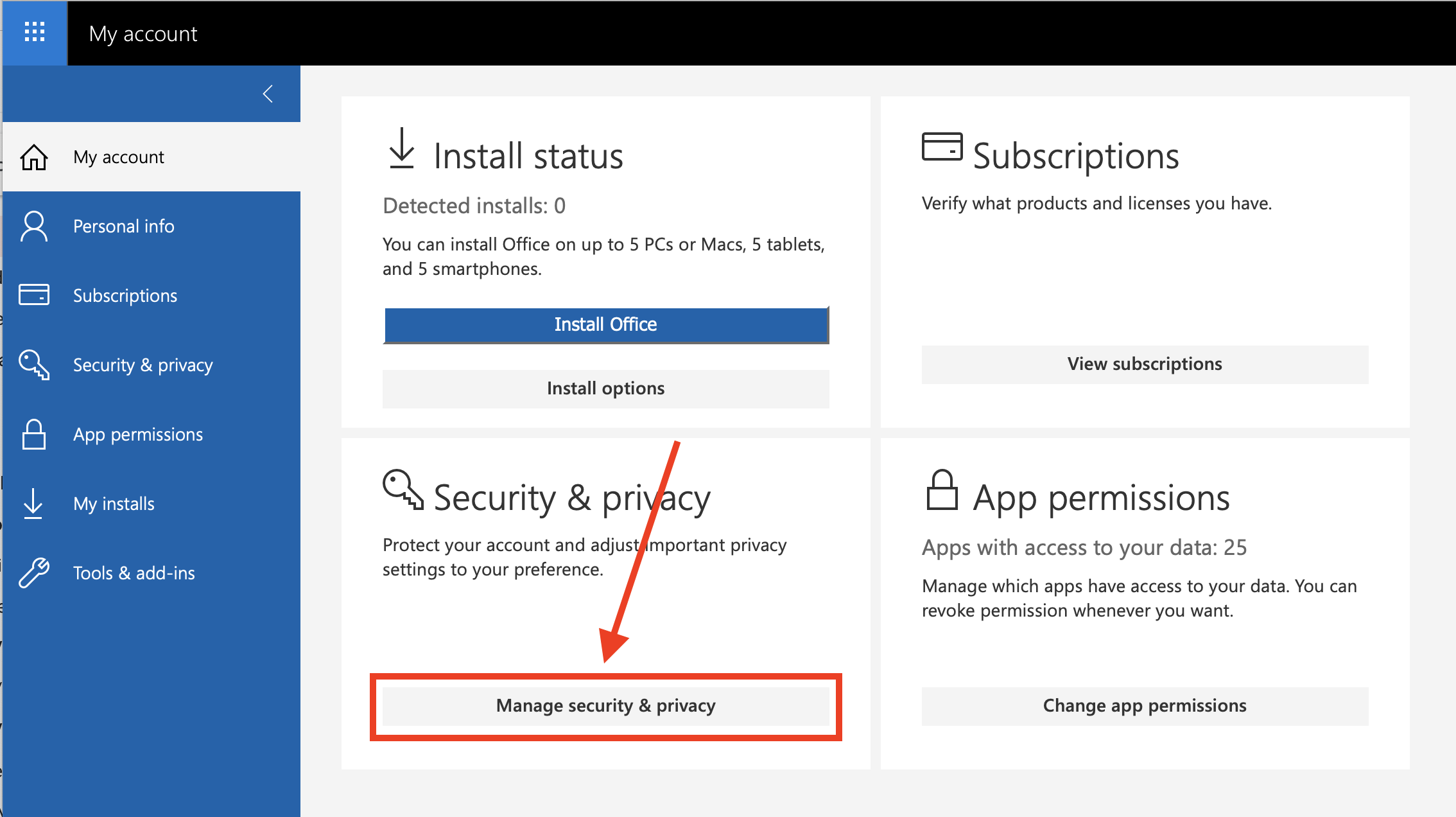
3. In the Security & privacy panel, click the Manage security & privacy button:
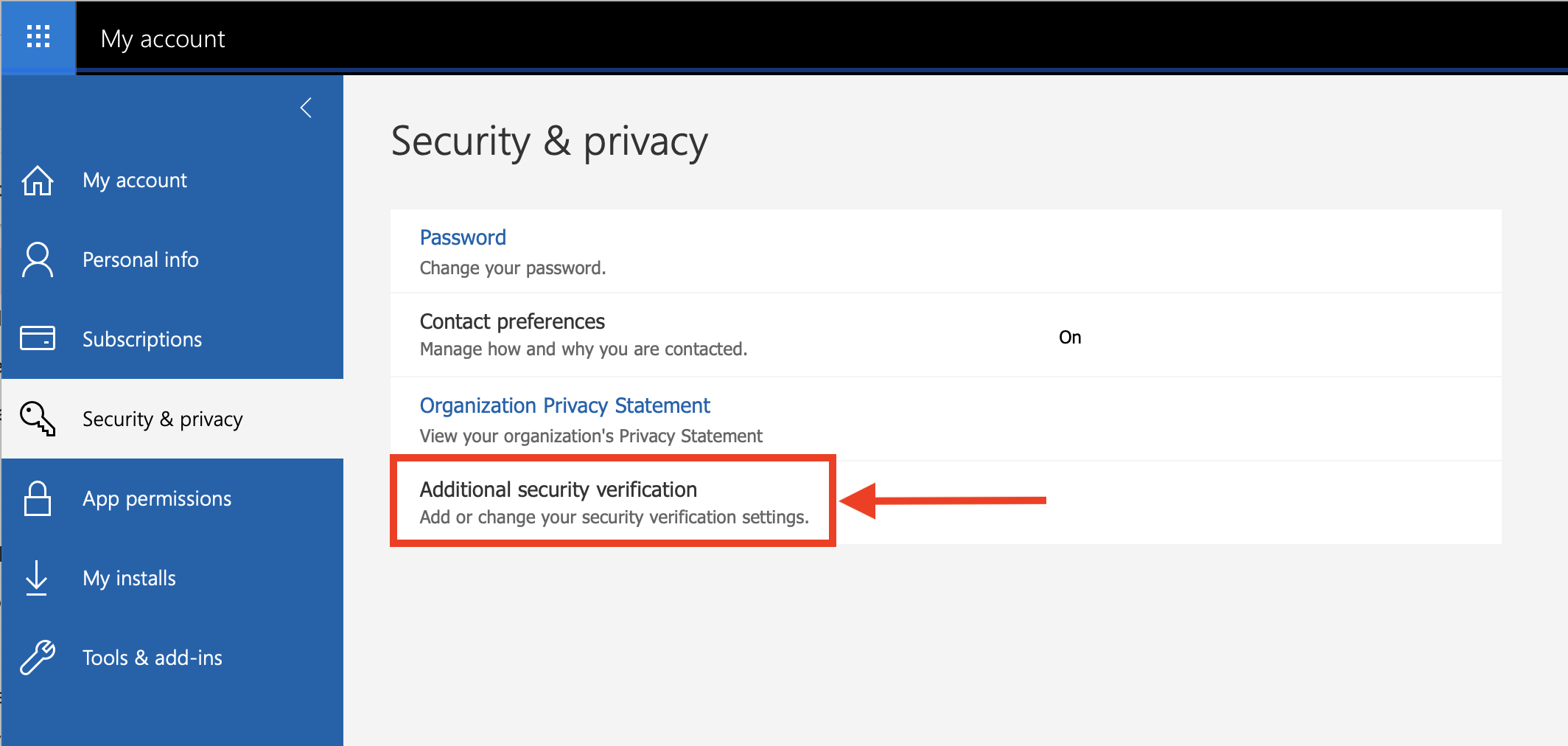
4. Click the Additional security verification link:
5. Click the Create and manage app passwords link:

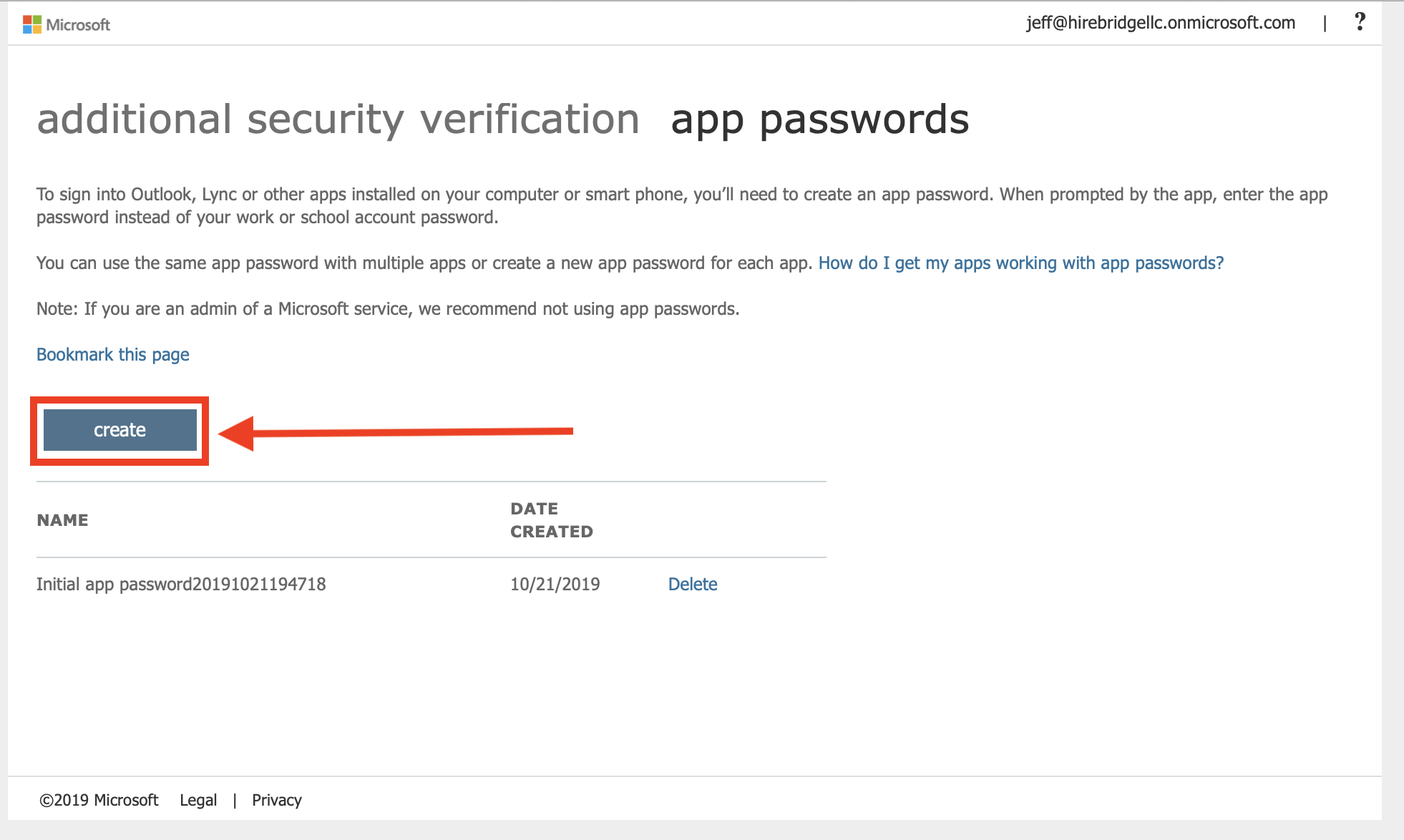
6. On the next page, click the create button:
7. In the Name box, type in Hirebridge:


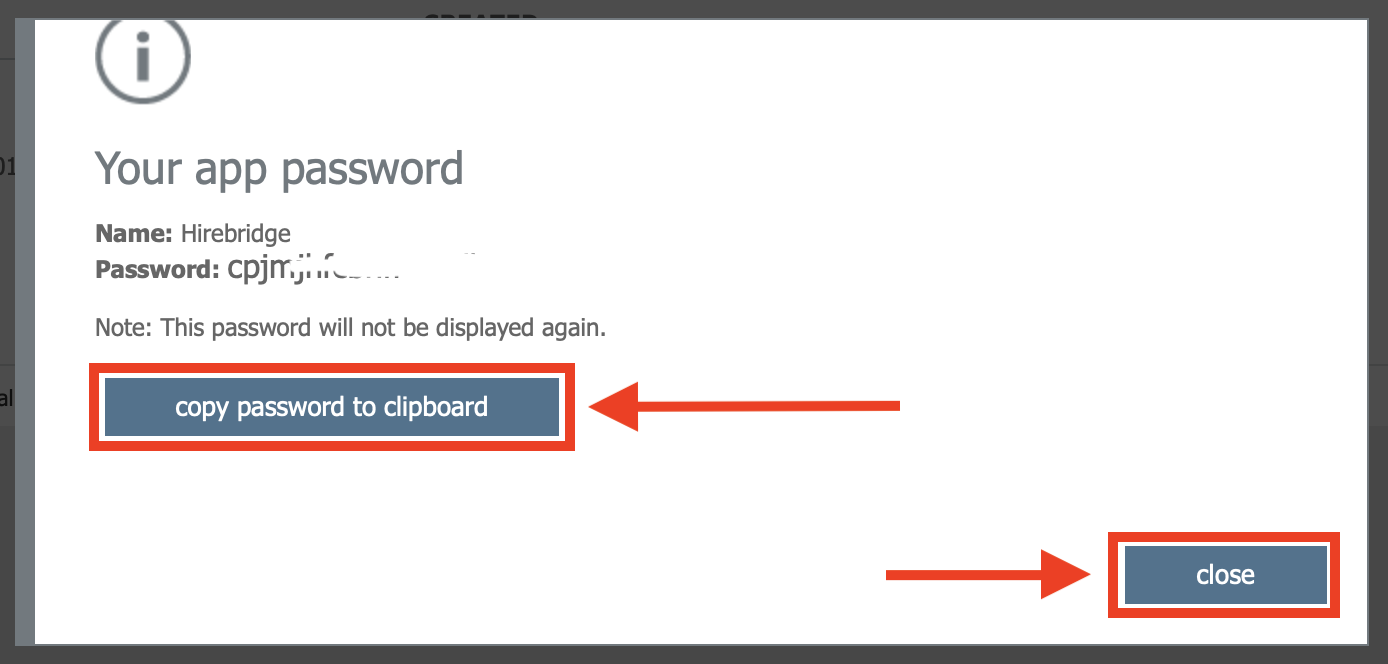
8. Click the next button, which will then provide you with the app Password. Click the copy password to clipboard button, then click the close button:
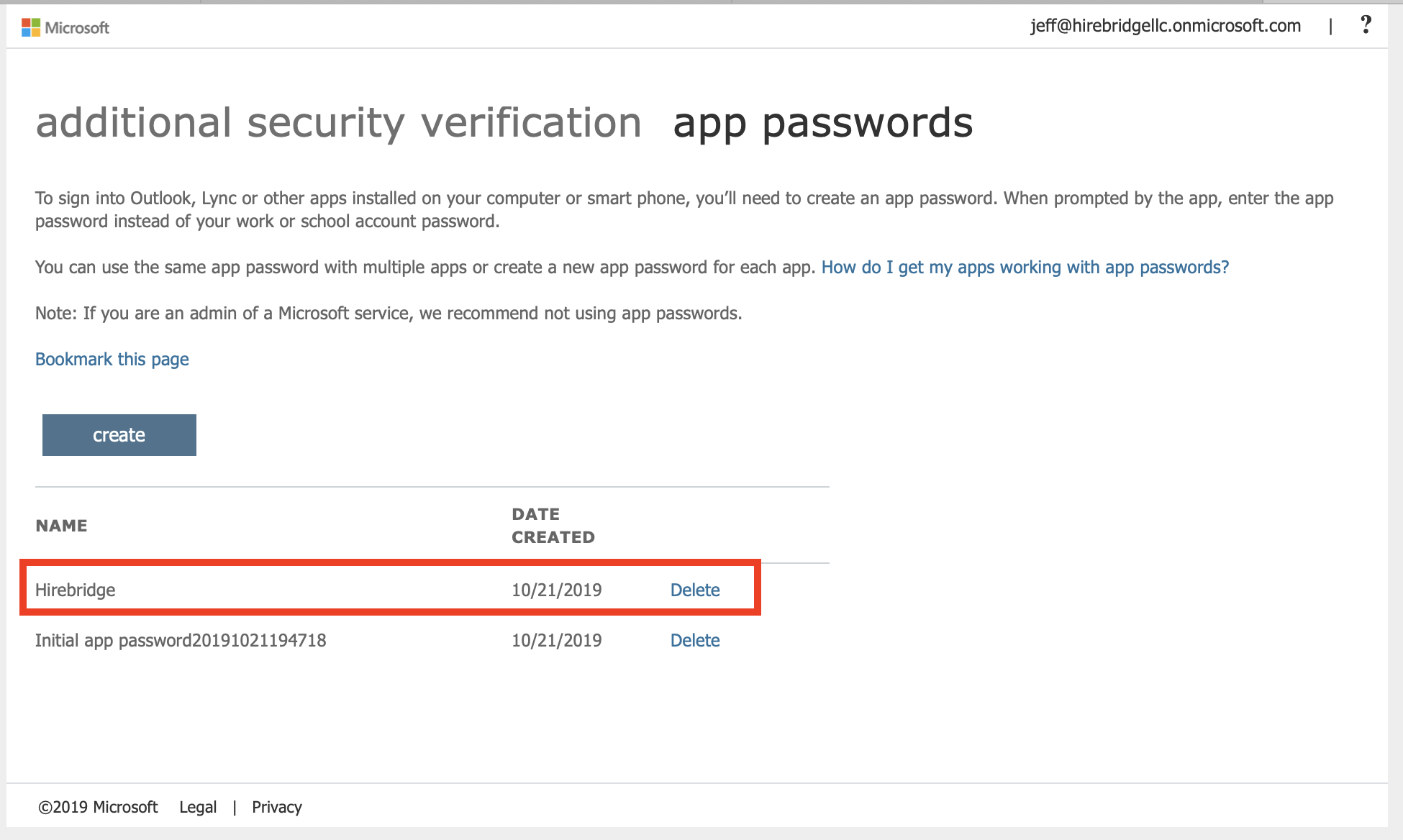
9. The newly created Hirebridge app will listed on the app passwords page:
10. Finally, copy and paste the password into your Hirebridge connector to Microsoft Exchange / Office 365 Account Settings panel:
