This article will guide you on how to setup your Microsoft calendar with Hirebridge.
Linking your calendar will allow you Hirebridge to schedule interviews to your calendar. This will also allow you to search the interviewing team availability along with resources for the interview.
Multiple Calendars can also be used to schedule on behalf of individuals.
- To connect your calendar select the Interviews tab then select Invite to Interview

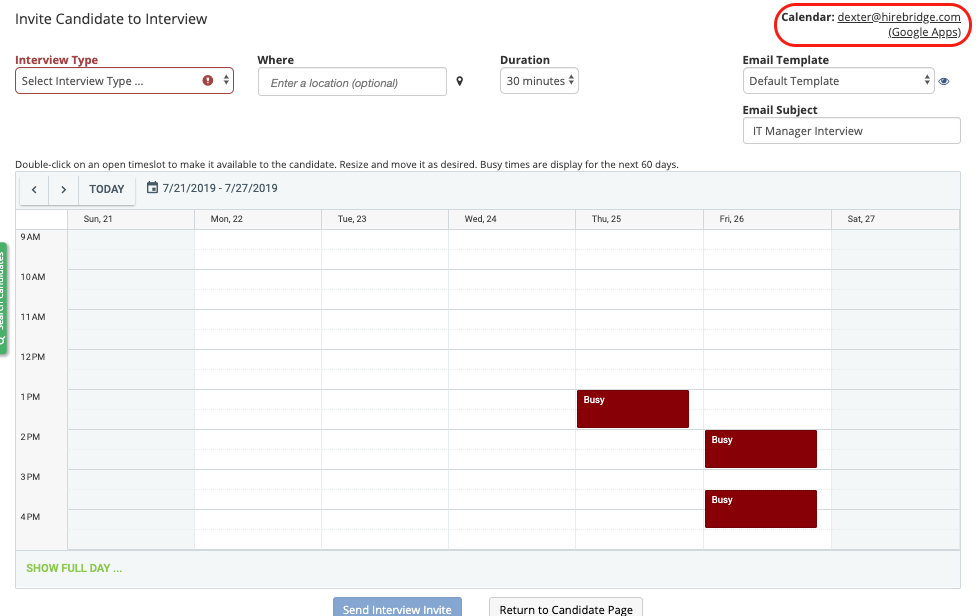
- After selecting Invite to Interview the top right corner of the page will display if you have an account connect to the interview. Since we do not have a calendar account connected it will display the text No External Calendar.
- Click on the No External Calendar text which will then load a pop-up

- The Current Calendar Account allows you to select from linked calendar accounts.
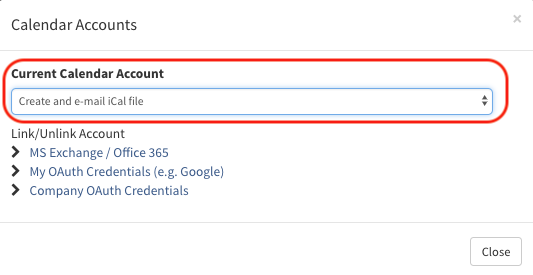
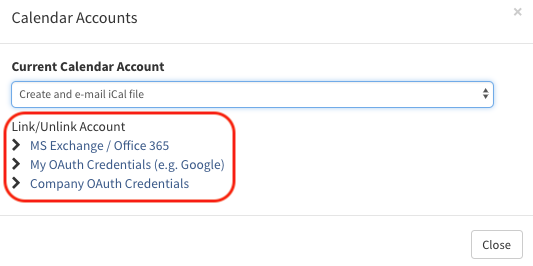
- Selecting your service provider will allow you to add/edit accounts.
- For this example we will use Google, select My OAuth Credentials (e.g. Google).
(Image provided below)
- A new page will load that will allow you to add an account or disconnect a current account.
- To link a new account select Add New
- To disconnect current accounts select the Broken Chain icon.
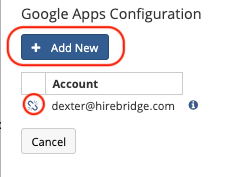
- To add your Google account select Add New
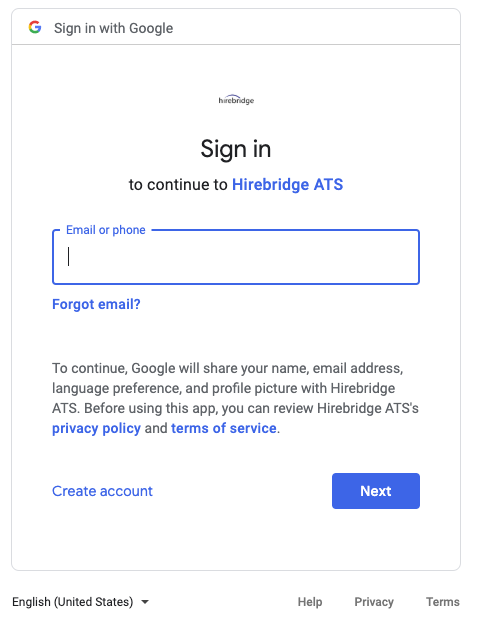
- A Google authorization page will load and ask for your email and password.
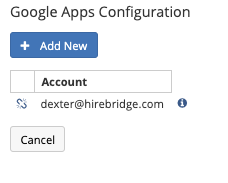
- Once you have selected and connected your account it will be displayed in the connected account list.
- To verify go into the Invite to Interview page and your username will be displayed in the top right corner.