Hirebridge/ADP Workforce Now® Integration Guide
The Hirebridge-ADP WorkforceNow Connector seamlessly integrates and sends new hire information from Hirebridge into ADP WorkforceNow, eliminating manual data entry errors. New hire data is pushed directly from Hirebridge into the ADP WorkForce Now In Progress Hires queue, pre-populated with data, saving time and money, and improving data accuracy and increasing efficiencies.
Getting started with the integration
Note: If you currently use ADP Workforce Now, please find the Hirebridge Connector integration information in the ADP WorkForce Now marketplace and submit the form to request the integration.
Provide consent - After initially creating the order in ADP Marketplace, ADP will send you a confirmation consent request, which you will need to respond to.
Once you submit the integration order, Hirebridge will receive an order and integration key information from ADP, and we will begin preparing the integration
Support
If you have a question about the API Integration functionality, setup, billing, or anything else related to the integration, please contact your Hirebridge CSR or email support at support@hirebridge.com.
If you have a question about ADP Workforce Now functionality or product offering, contact your ADP representative or visit their site.
How do I use the ADP Workforce Now® integration?
The ADP Workforce Now® integration creates new employee records in ADP when you hire candidates in Hirebridge. When activated, a new section called "Confirm details to add to ADP" will appear after you hire a candidate in Hirebridge:
When hiring a candidate in Hirebridge, the candidate will automatically be sent to ADP Workforce Now®
Workforce Now® will receive whatever fields were initially set up in the Hirebridge/Workforce Now® integration, but will at a minimum include the candidate's name, email, address, anticipated start date, gender, phone and self-reported EEO data. We will also include information about their salary, pay-type, and other fields which we are able to access from the Workforce Now® meta data.
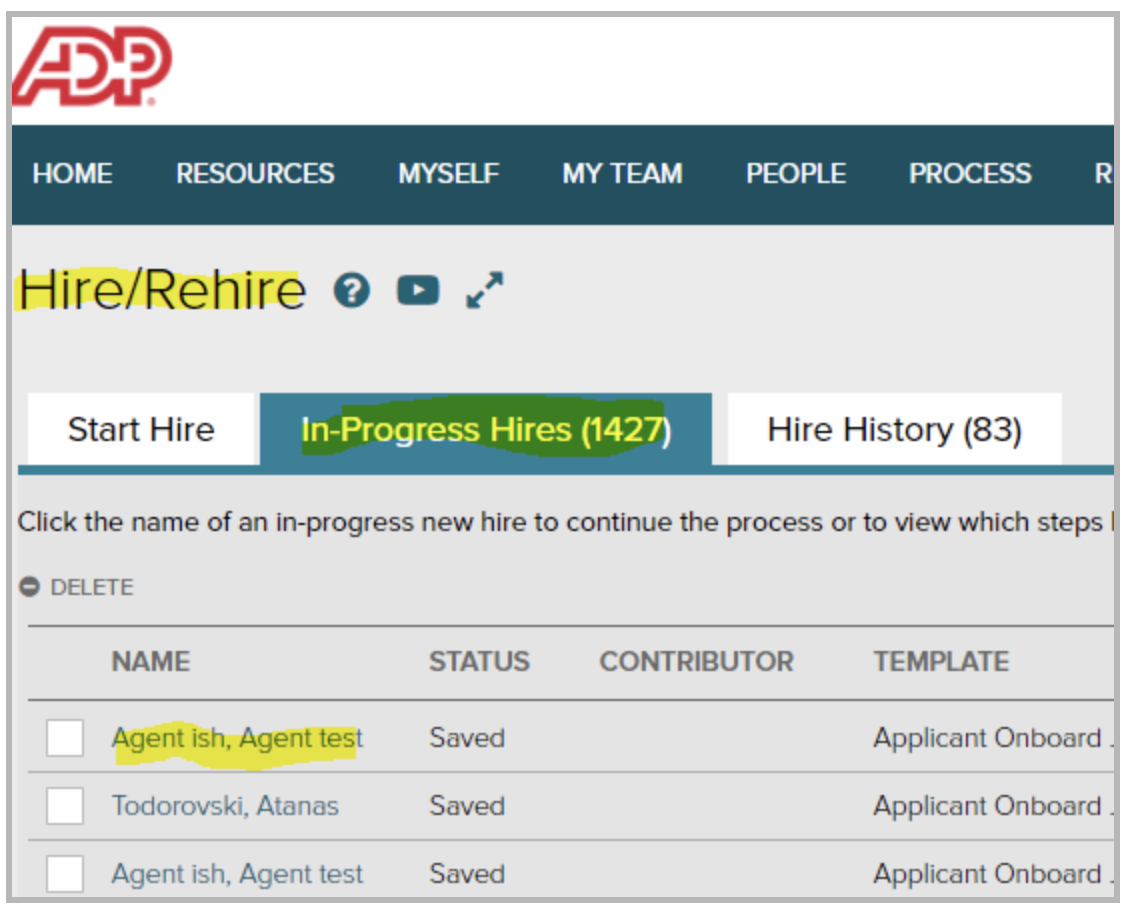
New Hires Sent To ADP Workforce Now® “In Progress Hires”
Once you've clicked on the in-progress hires tab, click on the name of the candidate you just hired to start onboarding:
Activating the Hirebridge/ADP Workforce Now® integration
- Order the Hirebridge Connector via the ADP Marketplace. Navigate to the Hirebridge ADP Workforce Now Connector page in the ADP Marketplace. Click "Purchase"
- To complete this purchase you will need to be logged in to your ADP Workforce Now® account. After purchase you will be asked to "Initiate Consent" - please follow these instructions. More information is available on ADP site by clicking here: Allow or Deny Consent Email
- Once the connector order has been verified by Initiating Consent, ADP will send Hirebridge an API Key which will allow us to access your custom form data, which we will use when setting up the integration.
- ADP will send you an email when the connector has been activated.
** Setting Up Your Hire/Rehire Template
Your ADP administrator will need to set up a Hire/Rehire Template to power the integration.
At this time the integration only works with 1 New Hire Template, which you will need to configure to activate the integration. We would suggest adding as many fields as you will need for both US and International hires
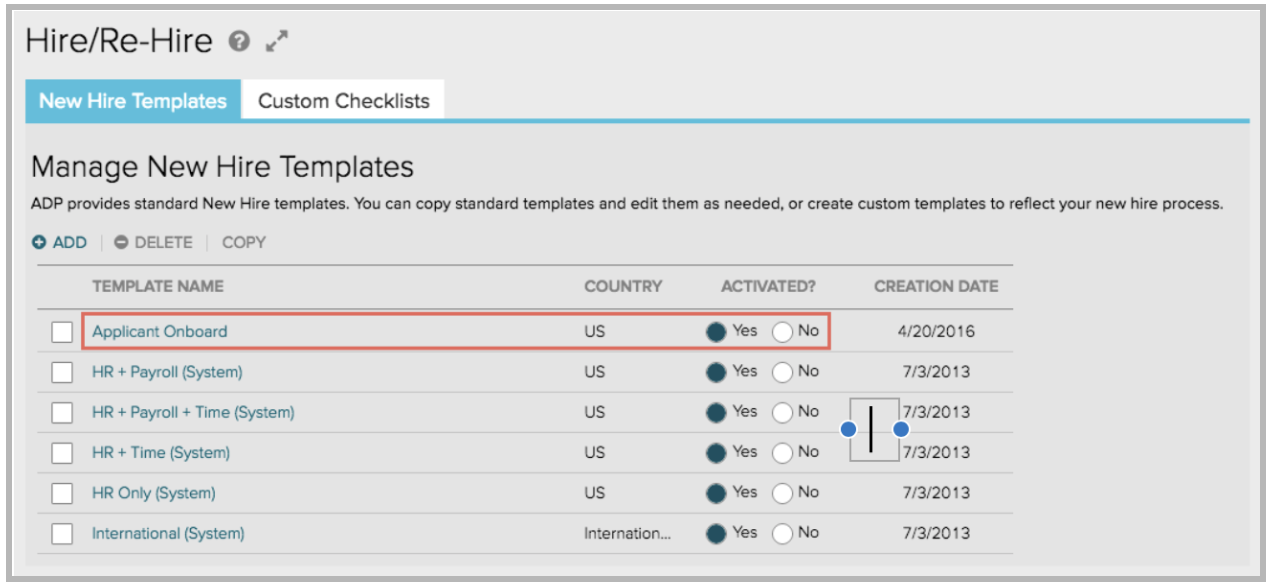
The integration will only associate candidates with a Hire/Rehire template named "Applicant Onboard" You can either create a new Hire/Rehire template by clicking "add" at the top of the table, or edit an existing template and rename it to have this name. It must be spelled Applicant Onboard in order for the integration to work correctly.
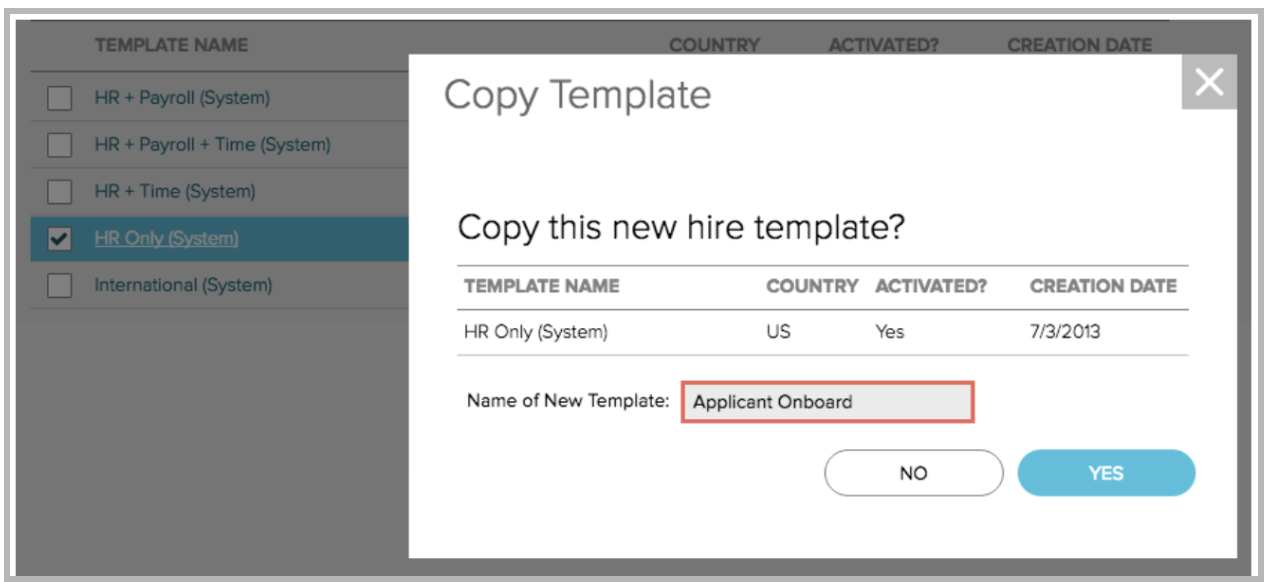
The integration is case-sensitive, so the Template Name must be exactly "Applicant Onboard" with capitalization and one space in-between each word, as seen in the screenshot below:
The template cannot have any custom required fields. To verify this, please click on the Select Fields step. In the "PERSONAL" area, make sure that none of the fields are set to "required" (they must be set to "off" or "optional").
Finally, the template must be assigned to the "Practitioner" role. Click on the assign users tab of your applicant onboard template and verify the box is checked for "Practitioner."
All done? Great! You're ready to complete the install.
What if we need to use multiple new hire templates?
At this time ADP's APIs only support using one hire/new hire template. We recommend setting up the "Applicant Onboard" template include the settings you use most frequently at your company. If you need to use a different hire/rehire template we recommend unchecking the "Add New hire to HRIS" option add that you add your new hire manually to ADP Workforce Now® by cutting-and-pasting in information from Hirebridge.
Create Applicant Onboard New Hire Template In ADP Workforce Now®
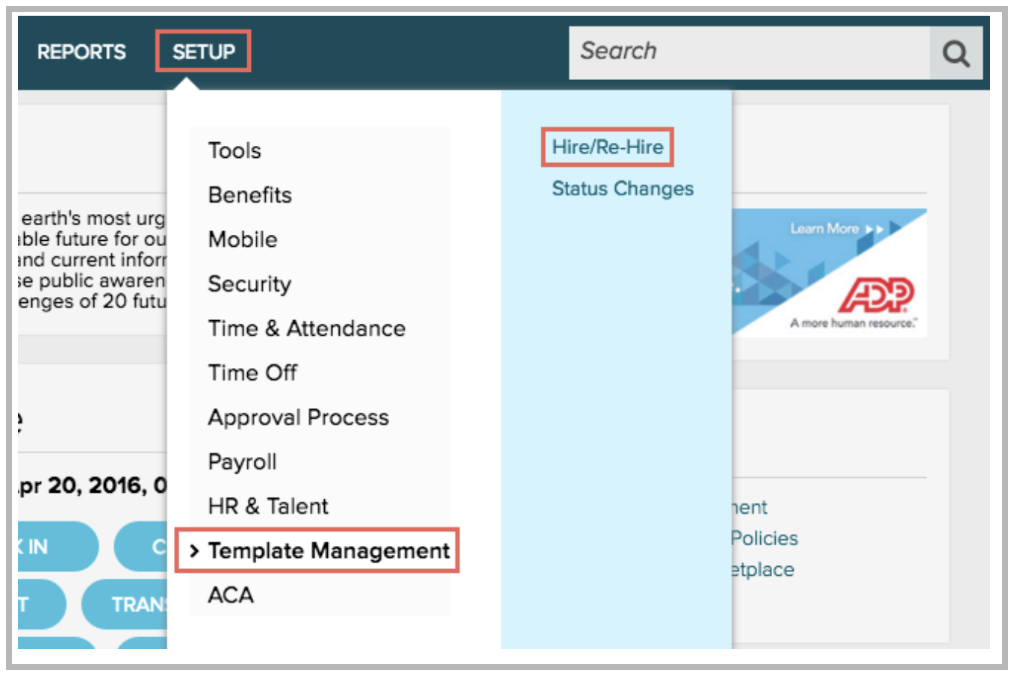
Step 1: Proceed to SETUP > Template Management > Hire/ReHire
Step 2: Check the box next to any existing New Hire Template, Click COPY
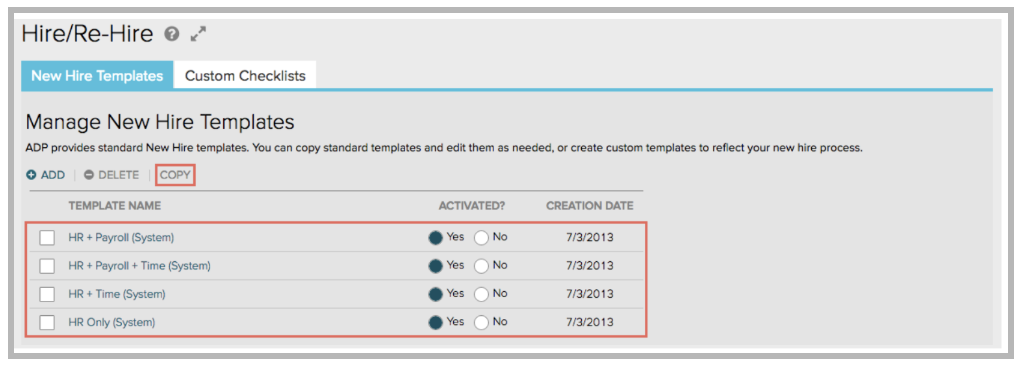
Note: You may also choose to ADD a new template.
Step 3: Enter “Applicant Onboard” in the Name of New Template field, Click YES
Step 4: Click “Yes” to activate the Applicant Onboard Template, Click Applicant Onboard
Hirebridge Plug-in for ADP WorkforceNow
Defined in this specification are standard fields from Hirebridge that will be transmitted during a Hire event. When the integration is switched on, additional fields will appear that is required for the ADP Workforce now system. Some fields may appear to be duplicates of existing Hirebridge fields however they differ in function in subtle way. The customer data is assumed to be US domestic candidates and requisitions.
The hire/onboard data is transmitted in real time in two possible events in Hirebridge. The first is on the Hire candidate page upon hire button submission. The second, when configuration is set to email a request to the candidate to return to Hirebridge to update or add information that may be required to complete the onboard process such as social security or birthdate. Upon completion via submit button, in real time the information is transmitted to ADP. The candidate is set to a hired state in Hirebridge. Additional steps are necessary to complete the hiring process in the ADP system.
The candidate information will arrive in ADP in the In Progress Hires Queue as shown below:
Setting Up A New Company With ADP Connector
Once a company has purchased the ADP/HIREBRIDGE connector, Hirebridge will receive notification from ADP, along with an API Key, which we will use to link the 2 systems. Initially, Hirebridge will pull from the meta data provided in the API, and will bring in several data lists from ADP, which will be added to both the Hirebridge ADD JOB template, as well as the the HIRE CANDIDATE template.
The new hires from Hirebridge will be sent to ADP with those ADP fields included in the data send and the data will appear in the In Progress Hires queue.
ADP WorkForceNow Template Setup
ADP WorkForceNow needs to have a default template configured for the API to work. You will need to activate the HR Only (System) template or create an Applicant Onboard template. You can create an Applicant Onboard template by copying any template with at least the HR module and renaming it Applicant Onboard.
The Applicant Onboard API will use the template named Applicant Onboard if one exists and default to the HR Only (System) template if one does not.
STANDARD ADP SETUP CANDIDATE FIELDS
Basic setup sends standard data demographic information collected from candidate to the ADP new hire wizard
- First
- Last
- Middle
- Preferred Name
- Addr1
- Addr2
- City
- State
- Zip
- Country
- Phone1
- Phone2
- Phone3
ADDITIONAL DATE CAN BE COLLECTED AND INCLUDED IN ADP ONBOARD FEED
- EEO RACE
- EEO GENDER
- Social Security Number
- Date Of Birth
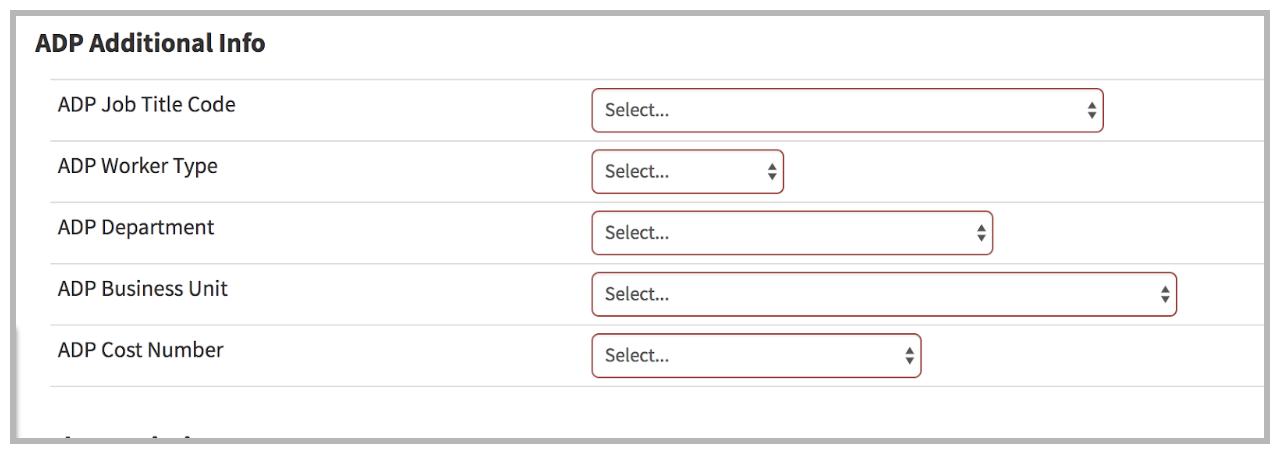
ADP SPECIFIC FIELDS FROM REQUISITION AND HIRE PROCESS
- ADP Job Title Code
- ADP Worker Type
- ADP Department
- ADP Business Unit
- ADP Cost Number
- ADP Company Code
- ADP Hire Type
- ADP Hire Reason
- ADP Hire Location
- ADP Start Date
- ADP Hourly Rate
- ADP Annual Salary
- ADP Pay Frequency
STANDARD ADP SETUP JOB REQUISITION FIELDS
Existing hirebridge requisitions fields are pre-mapped directly to ADP fields. Please consult the appendix to review the data mapping between Hirebridge and ADP.
STANDARD ADP SETUP HIRE PROCESS FIELDS
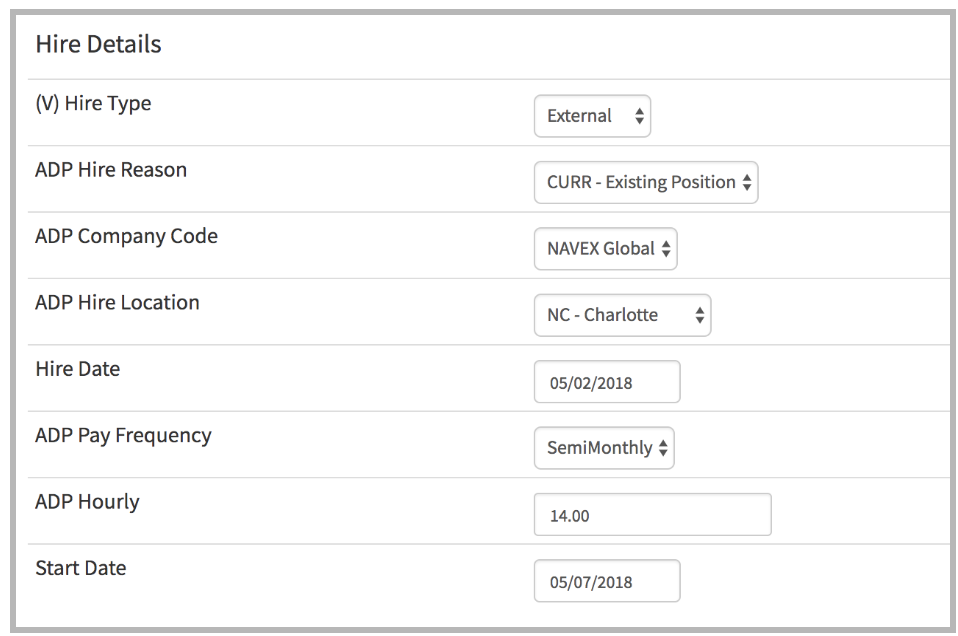
The hired form has logic that is dependent on the requisition FLSA field. If the FLSA is set to “exempt”,then the salary field will appear and the pay frequency is preset to SemiMonthly.
The semimonth (gentext1 field) field is automatically calculated and transmitted to ADP as the rateamount. If the FLSA is set to “nonexempt”, the hourly field will appear and the pay frequency is preset to Biweekly. The hourly value is sent as the ADP rateamount.
ADDITIONAL ONBOARD FIELDS
For those companies who require additional information from the new hire, we have the ONBOARD PROCESS which can be engaged from ADMINISTRATION - ADP SETUP
ADP ADMIN ONBOARD SETUP PAGE
- Does this require onboard - yes engages the onboard process
- go straight to ADP - no onboard
REQUIRE onboard sends email to candidate requesting return to BEGIN ONBOARD
Workflow for candidate onboard
- RECRUITER clicks HIRE CANDIDATE
- SYSTEM PERFORMS THE HIRE TASK. The candidate is hired internally in Hirebridge
- Hirebridge sends candidate email with link asking them to return to being the onboard process
- We log the send to candidate
- When candidate clicks the link, we log that
- When candidate FINISHES the form, a milestone ONBOARD COMPLETE BY CANDIDATE is engaged
- When ONBOARD COMPLETE milestone is set, we package information and send to ADP
ONBOARD PROCESS DATA COLLECTION
Candidates who are sent onboard request can be required to provide the following information
- Date Of Birth
- SS#
- Confirm Contact Information
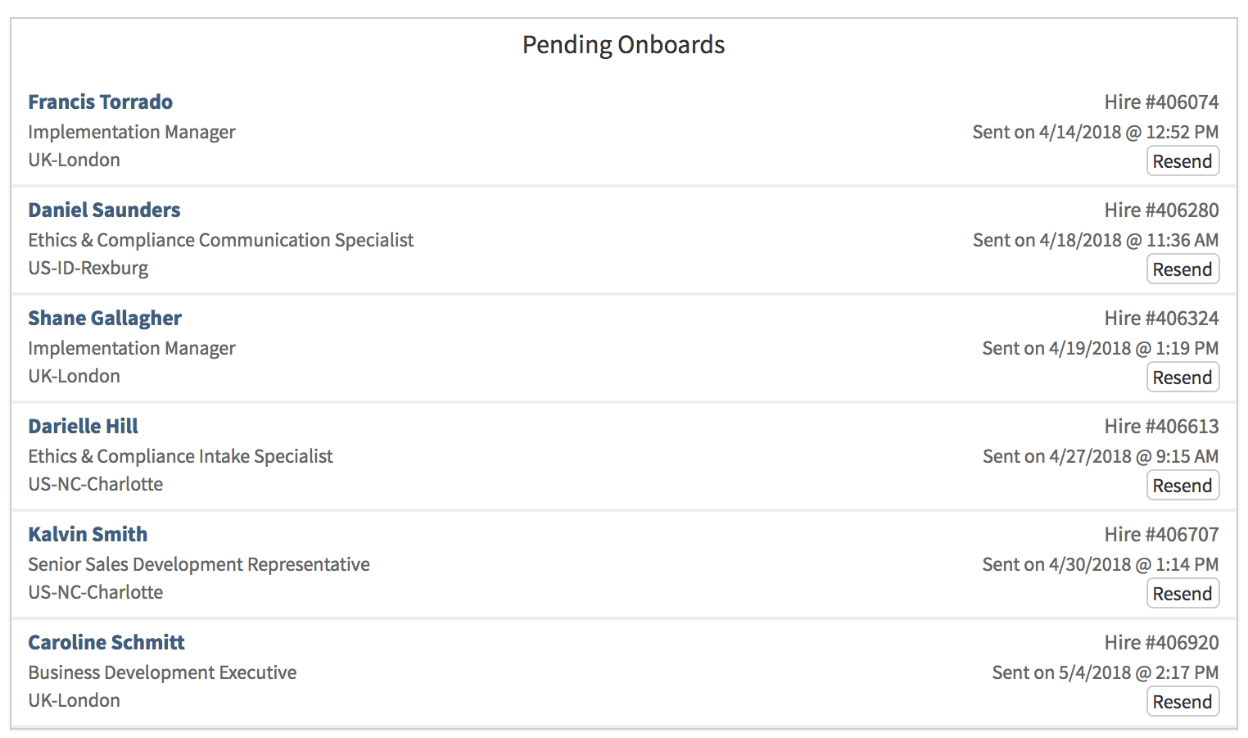
Dashboard View Of Pending Onboards
Once a candidate has been HIRED in Hirebridge and sent an onboard request, we will display those pending onboards on the COMPANY and MY DASHBOARD page (depending on permissions). This will show the candidate name, job, and when the onboard request was sent.
You can click RESEND to send an updated request to candidate if they have not responded. A Candidate who responds successfully to the request will drop from the view as they have already been sent into ADP.
ADP/HIREBRIDGE INTEGRATION - TROUBLESHOOTING
Problem: "Not being able to get paid through ADP Workforce Now" It doesn't let us add his Direct Deposit information
the Applicant Onboard API will use the template named Applicant Onboard if one exists and default to the HR Only (System) template if one does not. In this case, it appears that the client user XXXX was hired using the Applicant Onboard template. However, the template was originally created by copying the HR Only (System) template that does not include payroll. When this occurs, WFN assumes any worker hired using this template does not use WFN for payroll. Position IDs have the letter "N" appended, representing non paid status
Problem: My Template is not recognized.
As of 6/29/2018 The officially supported templates are below even though all activated templates are returned. There are requests to support client-defined templates outside of this list in future product updates.
HR + Payroll (System) - US
HR + Payroll + Time (System) - US
HR + Time (System) - US
HR Only (System) - US
Applicant Onboard – US
Problem: “Default Template is Invalid”
The client needs to do one of two things to allow the API to work. They need to activate the HR Only (System) template or create an Applicant Onboard template. They can create an Applicant Onboard template by copying any template with at least the HR module and renaming it Applicant Onboard.
Problem: Company grants consent to Hirebridge. However accessing the meta is blocked with forbidden status code.
The Hirebridge practitioner did not have appropriate permissions in the client's WFN configuration. Add appropriate permissions
Problem: “Forbidden” error message on new or renamed template:
When the client modifies the Applicant Onboard template, they need to make sure that the practitioner profiles for your integration have access to the Applicant Onboard template. In this case, the "Profile for system users established by Marketplace Data Connector applications" did not have permission to access the template. This permission is set in SETUP > Template Management > Hire/Rehire in the Applicant Onboard template under Select Users.
Problem: I want to support International Tax ID.
As of 5/7/2018. This is not supported by ADP API
Only SSN and EIN are supported by domestic templates. The International (System) template is not currently supported in the Applicant Onboard API and is required to get the additional ITIN/SIN values.
From: ADP Marketplace Partner Enablement