This article will walk you through the process of how to disconnect/reconnect from Google Apps.
At times it may be necessary to disconnect Hirebridge from Google Apps and reconnect to it. Hirebridge uses the OAUTH protocol to authenticate with Google in order to carry out actions (e.g. schedule an interview) on your behalf. This protocol results in us having temporary access to your account (up to 1 hour) before we must request permission again. Usually this “refresh” of our access is behind the scenes and you won’t know about it unless it fails.
There are a myriad of reasons why it may fail including having removed access from within Hirebridge but not from within Google and then reconnecting from Hirebridge, not having used Hirebridge to access your Google account for a period of time, migrating from our non-panel interview scheduler to the panel interview scheduler, and other reasons.
To fix issues with your Google account, start by removing the linkage between accounts from within Hirebridge. This step is different depending on whether you are using the legacy interview scheduling or our newer panel interview scheduler.

This will bring up a dialog with your currently connected accounts.
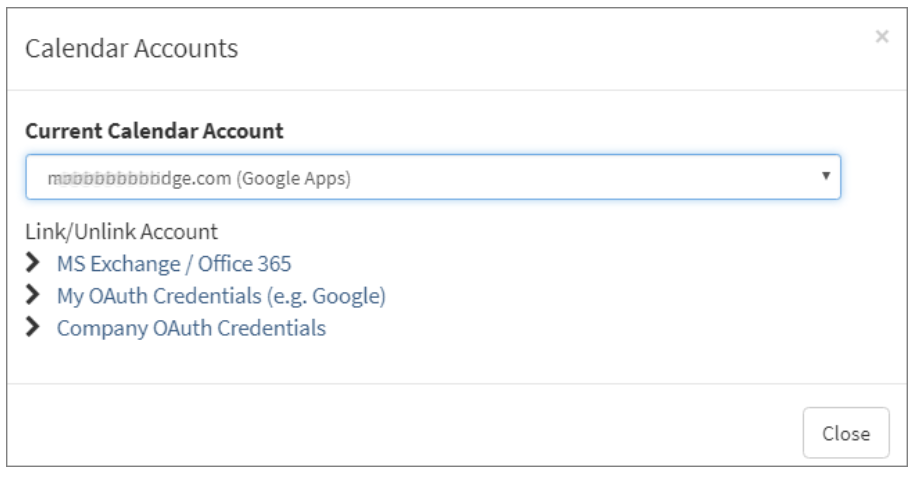
Click on “My OAuth Credentials” and you will be directed the the OAuth Provider Configuration page.
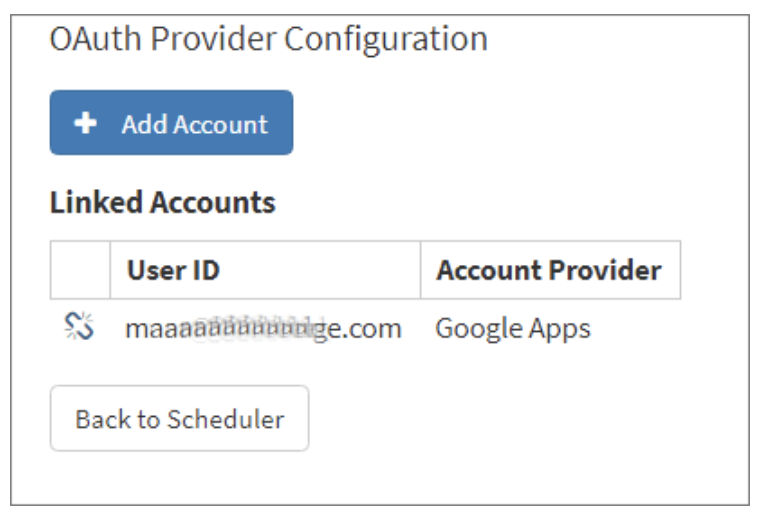
Click on the broken link icon next to your Google account and your account will immediately be deleted from Hirebridge.
Once this is complete, open a new browser tab (we want to keep this tab open because we’re going to come back to this page again) and skip to the section titled “Revoke Hirebridge Permission to Google Apps”.
Disconnect Google Apps from Hirebridge Non-Panel Interview Scheduler
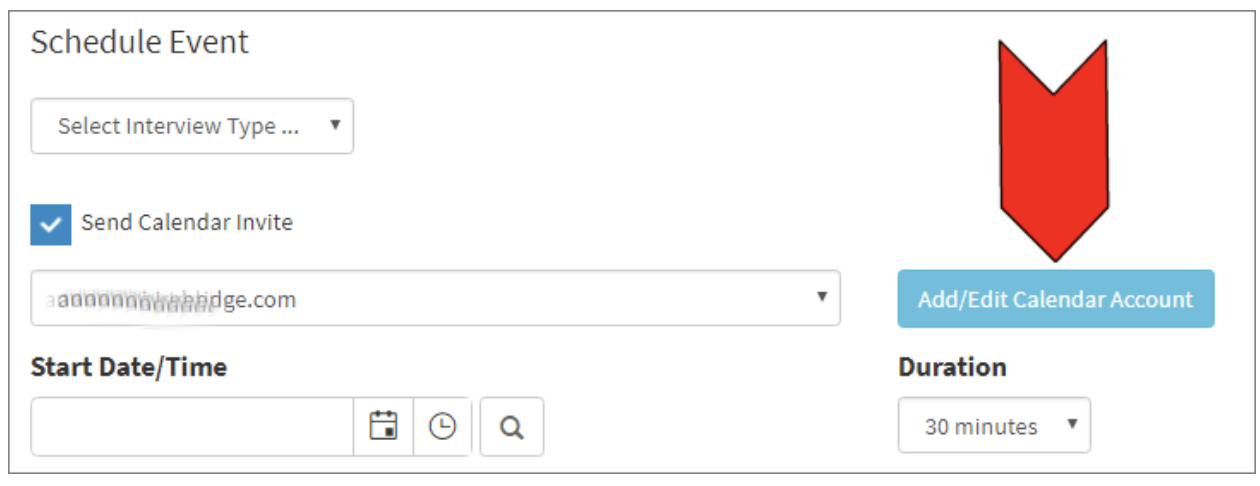
While on the event scheduling page click the button “Add/Edit Calendar Account”.
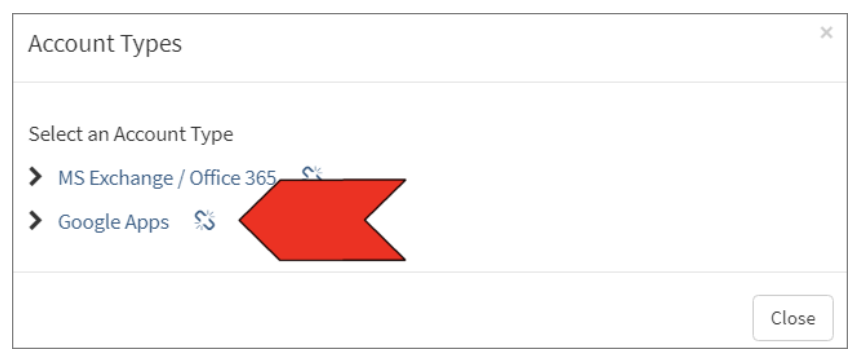
On the ensuing dialog box click the broken link icon to unlink the account.
You will be brought back to the scheduling page.
Keep this page open so we can return to it later, open a new browser tab or window, and continue to the next step.
Revoke Hirebridge Permission to Google Apps
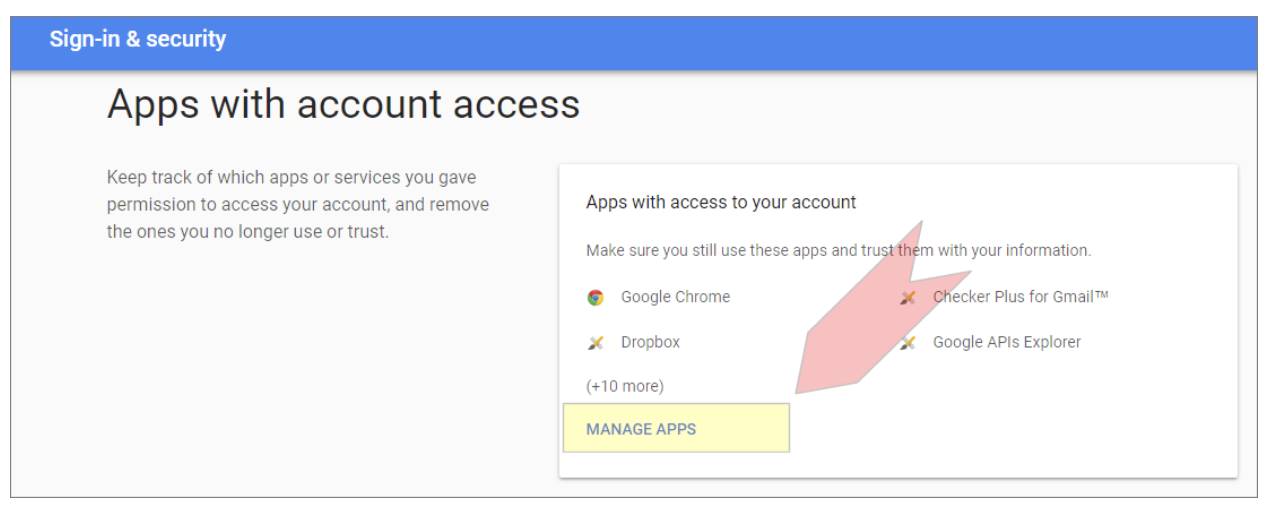
Open a browser window and go to https://myaccount.google.com and click the link “Apps with account access” in the Sign-in & security section.

On the next page click “Manage Apps”.
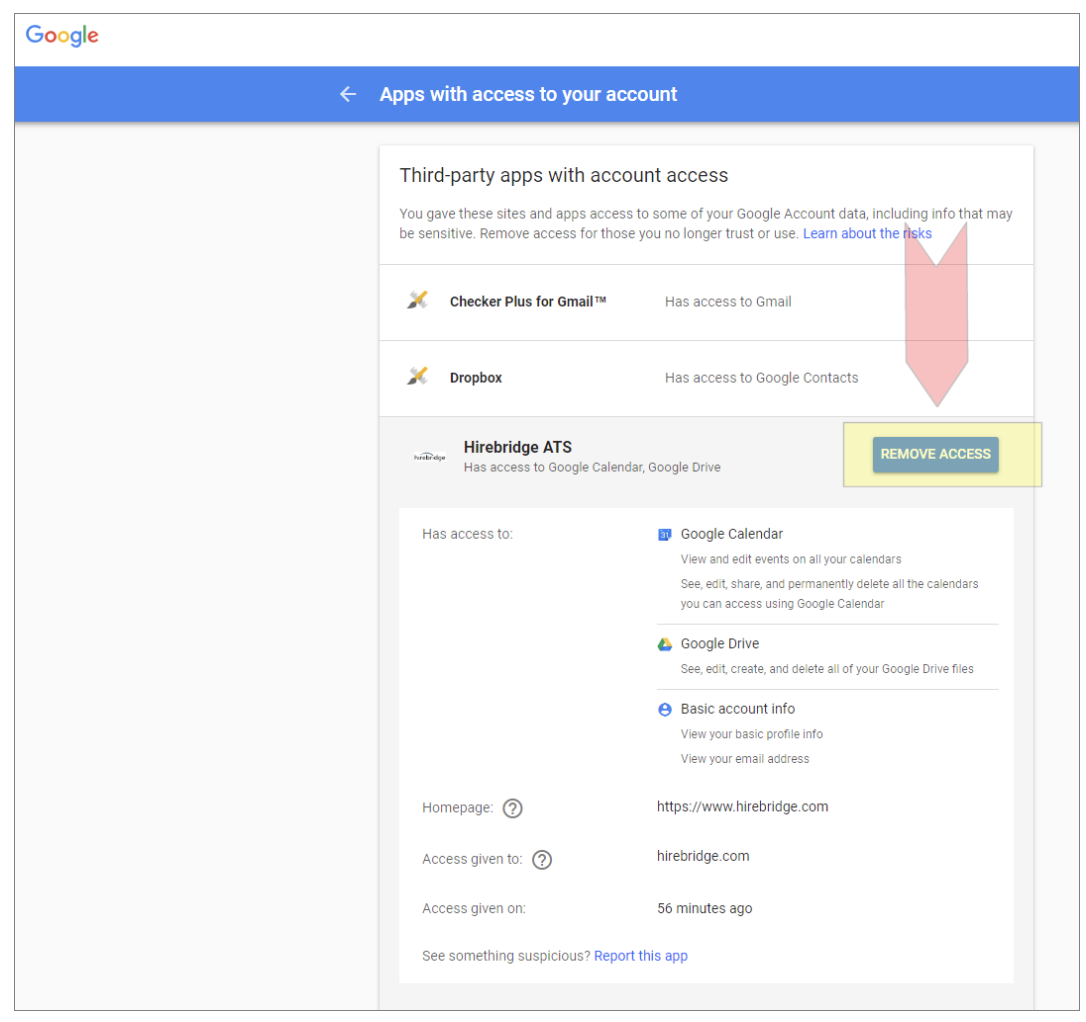
Find Hirebridge ATS in the list of Third-party apps with account access and click on it.

The section will expand, revealing a “Remove Access” button. Click it and then click OK on the ensuing prompt to confirm.
You can now close this browser tab/window and return back to the previous tab/window we used to disconnect your account from within Hirebridge.
If you are using the Non-Panel Interview Scheduler skip the next step and continue with Connect Google Apps (Non-Panel Interview Users).
Connect Google Apps (Panel Interview Users)
Return back to the tab/window you left open earlier with the Hirebridge OAuth Provider Configuration page. Click the “Add Account” button.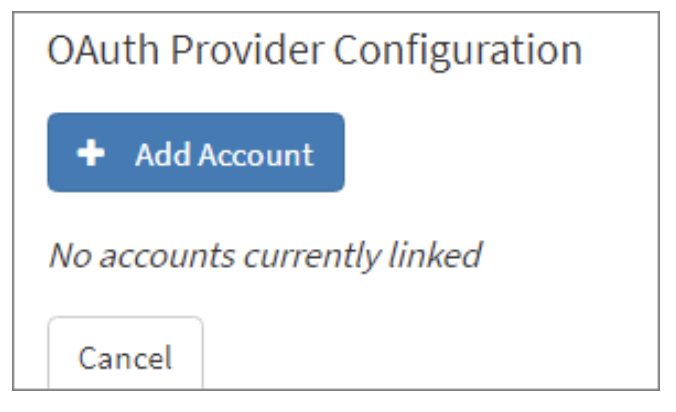
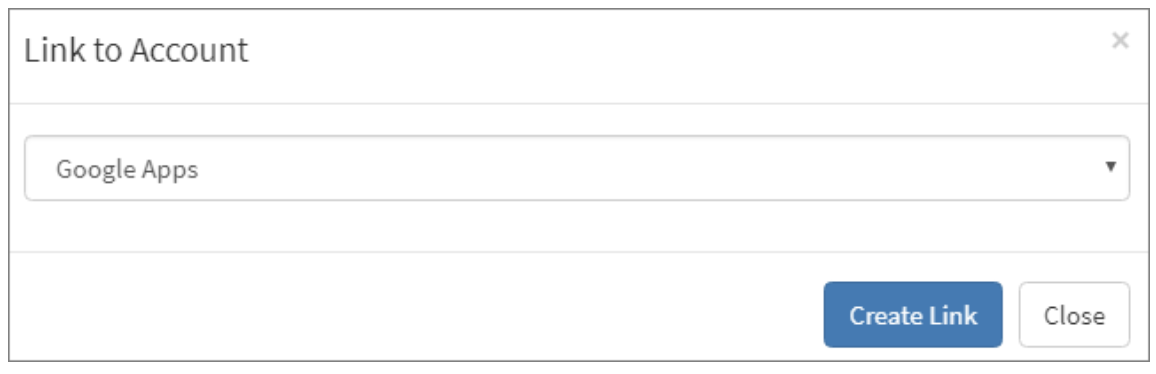
In the Link to Account dialog select Google Apps as the provider and then click “Create Link”.
Assuming you’ve followed this directions exactly you will now get a Google page where you must provide your consent for us to have access to your account. If you are signed into multiple Google accounts you will first be prompted to select the account you would like to use. After selecting the account you will see the consent page. Click “Allow” to grant us access to your calendar.
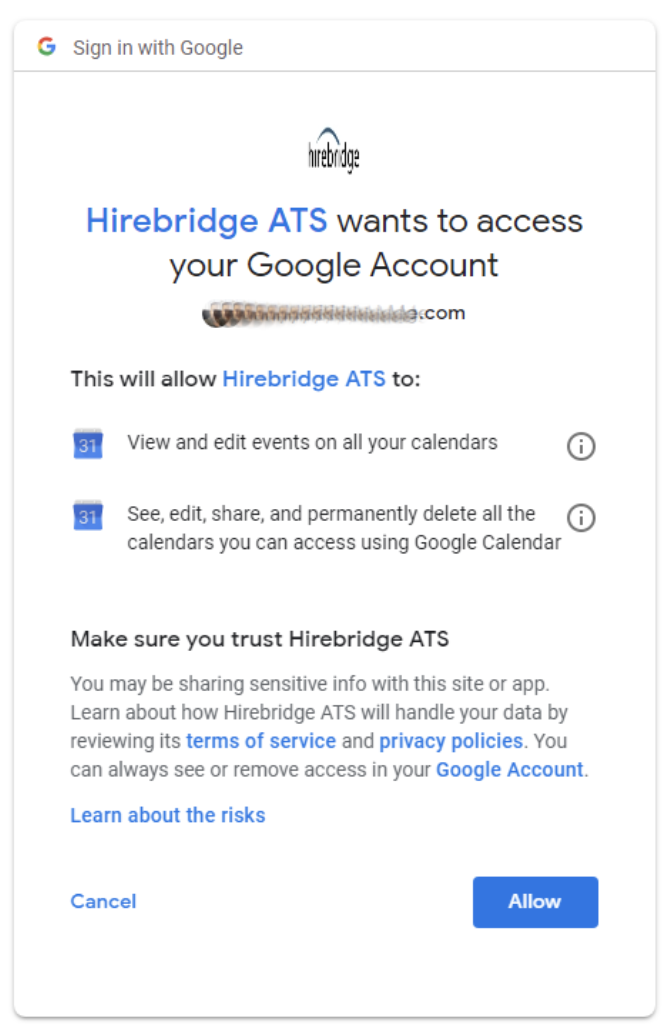
Once you complete this step you will be returned to the OAuth Provider Configuration page. You should now be able to schedule a panel interview without issue.
Connect Google Apps (Non-Panel Interview Users)
The last step is now to reconnect Hirebridge to your Google account.
Return back to the tab/window you left open earlier. You will be on the Schedule Event page. Once again click the Add/Edit Calendar Account button. This time you will not see an icon next to Google Apps, indicating that you are not connected to a Google Apps account. Click the link.
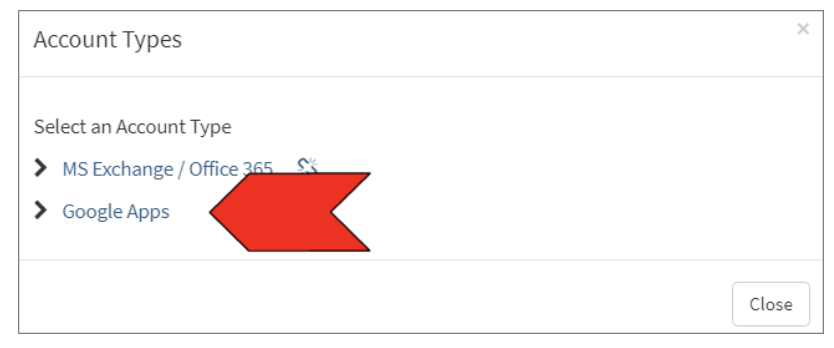
Assuming you’ve followed this directions exactly you will now get a Google page where you must provide your consent for us to have access to your account. If you are signed into multiple Google accounts you will first be prompted to select the account you would like to use. After selecting the account you will see the consent page. Click “Allow” to grant us access to your calendar.
After you allow access you will return to the Schedule Event page where you should now be able to schedule for the account.