This article will guide you on how to download multiple candidate resumes
- The first step is to go into a requisition with a list of candidates.
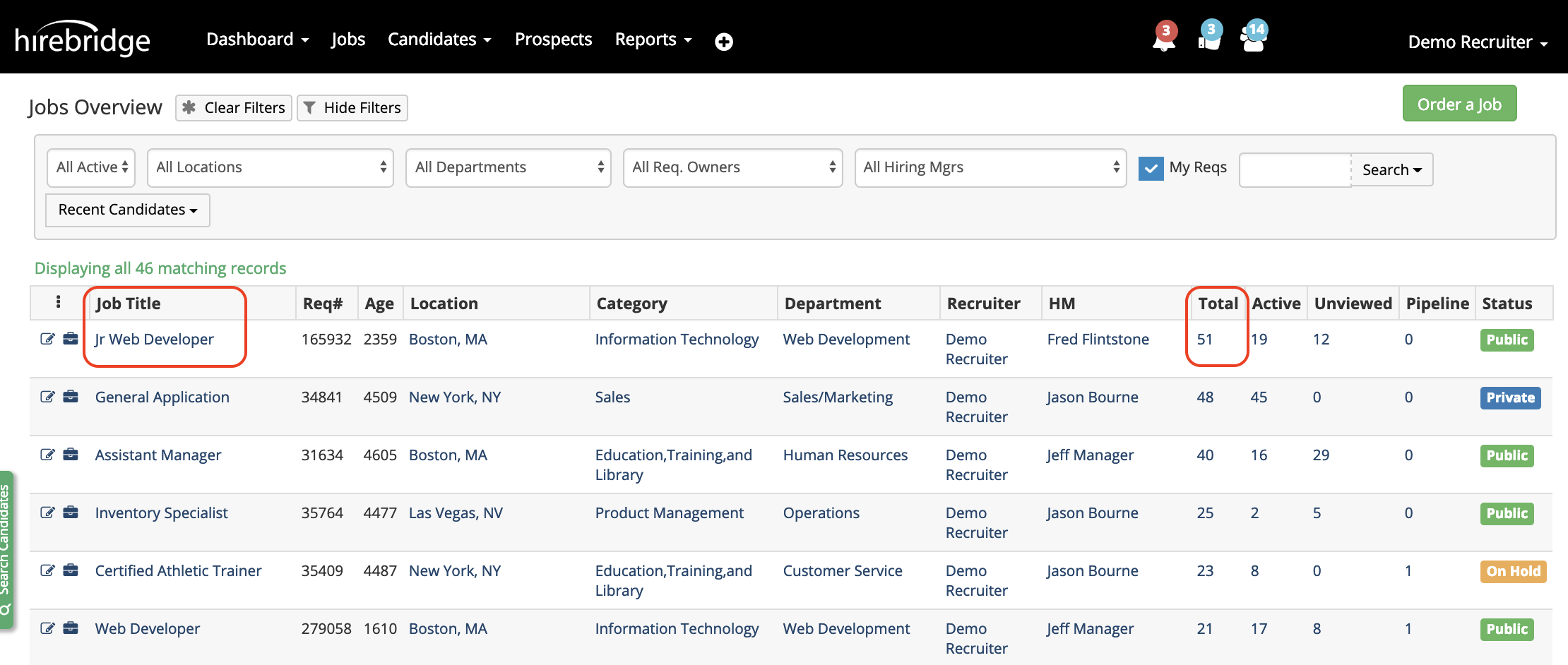
- Next select the Job Title or Total number of candidates within the requisition.
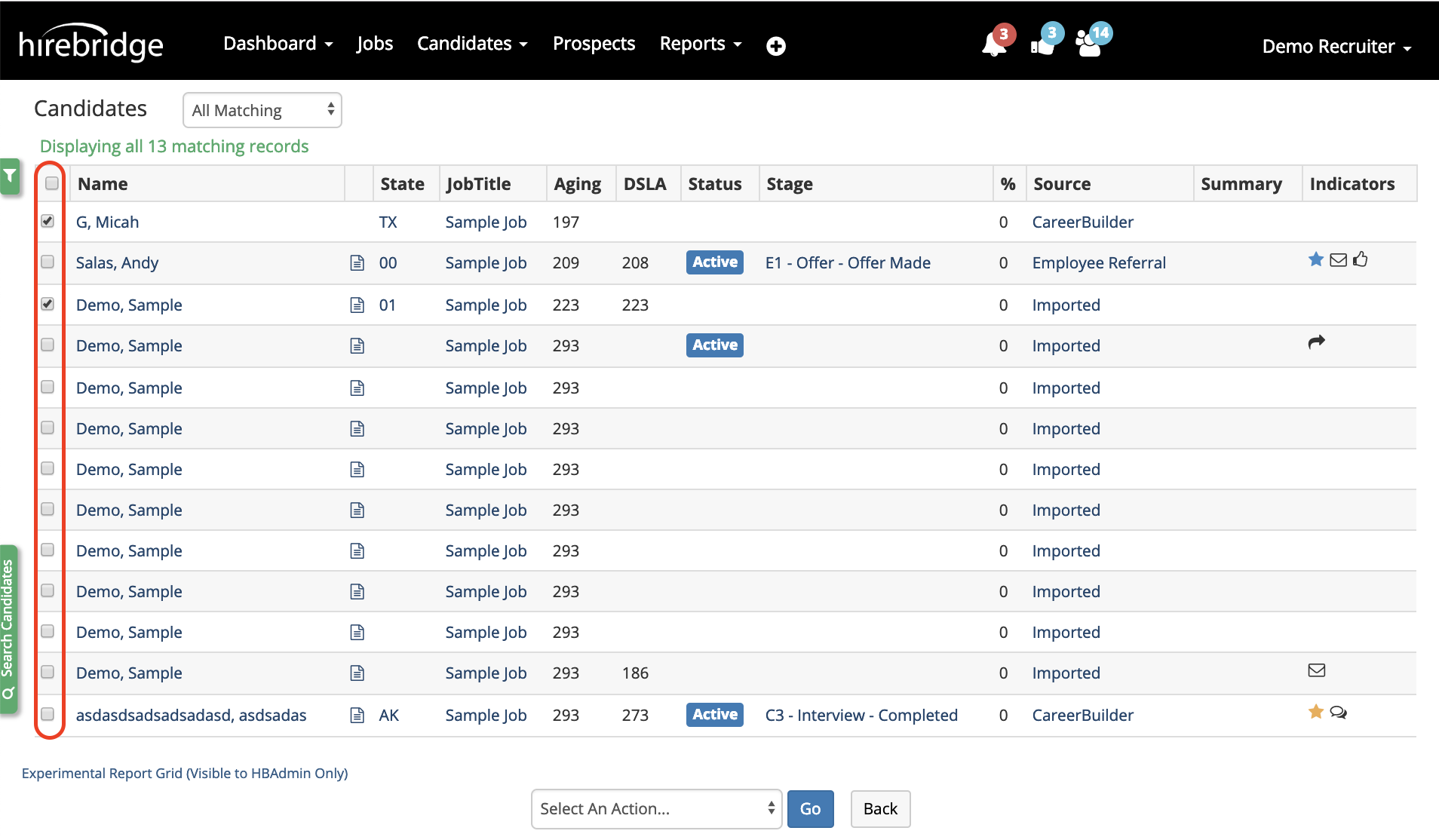
- One you are in the candidate list, on the left of each candidate is a checkbox.
- To Select All of the candidates listed check the box next to the Name title.
- To download multiple candidate resumes check each box next to the candidate resumes you would like to download.
- The next step is to select an action from the drop-down list at the bottom of the page.
- Select Download Resumes to download multiple candidate resumes.
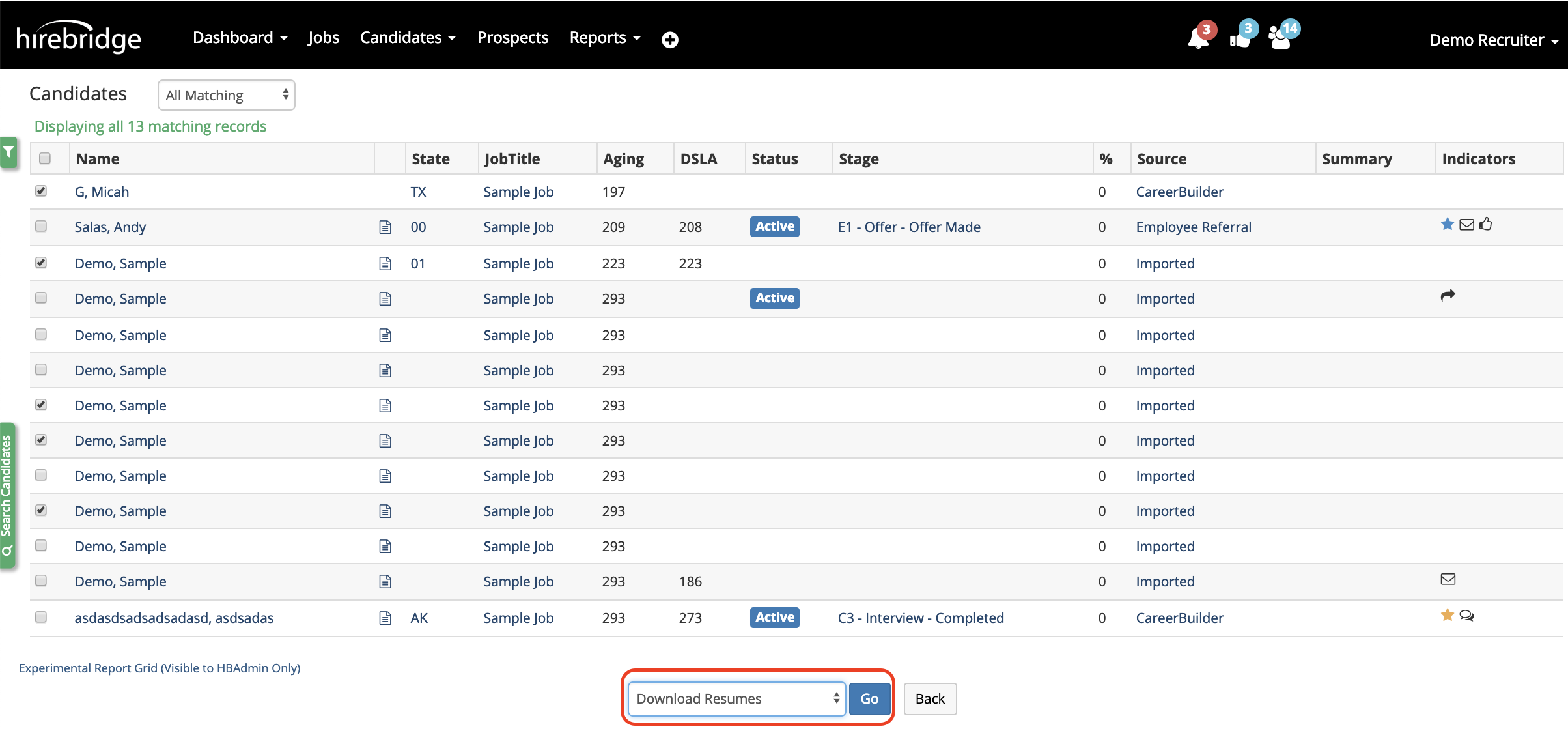
- After selecting the candidate resumes and selecting Download Resumes from the drown-down select Go.
- This will then take you to the download resume page which will review the candidates and list candidates that Do and Do Not have resumes in their profile.
- You also have the ability to adjust the push notification message you receive when the candidate resumes are ready for download.

- After selecting Download Resumes the page will reload to the candidate list.
- When the resumes are ready for download they will appear as a browser push notification and within Hirebridge.
- Below are two samples of the resume notifications that you will receive.
- The first image is the browser push notification that you will receive once the resumes are ready for download.

- The Hirebridge notification will be displayed in the top right corner outlined in the image below.
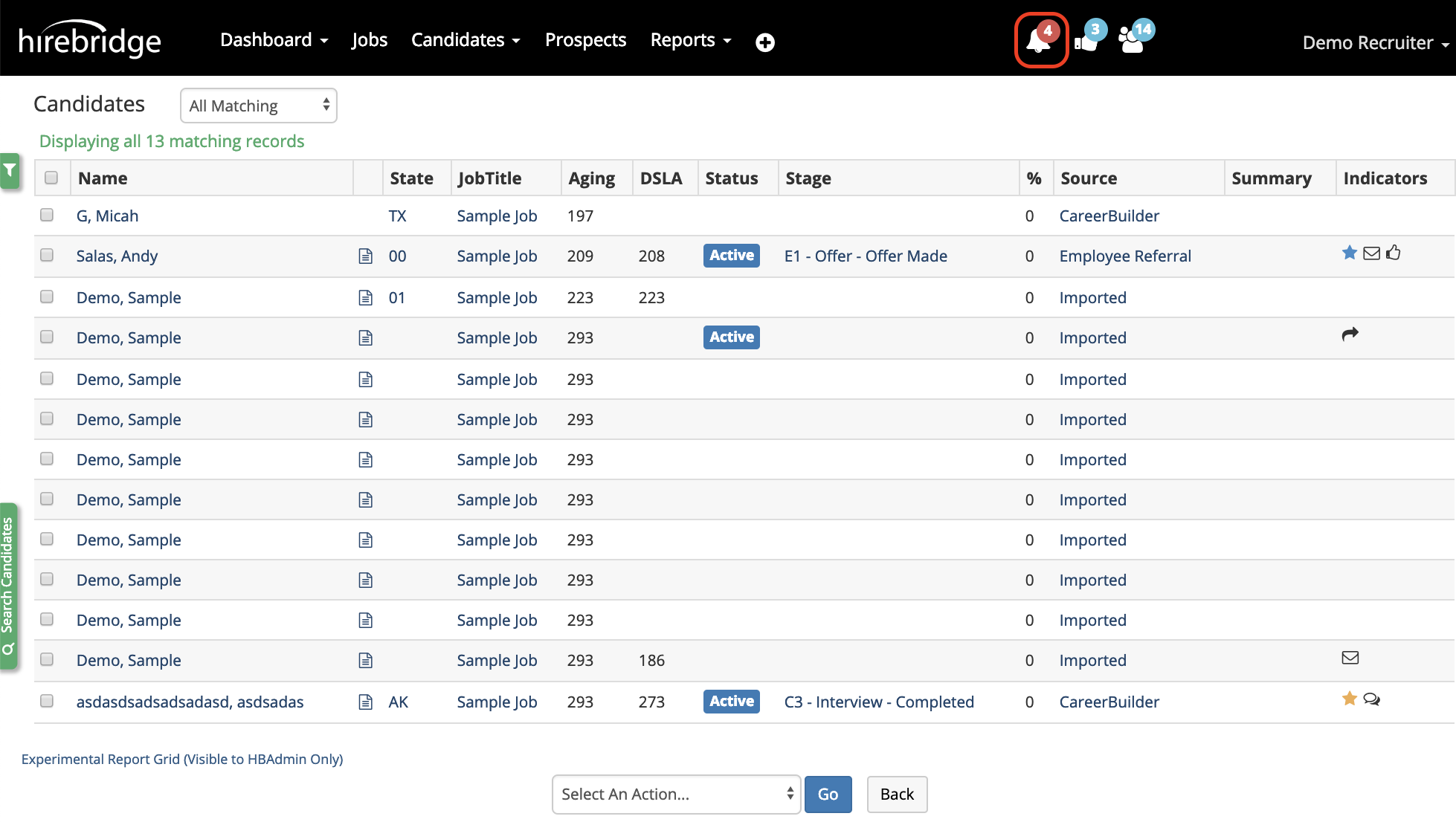
- Select the bell icon and it will display all of your notifications and messages.
- Locate the resume request with the custom Title and select Click Here to download the resume.

This will then download all of the candidates selected into one PDF file.