This article will guide you on how to create, edit, and delete a SMS Keyword Autoresponder.
- The first step is to select your Username in the top right then Administration.
- From the Setup & Configuration section select SMS Keyword Autoresponder Configuration.
- This will then display the SMS keyword configuration page and list all of the keyword responders.
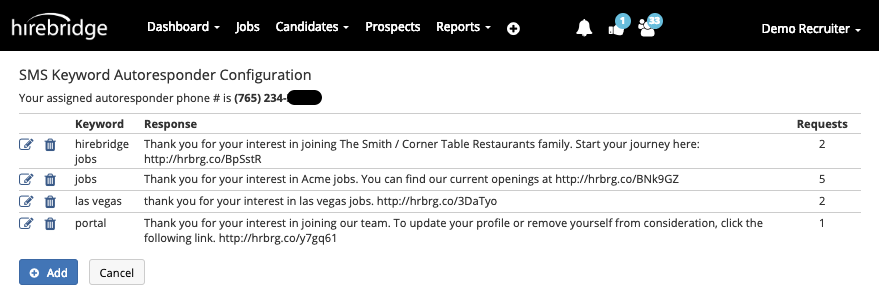
This page will also list the following.
Keyword - Keyword that will be used to trigger a response
Response - Response that will be sent once they text the keyword to the designated number
Requests - Total number of requests that have been made
Next to each row of keyword responses you do have the option to delete and edit each keyword responder.
 |
- Delete Keyword Responder |
 |
- Edit Keyword Responder |
 |
- Add Keyword Responder |
Select Add at the bottom of the page to create a new Keyword Responder. A popup will appear with text box fields that will allow you to create a keyword and a response.
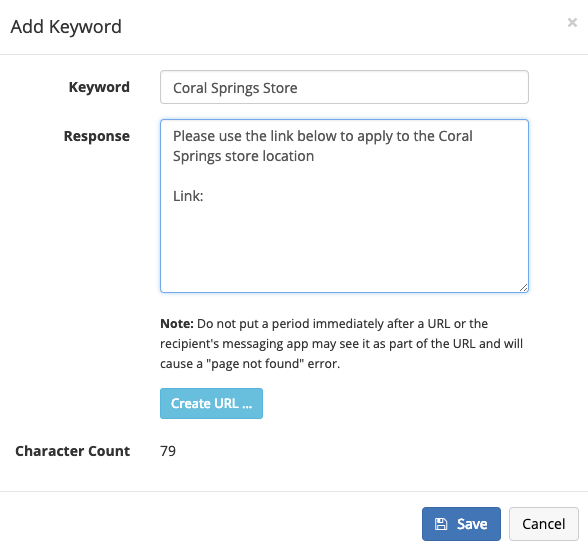
After creating the keyword and response next create the URL by selecting Create URL.
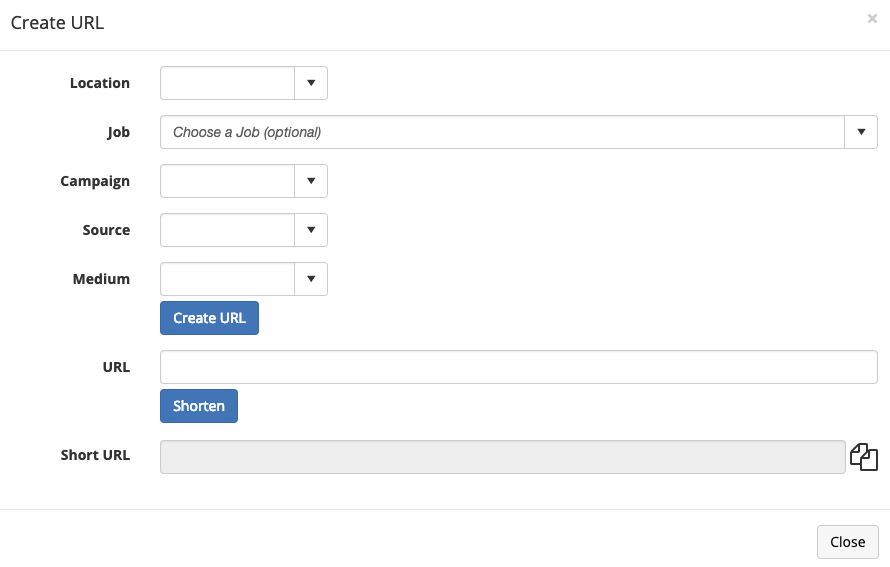
This will allow you to attach a specific location or requisition to the URL. We also give you the option to attach a Campaign, Source, or Medium.
Once you have attached the location or job to the URL select Create URL. This will then create a regular URL that you can use to access the requisition.
To shorten the URL select Shorten this will then generate a shortened URL you can use to share.
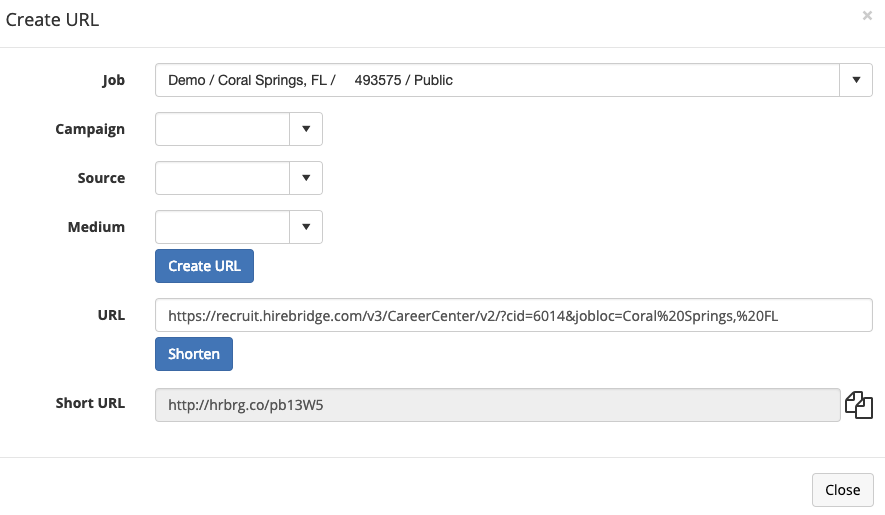
- The next step would be to select the Copy icon
 to the right of the short url text box.
 - Now that you have copied the link select Close.
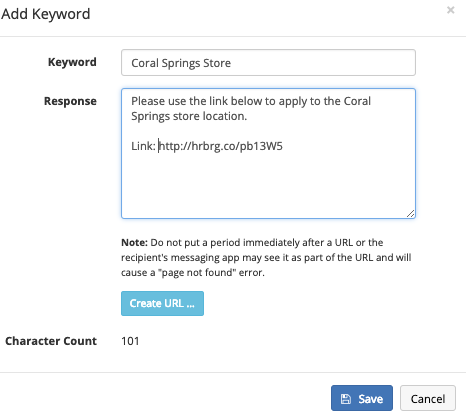
- Paste the URL into the desired area and select Save.
- The keyword will now be in the SMS Keyword Autoresponder Configuration list
To test if the responder works text the keyword to your assigned autoresponder phone #
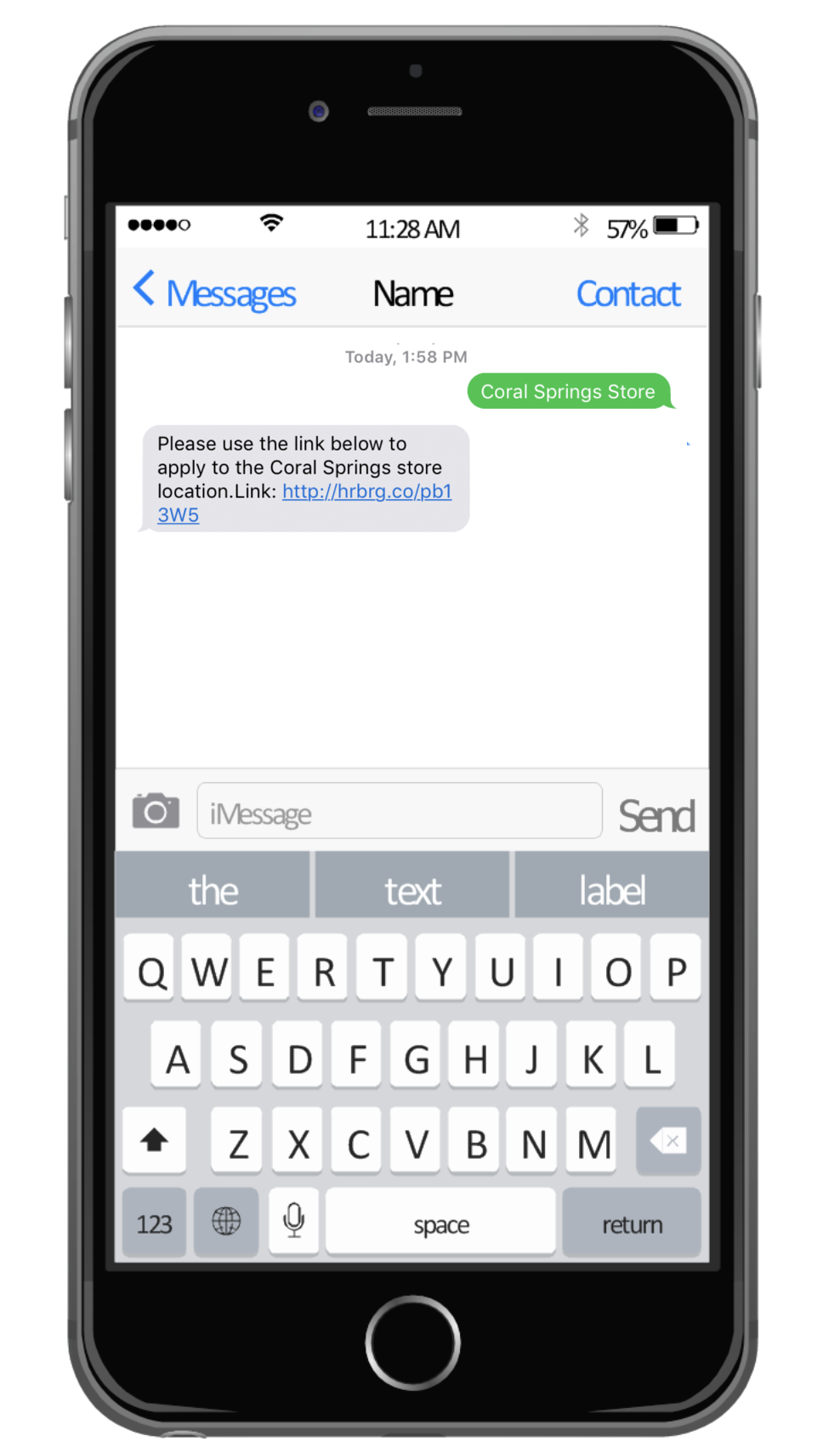
Candidates will receive a text like the example below.