This article will give an overview of the EEO Compliance Report

Note: If your company does not have bands or job groups it will not be displayed.
This report pre-set to collect EEO/OFCCP data from candidates for US jobs only.
- At the top of the page you can select the specific filters you would like run the report
- Group by - Allows you to generate the report based on what is selected from the dropdown list.
- Req. Status - Filter the EEO report based on requisition status
- Location - Filter the report based on a specific location
- Category -Filter the report based on a specific Category
- Job Group - Filter the report based on specific Job Group
- Job Function - Filter the report based on job function
- Department - Allows you to select a specific department to run the EEO report on.
- Job Type - Allows you to select a specific Job Type
- Date Filter - Allows you to select to run the report based on application or requisition close date. - What this means is Application Date will bring all candidates who applied to requisitions during the particular period. Close Date will bring all candidates (regardless of apply date) for jobs that were CLOSED during the particular date range.
- Date Range - Select from preset date ranges
- From - Custom date ranges can be selected from here
- To - Specific to dates can be selected.
Once the report is generated, the left side will display the selected Group by with the Gender, Ethnicity, Veterans Status, and Disability provided in columns. At the top there is a reference where you can define the abbreviated terms.
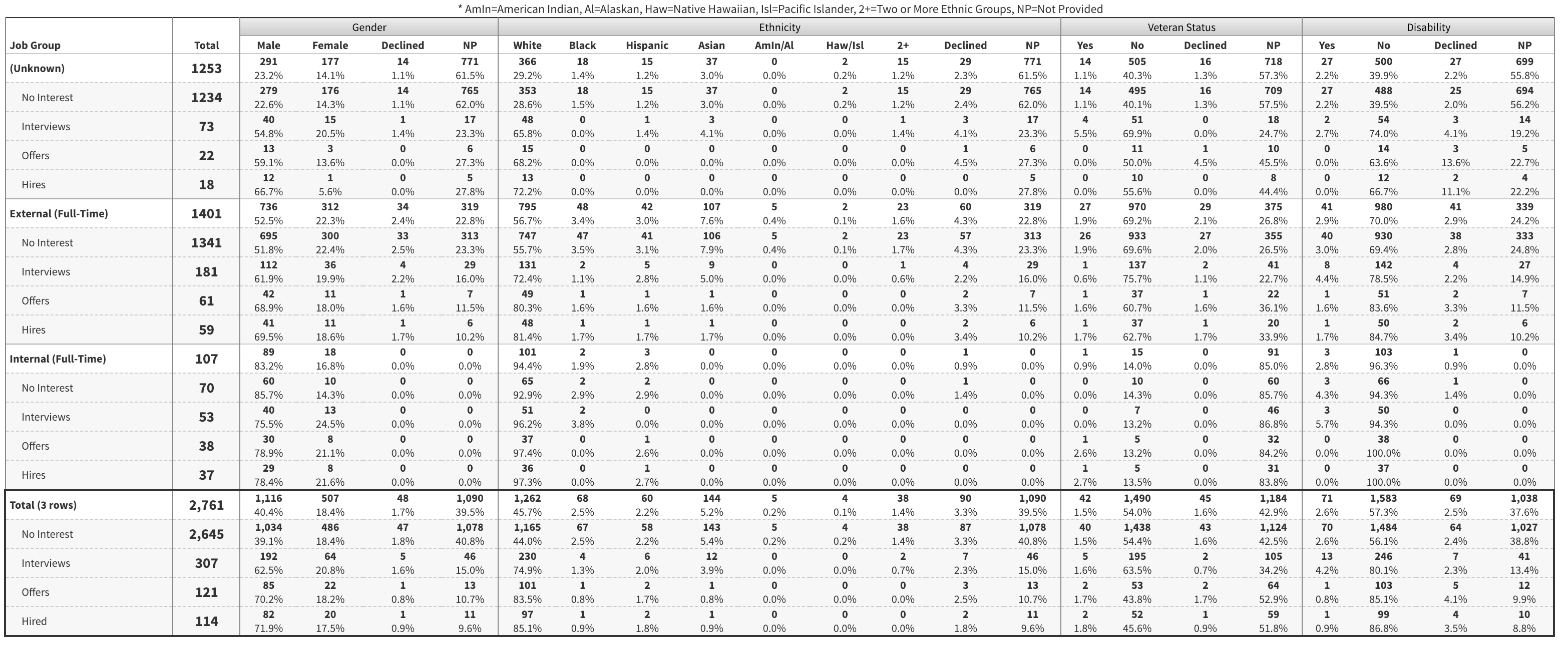
In the example below we grouped by Job Group and on the left it will display all of the job groups. Each group will also display candidates that have been no interested, interviews that were scheduled, offers that were made and hires.
At the bottom left of the page will also display the total of of no interest, interviews, offers and hired.
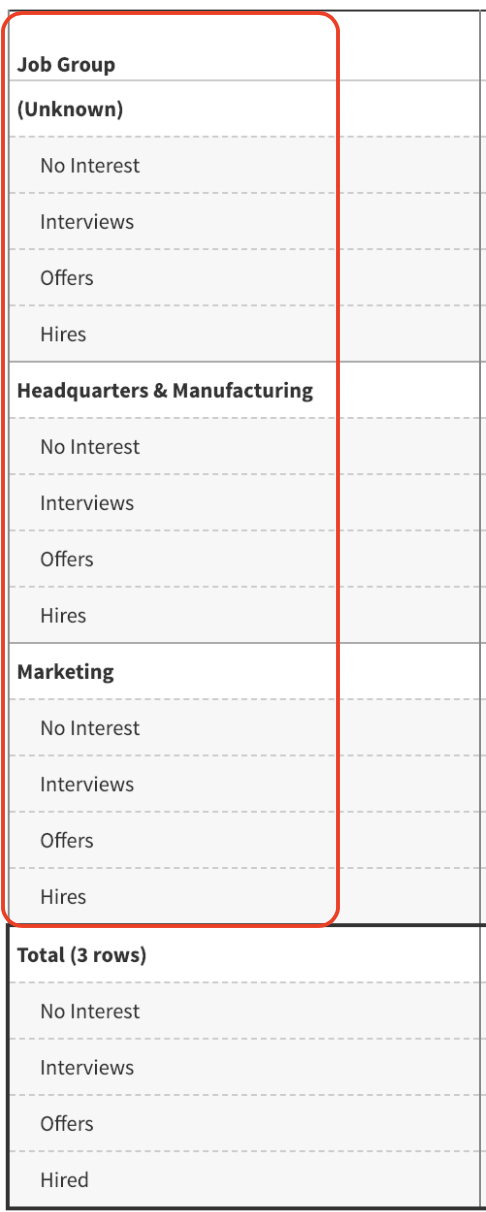
To the right of the Job Group you will see the column Total this will display the total number of candidates based on the group. Below the total will show actions that were taken against those candidates.
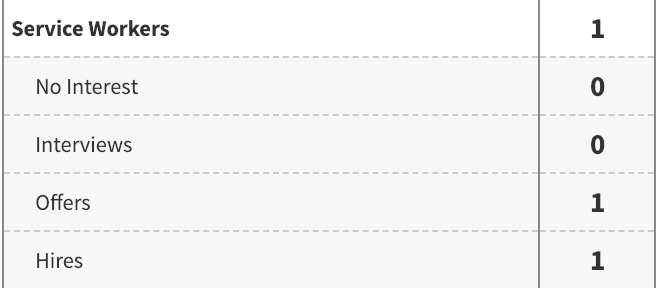
For example below one service worker applied to that job group. One offer was made and one hire was made.
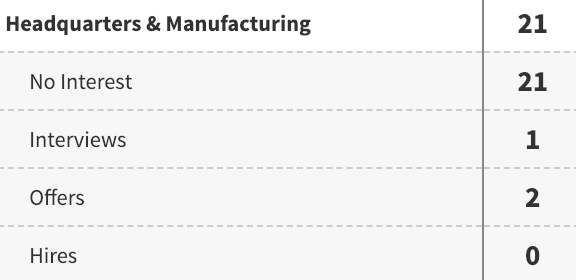
Below is another example where the candidate offers have been made but all were no interested
To the right of the selected Group by will display the number of candidates based on Gender, Ethnicity, Veteran Status, and Disability.

Gender, Ethnicity, Veteran Status, and Disability columns are a breakdown of the Total column. Each number displays the total percentage below.
At the bottom of the report there is the total section that will combine all of the groups.
 Below the Total there you also do have the option to Export Summary which will export the report generated. Export Details will export all of the candidate information within the report.