Hirebridge Slack Integration
Overview
Hirebridge’s Slack integration permits the sending of event notifications (Web hooks) to Slack channels. These notifications can be sent to a specific channel or a dynamically determined one based on the job, user’s in the various job roles, and user preferences.
Linking to Slack
There are 2 places where you may need to configure the Slack integration; Company Administration and/or User Preferences. They are done the same way but the configuration page is access either the Administration Control Panel or User Preferences, therefore we can look at just 1 set of screenshots below, but first let’s discuss the difference.
When configuring a Webhook endpoint for Slack we will get the option of sending the notification to either a specific Slack channel or to a user or users in the various job roles. For the former we will display a list of Slack channels configured only in Company Administration. For the latter you will not configure a specific channel in the endpoint. Instead, we will scan all users attached to the job in the selected roles, find any Slack credentials/channels configured for the user and send the notification to them.
To link to a Slack workspace/channel you will select OAuth Credentials from Administration Control Panel or the Connections tab of User Preferences. Click [Add Account].

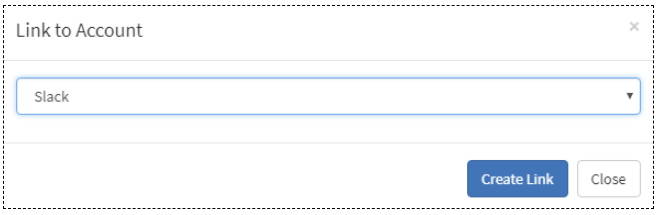
And then on the ensuing modal dialog select Slack as the provider and click [Create Link].
You will be redirected to Slack to provide your authorization to access your account and choose a channel to which messages will be posted. You will be prompted to first log into your workspace if you are not currently logged into one.
Choose your workspace (if you are logged into multiple), the channel to which messages should be posted, and click [Authorize].

Company admins setting up company-level integration can freely repeat this step multiple times if different types of notifications will be sent to different channels. For users configuring their own user preferences there is little need for that. In fact, it likely would not be desirable at all as a notification to a user in a role will go to all channels configured for that user.
System Event Notification Endpoint Configuration
The first step is to choose Slack as the notification protocol.
Next, there are 2 ways to configure your Slack endpoints; 1) to send to a specific channel; or 2) to send to a channel associated with a user attached the job related to the notification.
The “Send To” dropdown list will contain a list of Slack workspaces/channels configured at the company level as well as an option to select “User in Job Role(s)”.
This is a screenshot of the former:

and this of the latter (with the Recruiter and Hiring Manager linked to the job to receive the notification):

If any users associated with the role has not configured a Slack integration they will simply not receive a notification. It will silently skip over those users. So you may find some users receive certain notifications while other users do not receive those very same notifications. If this is the case, the first step is to check if the user has configured a Slack integration.
System Event Notification Handlers
There’s nothing special about a Slack notification handler. Simply select the endpoint and define your payload. The payload is plain text (and while the Content Type is not used you will need to set it so just use “text/plain”)

Here you can see we’ve simply laid it out as we want to see it in Slack with linefeeds, field labels, and merge fields.
We will automatically add the job title (for job-related events) or candidate’s name to the notification along with a link to Job View or Candidate Info, respectively, so there’s no need to put that in the payload.
It’s also worth noting that Slack has the ability to add a few markdown tags to format the text. Asterisks (*) around text will make it appear bold, underscores (_) will italicize, tildes (~) will format text as strikethrough, an angled bracket (>) will quote a single line of text whereas 3 will quote multiple lines, and a backtick (`) will format a single line as inline code while 3 backticks will format a block of text.