This article will give you an overview and guide you on how to setup E-Mail Reminders.
The email reminders are used to remind candidates and users to complete certain tasks.
Once this feature is activated and the task is performed, the reminder will be scheduled to be sent out based on days set by the company.
Activating Feature
- To activate this feature selecting your username in the top right corner then select Administration.
- Once on the Administration Control Panel select System Setup.
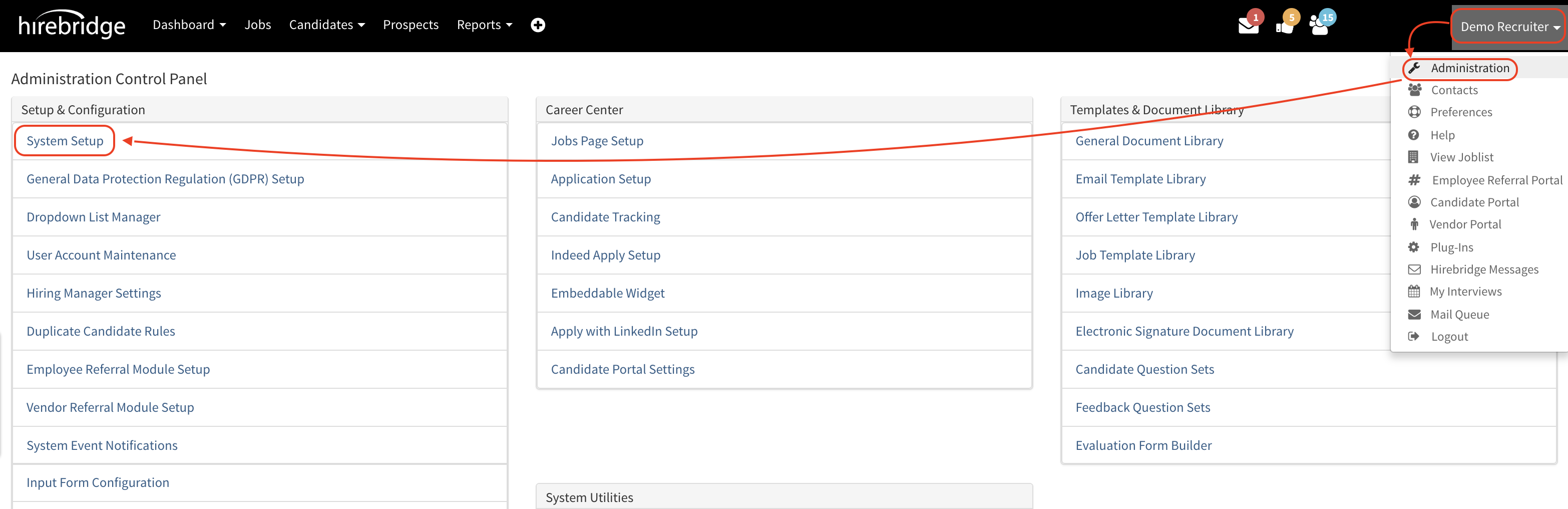
- Once on the System Setup page on the left side select Reminder Services.
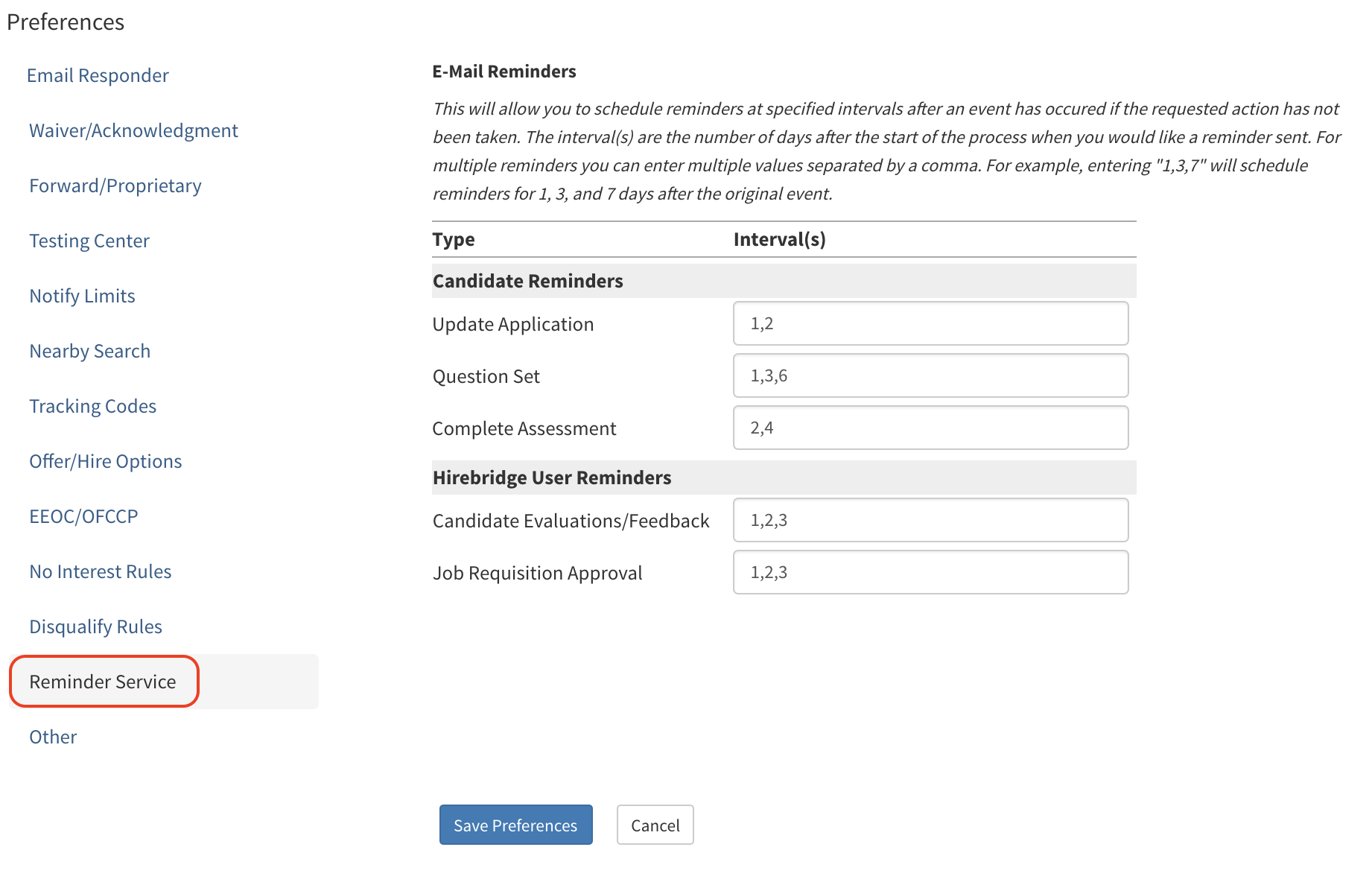
- This tab will allow you to add candidate reminders and Hirebridge user reminders.
- To activate the reminders for the user and candidate enter the interval in days to remind the candidate or user to complete a certain task.
- To set multiple reminders for one task you can separate them with commas.
Example: Question Set - 1,3,6
After requesting the candidate to complete a question set the candidate will receive a reminder after a day to complete question set. The next notification will be queued to be sent out on the 3rd day and on the 6th day after the question set was sent out.
- Once a reminder is set it will be queued up in the Mail Queue.
- To remove a reminder leave the text-box blank and select Save Preferences.
- To verify and review the reminders set to go out select Administration then Mail Queue.
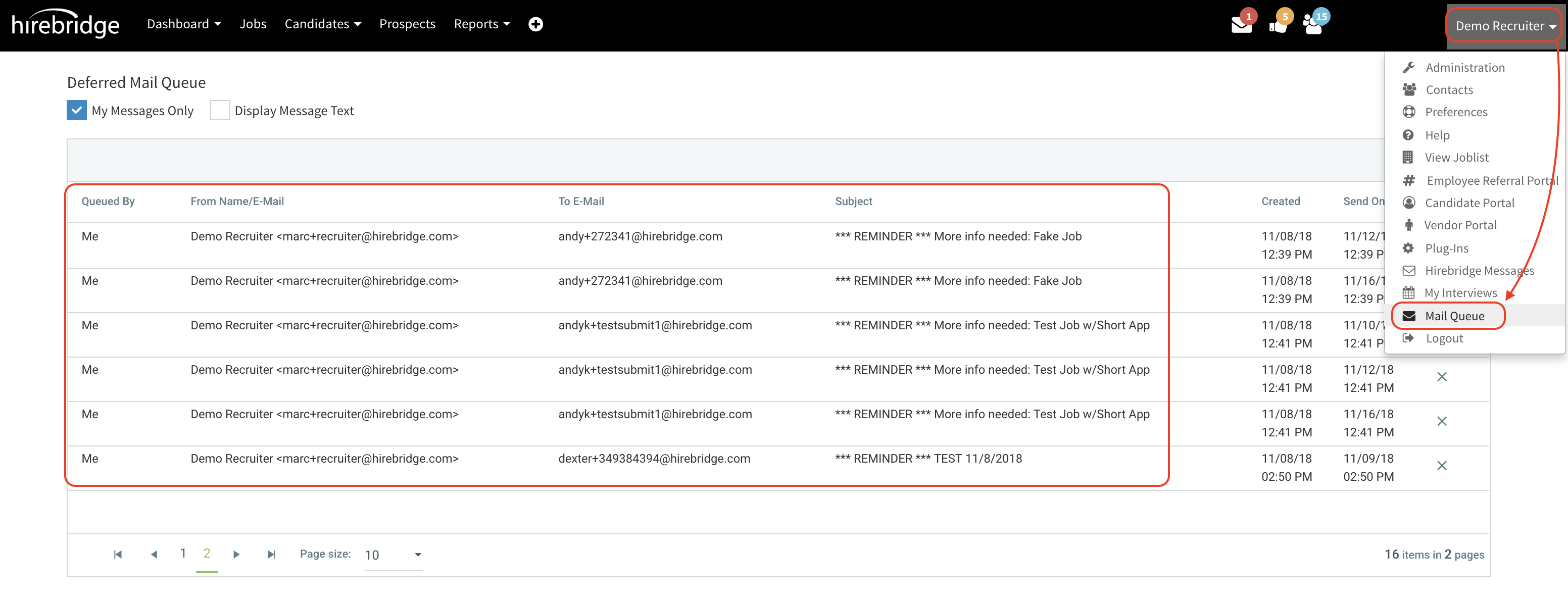
- In the Mail Queue this will allow you to review the reminder message that is scheduled to be sent out
- Checking the "Display Message Text" box this will allow you to view the message that is scheduled to be sent out.