This article will cover the Email Templates tab of the GDPR setup page.
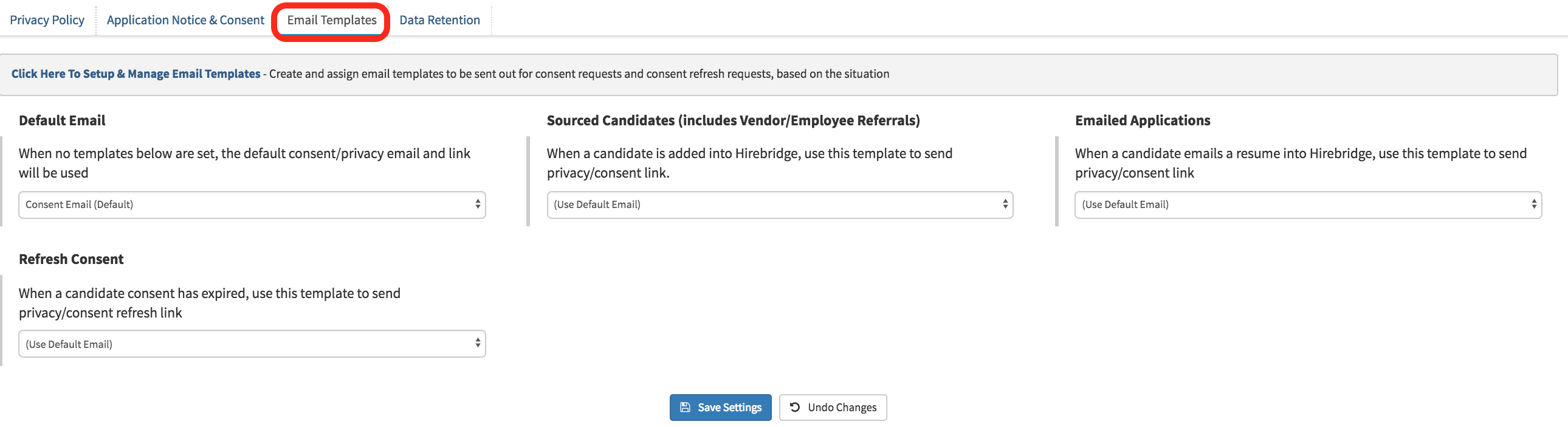
The Email Template section of the GDPR setup page will allow you to configure the privacy/consent emails that will be sent out to candidates.
- The first step is to be sure that you have email templates setup for selection in the drop-down list.
- To quickly access the GDPR Email Template page select Click Here To Setup & Manage Email Templates. (image provided below)
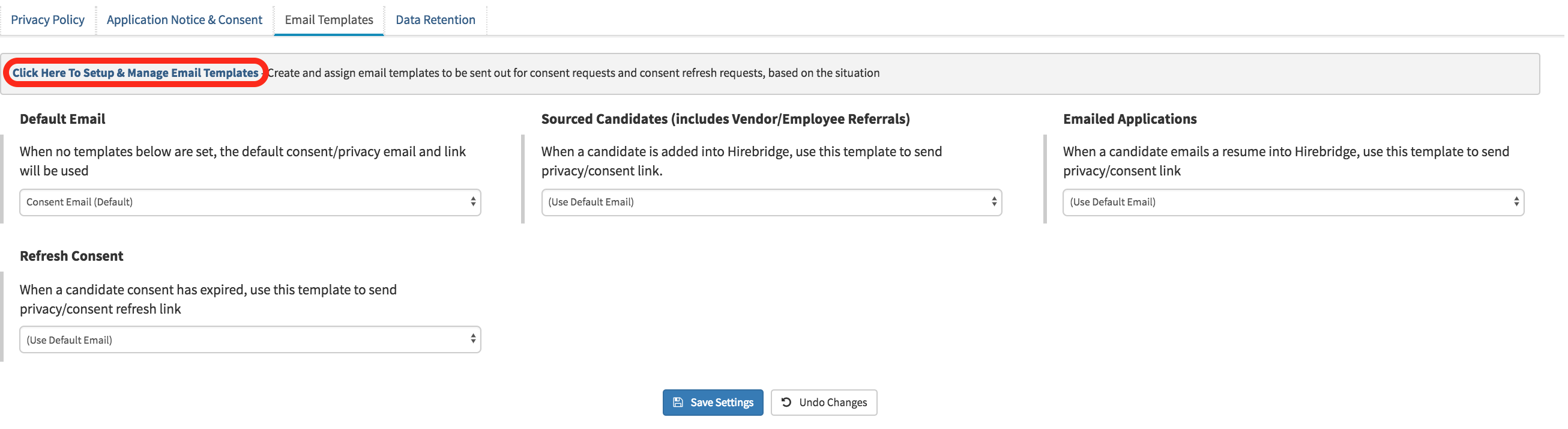
- This page will allow you to access the GDPR email notifications page where you will be able to add/edit templates. (Image provided below)

- For more details on how to edit the email templates select the link here.
Once the consent/privacy emails are created you are now able to select from the list of emails to be sent on based on circumstances below.
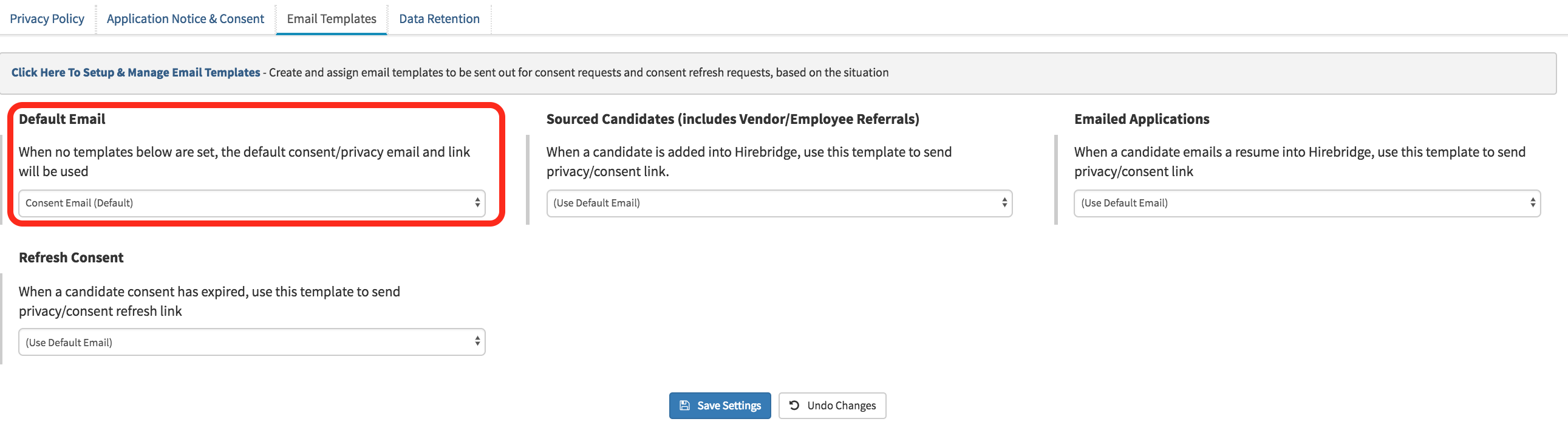
Default Email - When no consent/privacy email is selected this email will be selected and used from the drop-down list.
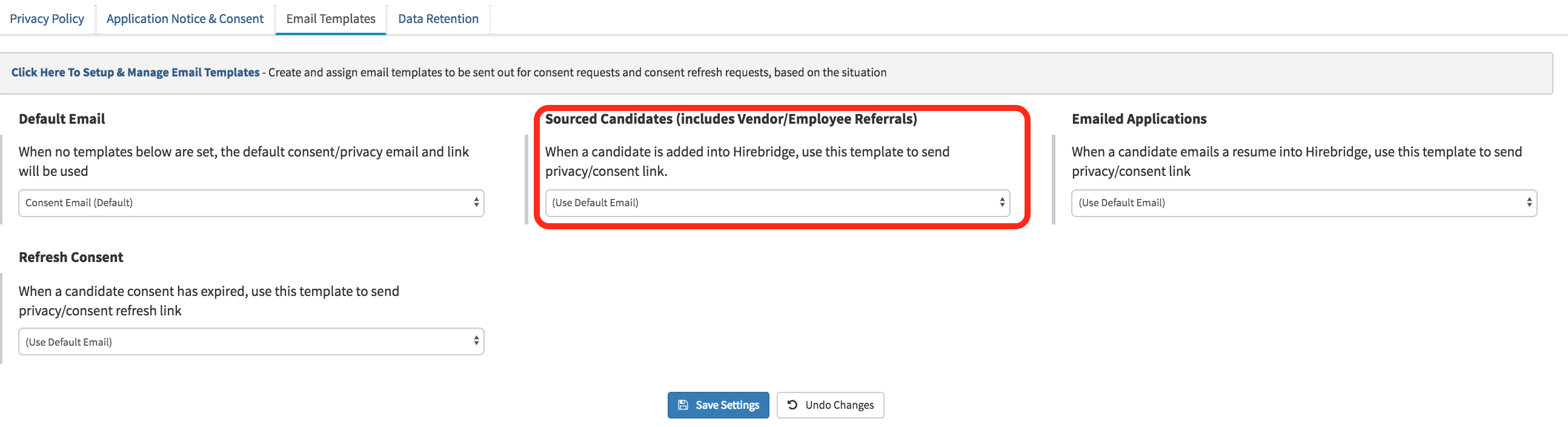
- Sourced Candidates (Includes Vendors/Employee Referrals) - When a candidate is added by a vendor or referred by an employee the candidate will receive the selected privacy/consent email template.
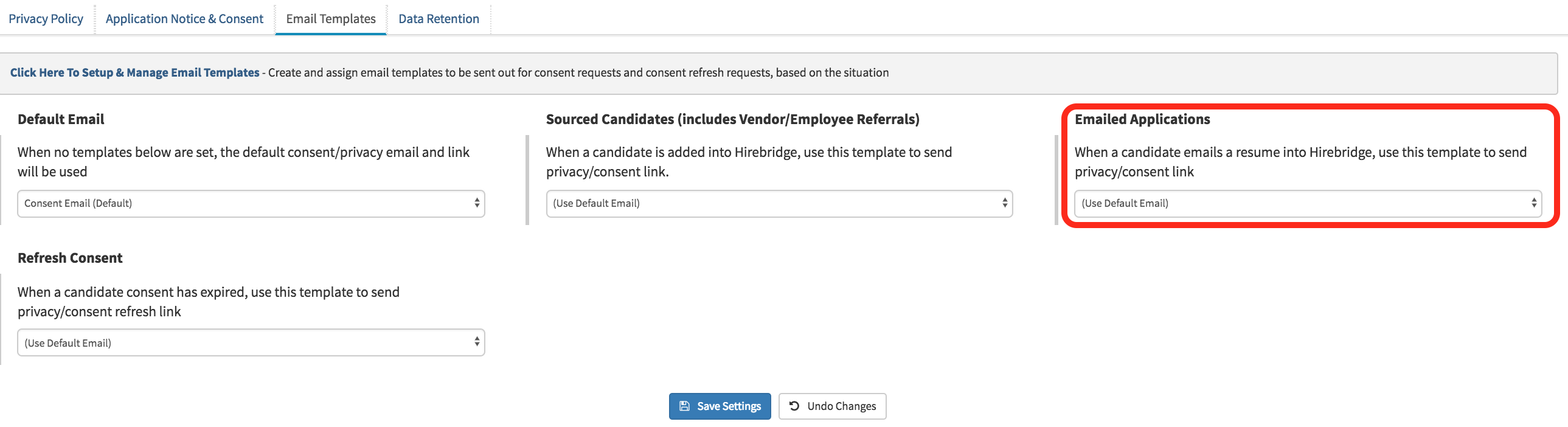
- Emailed Applications - When a candidate emails a resume into Hirebridge, the candidate will receive the privacy/consent selected from the drop-down list.
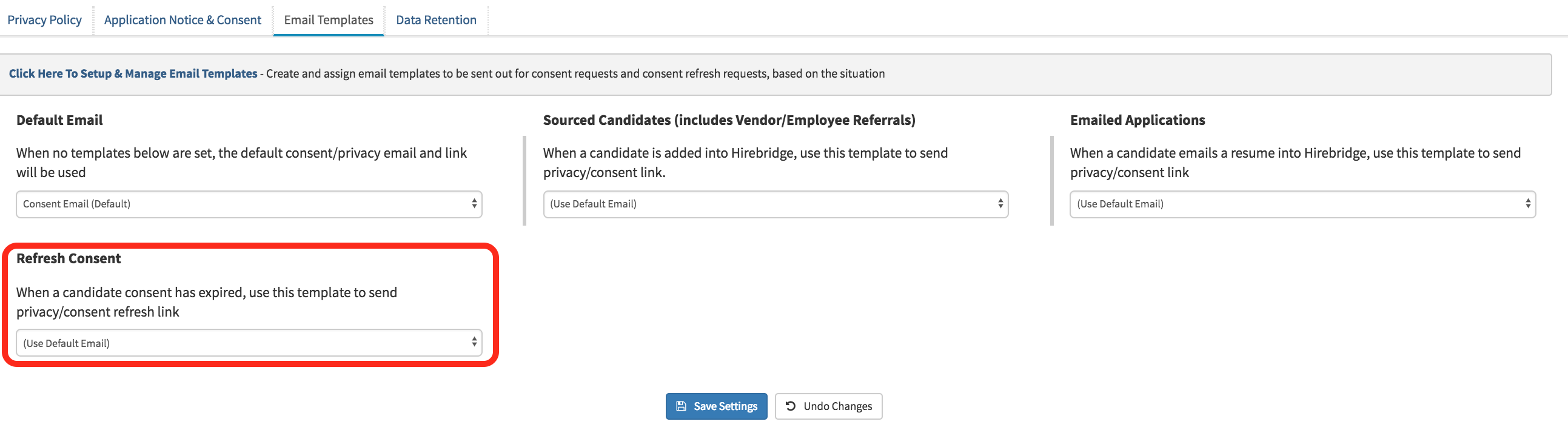
- Refresh Consent - When a candidate consent has expired the candidate will receive the selected privacy/consent email from the drop-down list.
Once the email templates are selected for each instance select Save Settings.