This article will cover the Application Notice & Consent tab of the GDPR setup page.
- Application Notice & Consent - The application privacy notice is what candidates subject to GDPR (EU Residents and Jobs located in the EU) will see, alerting them to click and review your privacy policy
- GDPR Application Notice Template
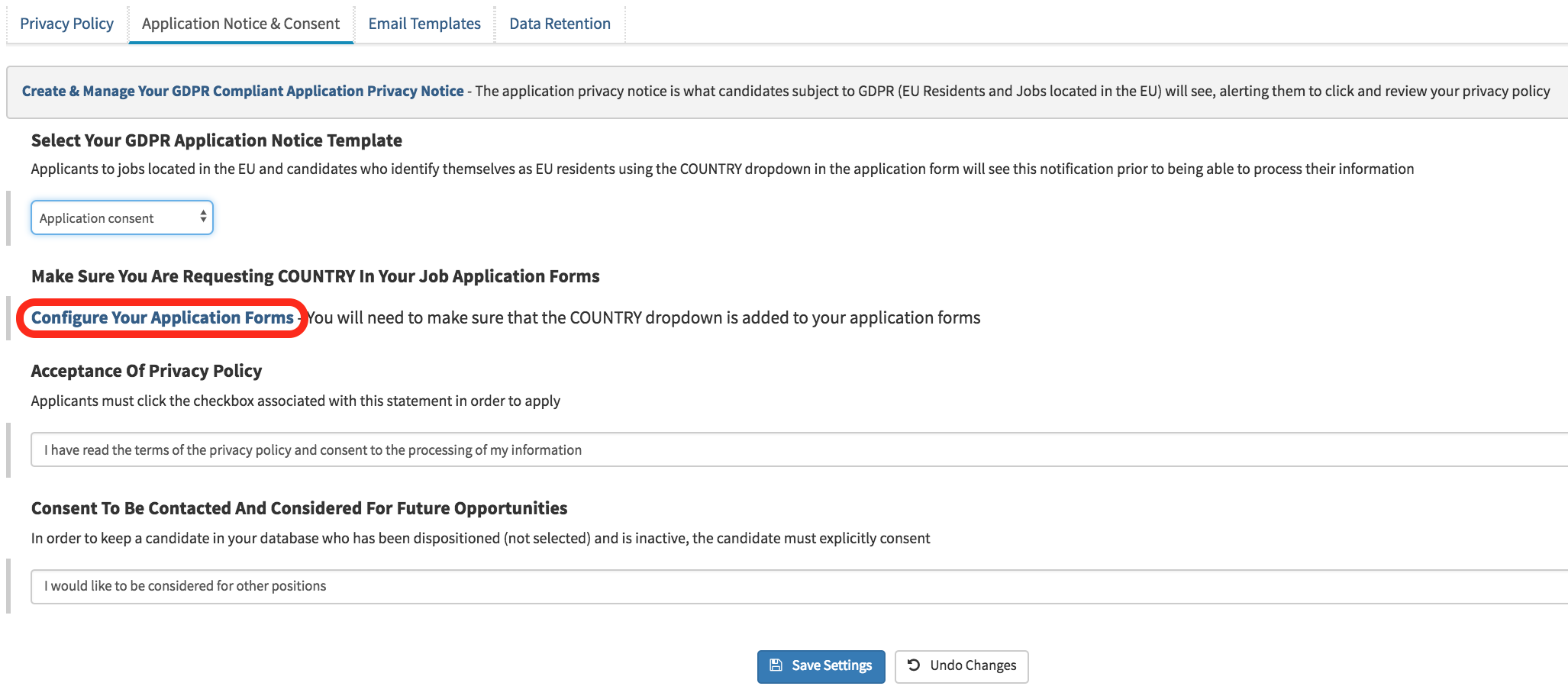
- Configure Your Application Forms
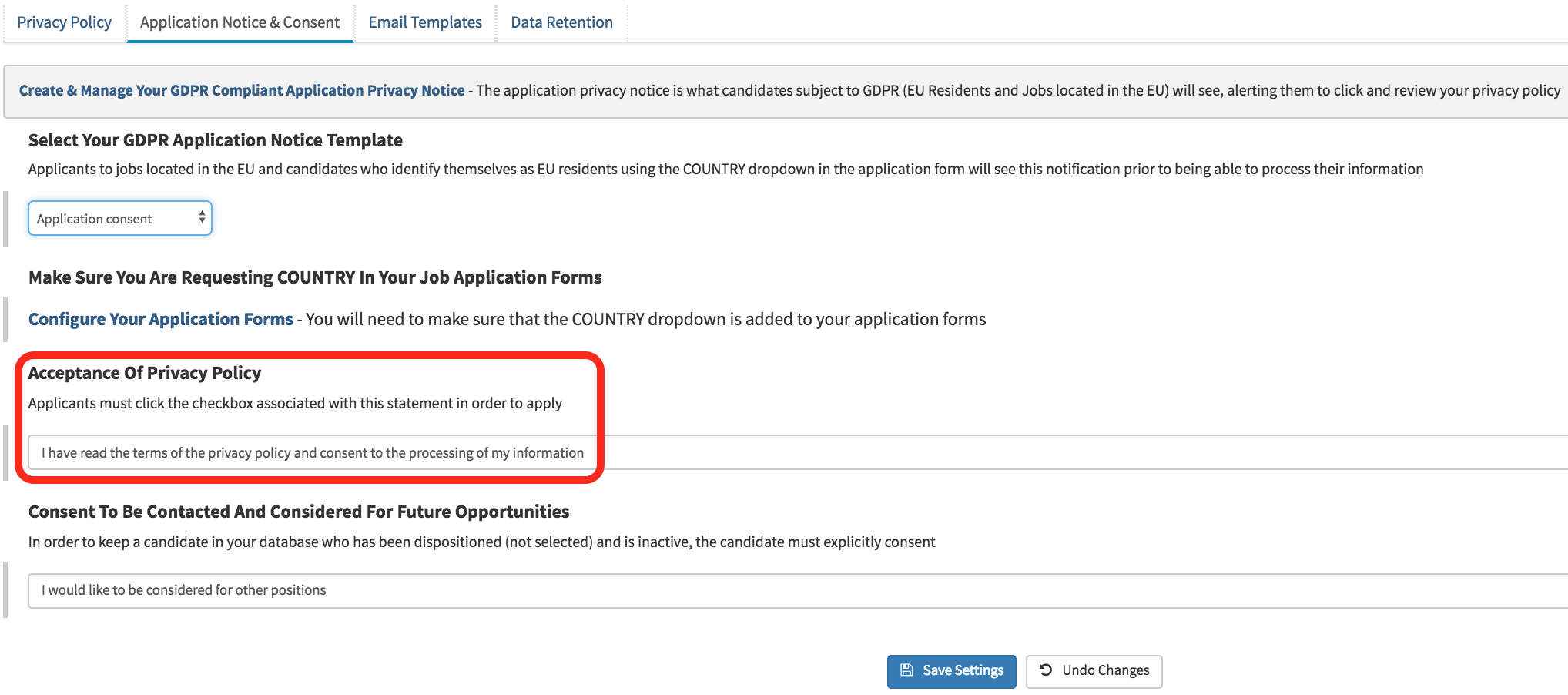
- Acceptance Of Privacy Policy
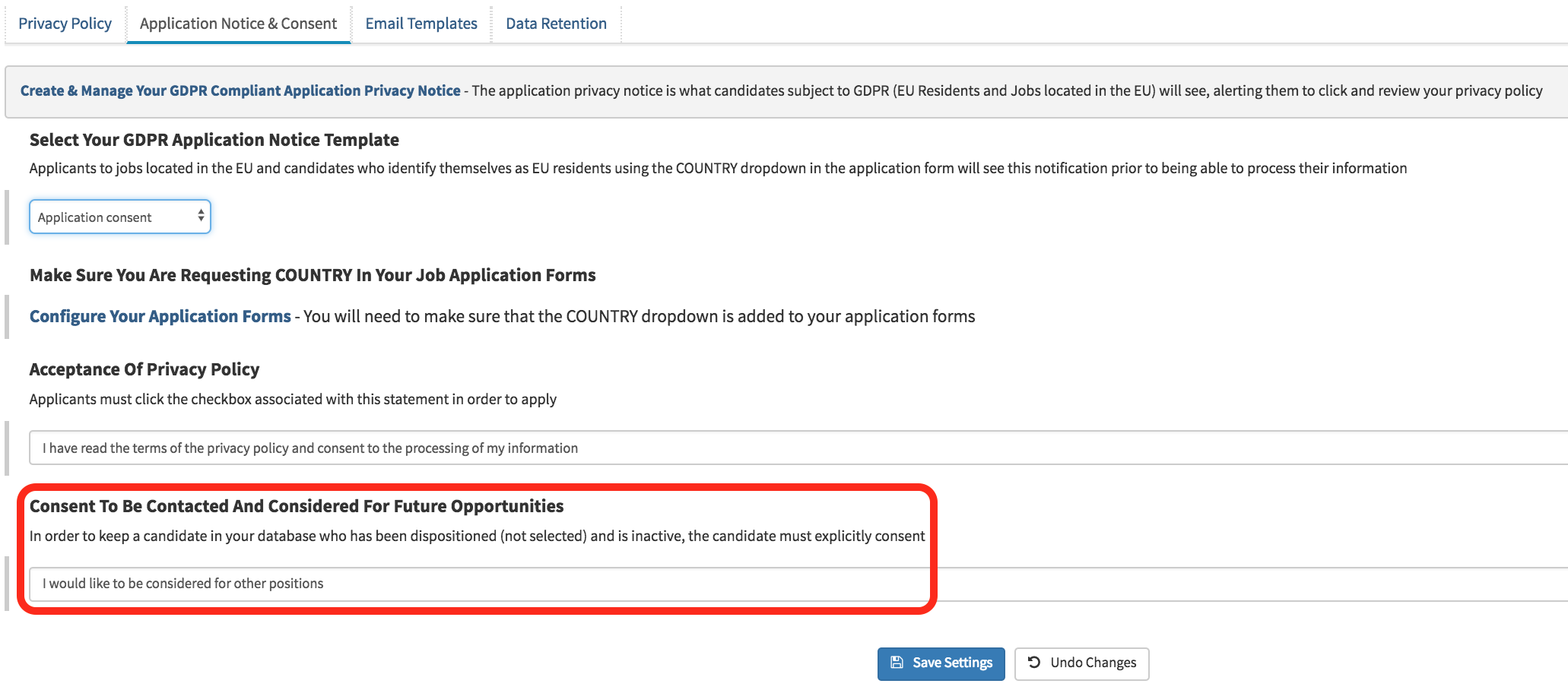
- Consent To Be Contacted And Considered For Future Opportunities
- GDPR Application Notice Template - Applicants to jobs located in the EU and candidates who identify themselves as EU residents using the COUNTRY drop-down in the application form will see this notification prior to being able to process their information.
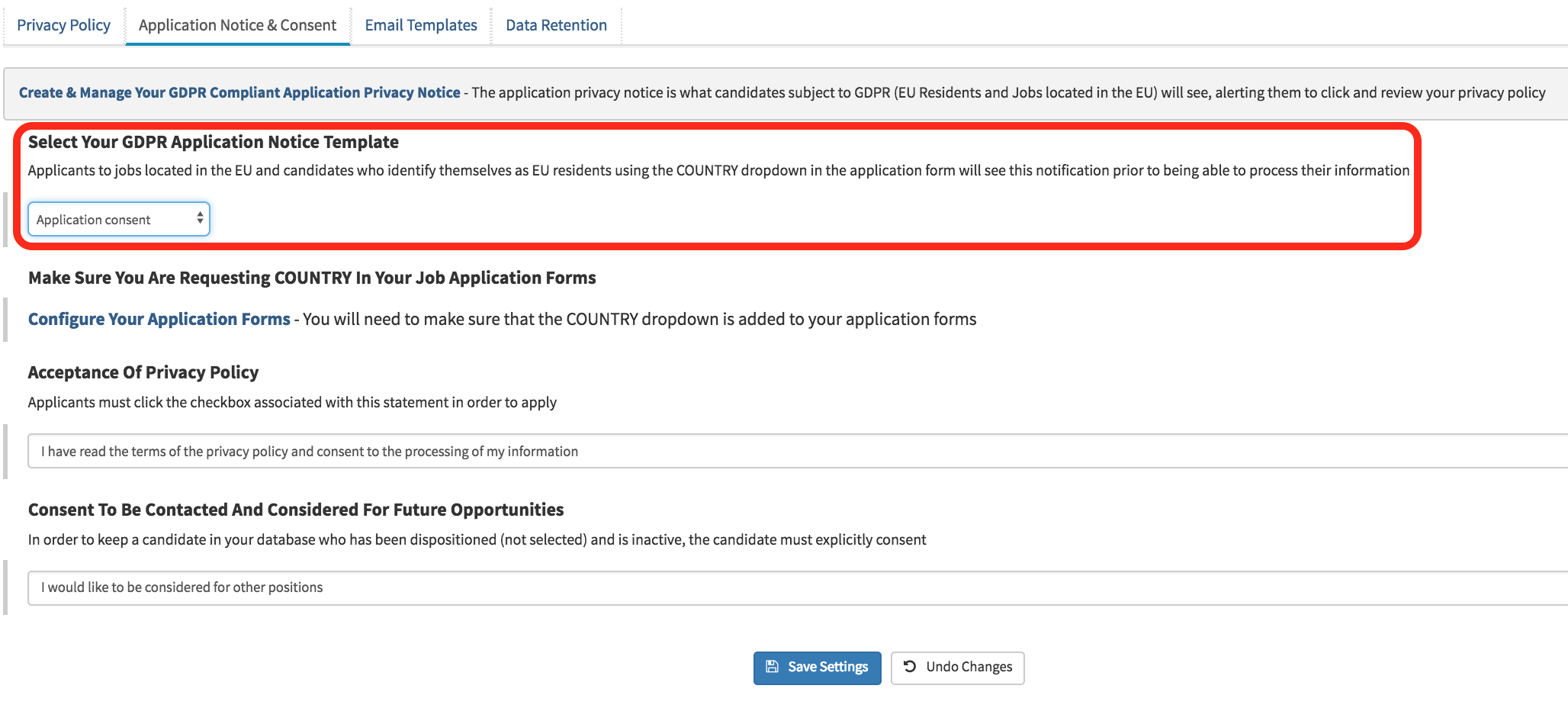
- Configure Your Application Forms - This will allow you to add the COUNTRY dropdown list into the application form.
- select Configure Your Application Forms link.
- This will take you to the Application Setup page.
- On this page, Fast Apply is the only configurable application that will allow the candidate to select which country they want to identify themselves from.
- Quick apply and the Standard application will automatically select the candidate location based on the information provided by the candidate.
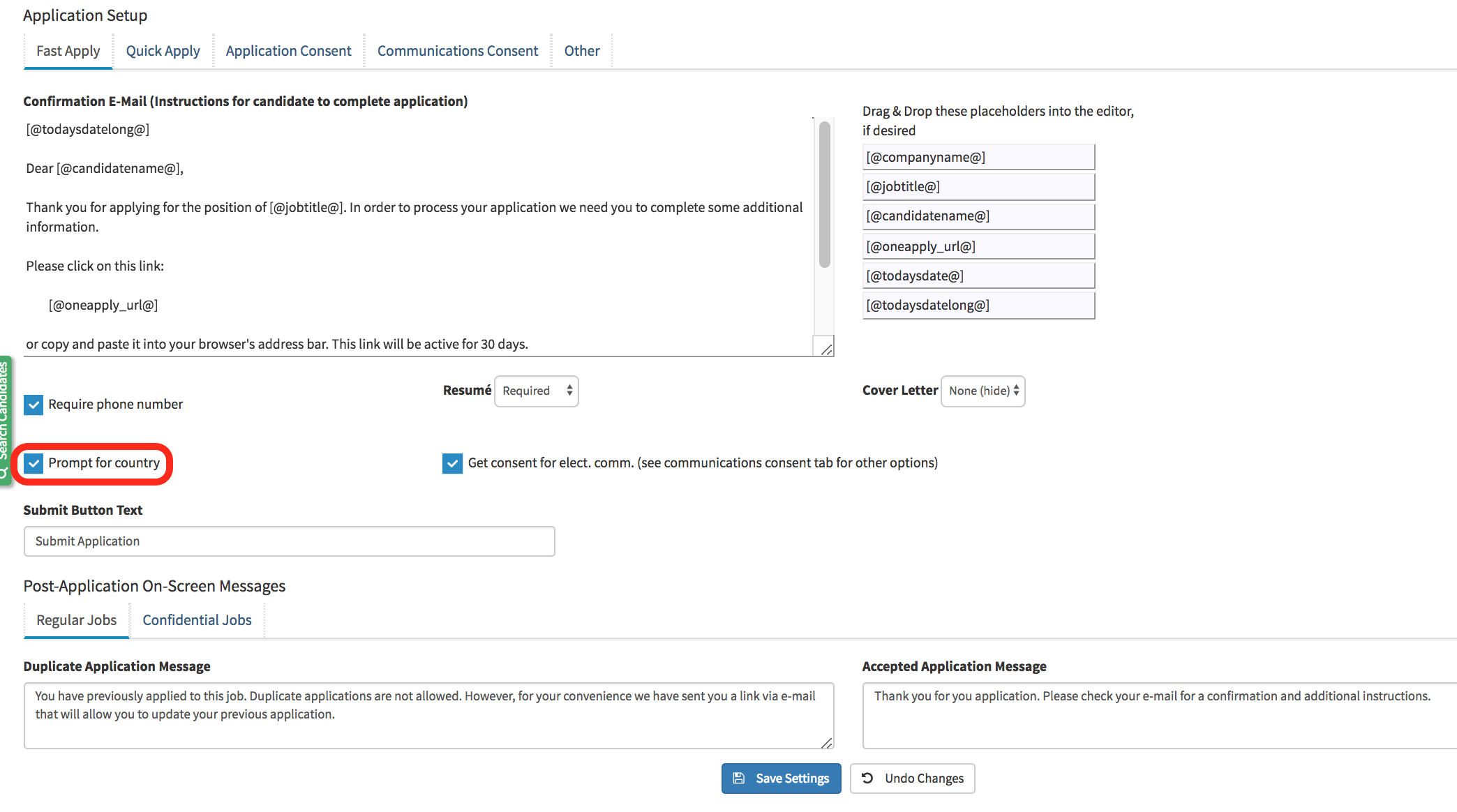
- Once this setting is set, select Save Settings
The next step is to setup the Acceptance of Privacy Policy.
- When a candidate accepts the privacy policy they need to click on the checkbox next to the text outlined below.
- This section allows you to edit the language of the Acceptance Of Privacy Policy.
- The Consent To Be Contacted and Considered For Future Opportunities will allow the candidate to select if they would like to keep their profile in the database for other available positions.
- To edit the text provided to candidates select the text box and enter the preferred language.
Once all of the fields are set and adjusted select Save Settings