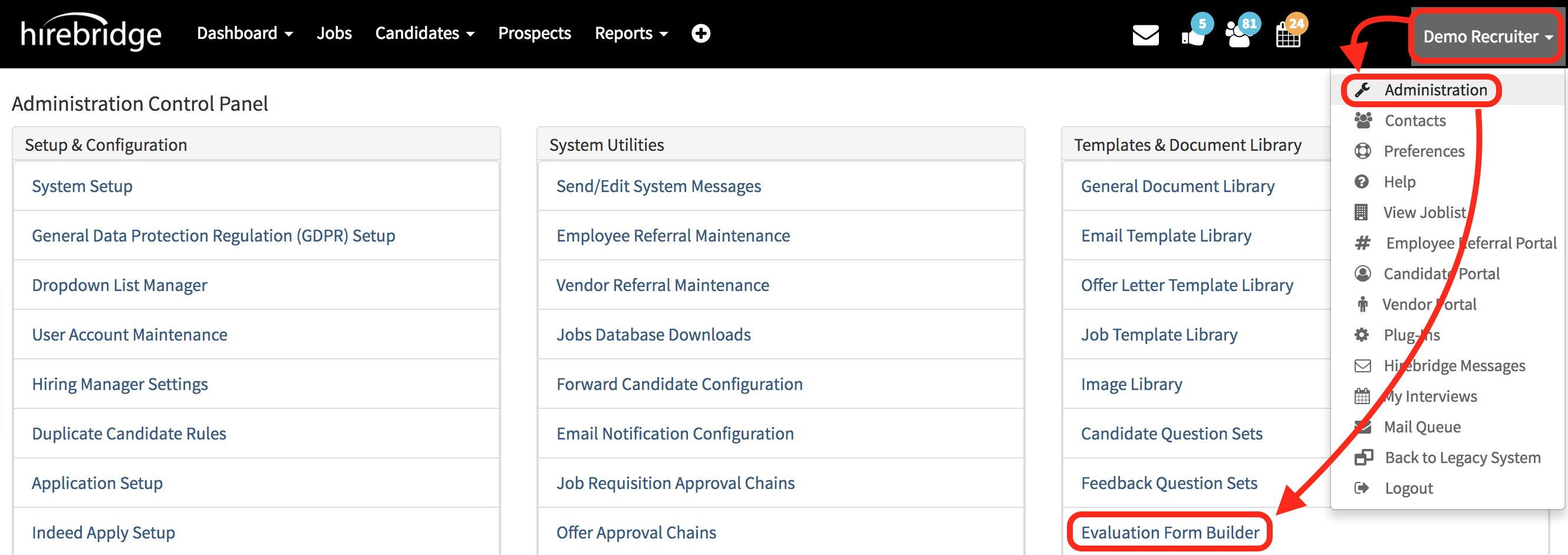
- To build an Evaluation form for candidate review select your Username in the top right corner.
- From the drop-down list menu select Administration.
- Once on the Administration Control Panel select Evaluation Form Builder.
(Image provided below for assistance)
Once on the Evaluation Form Builder, questions will need to be created.
Below are the steps to creating an Evaluation form.
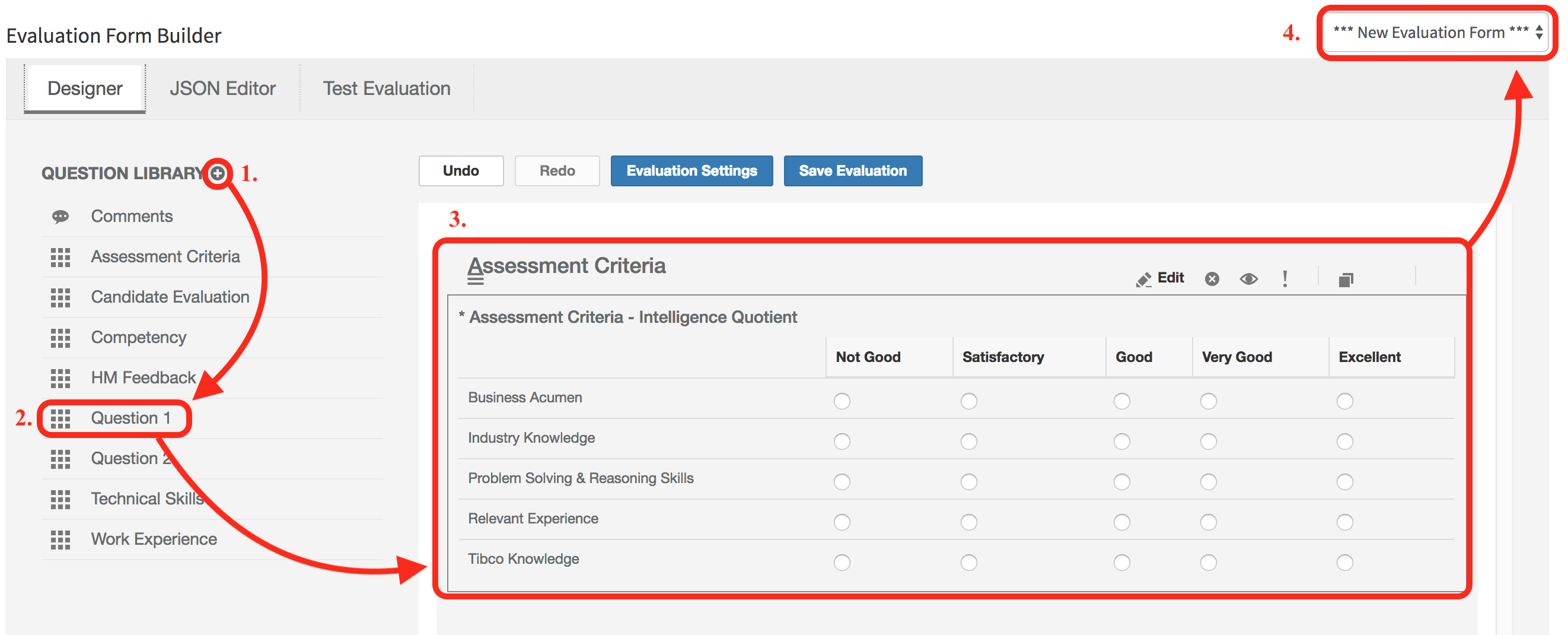
Steps
- Selecting the (+) icon will allow you to create a question that will be stored in the question library.
- The question can now be dragged and dropped into the Evaluation Form Builder.
- The Evaluation Form Builder will allow you to reorder the questions and make adjustments to the questions as needed by dragging and dropping.
- Once the evaluation is saved it will now appear on the Evaluation Form list where you can choose to send out to individuals within Hirebridge
Below we will get in-depth with each step of creating an Evaluation.
Step 1
Selecting the (+) icon will allow you to create a question that will be stored in the question library.
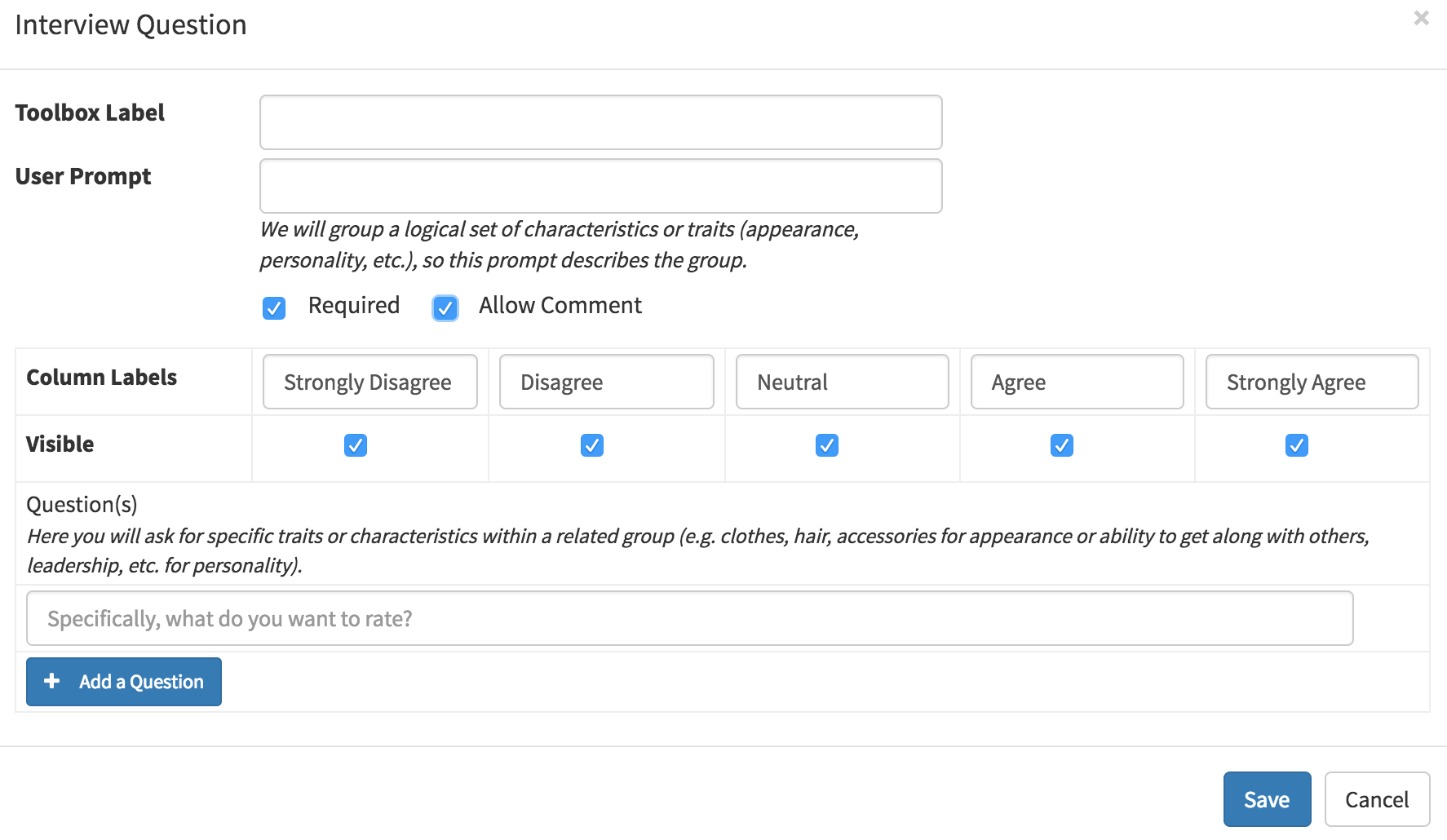
- Toolbox Label - Allows you to give the question a title
- User Prompt - Prompt that will describe the questions as a group
- Required Checkbox - Will make the question require a response.
- Allow Comment Checkbox - Allows comments based on the question
- Custom Labels - Allows you to edit the answer selection.
- Visible - Checking the checkbox makes that option visible. An unchecked checkbox will not make the option visible.
- Questions - This section will allow you to ask the question.
Open-Ended Questions/Answers
- Open-ended questions with a text area for a response can be created by click on Comment.
- To create an open-ended question you can do so by dragging and dropping Comment into the blank text area.
- Click on the edit button outlined in the image on the right,
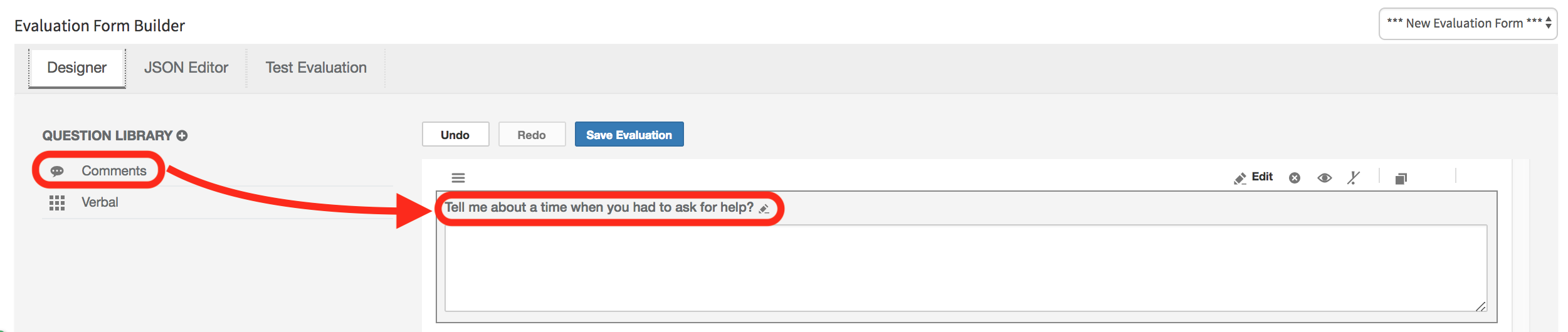
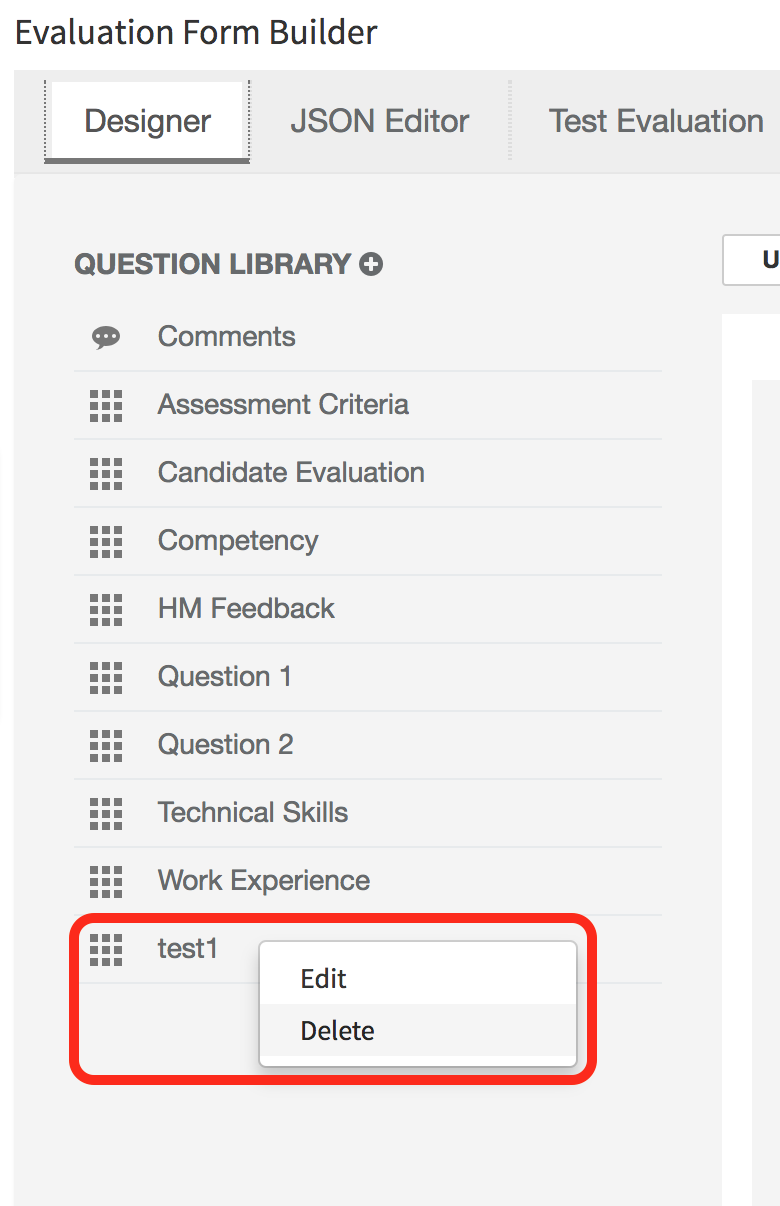
How to delete and edit a question.
- Right-clicking on the question will allow you to edit/delete the question.
Step 2
Now that questions are created it can now be dragged and dropped into the Evaluation Form Builder.
- Dragging and dropping a question from the question library will then put that specific question into the Evaluation Form.
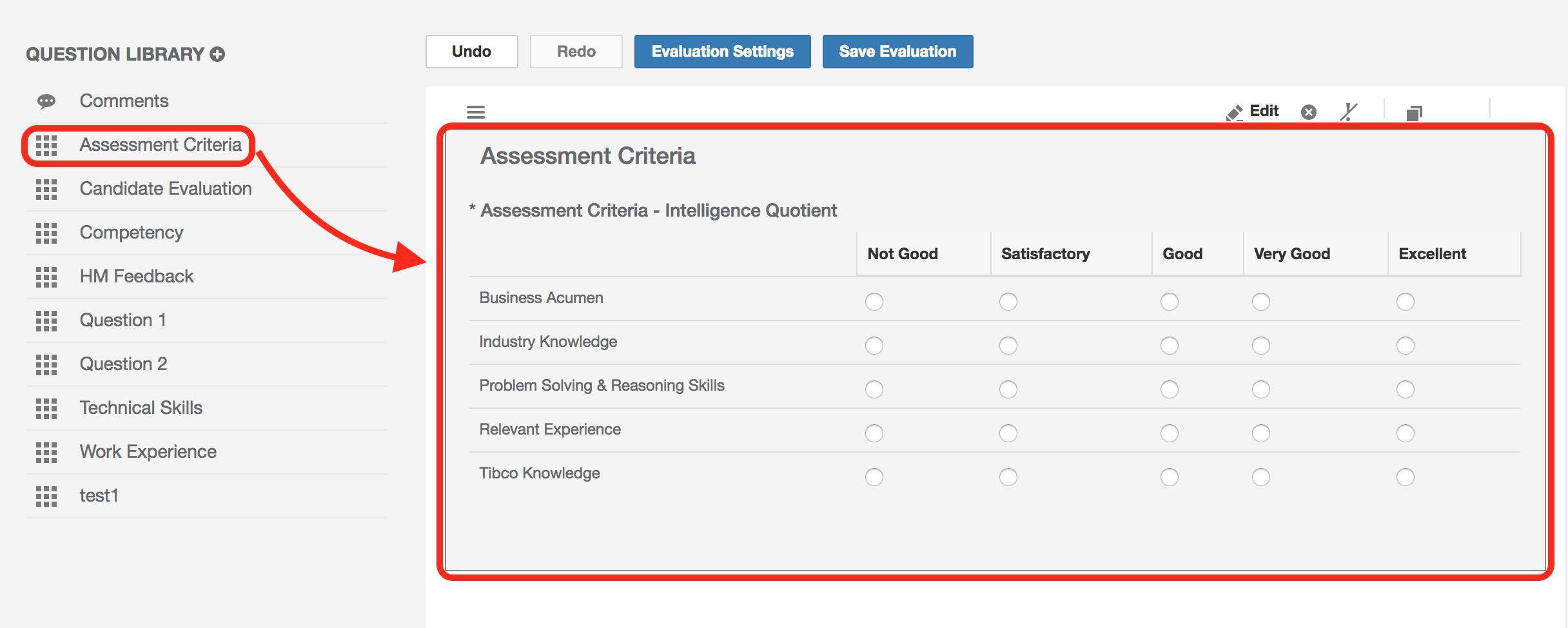
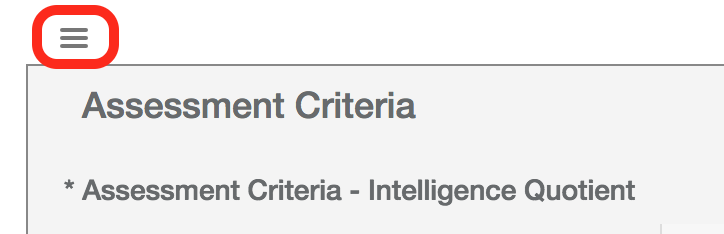
- Selecting the Three stacked bar icon on the top left corner of the form builder will allow you to rearrange the order of the questions.
- You are able to edit the title and questions in the form builder by selecting two areas.
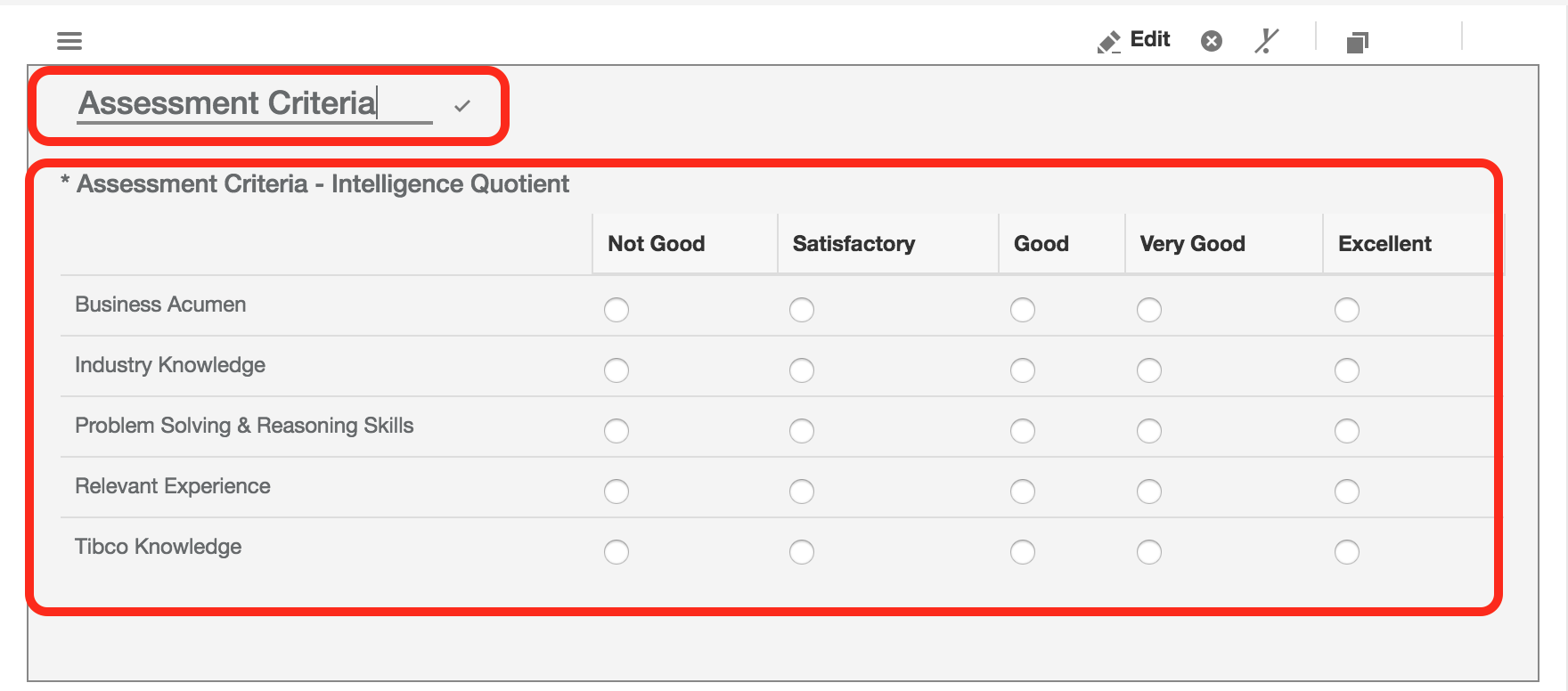
- Selecting both of these areas will allow you to edit, delete hide and copy the questions.
 |
- Allows you to edit the question title and questions |
 |
- Allows you to delete questions |
 |
- Allows you to make the question required or not required |
 |
- Duplicates the question in the form builder |
- You are able to add multiple questions to the form by dragging and dropping from the question library into the editor.
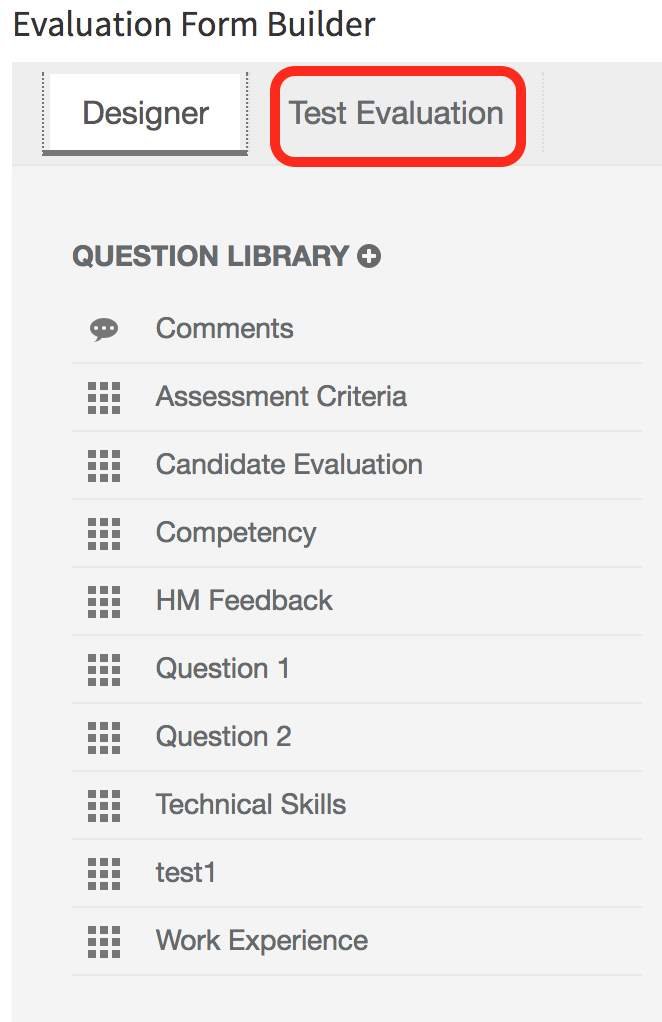
- You can also test the Evaluation by selecting Test Evaluation
When the evaluation is saved it will now appear in the drop-down list of Evaluation Forms.