This article will guide you on how to send an evaluation
- To send an evaluation, you will need to access a candidate profile.
- Once in the candidate profile select the Eval forms tab.
- This tab will allow you to send an evaluation form to users in the Hirebridge system.
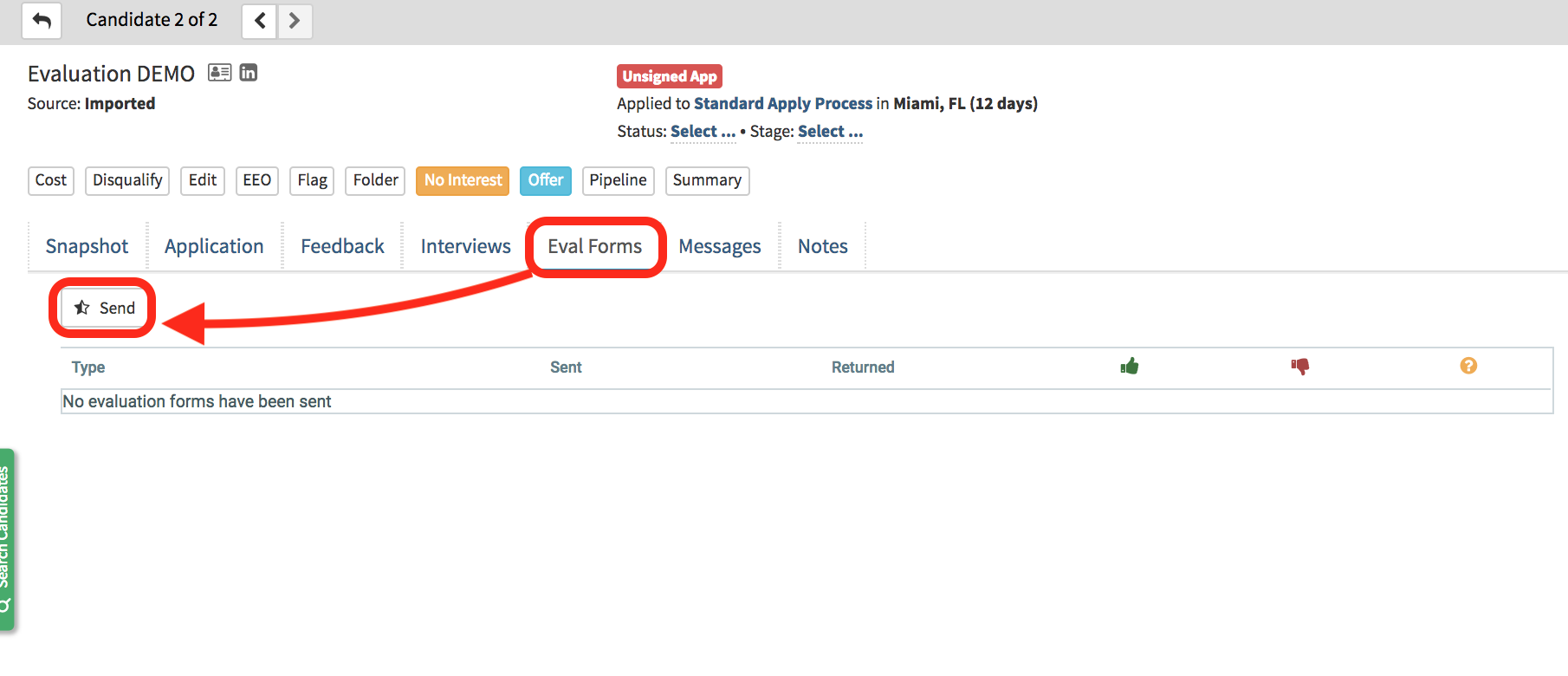
- Select Send to send out an evaluation of the candidate.
- A Send Evaluation Form pop-up will now appear

This form contains fields that we will cover in the text below.
- Form - Select which evaluation form you would like to send out
- Guideline - allows to include specific guidelines when evaluating the form
- Hirebridge Users - Type the name of Hirebridge users you would like to send the evaluation to.
- Others - Allows you to email evaluations to individuals outside Hirebridge
- Template - Choose from an Evaluation Email template
- Subject - Email subject that will be sent with the evaluation
- Message - Email message that will be sent with the evaluation
NOTE: Be sure if you are using a template or custom message that the [@EVALUATIONFORMURL@] merge field is included in the message.
After these fields are populated select Send
- The recipients of the evaluation will receive an email with a link to provide their feedback.

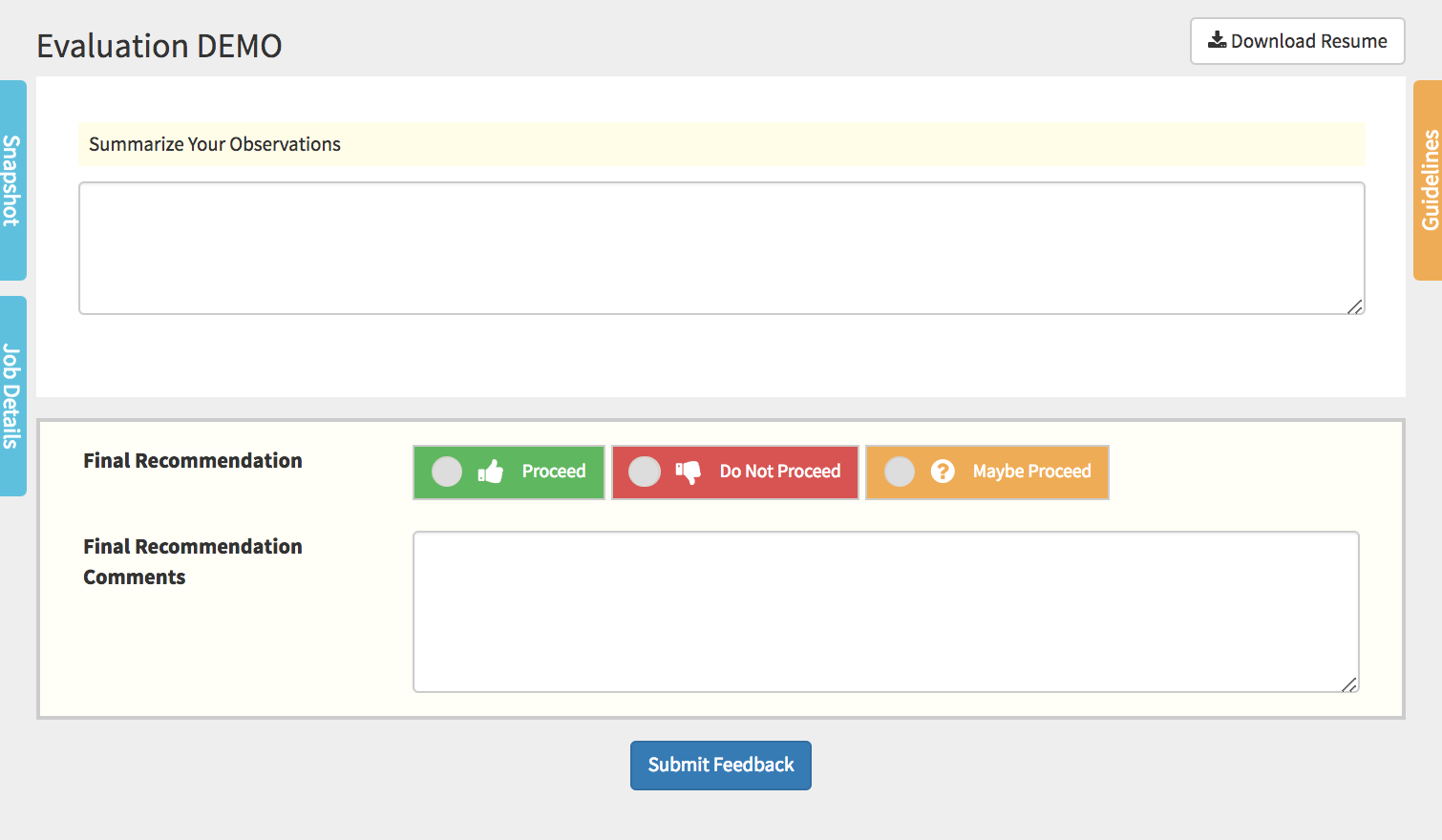
- The link will allow the recipients to provide their feedback on the questions selected.
- This page offers you a
- Snapshot - This allows you get a quick look at the candidate's employment and education history.
- Job Details - Gives details on job requisition
- Guidelines - Allows you to review the evaluation guidelines
- Download Resume - selecting this button will allow you to download the candidate resume.
- After completing the evaluation and submitting your feedback a confirmation page will load.
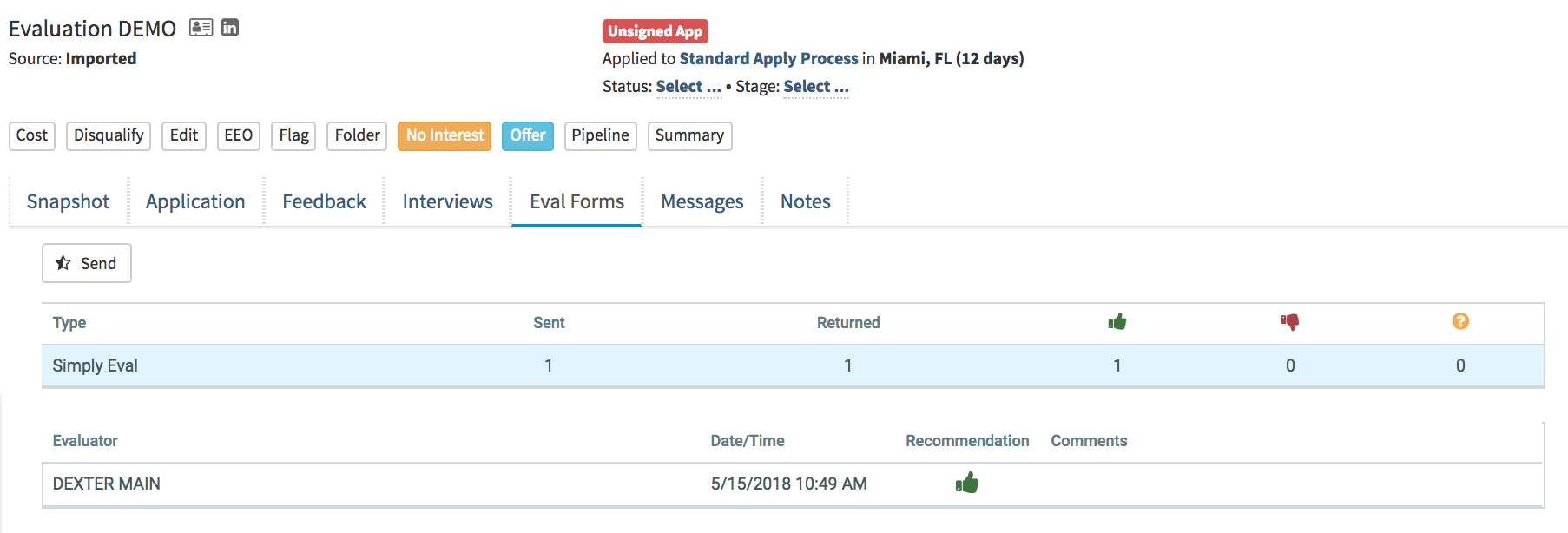
- The candidate profile will now display the recipient's response, recommendation, and comments.