This article will guide you on how to configure the company Hirebridge account to send emails using a preferred or company mail server.
- To have all emails sent within Hirebridge using a company email server or preferred server go into the administration control panel.
- Select your Username in the top right corner then Administration from the drop-down menu.
- Next on the bottom left corner select Domain Management.
(Image provided below)
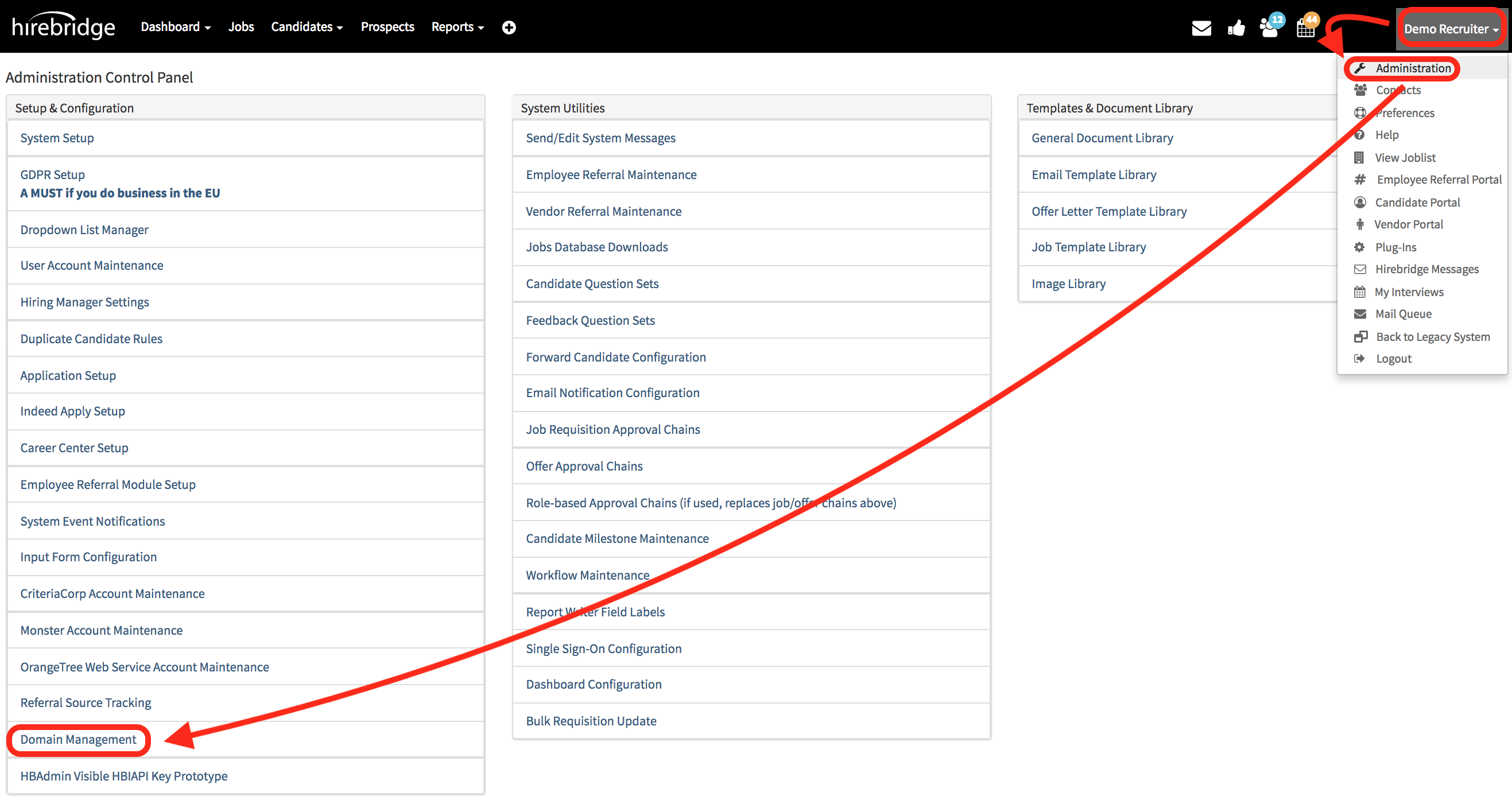
- The Domain Management page will allow you to set up the company's email server for outbound Hirebridge emails.
(Image of Domain Management page below)
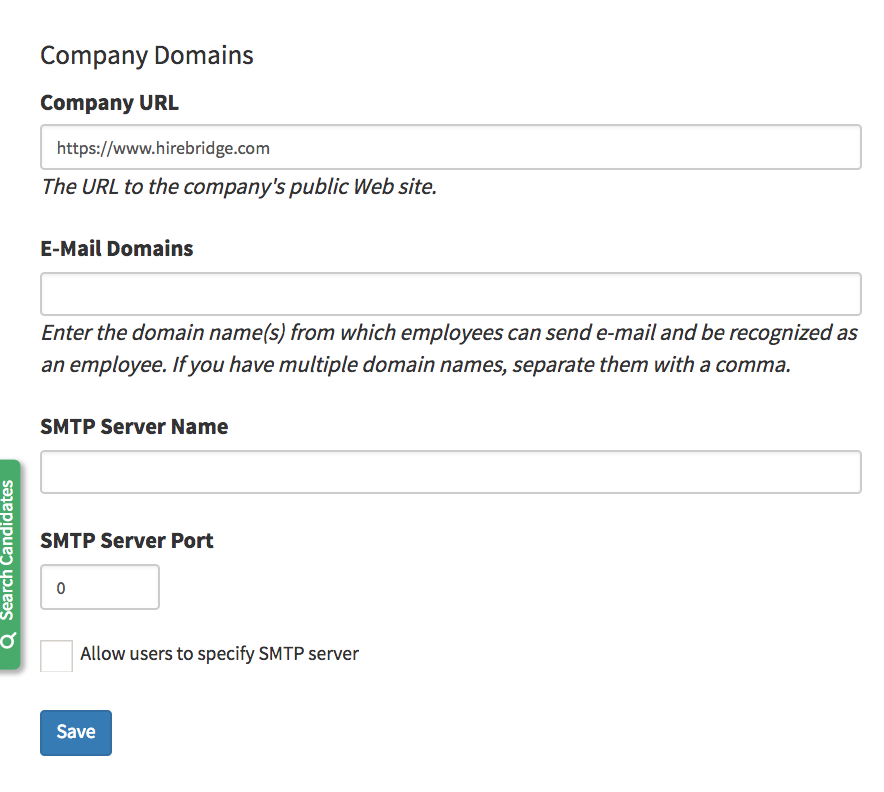
- The Company URL section will allow you to add the company url into the job listing and will allow the system to recognize employees by their domain name.
Ex: When an employee applies to a position the system will recognize their domain name and mark them as an internal apply. - SMTP Server Name is where you will set up the desired server name
- Gmail / G-Suite / Google Apps users - Click here for additional details
- SMTP Server Port is the section where you will enter the port number.
- Gmail / G-Suite / Google Apps users - Click here for additional details
- Allow users to specify SMTP server gives the option for each user to send mail using their own mail servers.
(For this tutorial we are setting up the mail server company wide so we will not be checking this feature. When the mail server information is set, all outbound emails from the system for all users will be using the set mail server.)
When the server information is set to select the blue Save button at the bottom of the page. This will complete and allow emails to be sent using the preferred email server.