This article will guide you on how to resubmit and edit an offer while in the approval process.
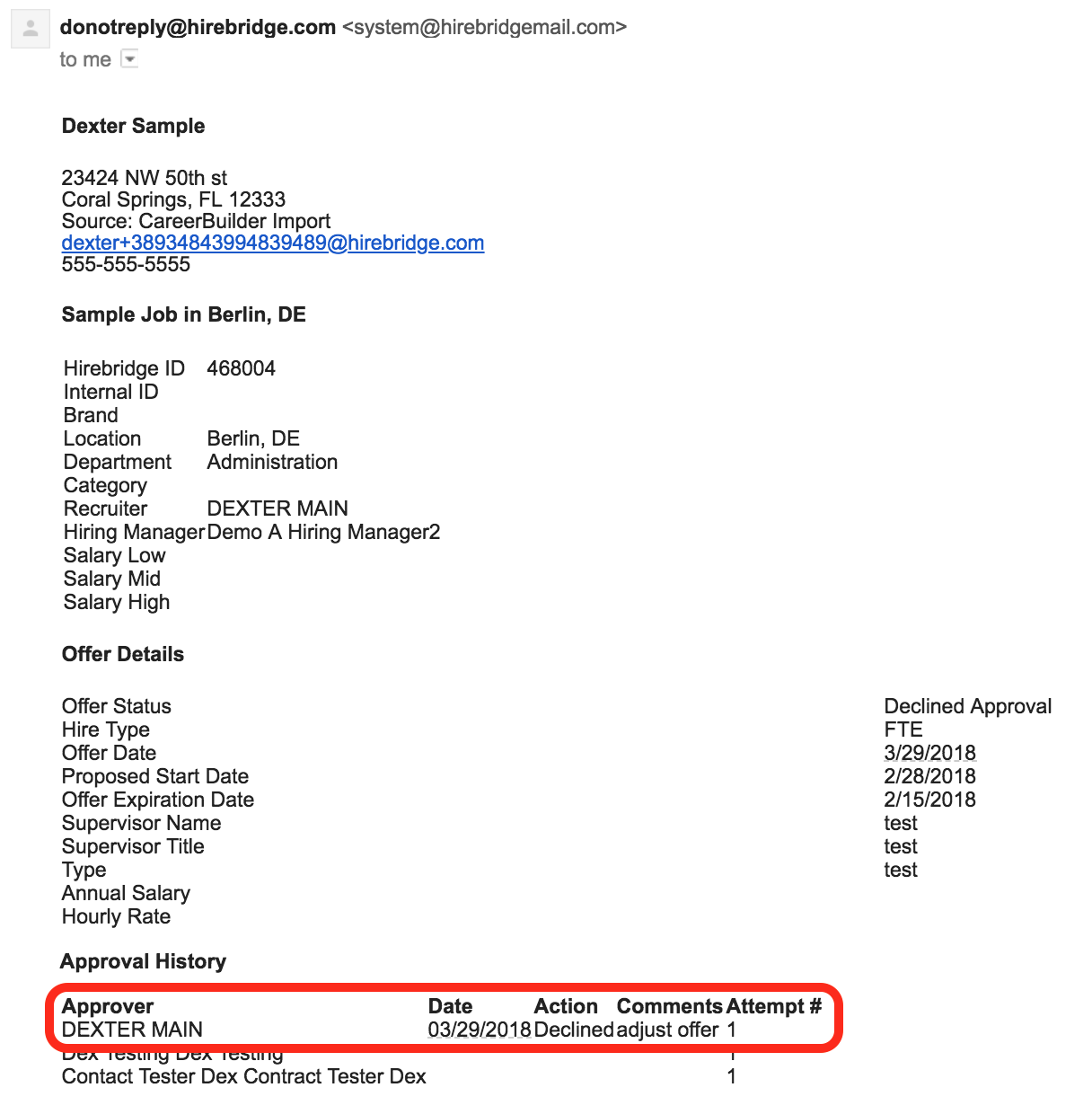
When an offer is currently in an approval chain and it gets declined. The offer creator will receive an email in regards to adjustments/reason for the job being declined. At the bottom of the email it will show who declined the requisition with a comment on why declined.
(Below is a sample email the offer creator will receive)
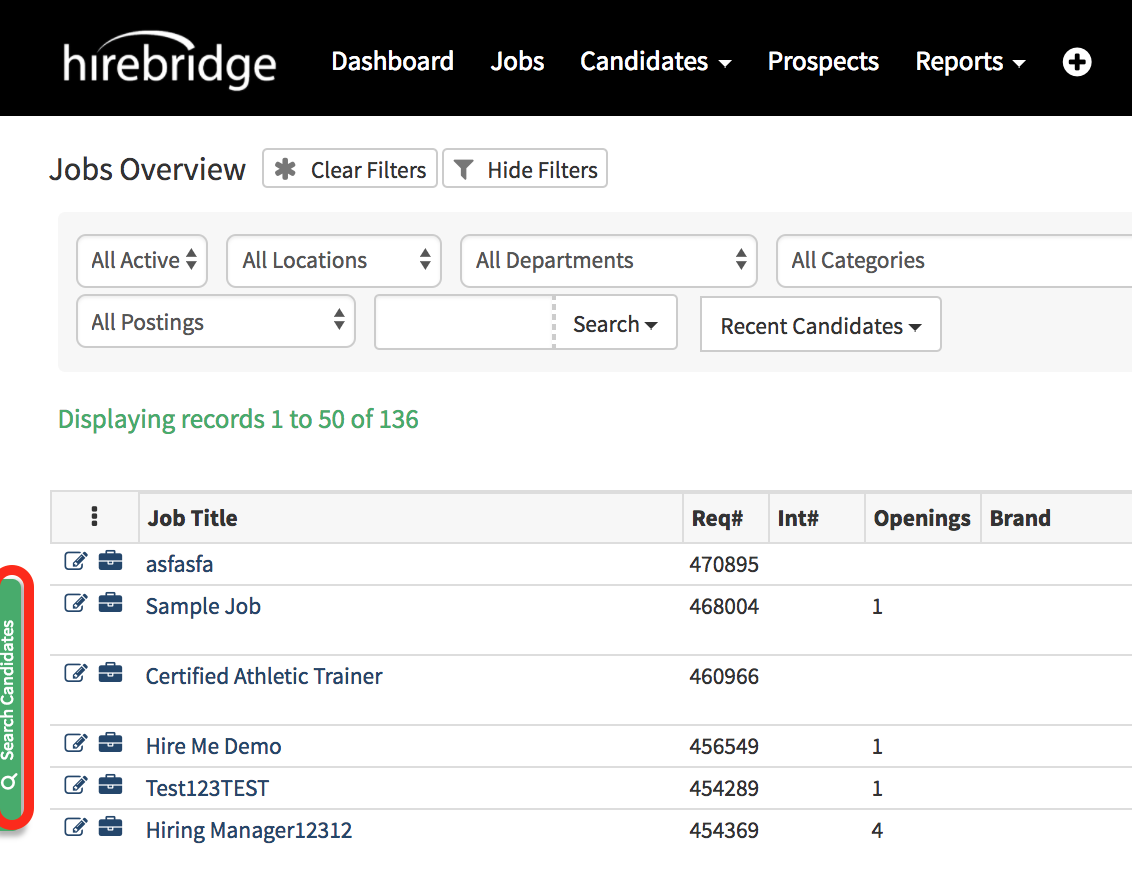
- When the offer is declined, go back into the candidate profile. You can find the candidate profile by searching for the candidate name or email using the candidate search on the side.
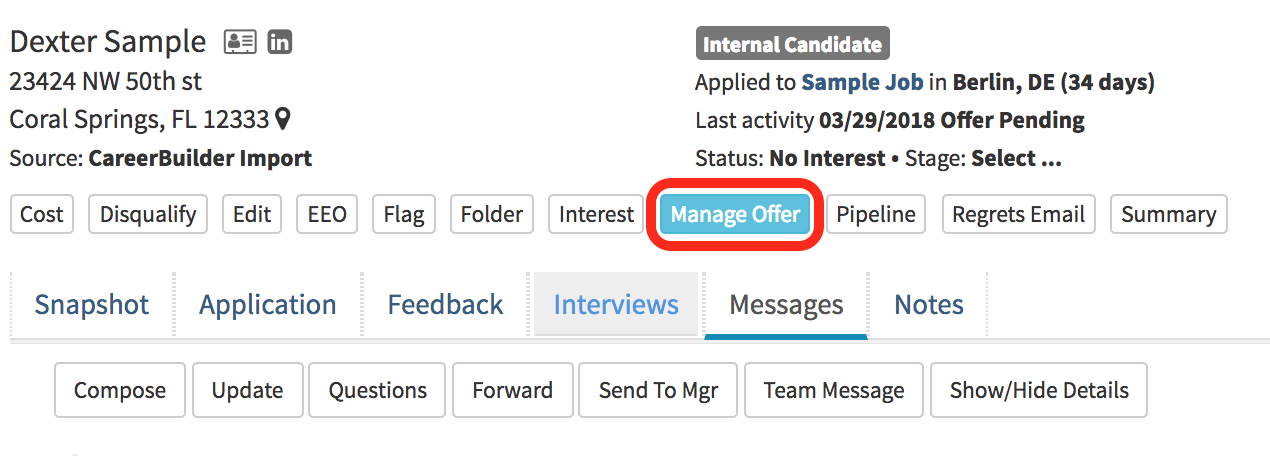
- After you access the candidate profile select Manage Offer
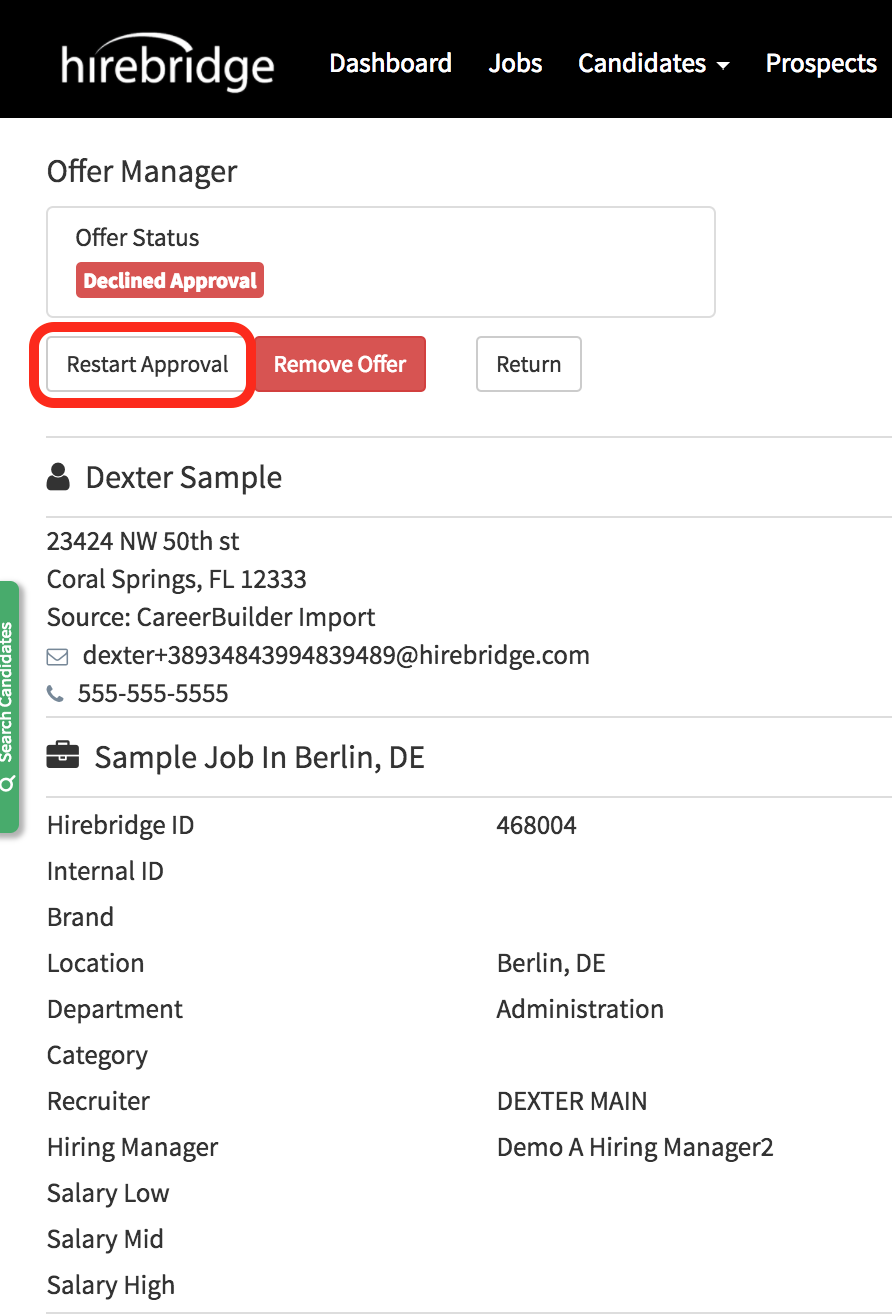
- This page will then allow you to view the status of the offer and restart the approval chain.
- Selecting Restart Approval will allow you to restart and edit the approval chain.
(Outlined in the image below)
- You will now be able to edit the offer information for the candidate.
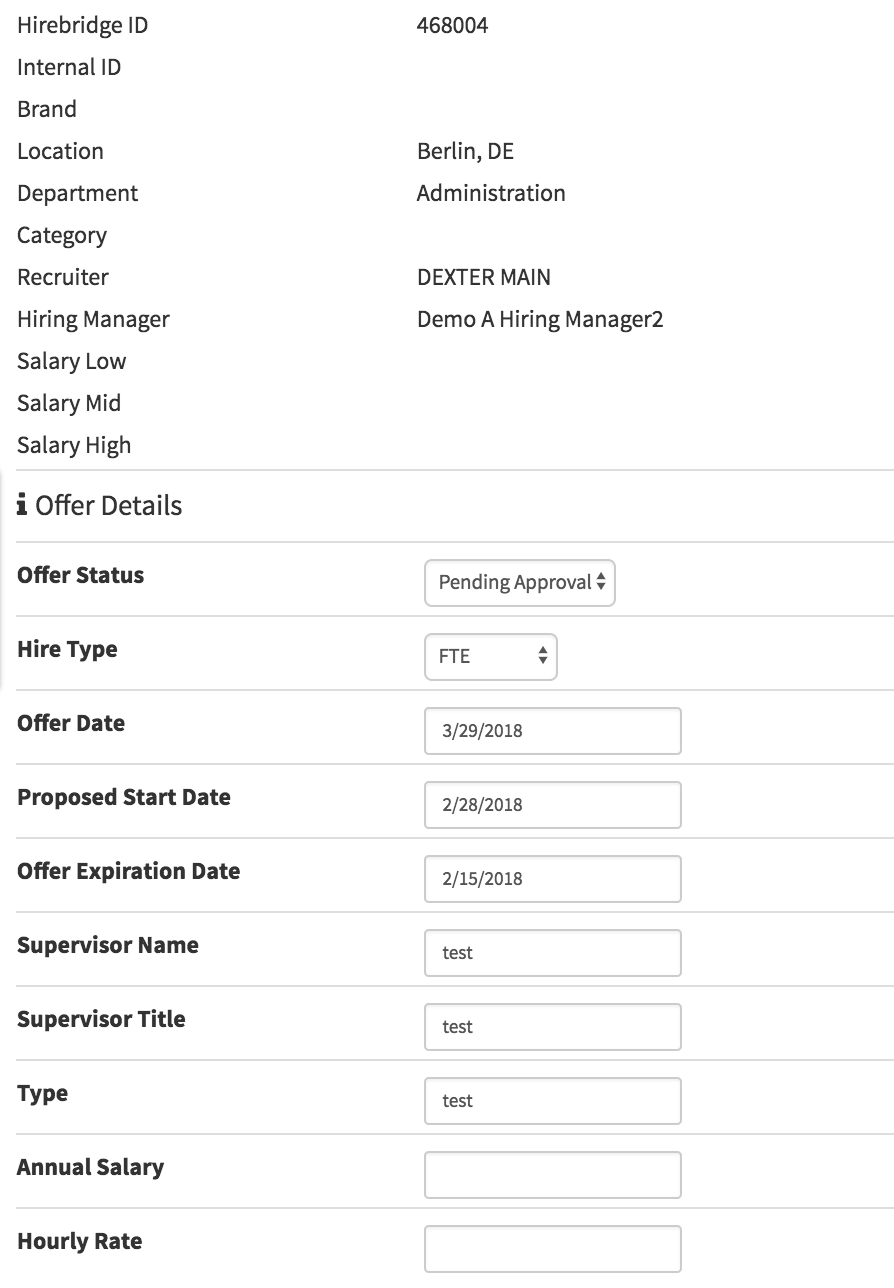
- At the bottom of the Offer Editor page, you are also able to see the approvers, who declined the offer, and comments of the approvers below their name.
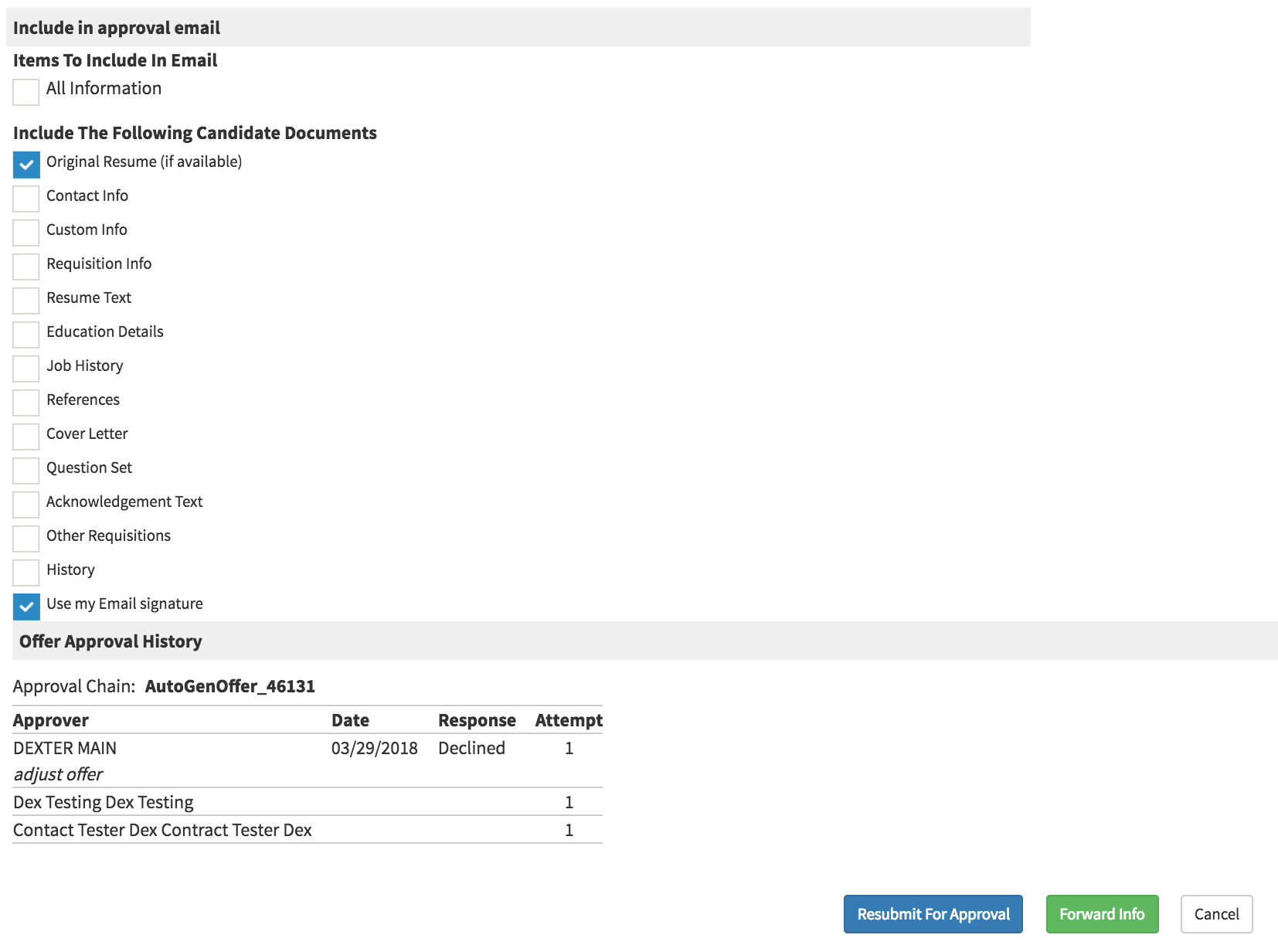
- After editing the offer select the Resubmit For Approval button the next page will then allow you to choose from the current chain or approvers, start from the approver who declined the requisition or select a new chain for approval.

- After selecting Use Current Chain or Start At Declined the page will redirect to the job list and the approval chain will start.
- Selecting New Chain will allow you to create a new chain for approval.