This article will guide you on how to run the Interview Report.
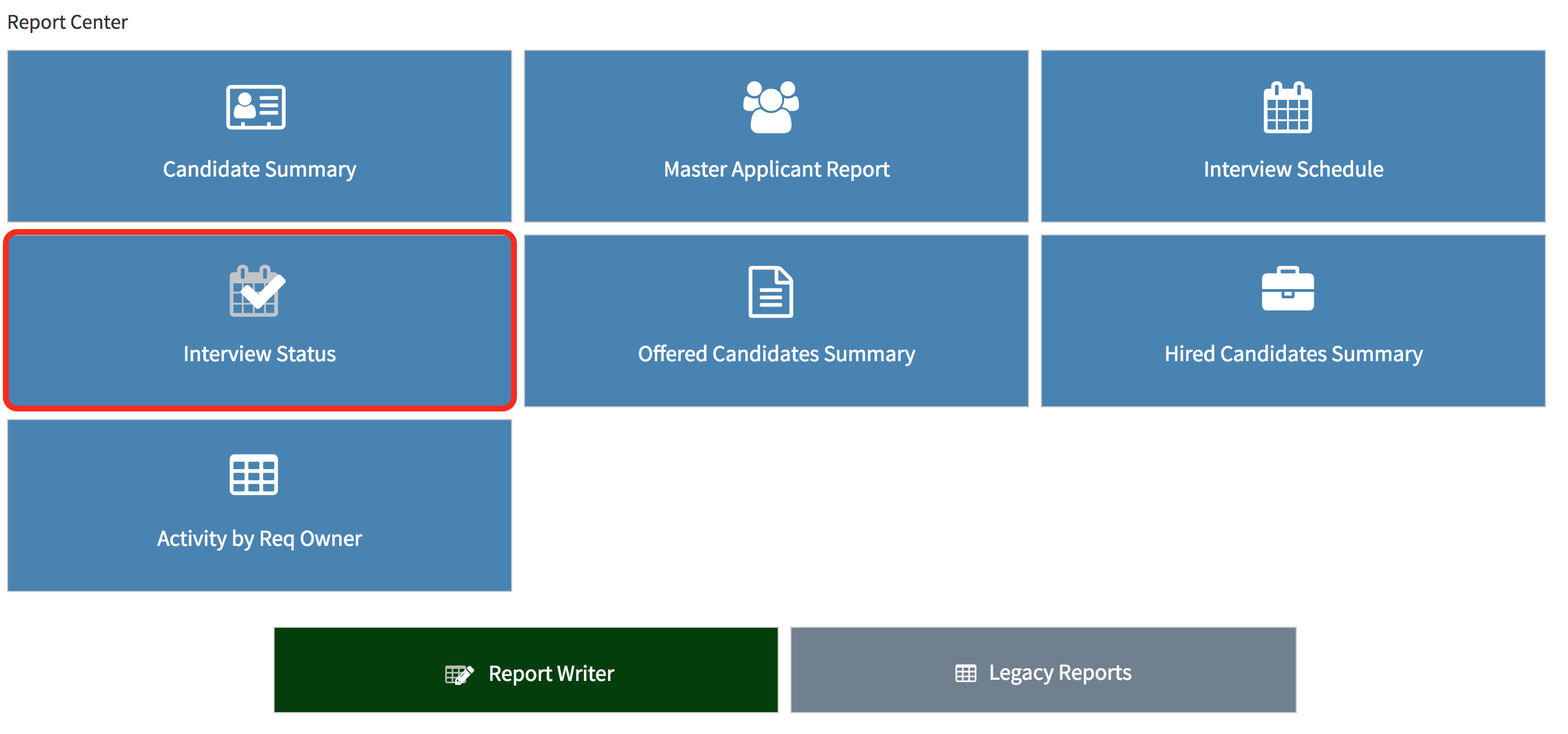
- The first step is to select the "Reports" tab.
- From the drop-down list select "Report Center".

- This will now load the "Report Center" which will allow you to select from a list of reports.
- Select the "Interview Status" to access the interview status outlined below.
- This will now take you to the "Interview Status Report" page where you can filter this report.
- Interview Types - Types of interviews
Statuses -Types of interview statuses Overdue, Not Logged, Complete, and Upcoming.
Jobs - Job Type Private, Public, On Hold, or Closed.
Scheduled by -Who the interview was scheduled by.
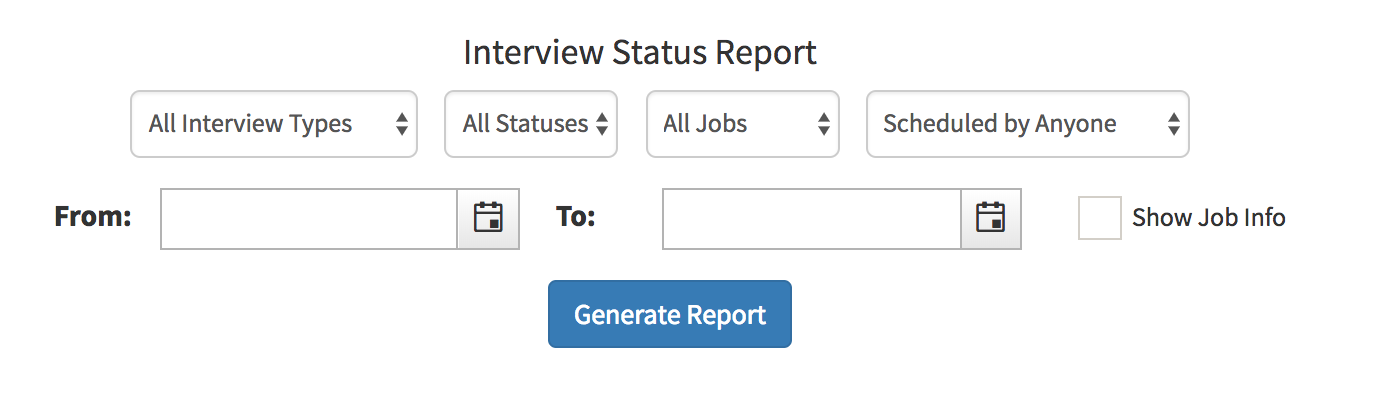
- From - Starting date from where to filter
To - Ending date of filter
Show Job Info (Checkbox) -This checkbox will allow you to view the information on the requisition the candidate is interviewing for. Job Title (Req #), Job Status, Department
and Job Location will be displayed if the box is checked.
After applying the desired filters select "Generate Report".
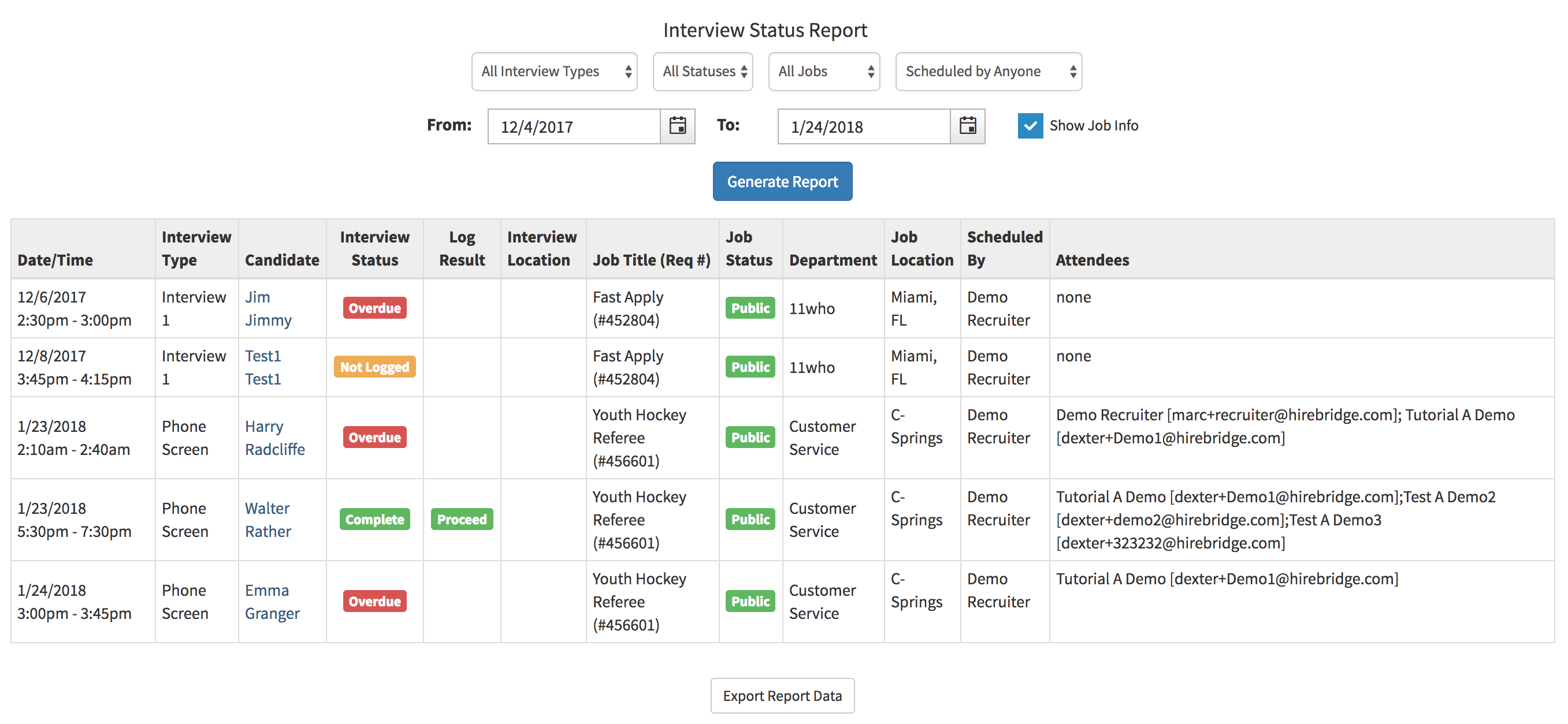
Column Definitions
Date/Time - Displays the date and time of the interview
Interview Type - The type of Interview that will
Candidate -The candidate first and last name will appear in this column. You are also able to select the candidate name to view the candidate profile.
Interview Status - The status of the interview
Log Result - Result logged
Interview Location - Location of the interview
Scheduled By - Who the interview was scheduled by
Attendees - Displays the attendees and email address associated with them.
Show Job Info - Checked:
Job Title (Req #) - Displays the requisition the candidate is interviewing for.
Job Status - The status of the requisition if it is private, closed, open, or on hold.
Department - The Department of the requisition
Job Location - Location of the requisition
This report can also be exported by selecting "Export Report Data". This will then allow you to download the report via CSV.