This article will guide you on how to access the Time To Hire report.
- The first step to accessing the Time To Hire report is by selecting the "Reports" tab in the navigation bar.
- Next from the dropdown list select "Report Center (Legacy)"

- This will now take you to the "Reports" page where you can view all of the available reports.
- Select the "Candidate Reports" tab then under the offered hired reports column select "Time To Hire" report.
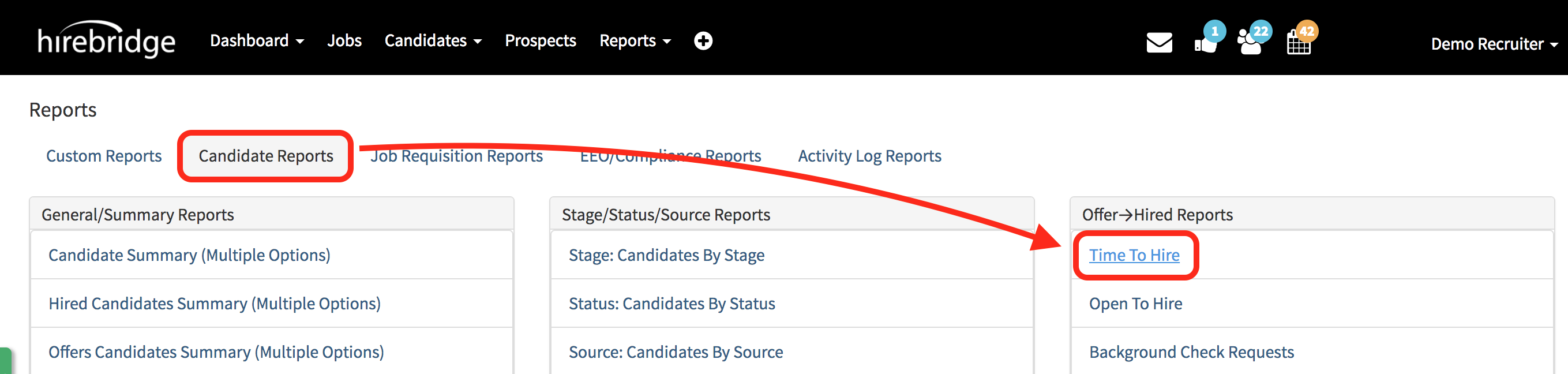
- After selecting "Time To Hire" this will now take you to the filter page where you can apply all the filters you would like for the report.
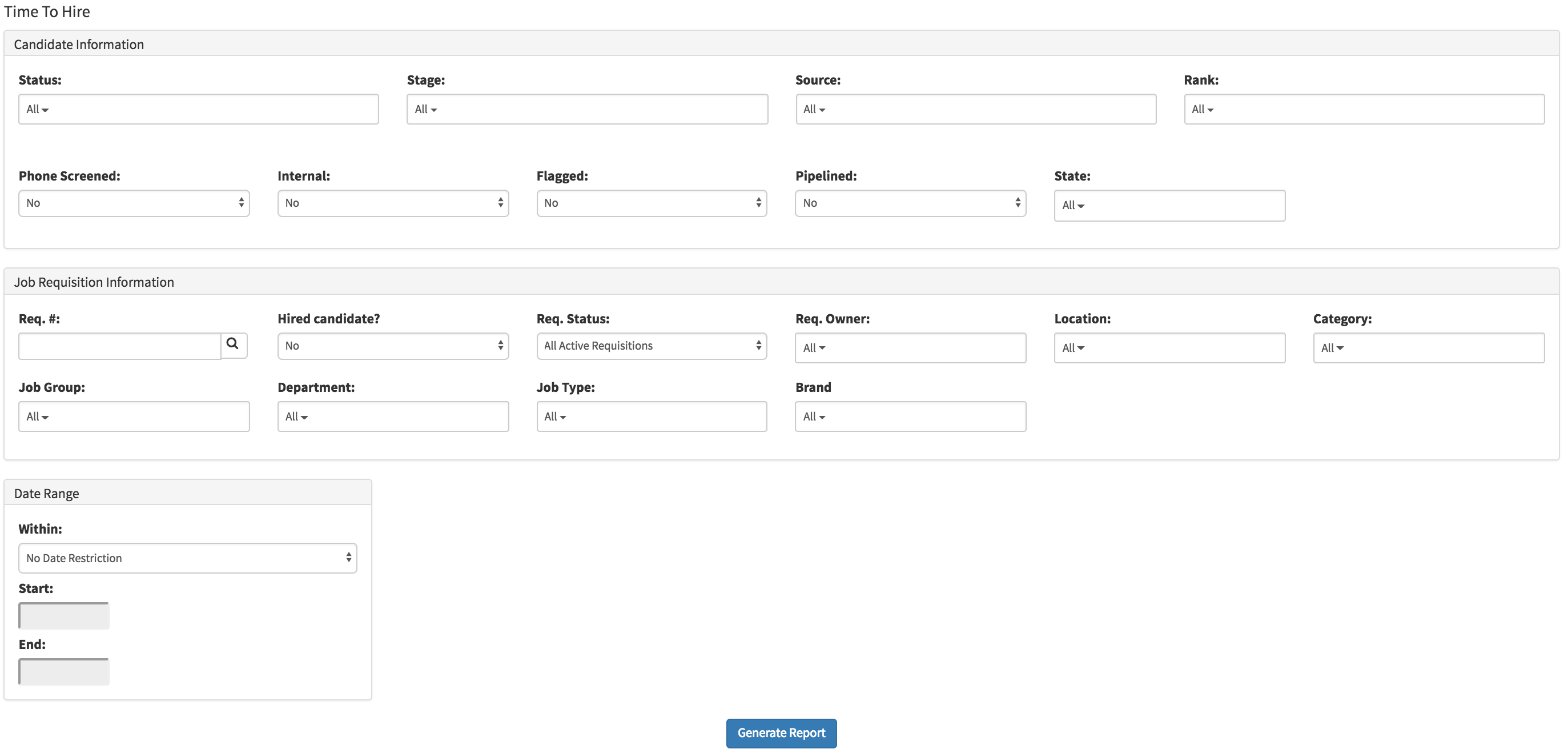
- After selecting the filters you would like to apply, at the bottom of the page select "Generate Report" to run the report
- The report will now display candidate information based on the filters applied.
(Image provided below)
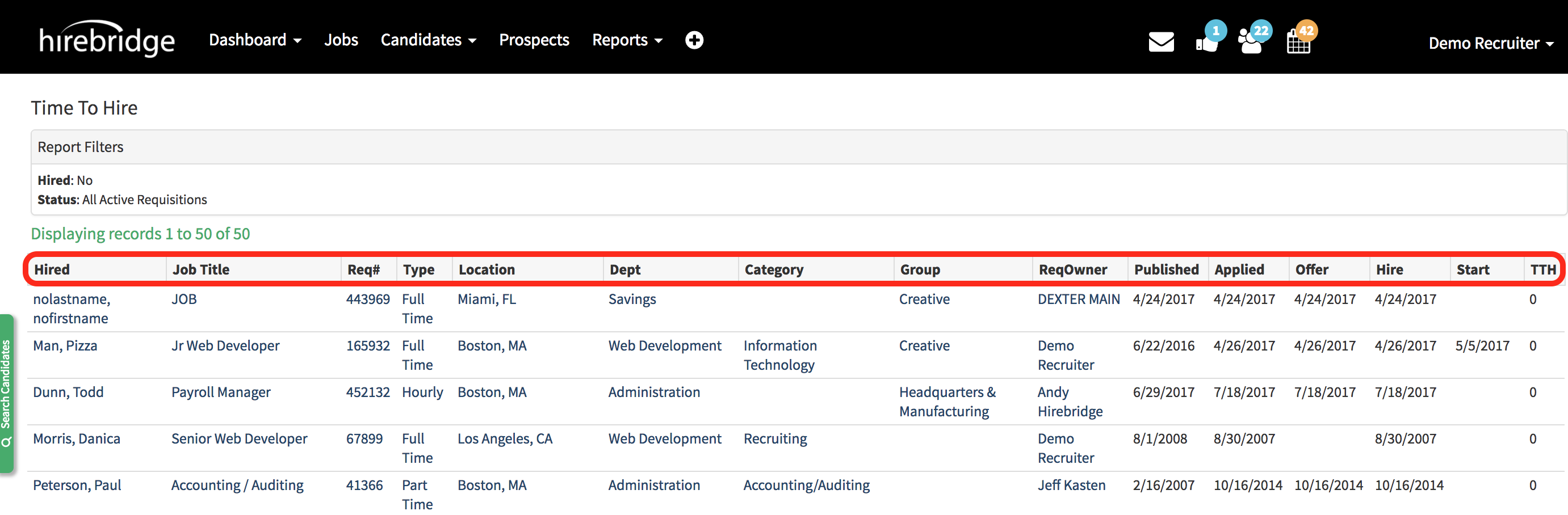
Hired - This column will display the candidate a first and last name.
Job Title - This column will provide you with the requisition/job title.
Req # - This column will display requisition id number
Type - Displays the candidate hired type.
Location - Display the requisition location where the candidate was hired in.
Dept - Displays the department the candidate was hired within.
Category - Displays the category that the candidate was hired within.
Group - This column will display the group the candidate was hired in.
ReqOwner - Displays the requisition owner the candidate was hired in.
Published - Date the requisition was published
Applied - Date the candidate applied to the requisition
Offer - Date when the candidate was made an offer
Hire - Date the candidate was hired
Start - Date the candidate starts.
TTH - Days from when the candidate applied to hire date.