This article will guide you on how to view candidates.
Requirements to view candidates
- Access to view candidates
- Attached to requisitions
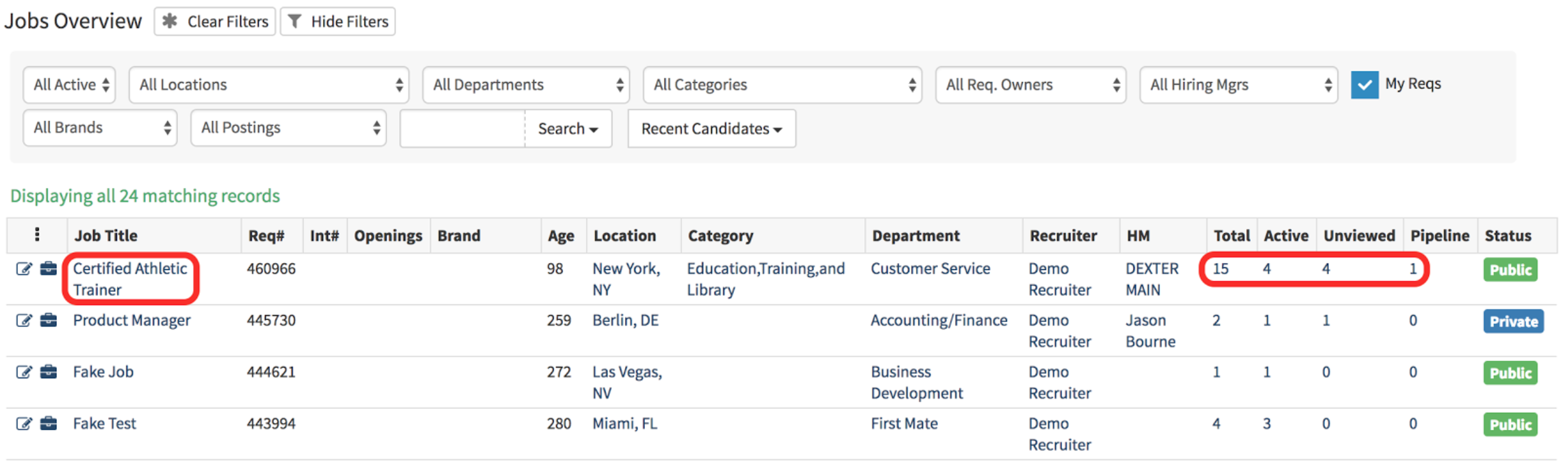
To view candidates that are in requisitions select a Job Title. Selecting the title will allow you to view all of the candidates in that requisition. Selecting the number of candidates within the columns will display the specific candidates that are categorized in that column.
(Image provided below)
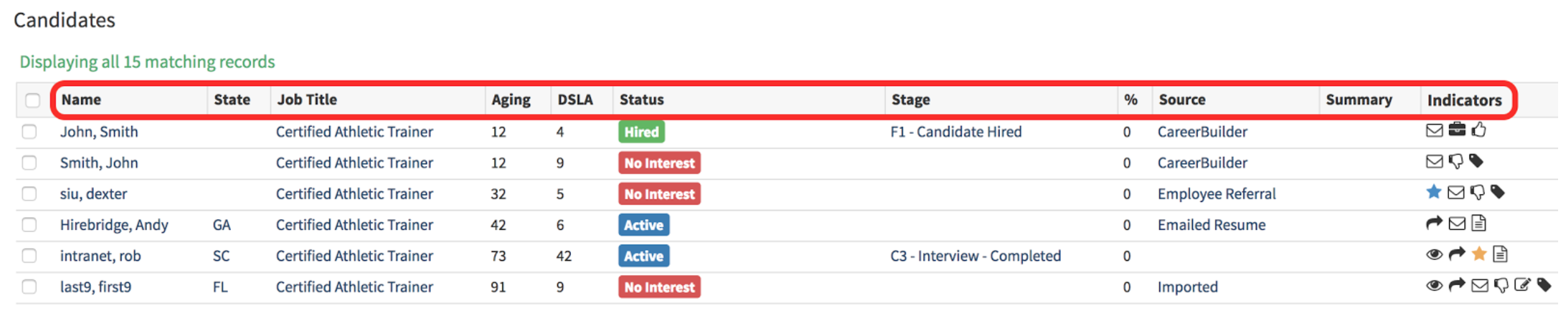
After selecting the “Job Title” all the candidates in that requisition will be listed.
(Sample image of candidate listing)

Below will define the meaning of each column in the candidate list
|
Name |
- Shows the candidates name. |
|
State |
- Candidate state location |
|
Job Title |
- Requisition the candidate has applied to |
|
Aging |
- Date in days since the candidate has applied |
|
DSLA |
- Date since last activity |
|
Status |
- Status of the candidate |
|
Stage |
- Displays what stage the candidate is in |
|
% |
- Percentage score of the candidate question set |
|
Source |
- Displays where the candidate was sourced from |
|
Summary |
- A quick description |
|
Indicators |
- Quick icon indicators that display information about the candidate |