Using Integrated Background Checks
Hirebridge integrates with several background checking providers. If you do not currently have background checks integrated, please contact your Hirebridge representative to see about adding it.
If background checks are part of your package, they can be run at any time, based on your organizations preferred workflow.
Typical Background Checking Workflow
The typical workflow with our background checking vendors is as follows:
- Background checking package is entered into the job requisition form via dropdown list
- Candidate moves through your process (typically to the offer stage) at which time a background check is ordered
- Recruiter (or hiring manager) navigates to that candidate record and clicks the Background Check button
- Hirebridge packages up the relevant candidate and job requisition information and sends it, via web service, to the background checking vendor you are working with
- The background checking vendor sends a confirmation back to Hirebridge that indicates that the order was received
- Background check vendor reaches out to the candidate via email, requesting they follow the embedded link to perform the background check, which in most cases is prepoluated with data from their application
- Background check vendor sends notification to Hirebridge that the background check has been initiated by the candidate
- Once the background check has been completed, vendor will send over notification and in many cases, a direct link to the background checking report, which you will be able to view after logging in to the vendors system.
How To Order A Background Check Through Hirebridge
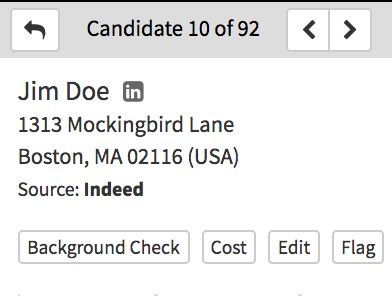
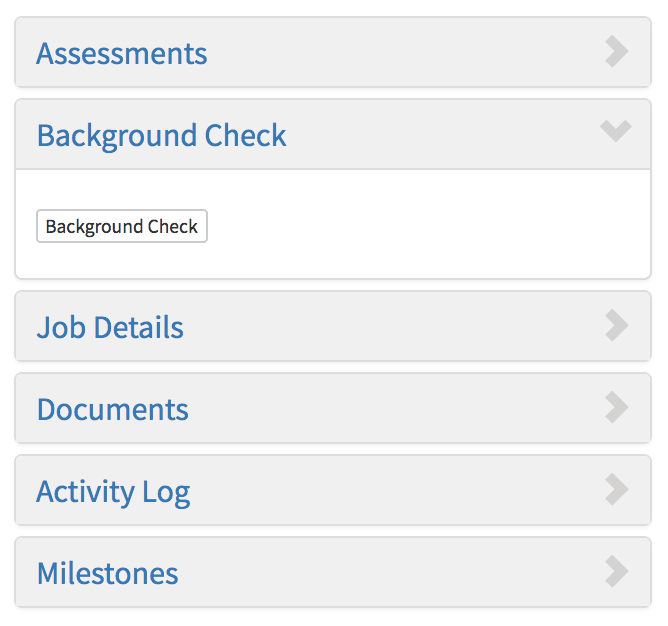
- In Candidate Information page, click the Background Check button located in the button bar, or in the sidebar Background Check panel.
-
The next page will be a confirmation page showing the candidate name. If this appears correct, click the Send button. In most cases, the name of the background check vendor will appear in the text of the button.
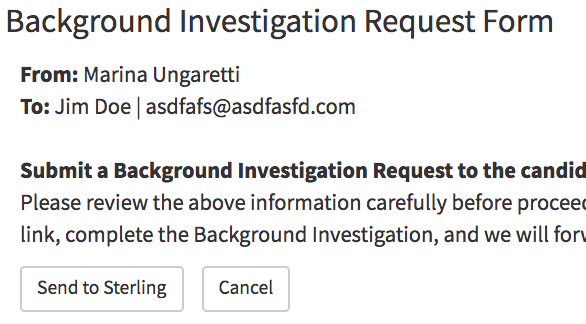
- Upon confirmation, Hirebridge will package up the required candidate information and send it to your background check vendor (with the background check package which is already attached to the requisition the candidate is in).
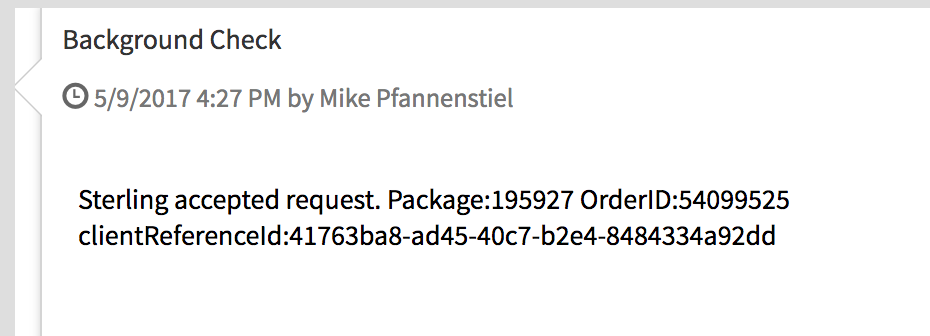
- Within the Background Check Panel, we will display a confirmation message from the vendor indicating that they have received the order. An order id# will be included in the text which verifies that the order has been received and that the candidate will be contacted by the vendor.
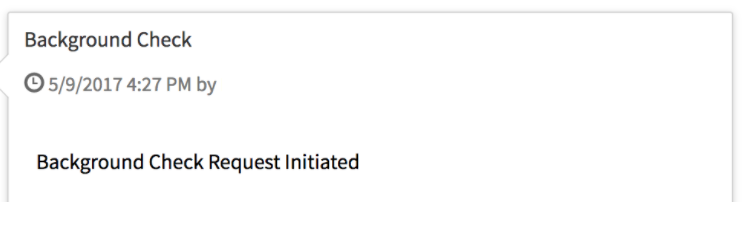
- Once the candidate receives the email from the background checking vendor, the background check panel will receive updates confirming that the candidate has begun the process.
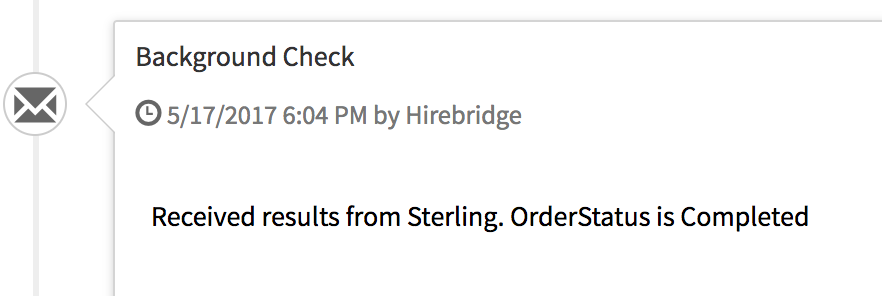
- Upon completion, the vendor will send information back to Hirebridge indicating that the background check has been completed.
Attaching Background Check Packages To Each Job Requisition
- In order for a background check to be available, the background check button needs to be attached to the job requisition.
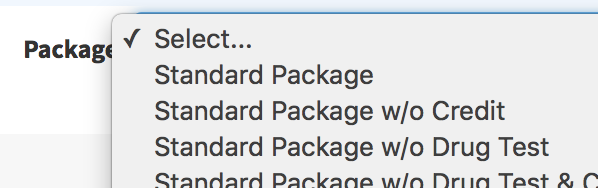
- To attach a package to a job requisition, when creating or editing the requisition, make sure that proper package based on your company policy is selected
Why A Background Check Button Is Not Visible
There are typically a few reasons why a background check button is not visible within a candidate record.
If this does happen, please try the following:
- Make sure that a background check package has been added to the job requisition
- Make sure that you have background checking privileges that give you the ability to order background checks
- Make sure that your company has background checks turned on
In the Event Of An Error In The Transmission From Hirebridge to your Vendor
If there is an error in the transmission on the background check request to the vendor, this will be immediately visible in the Background Check Panel
There are a few codes that are displayed which might indicate the issue:
- Background Package Does Not Exist
- User Credentials Do Not Exist
- Company Credentials Do Not Exist
In either of these cases, please contact Hirebridge and we will work with your background Check vendor to correct the issues.