This article will cover how to save a report and the different types you can save it as.

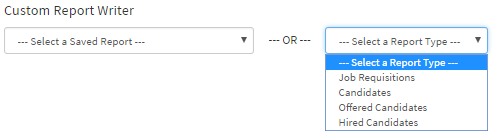
- To the right of the custom report writer is where you can create a new report from the drop-down list selecting.
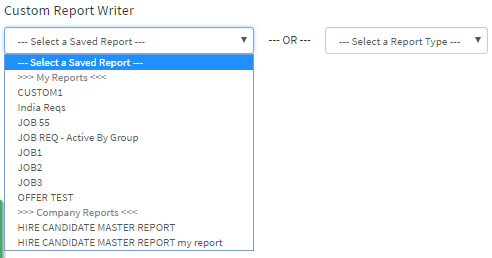
- To the left of the page is where you can select the reports that have been either saved as Private, Shared or Company Report.
- Private Reports - Repots saved and not share by anyone
- Share Reports - Reports visible to other people, but only the creator can edit the report.
- Company Reports - Reports only admins can create, it is visible to everyone in the company but only other admin can edit.
In this Example, we will create and save a new report.
- Once you have selected the report type, listed in the drop-down list it will load a new report.
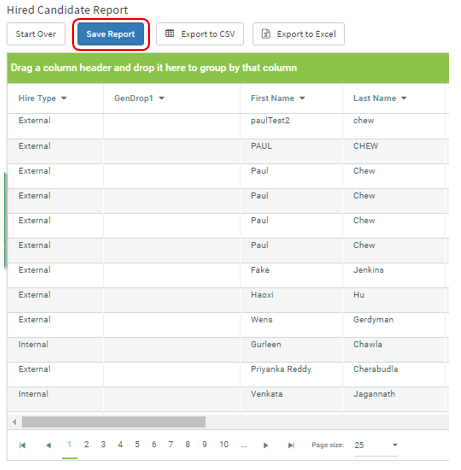
- After you have customized the report to your needs.
- Select the blue "Save Report" button.
- A Pop-up will appear, where it will ask for a title for the custom report.
- It will also ask for what type of report you would like to save it as.
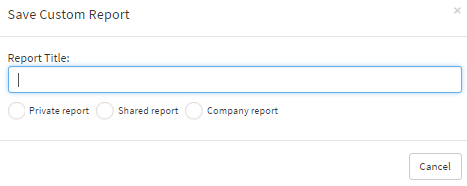
- Private Reports - Repots saved and not share by anyone
- Share Reports - Reports visible to other people, but only the creator can edit the report.
- Company Reports - Reports only admins can create, it is visible to everyone in the company but only other admin can edit.
Example: If we save this report as a "Shared Report" with the title of TESTER123456789. It will be available for others to view below in the Shared by Others section. (Pictured Below)
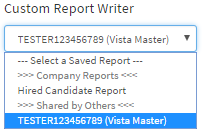
If another recruiter has the reports access they are able to view the custom report.
They will be able to select it but you will not be able to edit and save it.
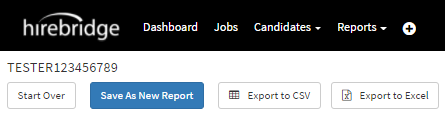
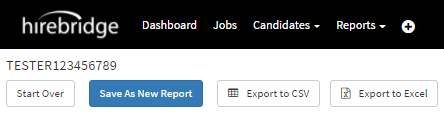
In order to edit and save the custom report, you will need to "Save As New Report".
Example: If we save this as a "Company Report" with the title of TESTER123456789. It will be available for everyone in the company under "Company Reports".
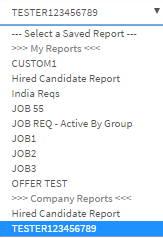
Admin view of Company Reports
Only Administrators are able to edit the Company Reports.
(Pictured Below is an example of the option to "Save" when another Admin looks at the report)
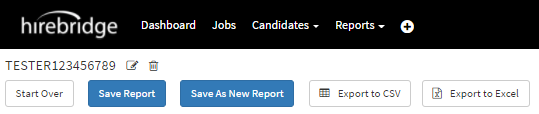
Non-Admin view of Company Reports
Non-Administrators are not able to edit the report but are able to save the as a new report.