This article will cover how to edit the Offer/Hire Rules Info attachment when forwarding candidates.
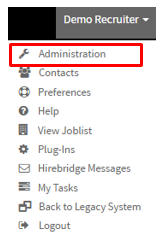
- The first step is to select your username in the top right corner.
- A drop-down menu will appear, this is where you will select "Administration"
- This will now take you to the "Administration Control Panel".
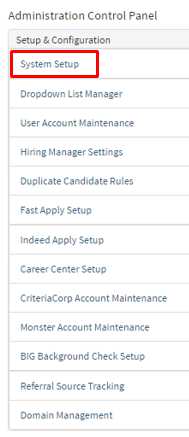
- On this page in the column Setup & Configuration, select "System Setup".
- System setup will now go to the Company Preferences page where you will select "Offer/Hire Options".
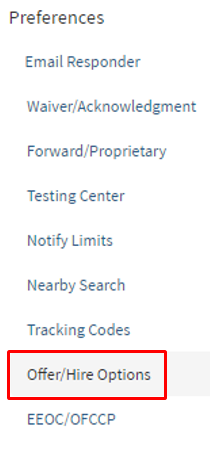
- This tab will indicate which of the following rules should be applied prior to allowing a candidate to be offered or hired.
- Checking each checkbox below will enable each feature.
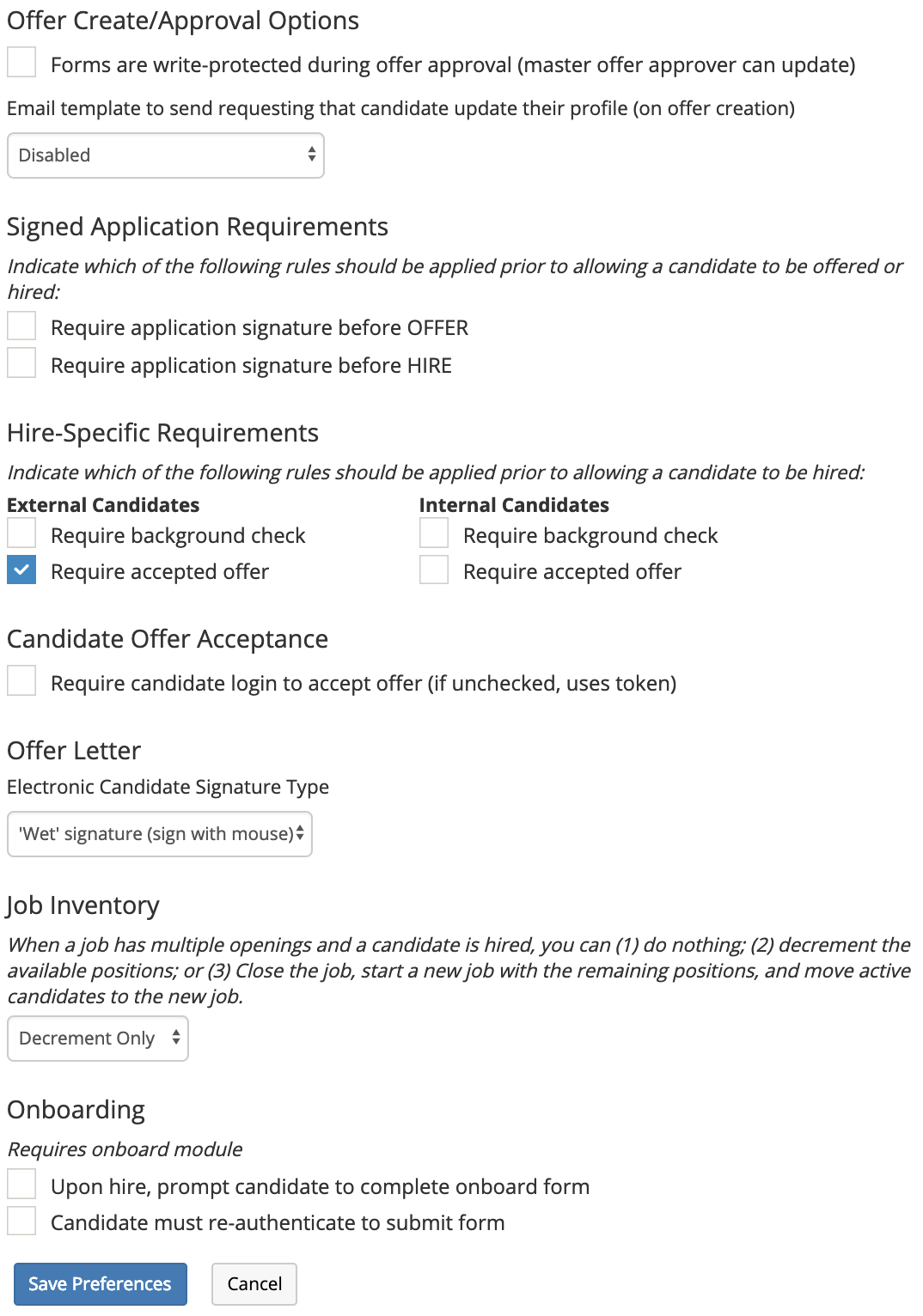
Offer Create/Approval Options
- This feature does not allow changes to the offer when it is in the approval chain. Only the Master Offer Approver is allowed to updated the offer.
- The dropdown list allows you to select the email template you would like to send the candidate.
Signed Application Requirements
- This feature allows you to require a signature before the Offer or Hire.
- Checking the checkbox will activate this feature.
Hire Specific Requirements
- External Candidates -This feature will allow you to require a background check for external candidates or a accepted offer before the candidate is hired.
- internal Candidates - This feature will allow you to require background checks for internal candidates and require the candidate to accept the offer. Checking this feature will activate this and require it.
Candidate Offer Acceptance
- This option requires a candidate to login to accept their offer. If the this feature is not check it defaults to the Token method which does not require a login.
Offer Letter
- This allows you to select methods in which the candidate can accept the offer.
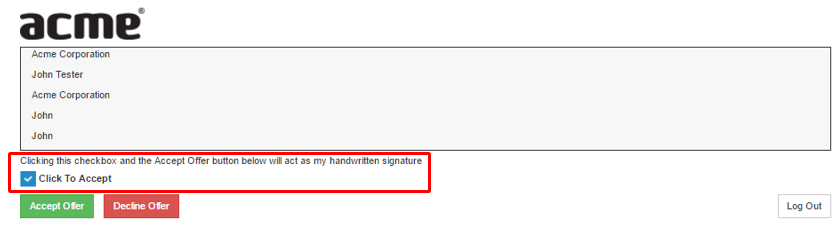
- Below is a picture of the option "Click checkbox to accept offer".
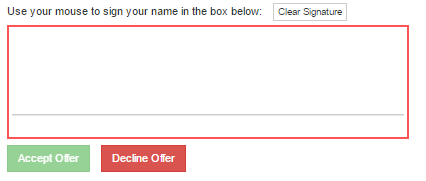
- Below is a picture of the "Wet Signature (Sign With Mouse)" option.
Job Inventory
- Once a requisition is filled this option allows you to select actions that will happen once the requisition is filled.
Onboarding
- This feature requires the onboarding module activated.
- Checking the first checkbox will prompt the candidate to complete the onboarding form once hired.
- The second checkbox will require the candidate to re-authenticate their information to submit the form.