This article covers how to setup Fast Apply.
(Based on company setup this feature may be available)
- The first step into setting up fast apply is to select your username in the top right corner.
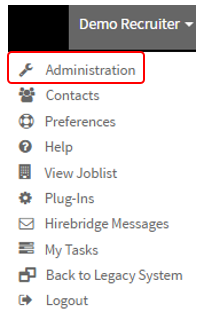
- Once you have selected the username a drop-down menu will appear.
- From this menu list select "Administration", this will take you to the "Administration Control Panel".
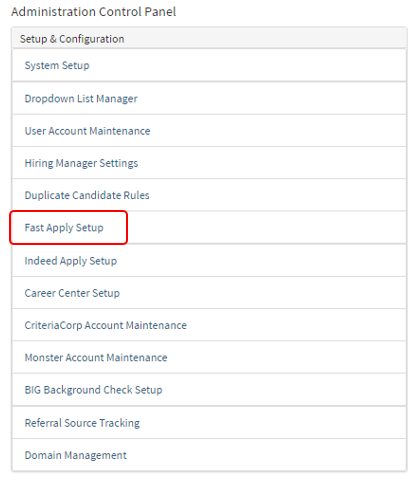
- In the Column "Setup & Configuration" select "Fast Apply Setup"
- This will take you to the "Fast Apply Setup" page.
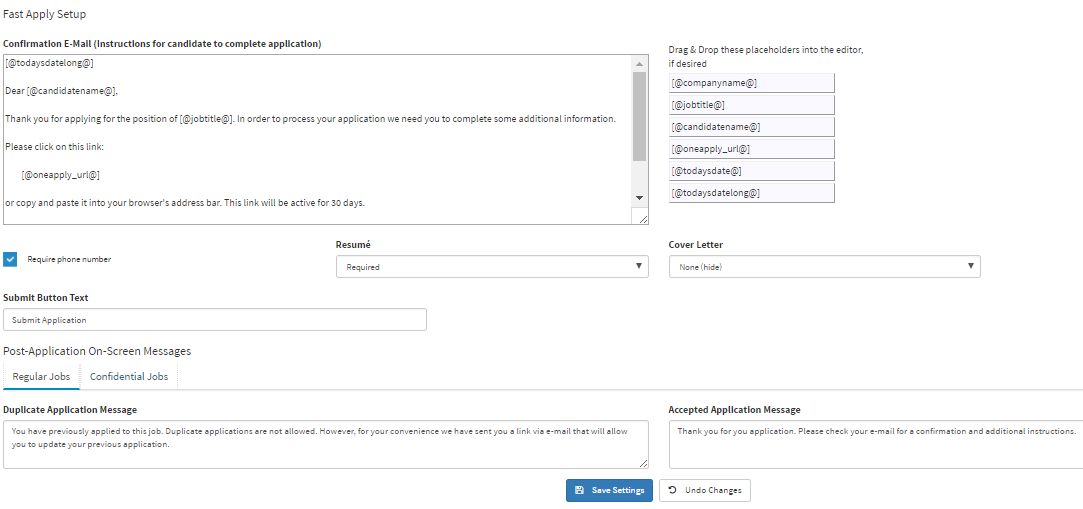
- In the text box above, "Confirmation E-mail" allows you to create a custom message for the candidate once they complete their application.
- To the right of the text editor box, "Placeholders" can be used to automatically populate the candidate information into the email.
- Resume - Drop-down list gives you the option to make the resume optional, required and None (Hide)
- Cover Letter - Drop-down list also gives you the option to make Cover Letters optional, required, and None (Hide)
- Submit Button Text - Allows you to edit the text displayed on the submit button.
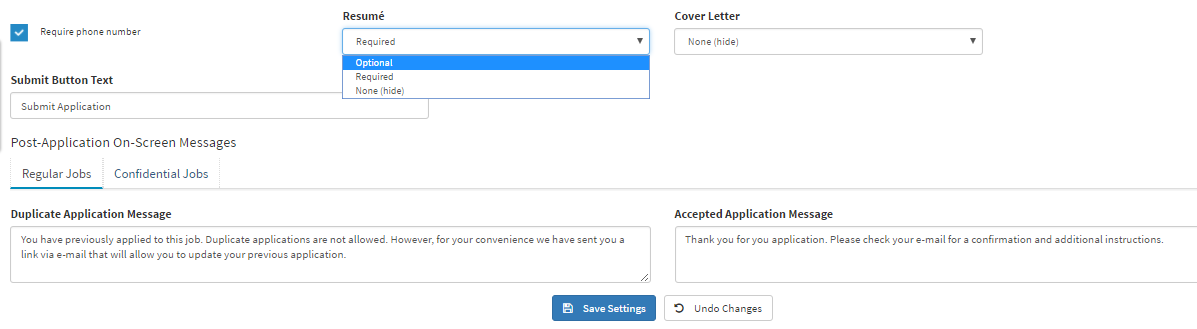
- In the "Post-Application On-Screen Messages" section, is where you will edit the messages candidates will receive if they have duplicate applications and when the application has been accepted.
Candidate Fast Apply Application Process
- Once the candidate is on the job details page they will need to select "Apply"
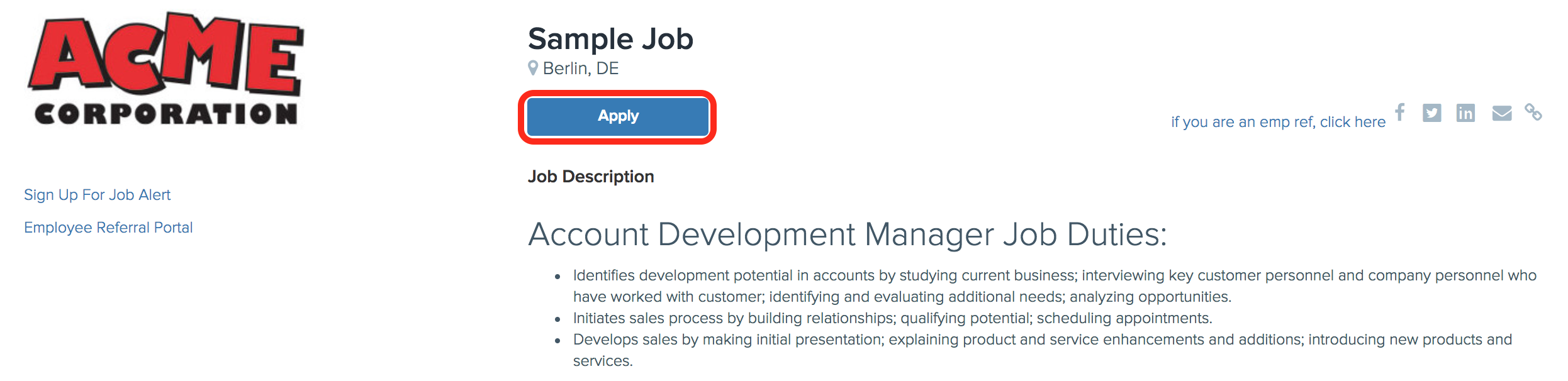
- After the candidate selects "Apply" a pop-up will appear asking for basic candidate information. (Sample provided below)
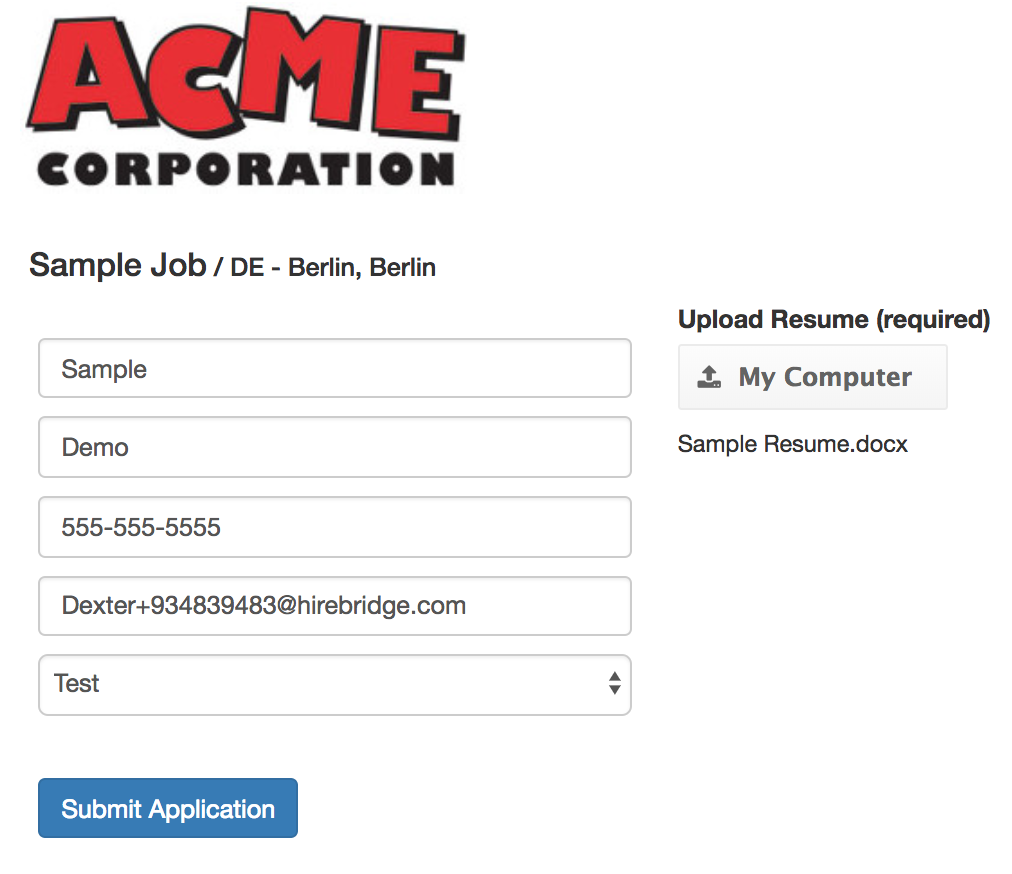
- After the candidate populates and uploads all the required information they will need to select "Submit Application".
- The candidate will then receive a confirmation that their application has been submitted and to check their e-mail for a confirmation with instructions.

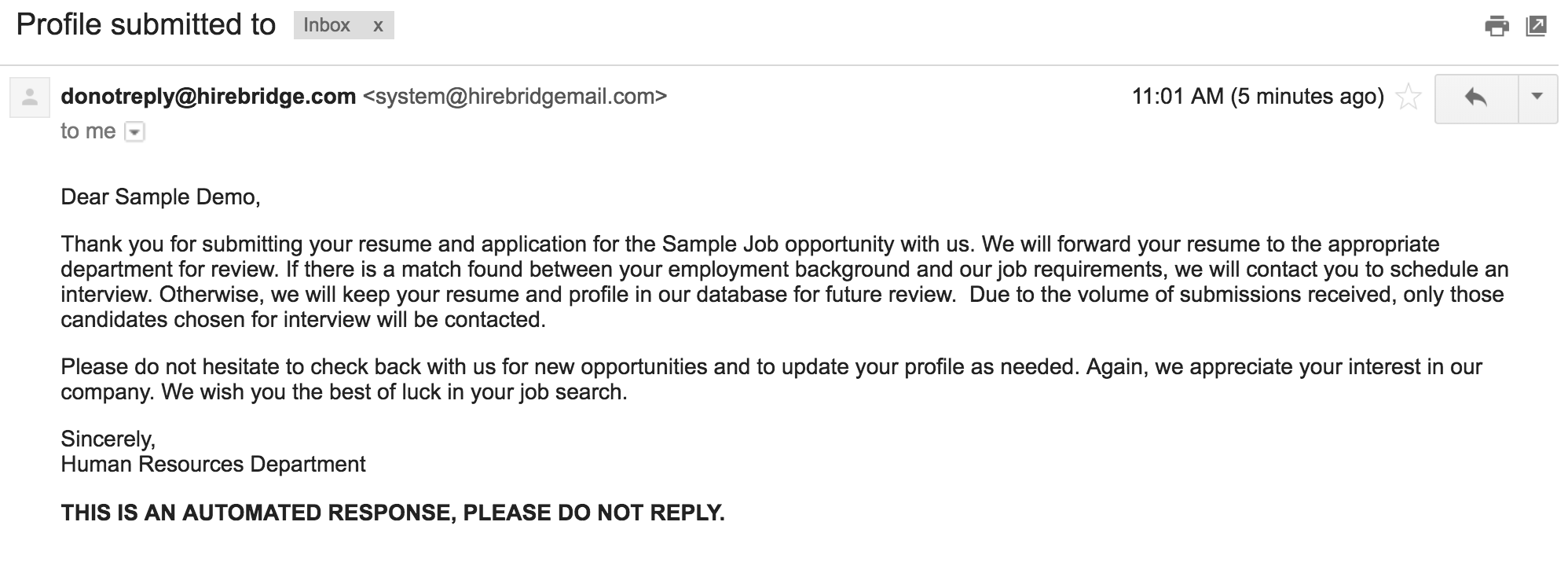
- The candidate will receive an email like the image provided below. It will contain instructions on how to complete the rest of their application using the link provided.
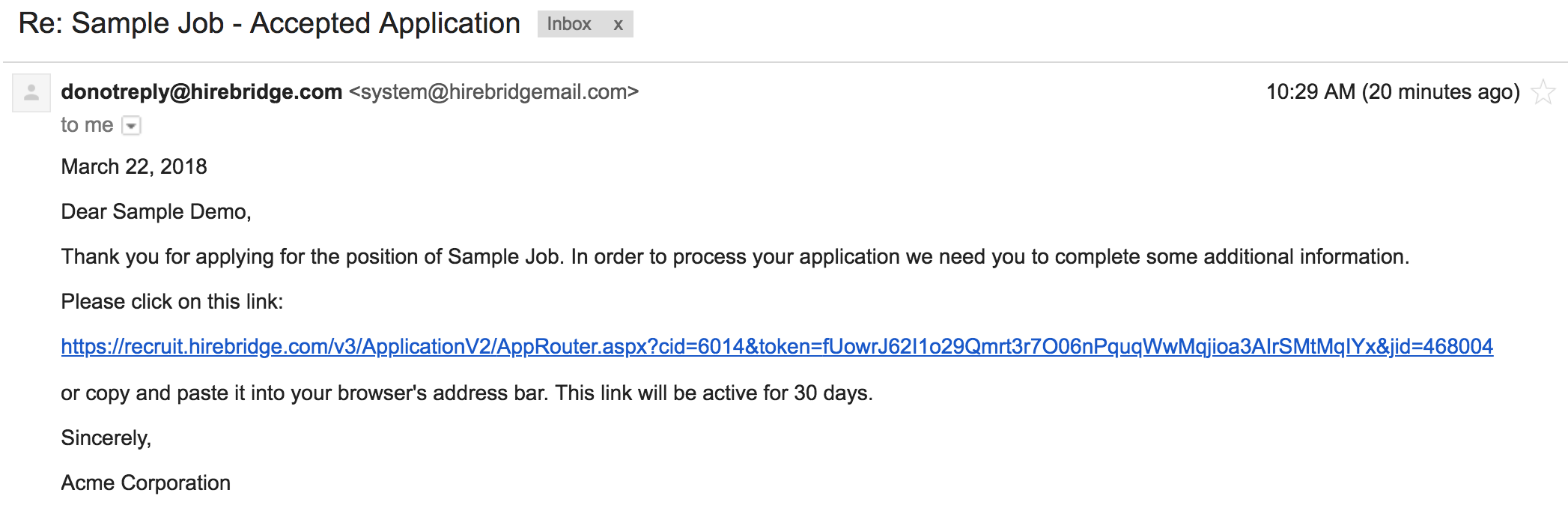
- After the candidate selects the link it will take them straight to the application.
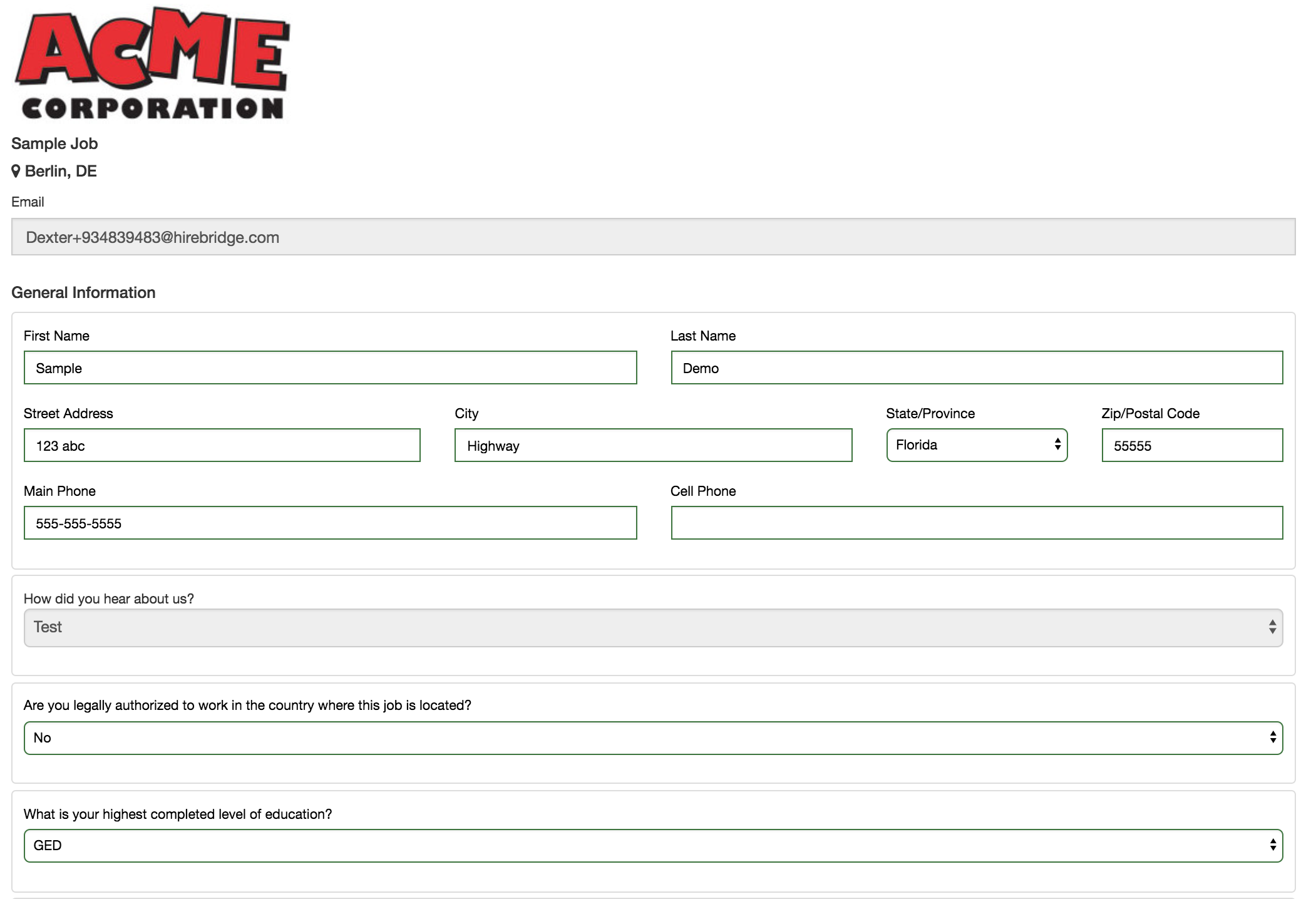
- In this application, the candidate will need to then complete and populate the rest of the requirements.
(Image of the application provided below)
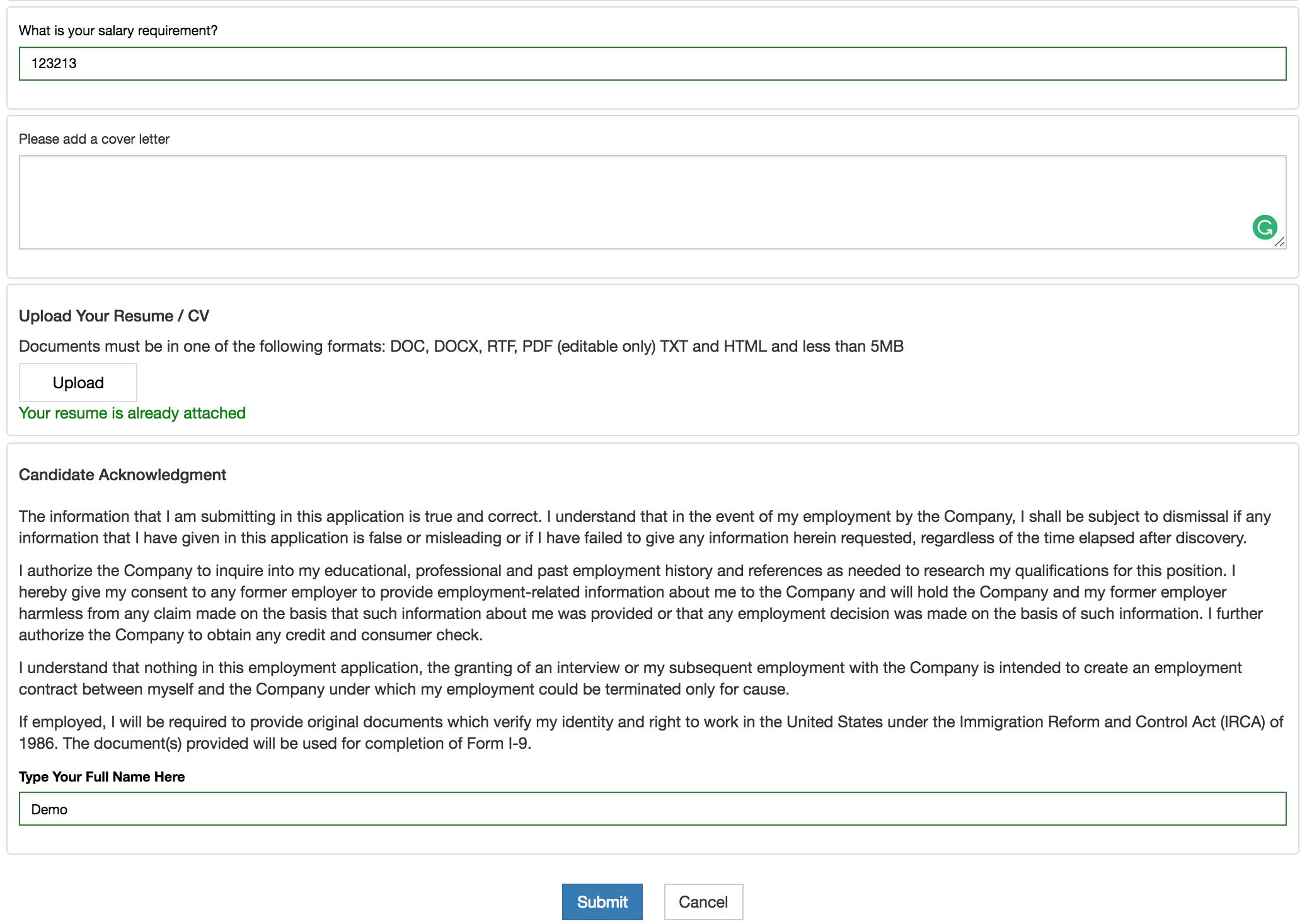
- The next step after completing the application is to select "Submit".
- A confirmation page will then load and notify the candidate that their application has been updated and completed.
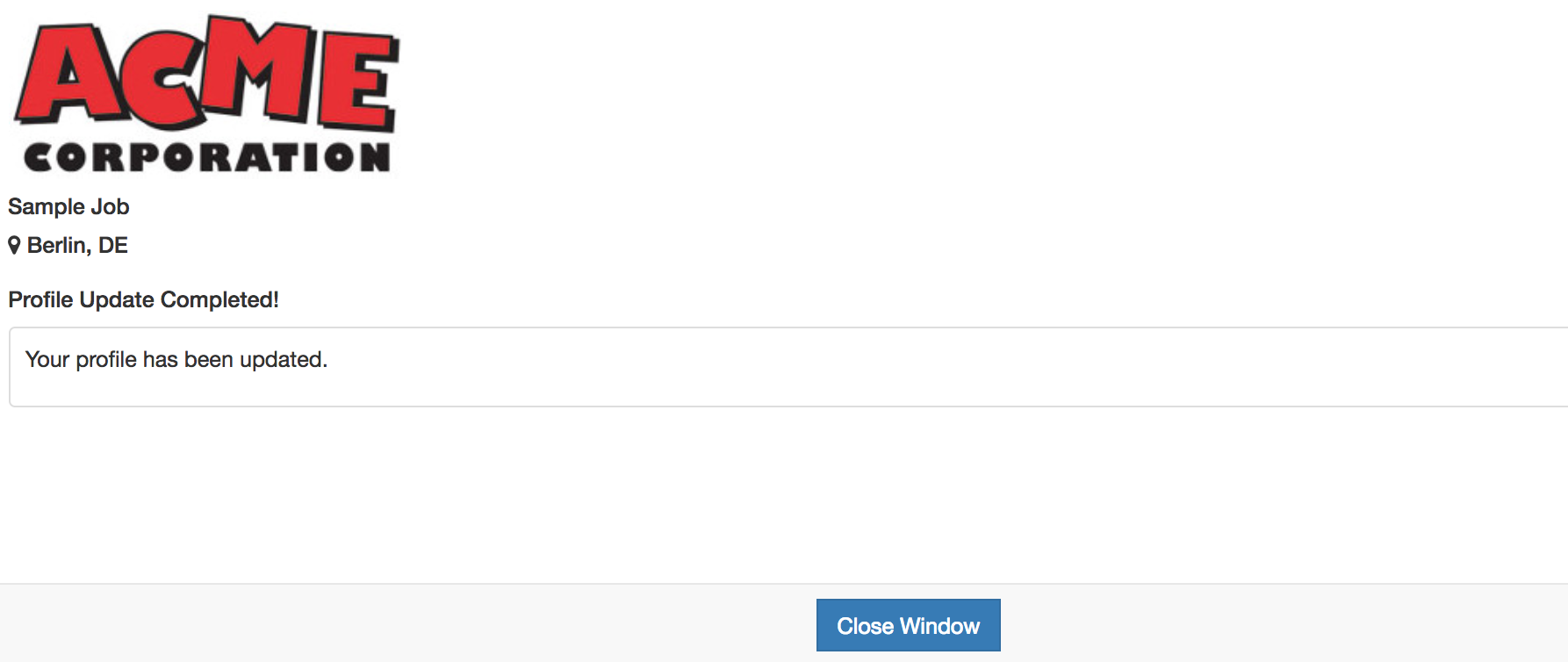
- Once the application is complete the candidate will receive their user credentials and another confirmation email.
- The email containing the user credentials will allow the candidate to go back into the application to add/edit information in the candidate profile.
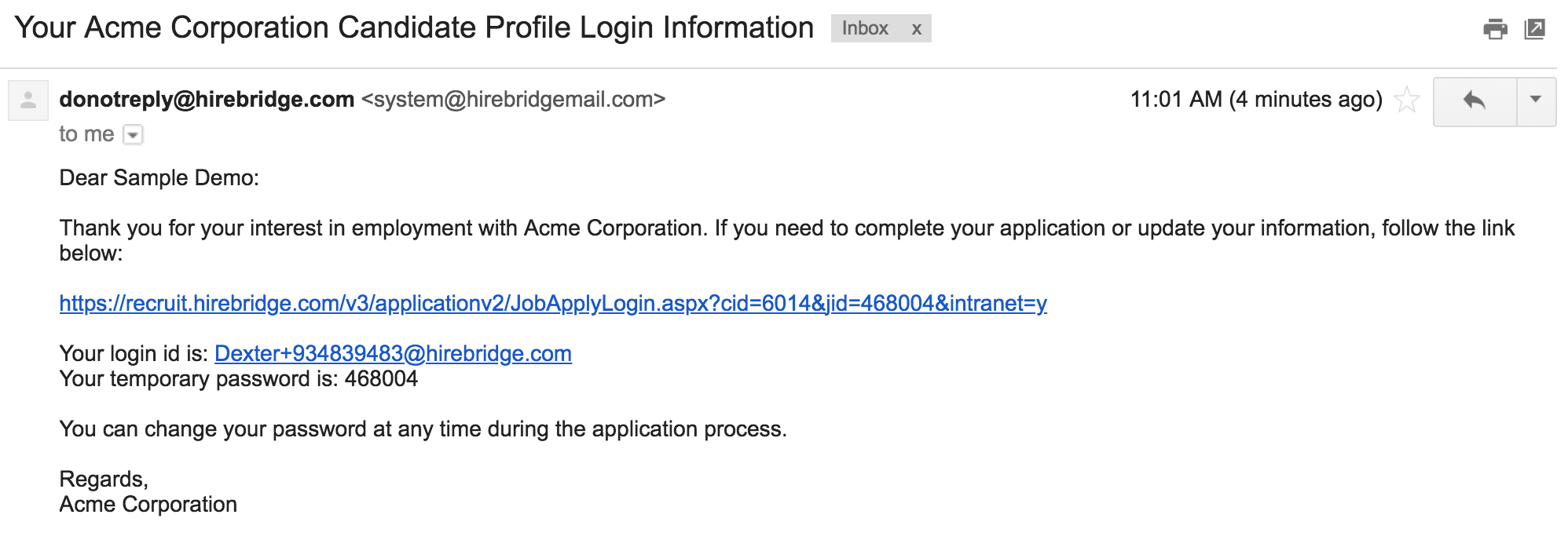
- The confirmation email will also provide the candidate with information on what to expect after submitting the application.