This article will cover how to do a bulk action for a list of candidates
- First, we need a list of candidates which can usually be found in a requisition that has applicants.
(Below is an image of a list of candidates from a requisition)
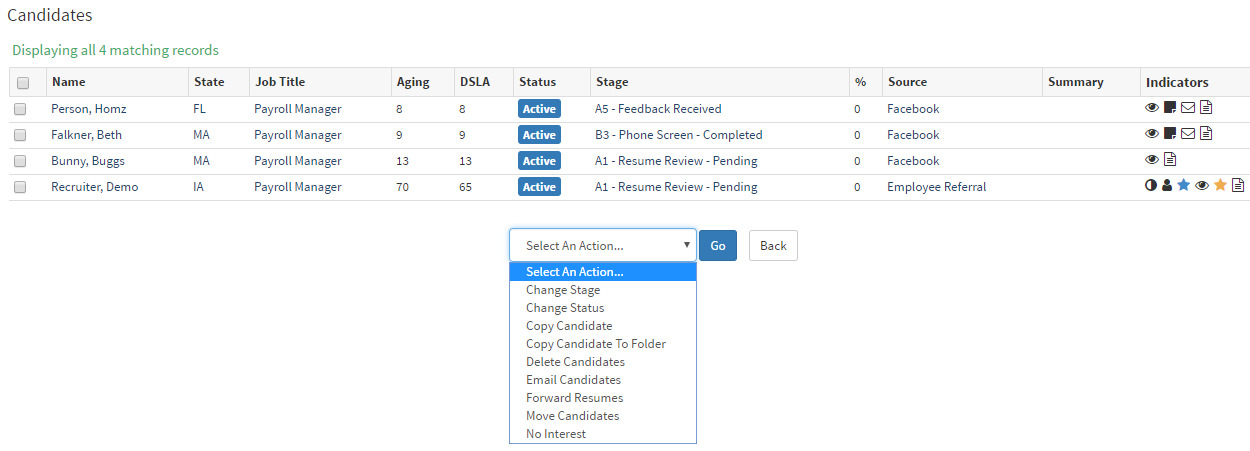
- To the left of the Candidate name, there are checkboxes where you can select certain candidates you would like to include in a bulk action.
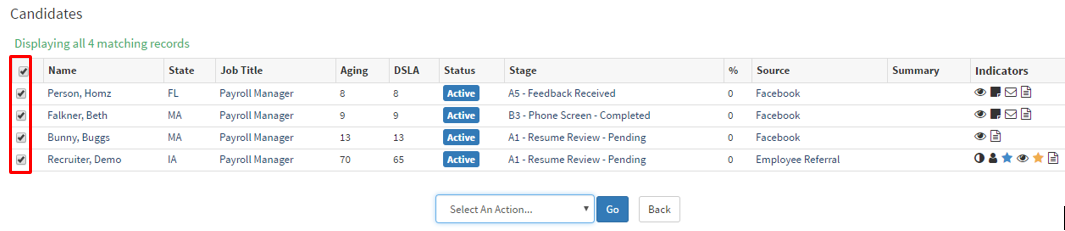
- Once you have selected the candidates you would like to bulk action.
- The next step is to pick an action from the drop-down list available at the bottom.
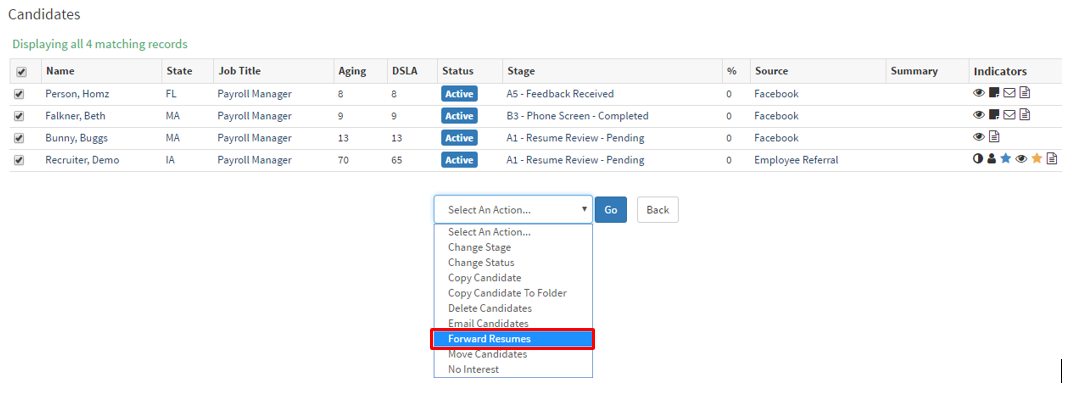
- Once you have selected an action, select the blue "Go" button.
- This will take you to the Forward Candidate File page.
- This page will allow you to
Request Feedback - Requests feedback for the candidates sent
CC- Candidates
Send me a copy - Sends yourself a copy of the candidates forwarded
To - allows you to enter a specific email address
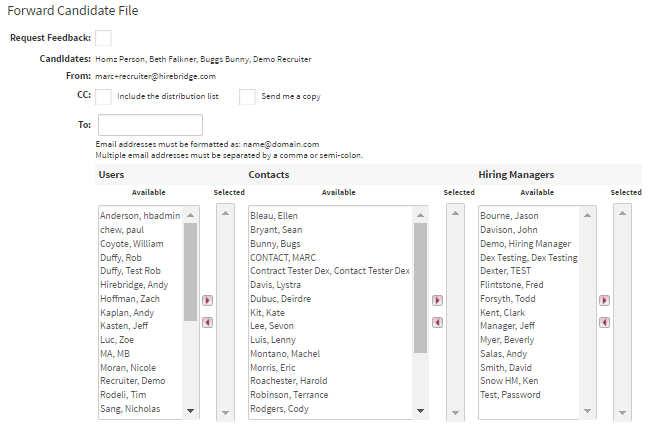
- To forward the candidate to individuals, you need to move either the Users, Contacts, and Hiring Managers from the available column into the selected column.
- This can be done by selecting an Available individual and selecting the right arrow ingo the Selected column.
Scrolling down the page allows you to get into the message section.
- This section allows you to select from the forward candidate template.
- The text editor box below allows you to enter and edit text you would like to send to the recipients.
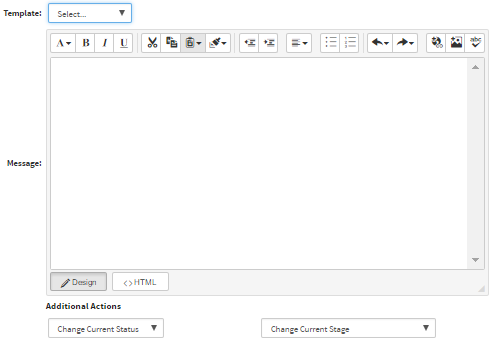
- Additional Actions -
Change Current Status - This drop-down list gives the option to change candidate status.
Change Current Stage - This drop-down list gives the option to change candidate stage.
At the end of the page, there is a list of documents that you would like to include when you forward the candidate. You can either select the "All Information" check box or check each individual document you would like to include with the candidate.
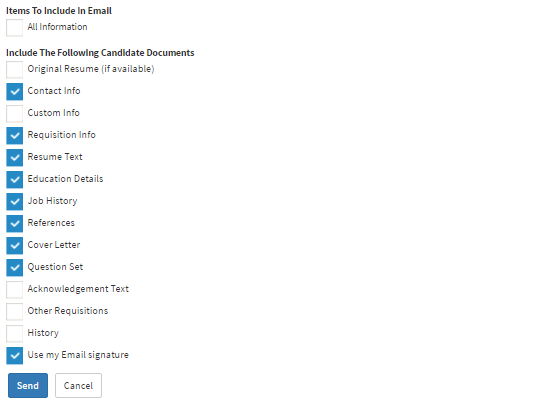
Once you are satisfied with the recipients and the information being forwarded select the blue "Send" button.
Each candidate will now be emailed to the selected individual.