This article will guide you through the process of switching from the old Hirebridge user interface to the new user interface.
- In the older user interface, select the top right corner the "Try Our New Interface" link.

- This will now send you into the new interface which will look like the picture below.

- Once you are in the new user interface, you would want to set up your new user interface preference.
- In the top right corner select your username.
- A drop-down list will appear where you will select "Preferences".
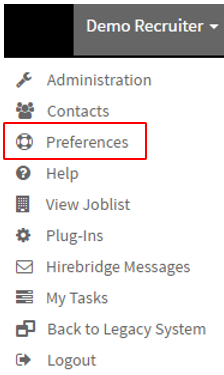
- This will now take you to the "User Preferences" page.
- Once on this page select the "Defaults" tab.
- This tab allows you to change default interface, the Landing Page, and Timezone.
- It also gives you the options to "Hide 'No Interest' Candidates in Search Grid and Confirm changes to candidate stage/status.
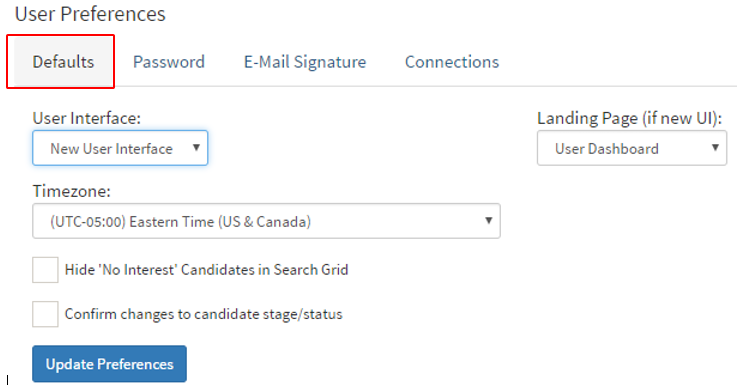
- On this page under the "User Interface" section, open the drop-down list.
- Select "New User Interface"
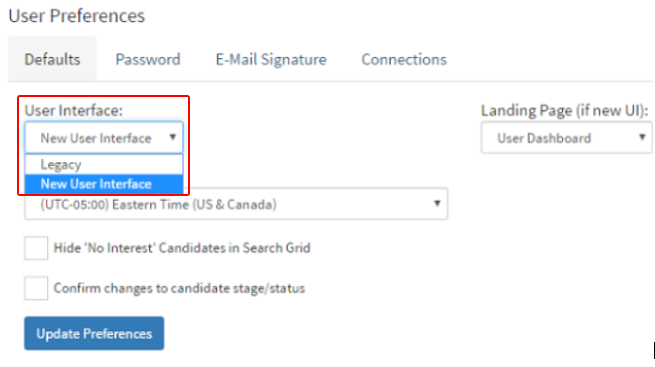
- Once you have selected "New User Interface" select the blue "Update Preferences" button at the bottom of the page.
Please, also update your saved bookmarks