This article will cover how to add notes to a candidate.
- The first step is to find a candidate that you would like to add a note to.
- Once you have selected the candidate name this will take you to the candidate overview page
- Next, select the "Notes tab" in the candidate profile.
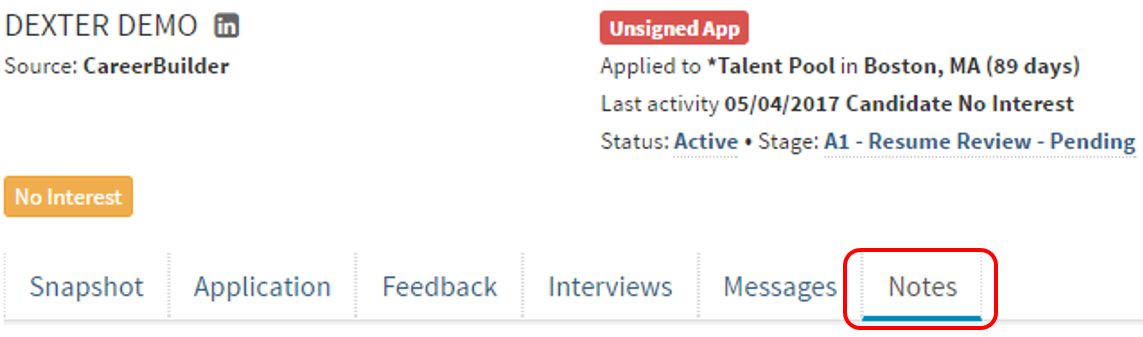
- The Notes tab will now give you the option to view existing notes and create new notes.
(Outlined in red below)
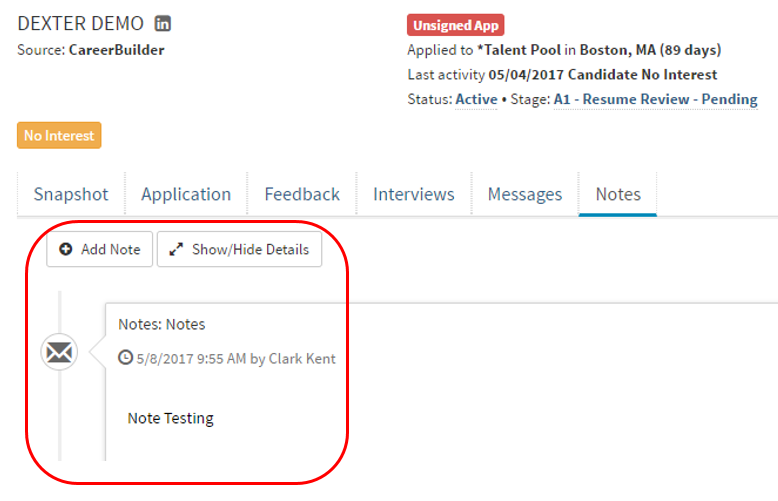
- To add a note select the "Add Note" button.
- A pop-up should appear allowing you to "Select type and enter notes".
- This option will allow you to select what type of note you will be entering.
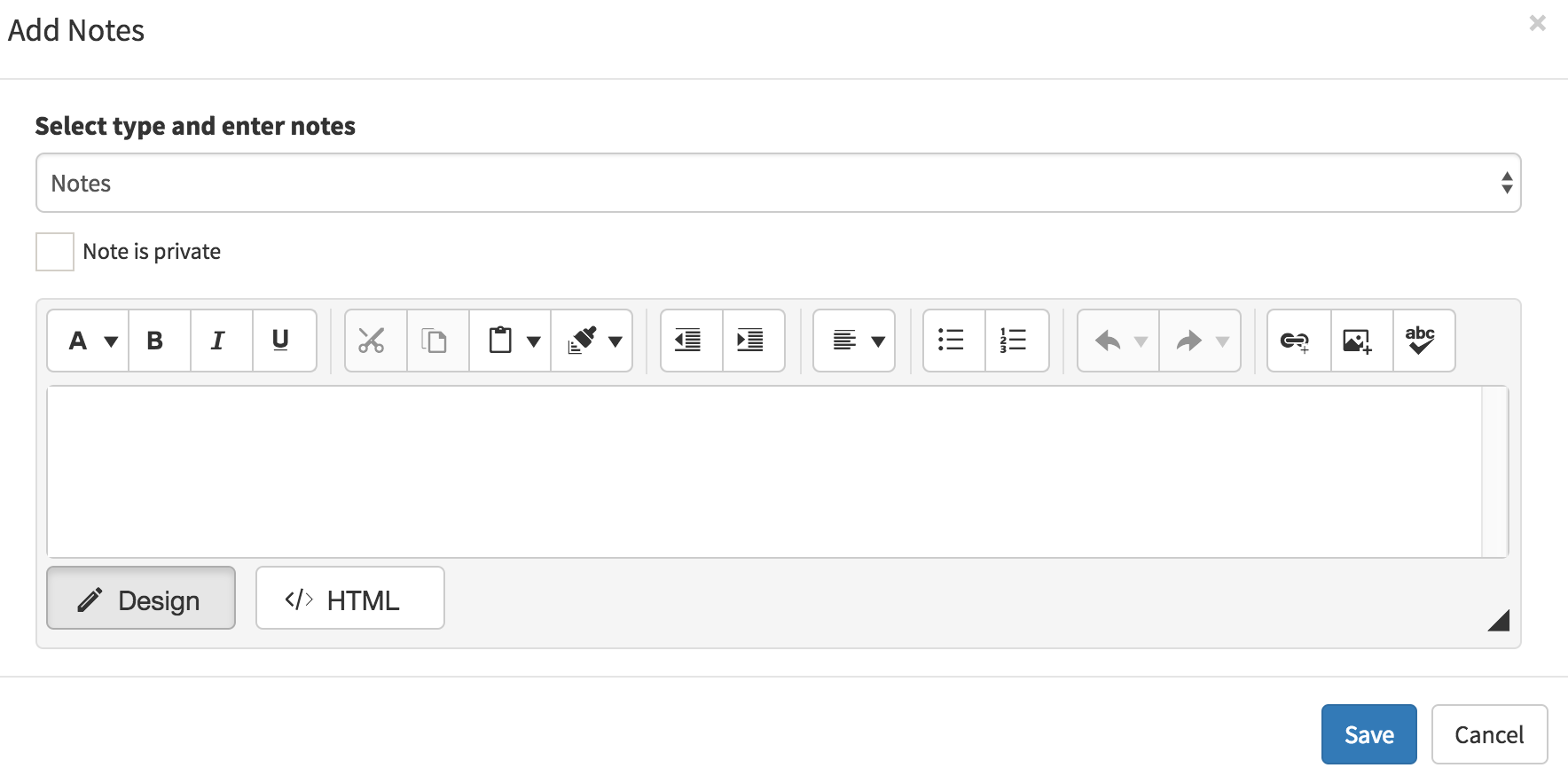
- The checkbox next to "Note is Private" makes the note a private note only viewable to the creator.
- Once you have selected the type of note, in the text box below you can now include the note you would like to add to the candidate profile.
- The text box below can also include html and images.
How to Edit/Delete a note.
- To delete a note go into the "Notes" tab.
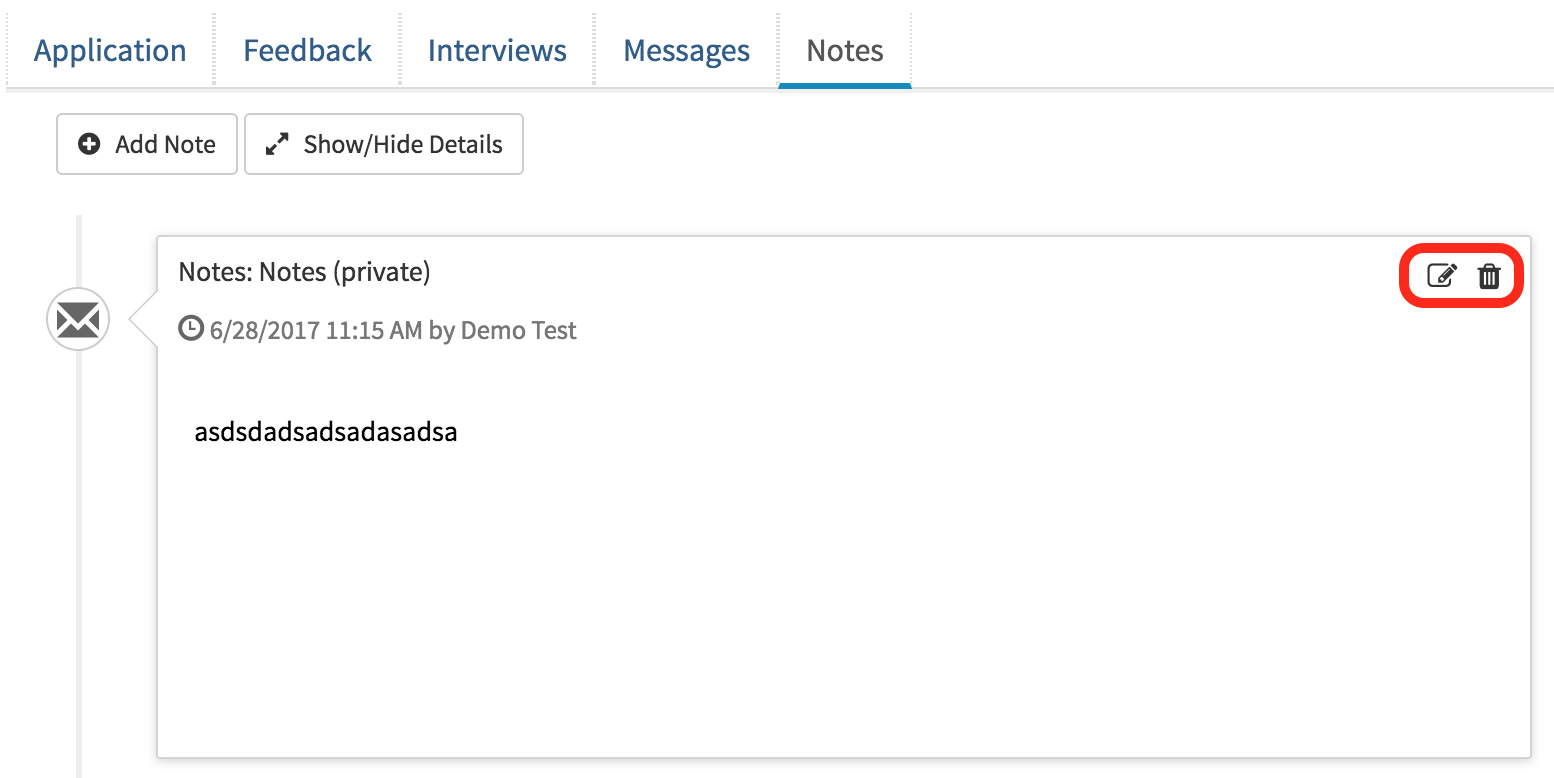
- In the note message section in the top right you can see two icons.
- The trashcan icon deletes the note and the pencil and paper icon allows you to edit the note.