This article will cover how to view and download the candidate resume.
- The first step is to make sure the candidate has the original resume.
- The image below is a candidate list, on the right of the list is the "Indicators" column. The paper icon in the Indicator column lets you know if the candidate has an original resume.

- Now that you see that the candidate has a resume select the candidate name.
- This will take you to the "Candidate Overview" page.
(Pictured Below)
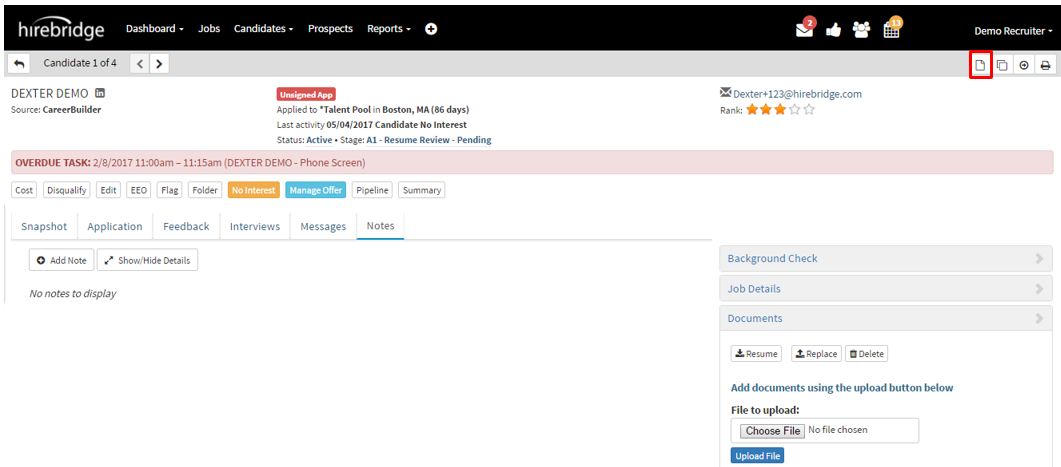
- Once in the candidate profile, a quick way to view the resume is by selecting the single paper icon on the top right corner. (Outlined in the picture above in red)
- A pop-up will appear, giving a PDF view of the candidate resume.
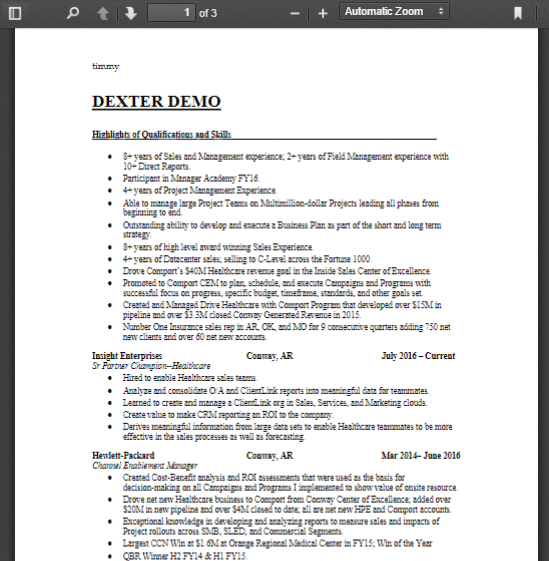
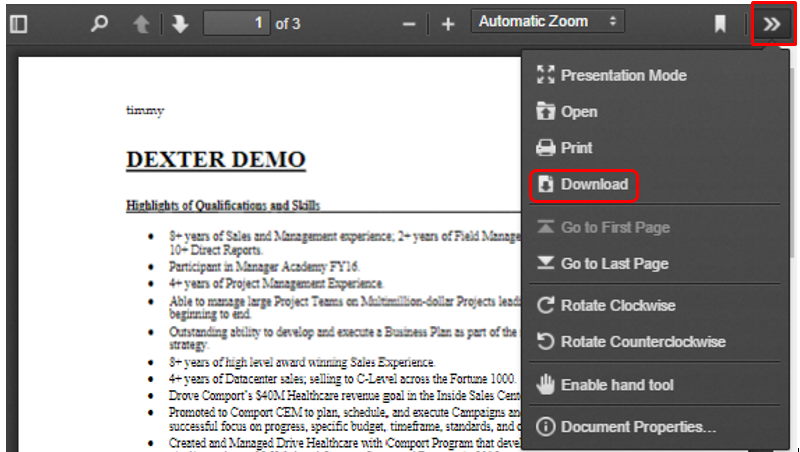
- To download the resume in the pop-up, select the three arrows on the top right. (Pictured below)
- This will open a drop-down menu where you will select "Download" from the list. (Pictured below)
- The resume will now download as a PDF file.
The second way to download a candidate resume is by selecting the "Document" tab on the right side of the candidate profile.
(Outlined in the image below)
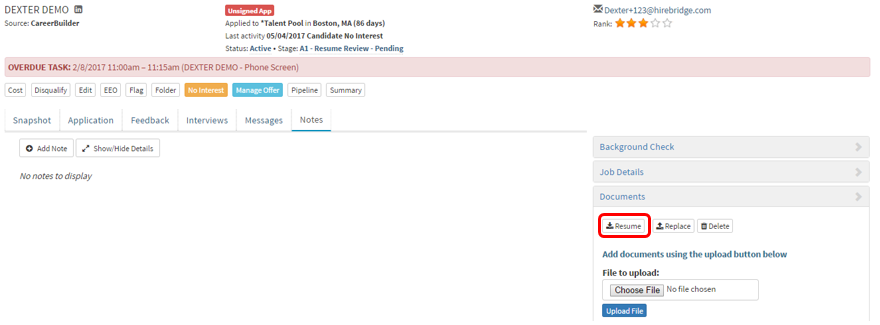
- This will open up the documents tab allowing you to download, replace and delete documents.
- You are also able to upload additional candidate documents in this tab.