How to E-Mail a candidate
In this tutorial, we will be covering how to email a candidate.
- First off, you would need to find a candidate.
- Once on the candidates profile click on the “Messages” tab.
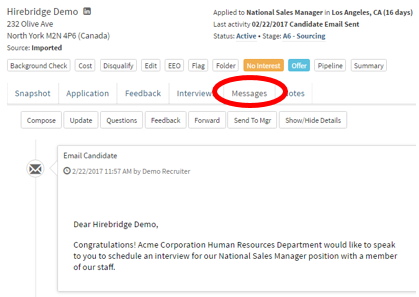
- This section will display all the messages sent/received from the candidate.
- To compose a new email to the candidate click on the “Compose” tab.
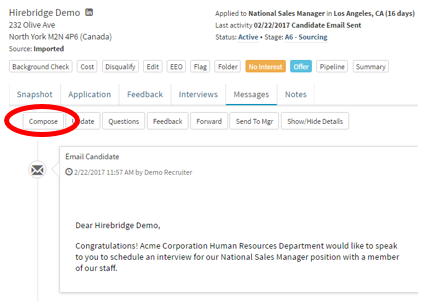
- A new popup window should appear to email the candidate.
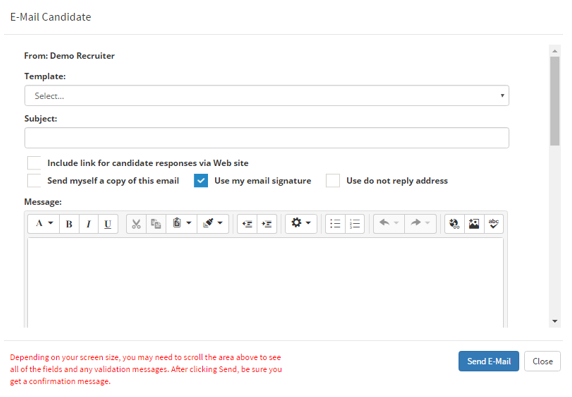
- The next step is to select a "Template" from the drop-down list.
- Place a subject into the subject box
- Then based on preference, select the checkboxes needed. (Checkboxes described below)
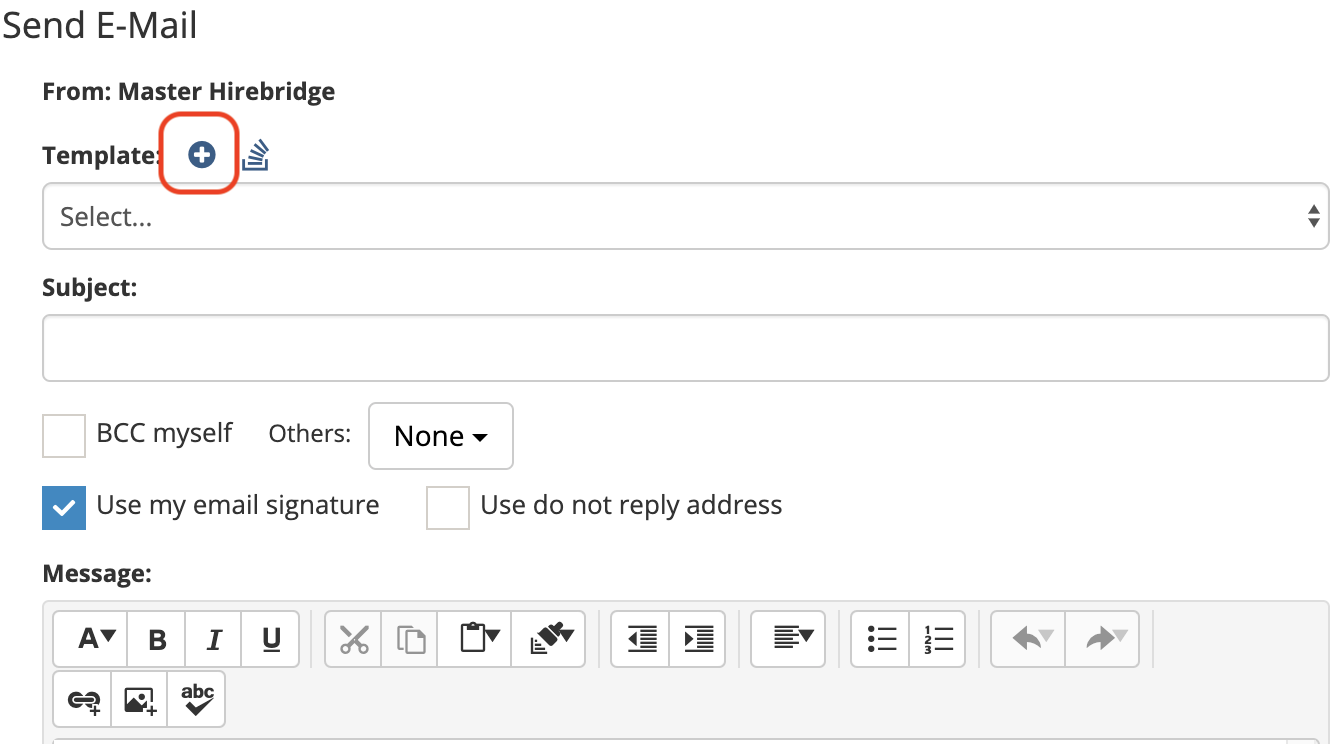
You can also quickly create user email templates by clicking the plus sign ( ).
).
Checkbox Descriptions -
- Include link for candidate responses via Web Site - This allows you to message candidates through a web site
- Send myself a copy of this email - send yourself a copy of the email
- Use my email signature - uses your signature at the end of the email
- use do not reply address - This allows you to use a do not reply email address instead of your personal address.
- After you have selected either a template or a custom email to send to the candidate just click the blue “Send E-Mail” button to send the e-mail to the candidate.
You can also email candidates quickly by clicking on the candidate's email in the top right corner.
