This article will cover how to manually import candidates into a requisition.
- To import multiple candidates into a requisition, select the briefcase icon outlined below.
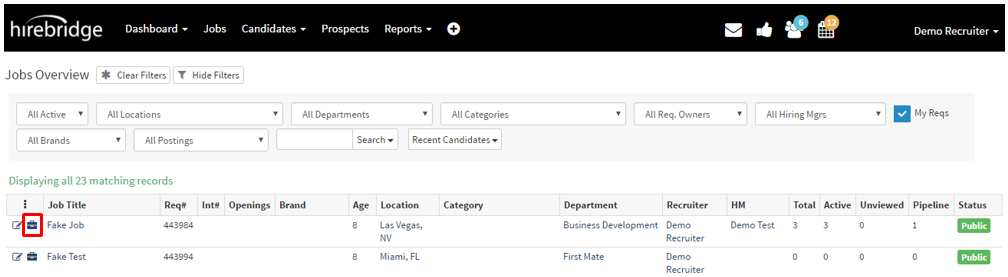
- This will now take you to the "Job Overview" page where you can view all the information about the requisition.
- On the Job Overview page select "Import Candidates" button on the top right.
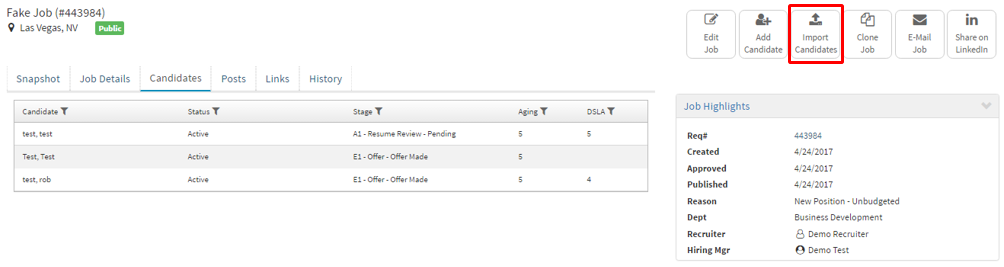
- You will now land on the Import Candidates page where you can import candidates.
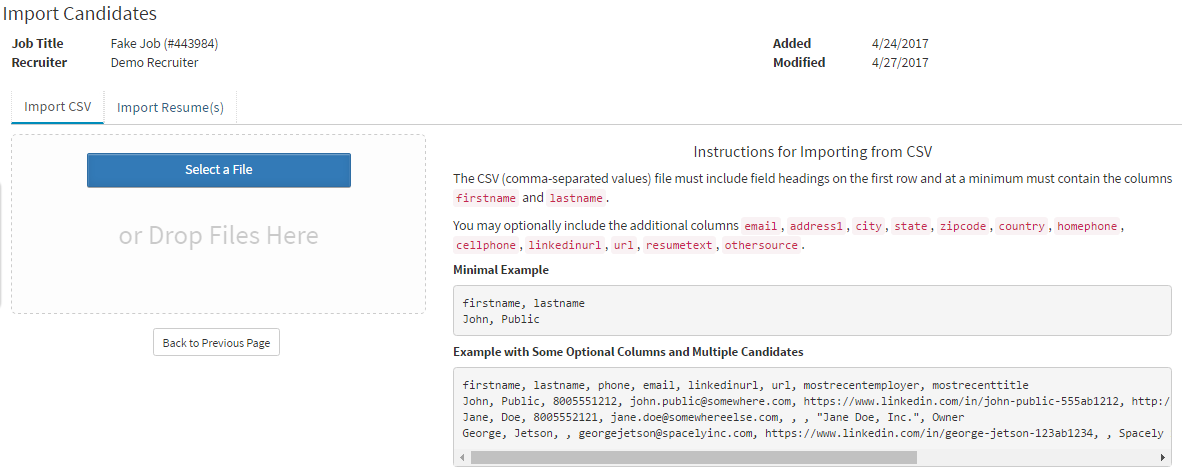
- Two ways to import candidates are either through CSV or Resume(.doc, .docx, .htm, .html, or .pdf).
- Selecting the Import CSV tab will allow you to import CSV Files.
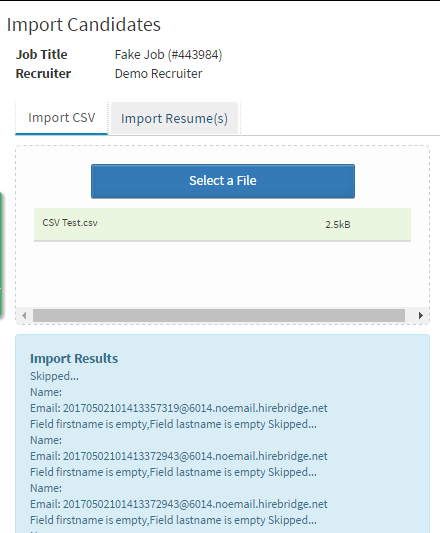
- To import using a CSV you can either drag and drop multiple CSV files or Select a File which will allow you to select CSV files from your computer.
- Specifics on the formatting of the CSV file is on the right side of the Import CSV tab.
- To import multiple resumes select the Import Resumes tab
- There are two ways to import multiple resumes either through the drag and drop option or the Select a File option where you can select a file from your computer.
- Specifics on the formatting of the file is located on the right side of the page.
- Below is a picture of a file that has been uploaded into the requisition. Beneath it you can see the Import Results where it will display information fo what has been imported.
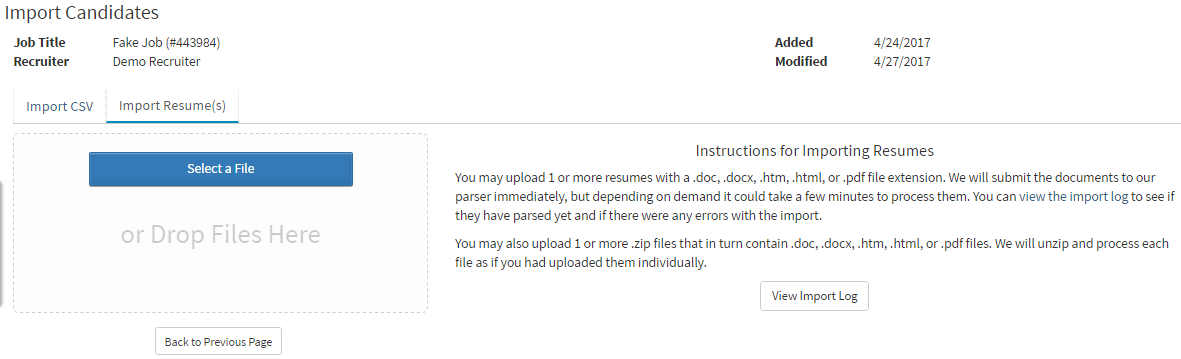
- As soon as you drag and drop the file it will already be added into the requisition
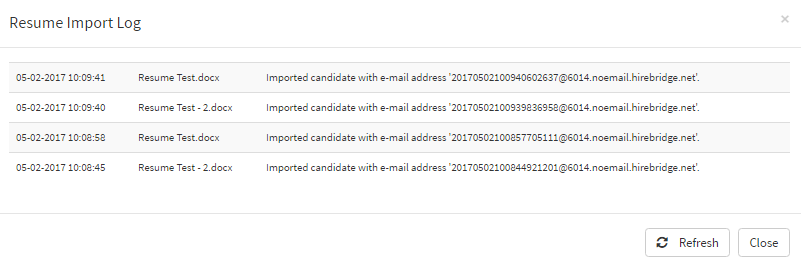
- To view what resumes you have uploaded simply select the View Import Log
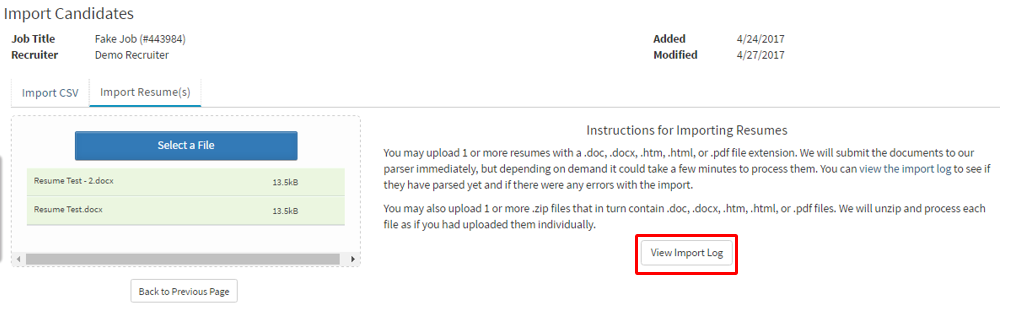
- A pop-up will appear displaying date/time, name, and who imported the resume.