Question Set Search Generator
This query builder allows you to tailor a candidate search based on the candidate's responses to your screening question sets. You can also select additional search criteria by using the drop-down lists.
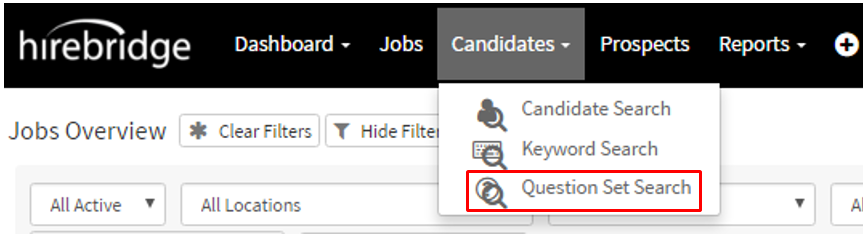
- To access the Candidate Question Set search select the "Candidates" tab in the navigation bar.
- A drop-down menu will appear, this is where you will select "Question Set Search".
TO PERFORM A QUESTION SET SEARCH:
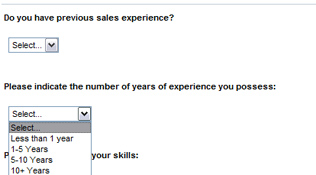
- From the Question Set drop-down list, select the question set you want to query, which will reload the search generator showing the questions and possible responses to each question at the bottom of the page. An example of this is shown below.
- Specify search parameters by the drop-down lists at the top of the page, if necessary.
- From the drop-down lists that appear at the bottom of the page for the question set you chose, select one or more responses to search.
- You can query responses to:
- Yes/No
- True/False
- Multiple Choice/Single Response
- Multiple Choice/Multiple Response
- NOTE: Text responses cannot be searched
- After you have set your parameters, click SEARCH to query your Hirebridge database.
QUESTION SET SEARCH NOTES:
- Search results are limited to 3000 candidates. If your search parameters return more than that number of candidates, the system will show the first 3000, and will disable all sorting and filtering using the ActiveGrid feature. Hit the Back button on your browser and add more search parameters to refine your search.
- Only answer to Yes/No, True/False, Multiple Choice/Single Answer, and Multiple Choice/Multiple Answer questions can be searched with this tool. Text question responses cannot be searched.