This article will cover how to clone a requisition
- There are two ways to clone a requisition
- The first way is by selecting the Edit Job icon - Pencil & Paper icon (Left Icon)
- The Second way is by selecting the Job Overview icon - Briefcase icon (Right Icon)

- The first method we will cover is the Pencil & Paper Icon the (Left icon).
- Once you have selected the"Pencil & Paper Icon" it will take you to the "Job Requisition Editor" page.
- At the top of the page, there will be the option to "Clone" the requisition.
(Picture below)

- The second way to clone a job is to select the "Briefcase" to the right of the edit job icon.
- This will take you to the "Job Overview" page.
- On this page, this is where you select the "Clone Job" option on the top right.
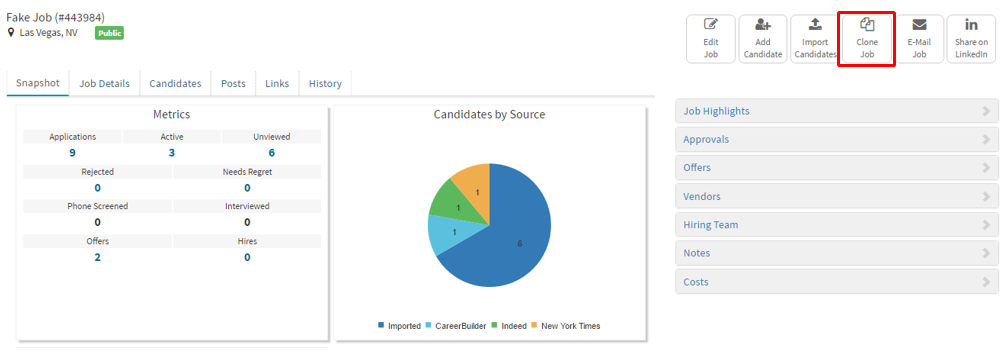
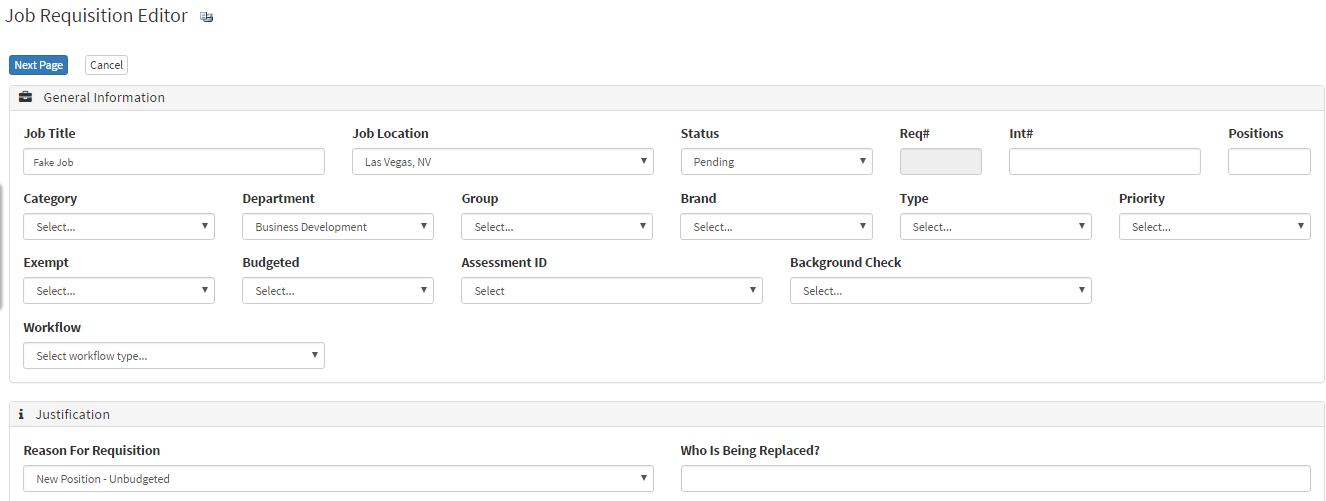
- Once you have selected Clone Job on either page it will take you to the "Job Requisition Editor".
- This page will have all the information cloned from the requisition into a new one.
- Once you have verified all the information is correct, select the blue "Next" button.
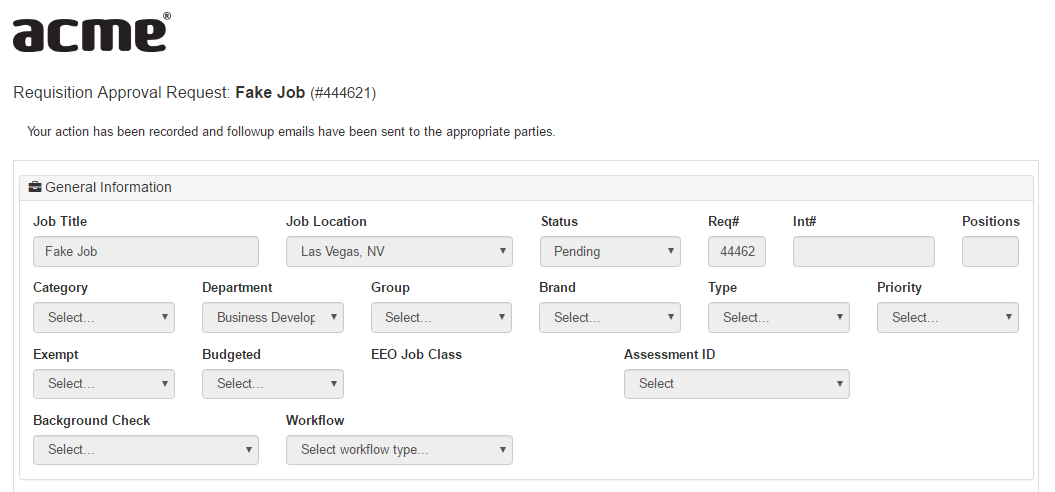
- Based on the company settings the requisition has to go through the approval process.
- Once the requisition has been approved it will appear with the same name but a new requisition number.