This article will cover how to email a job.
- On the Job Requisition list select the briefcase icon next to the Job Title.
(Pictured Below)

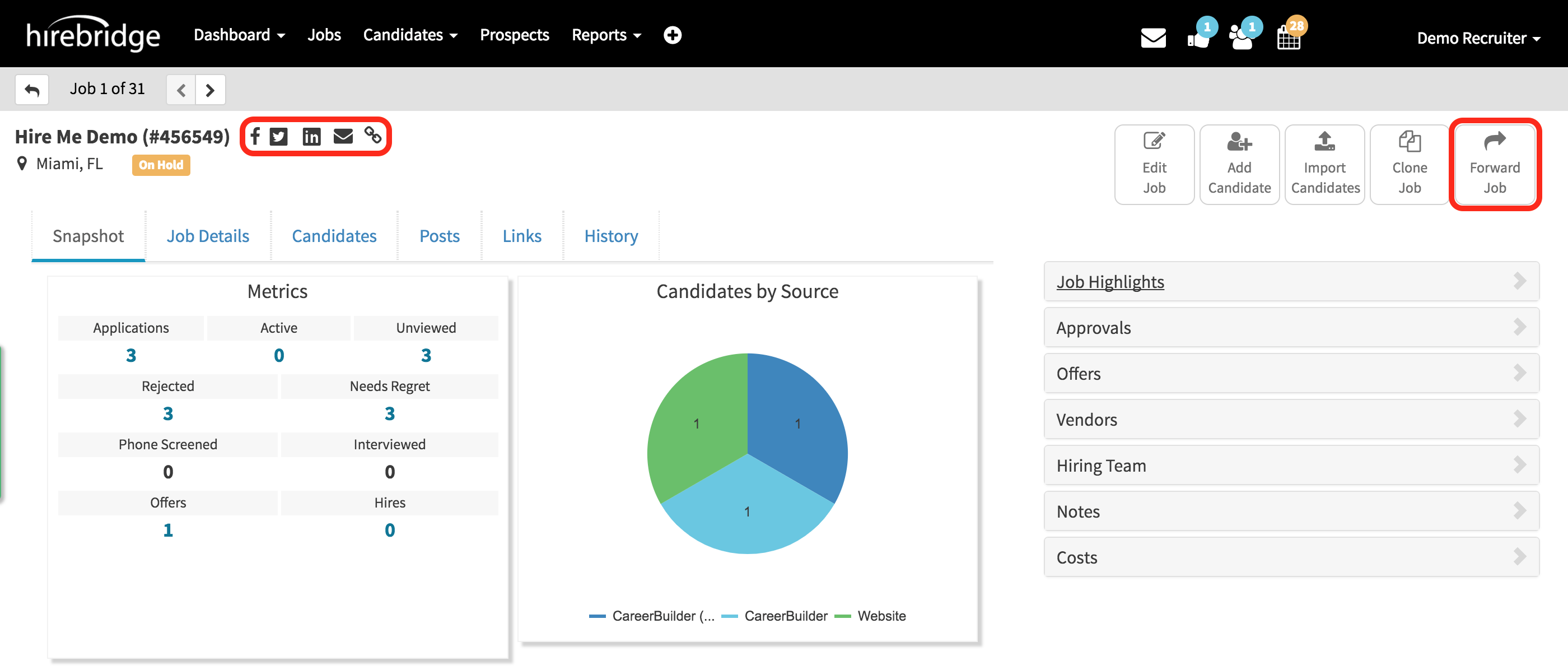
- You will now land on the Requisition Overview page.
- On the top right corner, you will see the option "Forward Job" select this option. (Pictured below on the right)
- On the left is the quick share icons that will allow you to easily share the requisition.
- This will take you to the "Email Job" page which will allow you to email the requisition.
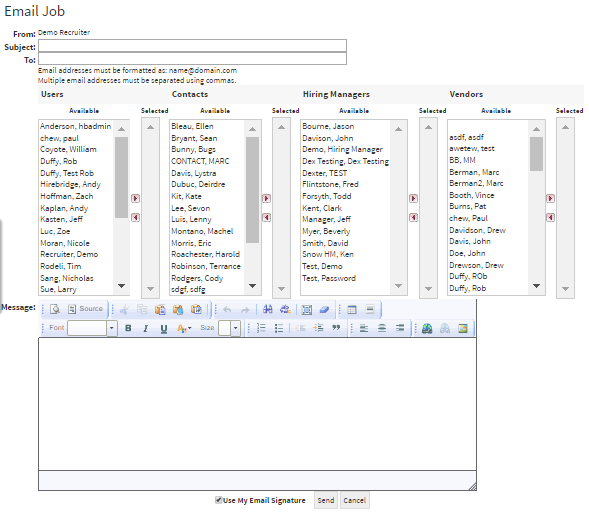
- The "Subject" Box allows you to enter a subject into the email.
- "To" gives you the option to enter the email address for the recipients.
- In the columns listed Users, Contacts, Hiring Managers and Vendors you are able to choose from the list of individuals.
- Moving them over to the right by selecting the right arrow will make them a recipient of the requisition email.
- Below the list of available recipients is a text box where you can also insert a custom message.
After you have sent the Email below is an image of how the recipients will view the message.
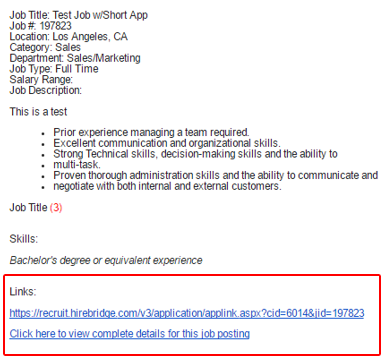
- Outlined below is the link to the job requisition where the candidate can apply.