This article will cover how to request candidate feedback.
- The first step to sending a candidate a question set is to go into a candidate profile.
- Once you are in the candidate profile select the "Messages" tab.
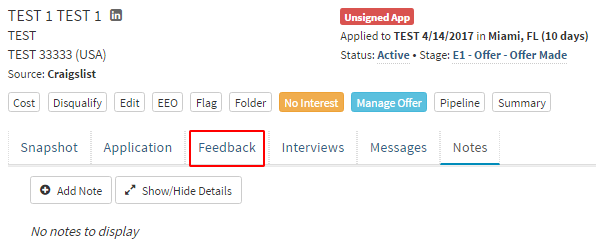
- After you have selected the "Feedback" tab more option will become available.
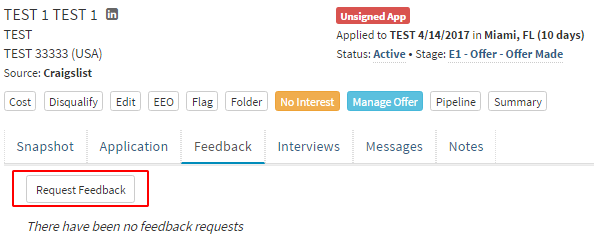
- Select the "Request Feedback" tab outlined in red in the picture above.
Below is a picture of the Request Feedback Page
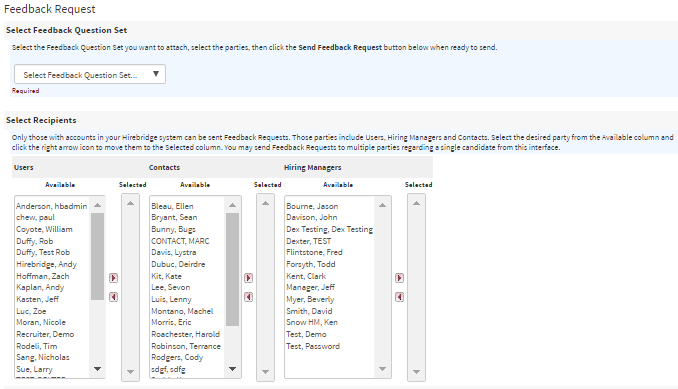
- The section above in the "select Feedback Question Set" Allows you to select a set question set from the drop-downlist.
- In the "Select Recipients" section allows you to select from users, contacts and hiring managers. This allows you to select who you would like to request feedback from.
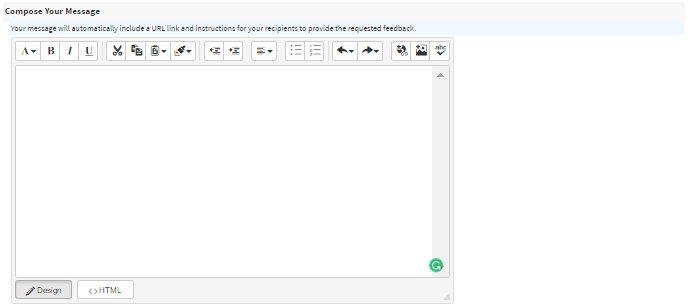
- The above section "Compose Your Message" enables you to enter a custom message to the recipients.
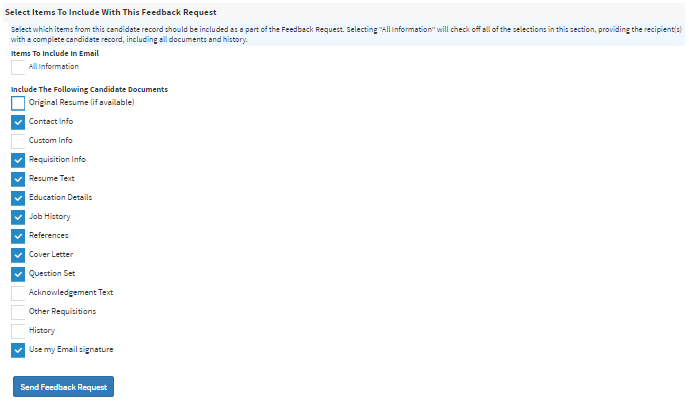
- The picture above in the "Select Items To Include With This Feedback Request" allows you to include documents in the feedback request.
- After you are satisfied with the Request information select the blue "Send Feedback Request" button.
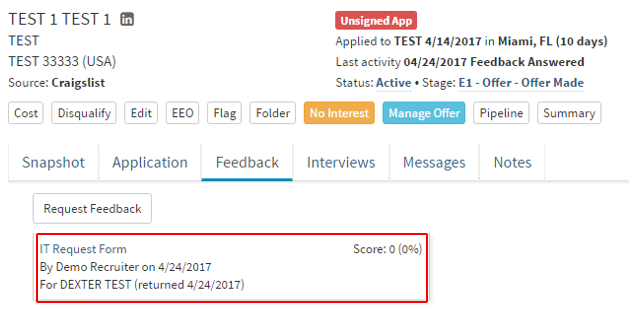
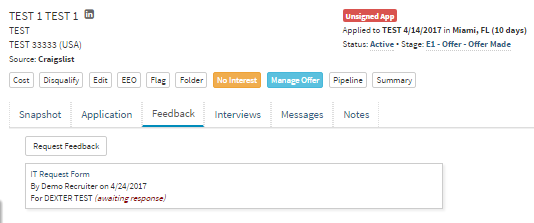
- This will now take you back to the candidate's profile where you can see a request has been made in the picture below.
- The recipients will now receive an email like the one below requesting to respond to the feedback request about the candidate and will be provided all the selected information.
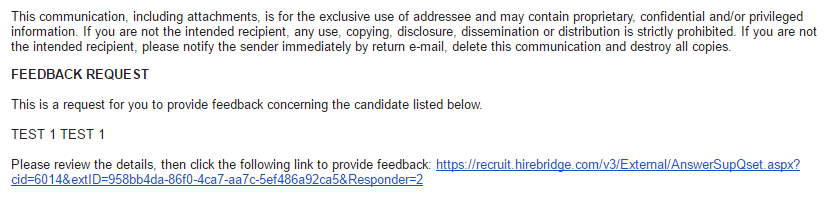
- After the Recipient has selected the link, it will send them to a website. This is where they will be required to answer the question set.(Pictured Below)
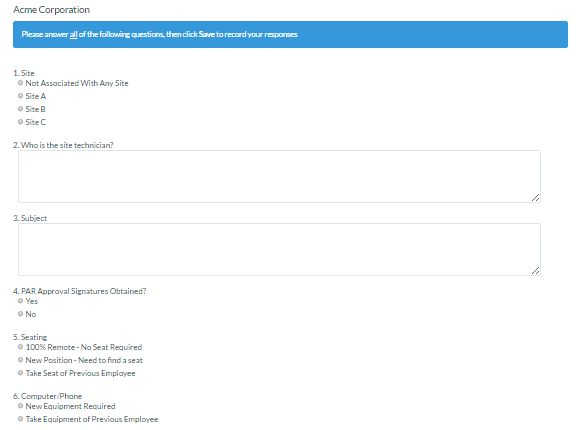
After completing the question set and selecting the green "Save" button at the bottom of the page they will receive an email confirmation that they have completed the feedback question set.

- On the candidate's overview page you can now see the score of the assessment along with the responses made by the recipient.