This section will cover how to setup your default User Interface/ Landing Page.
- The first step is to select your username on the top right corner.
- After you have selected your user name select "Preferences"
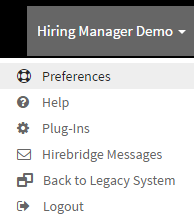
- You will now land on the "User Preferences" page where you can edit what interface you land on
- Next, select the "Defaults" tab.
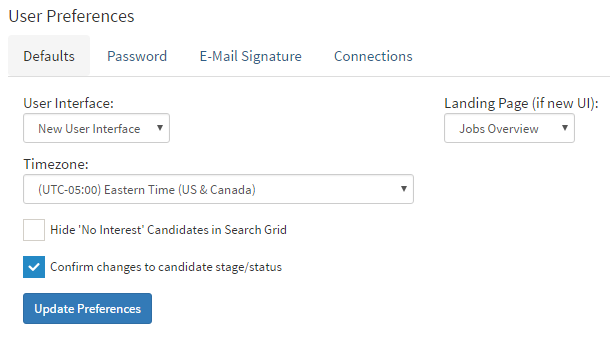
- User Interface - Gives you the option to choose which interface you would prefer to use
- Landing Page - This feature only works if you are using the new UI (User Interface). It allows you to choose which page you would like to land on when you log in.
- Timezone - Allows you to select the default timezone
- Hide 'No Interest' Candidates in Search Grid - Checking this box allows you to hide candidates that have been 'No Interested'.
- Confirm Changes to candidate Stage/Status - Enables a notification when you make changes to a candidates stage/status.