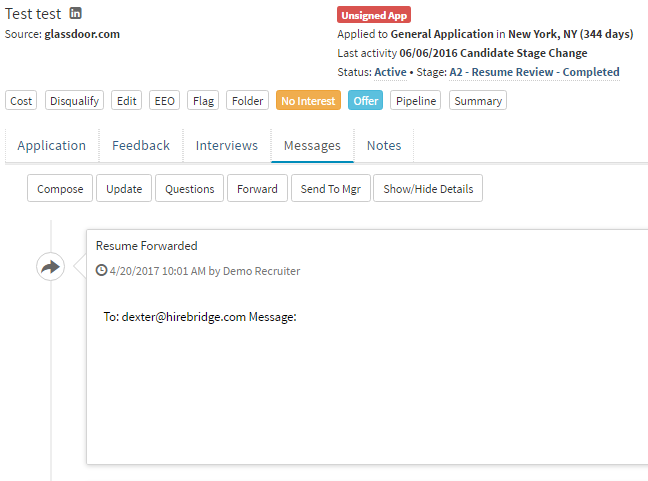
This article will cover how to forward a candidate.
- First, we need to access a candidate profile.
- Once you are in the candidate profile select the "Messages" tab.
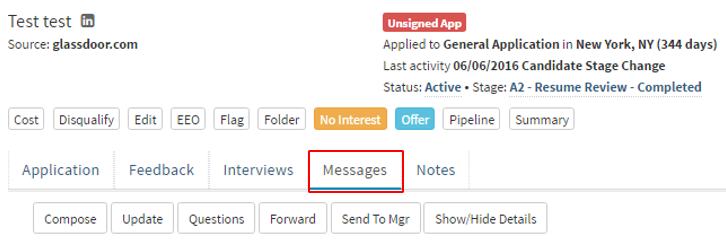
- After you have selected the "Messages" tab more option will become available.
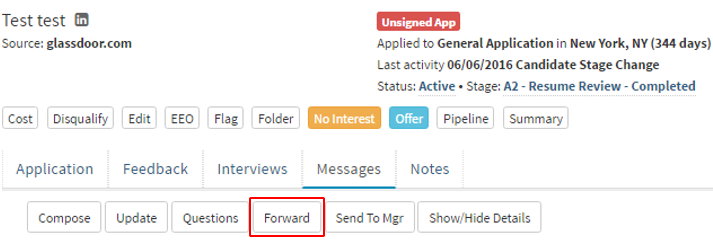
- Select the "Forward" tab outlined in red in the picture below.
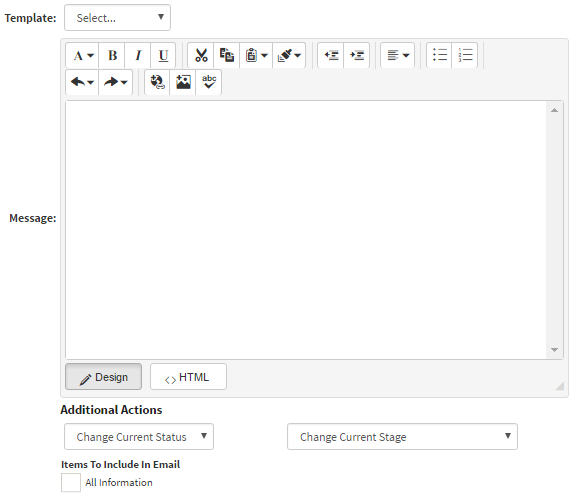
- This will take you to the "Forward Candidate File" page.
- This page will give you to option to request feedback from the contacts that the candidate was forwarded to.
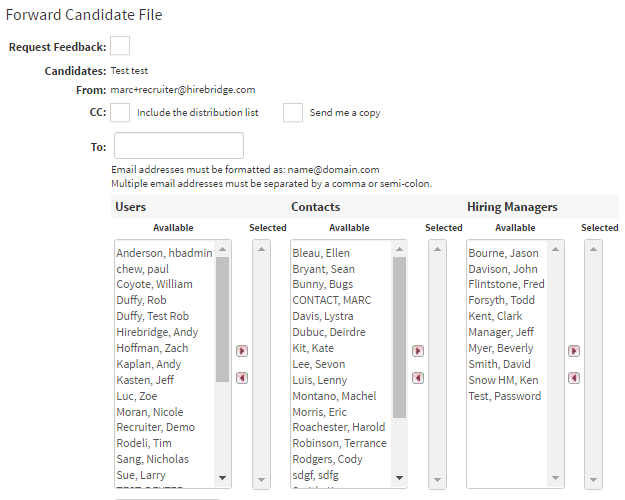
- On this page you can also include templates specifically for forwarding candidates.
- Or you can create your own custom message.
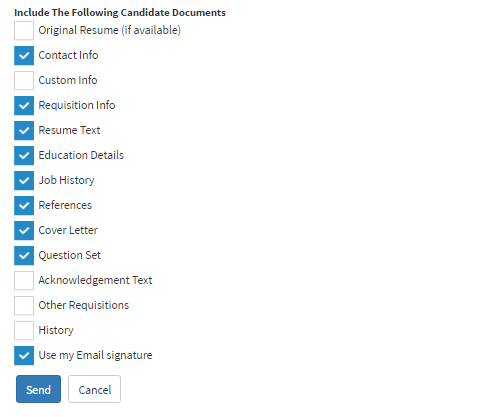
- At the end of the page, you can also include all the candidate's documents to be forwarded as well.
- Once satisfied with the message and the documents that will be included in it select the blue "Save" button at the bottom of the page.
- After selecting the "Save" button you will return to the candidate profile page. In the Messages tab, the resume forward will also be recorded. (Shown in the picture below)