This article will cover how to send a Candidate Offer Letter Approval
First, view the tree diagram so we get a basic idea of how this process works.
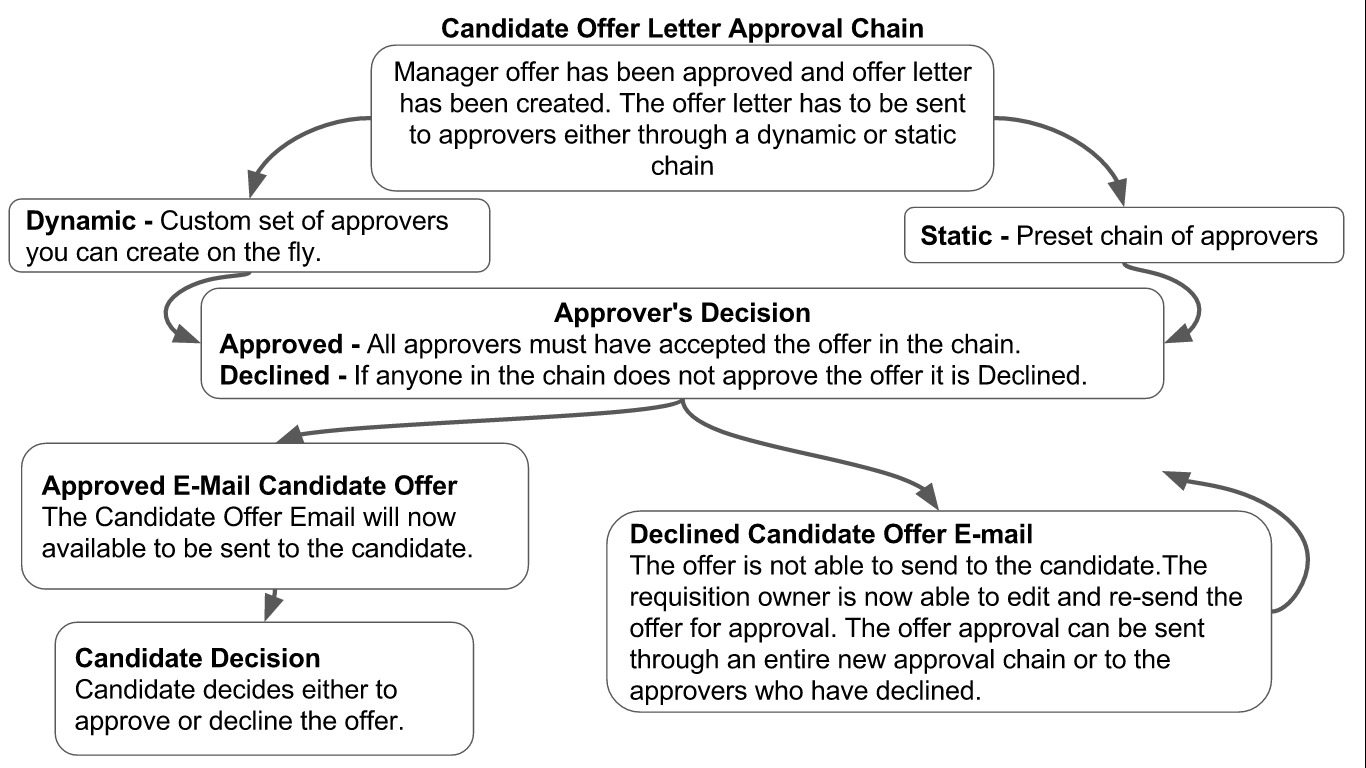
Now that you have a conceptual idea of how the Approval process works we will now walk through the process of having an offer letter created, approved and sent
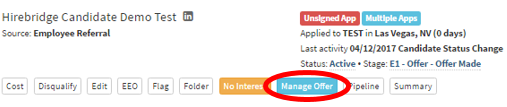
- The first step is select "Manage Offer" in the candidate's profile.
(Note: If the offer is not approved it you will not see the "Manage Offer" button but you will see the "Offer" button.)
- This will now take you to the Offer Manager page.
- At the top of the offer page, you will see "Offer Status".
- When Offer Status is "Active" it means that the offer for the candidate has been approved and an offer letter is ready to be sent to the candidate.
-
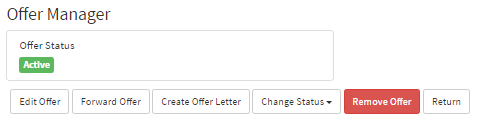
The following options are available below the “Offer Status”
- Edit Offer – Allows you to edit the offer being made to the candidate
- Forward Offer – Allows you to forward/share the offer
- Create Offer Letter – Allows you to create an offer letter for the candidate
- Change Status - Allows you to change the status of the candidates offer to accepted, extended, rejected, rescinded or reneged
- Remove Offer – Allows you to remove the offer.
- Return – goes back to the candidate profile.
- For this example, select "Create Offer letter".
- This will now take you to the "New Offer Letter" page.
- If your company has the "Offer Letter Approvals" turned on select an approver.
- You can also select an "Offer Letter Template" to send to the candidate.
- You can also create your own/edit the letter by using the simple text editor box below.
Note: This is the Offer Letter the candidate will see.
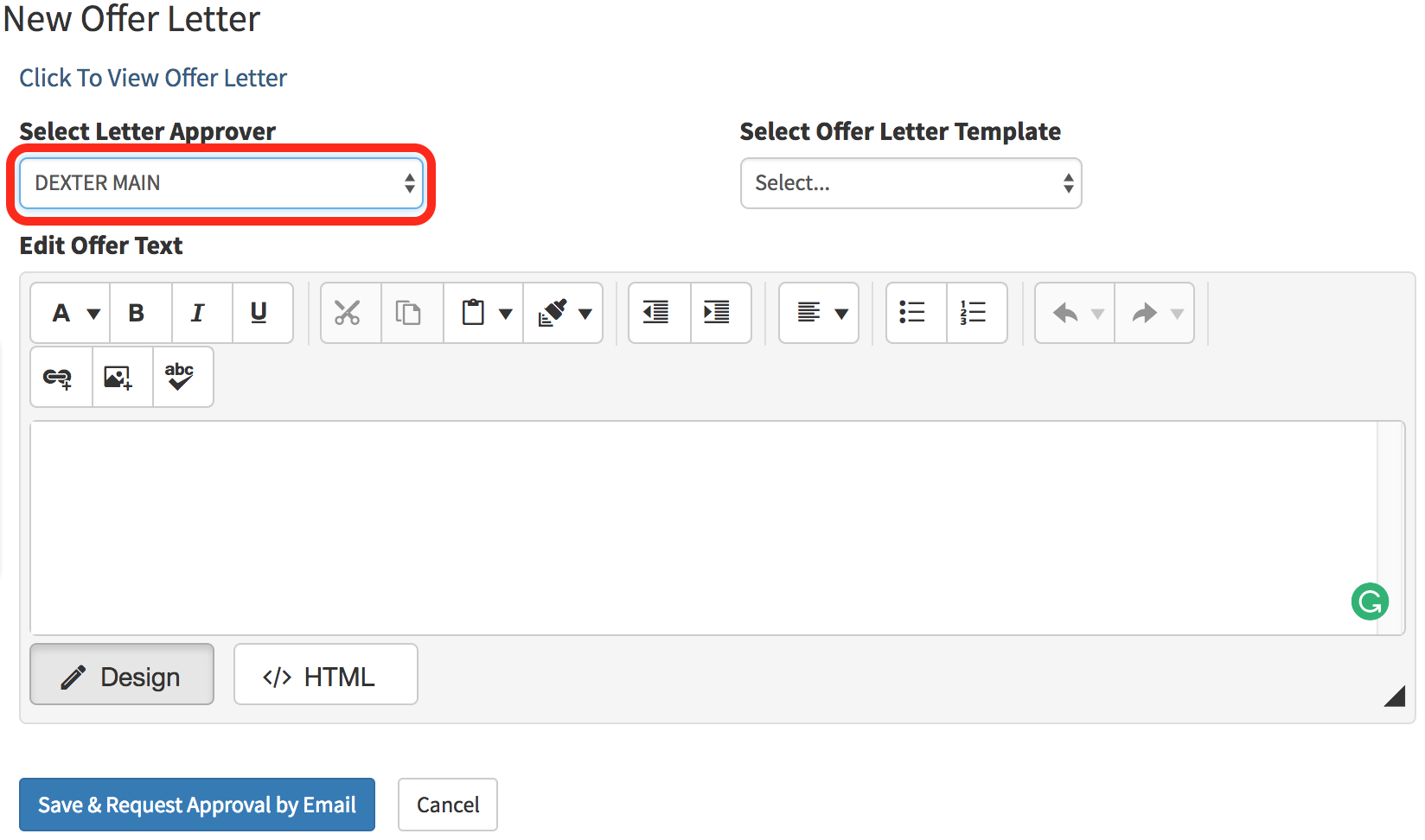
- Once you have created the offer letter simply select the blue "Save" button on the bottom of the screen.
- This will now take you to the candidate profile where you will select "Manage Offer".
- You will now see the option to "Send Offer" or "Save & Request Approval by Email".
If the offer is sent for approval, the approver will receive an email in regards to the offer letter for the candidate. (Sample approval email in the image below)
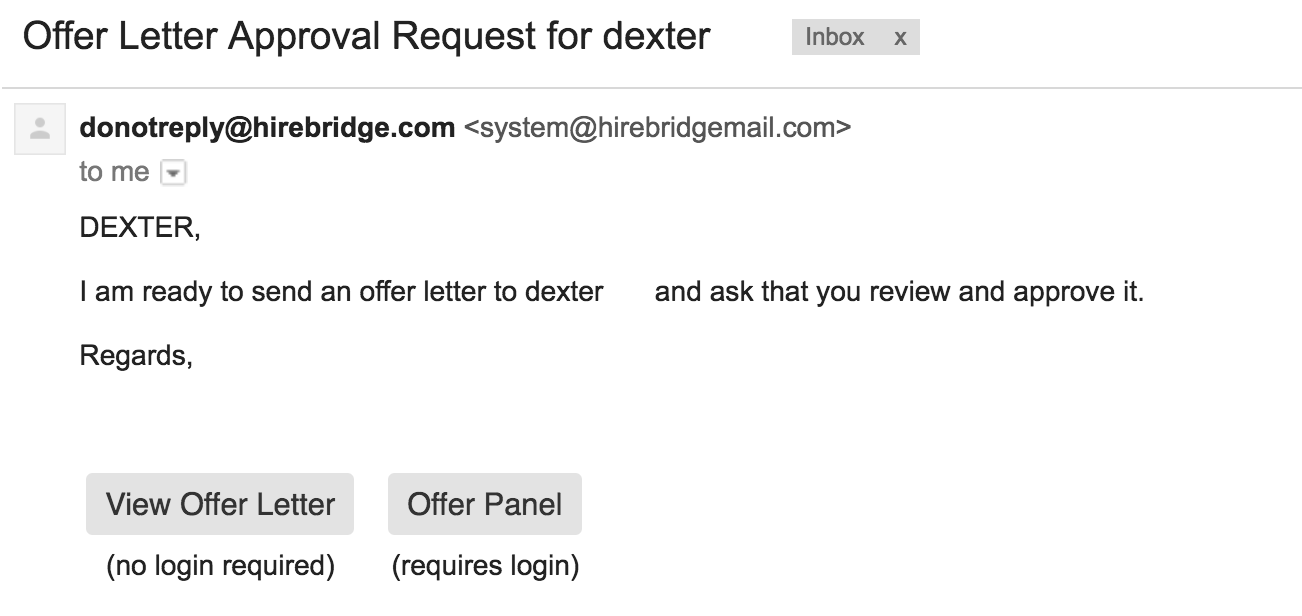
In the email, the approver will have the option to either "View Offer Letter" or use the "Offer Panel"
The View Offer Letter option will load a new page where you can approve the offer letter
(Sample image below)
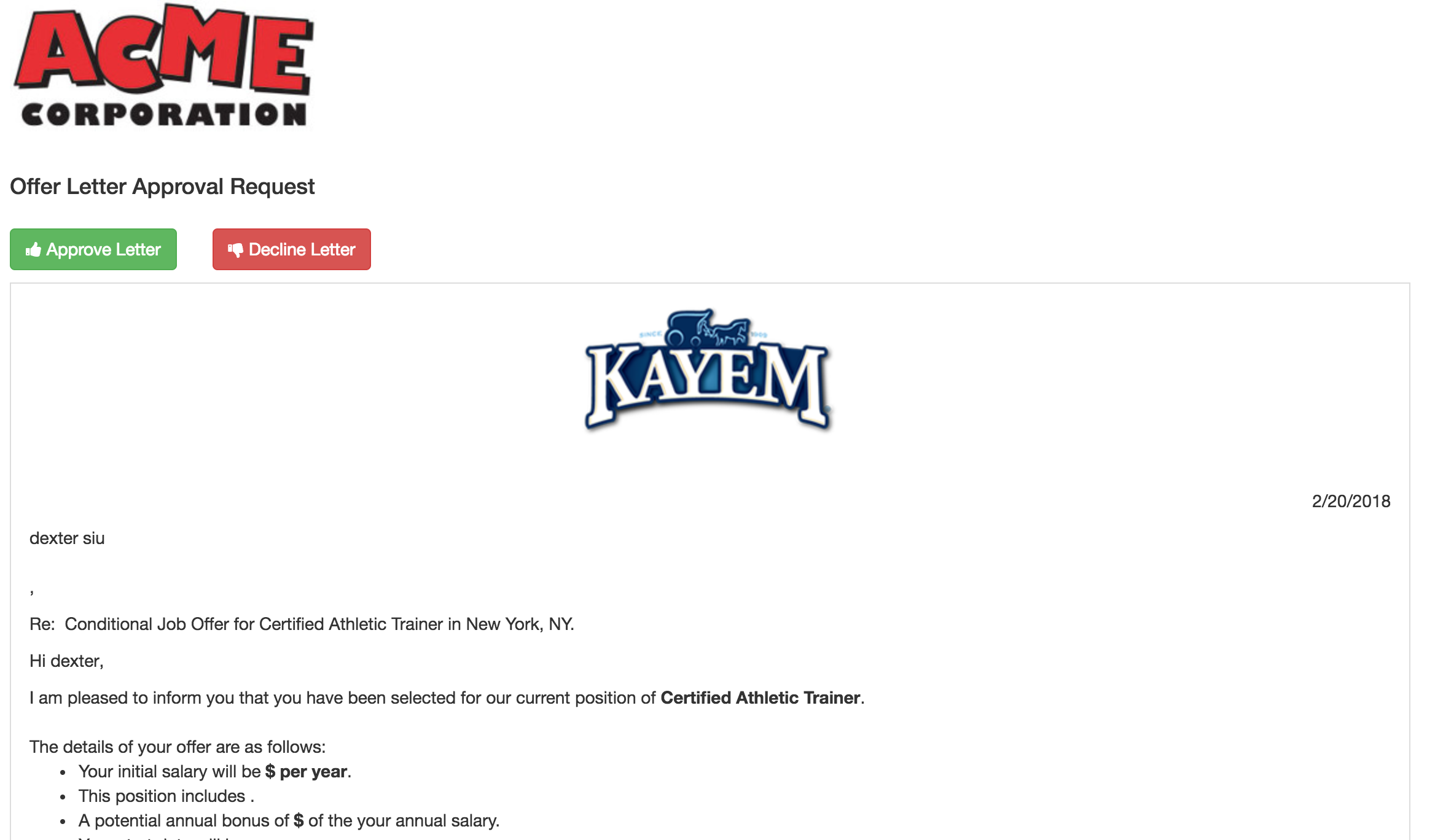
The Offer Panel page allows you to review the offer within the Hirebridge system.

Once the offer has been approved the approval status and offer status will now be in green.
The next step is to select "Send Offer"

Note: This "Send Offer" will email the candidate a notification to the offer letter you created.
- This is where you can send the candidate a notification about the offer by selecting the "Send Offer" button.
- You will now land on the "Send Email" page. This is where you will have to either select a template to notify the candidate that he has an offer waiting.
(Below attached is a picture of the "Send Email" page)
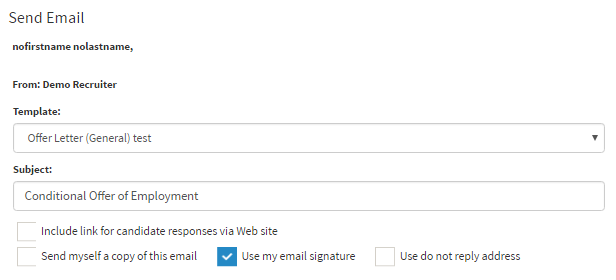
- Template - Allows you to choose an email template for the candidate offer notification email.
- Subject - Allows you to write in the subject of the email
- Include Link for Candidate Responses via Website - Enables the candidate to respond to the offer from a website hosted by Hirebridge.
- Send myself a copy of this email - Sends a copy of the email to the yourself
- User Do Not Reply Address - Allows you to use a do not reply email address
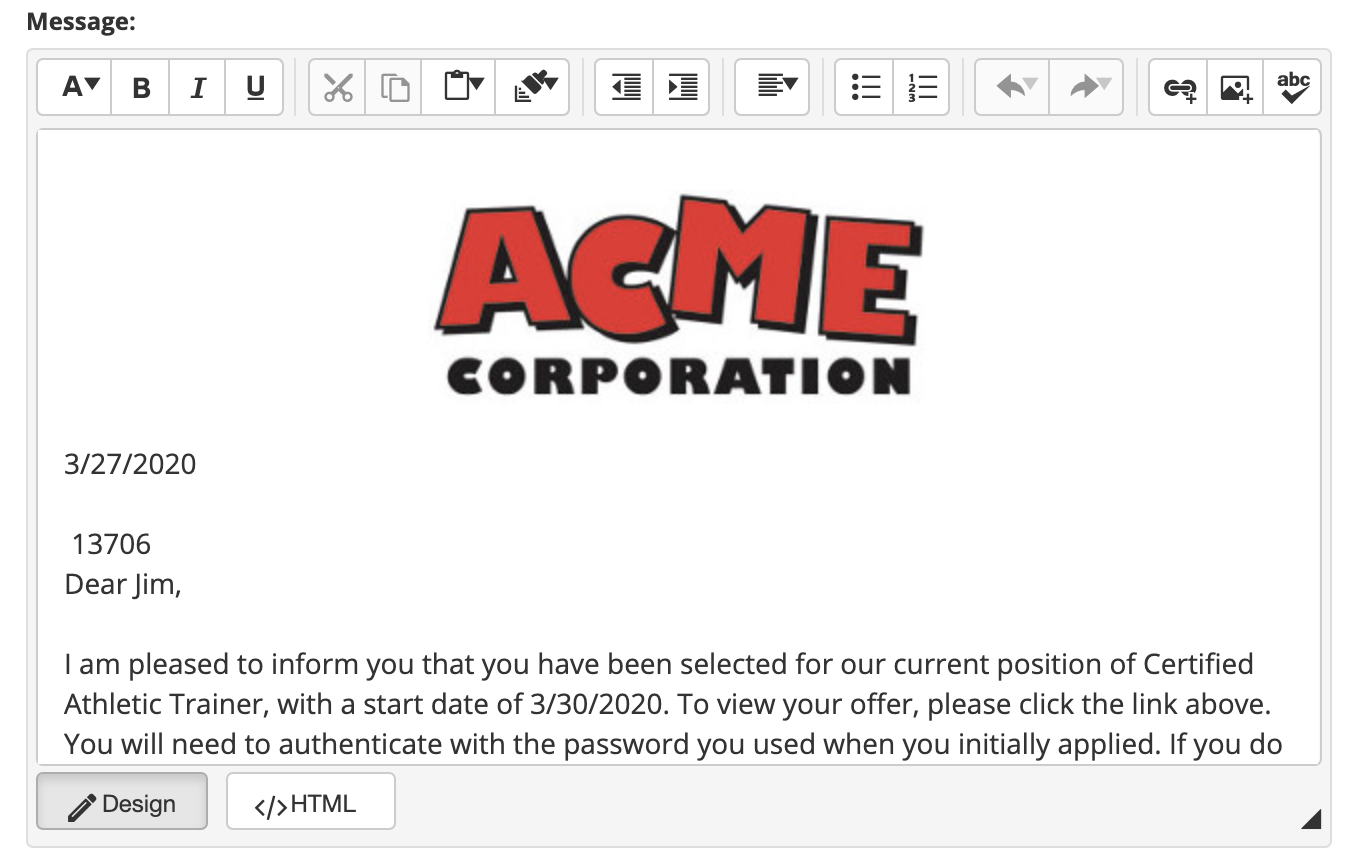
- at the end of the page it also allows you to attach documents to the email.
- Once you are satisfied with the notification letter you can now select "Send Email".
The candidate will now receive an email like the one below
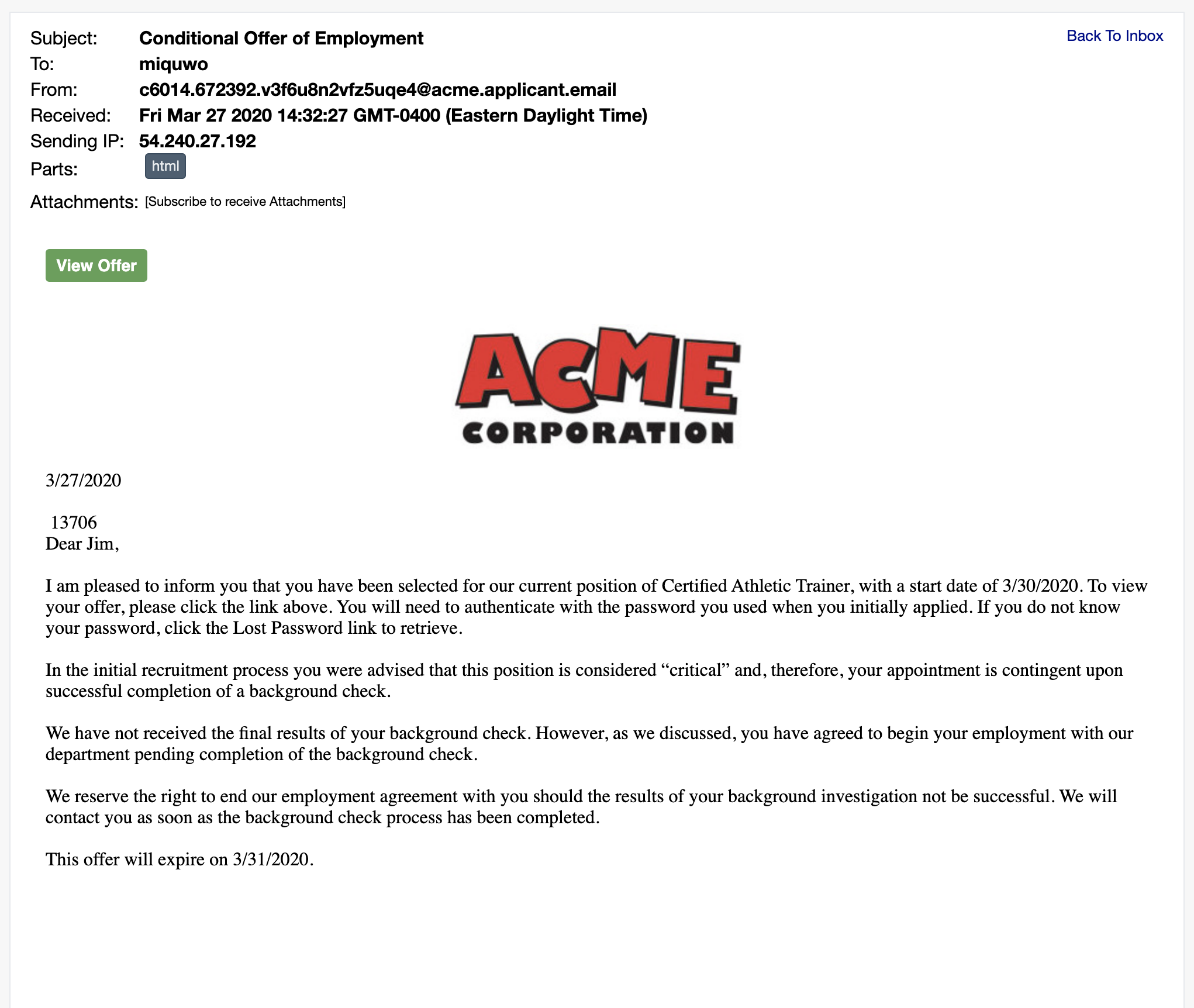
- In the email, the "View Offer" button is selectable and will take the candidate to view their offer
- First, the candidate will have to log in to their profile. (Shown Below)
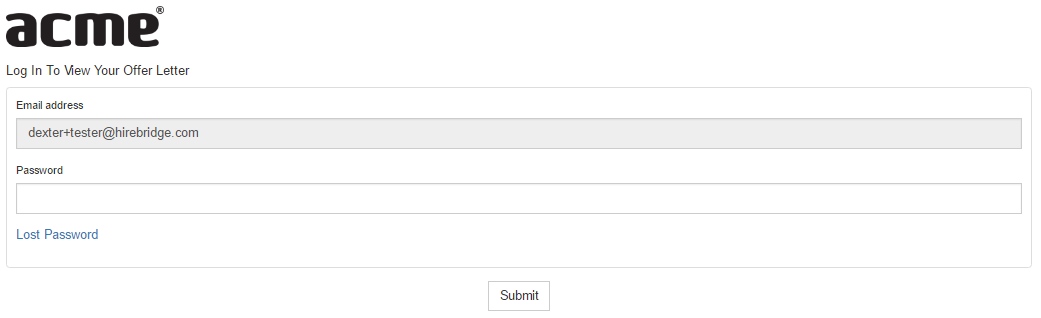
- Once logged in the candidate will see the offer letter
Note: Based on settings the candidate will either have to sign or click a checkbox to accept or decline offer
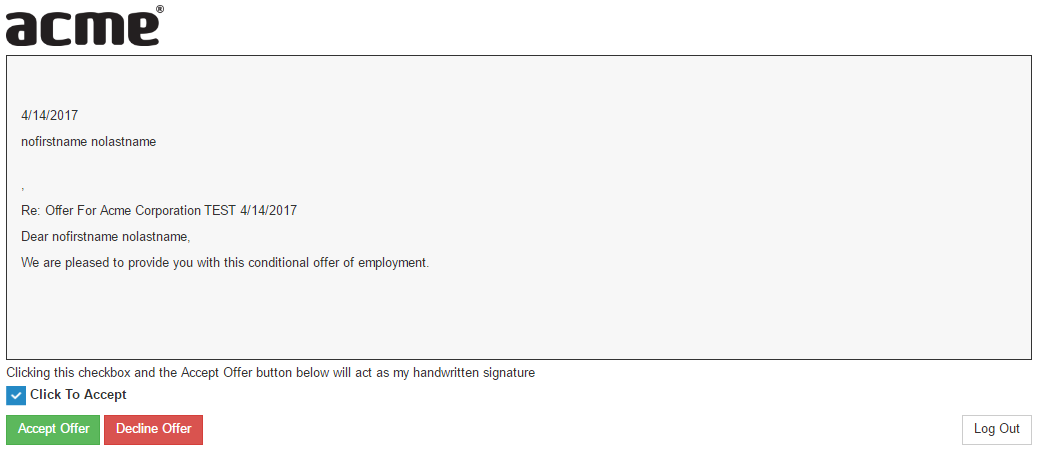
- Below is what the candidate would see if the wet signature is activated in the Offer/Hire Rule setting.
- The candidate will then be required to sign the offer using a mouse.
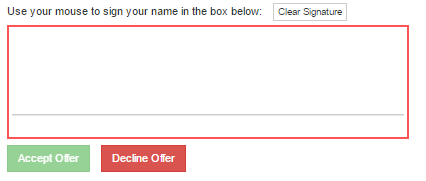
- The candidate has two options either to Accept or Decline the offer
- To Accept the candidate has to check the checkbox next to "Click To Accept" or sign using the area provided then select "Accept Offer".
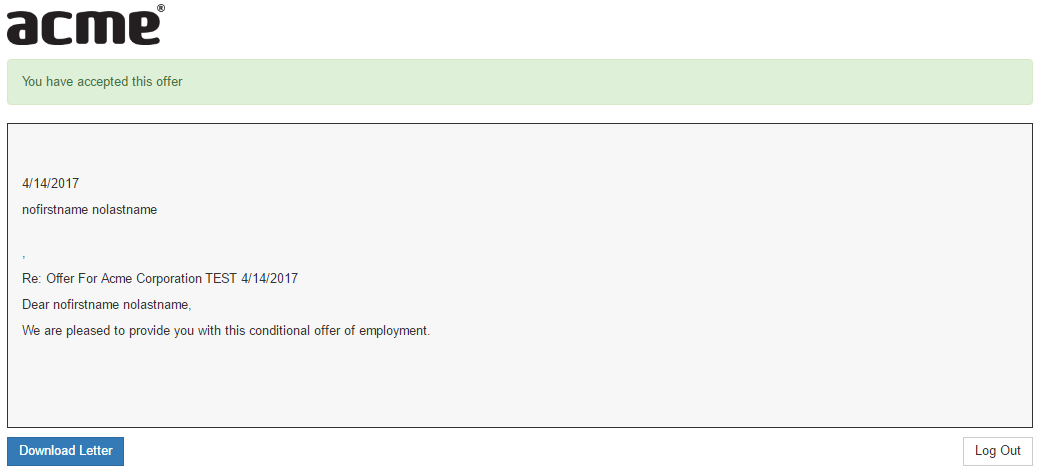
- Once the candidate has accepted the offer there will be a notification at the top stating "You have accepted this offer" and the candidate will be able to download this offer letter at the bottom left of the page.