This article will cover how to create an offer for a candidate.
First on the candidate profile overview page select "Offer"
(Below I have also included pictures how to access the offer panel with/without workflow)
Without Workflow

With Workflow
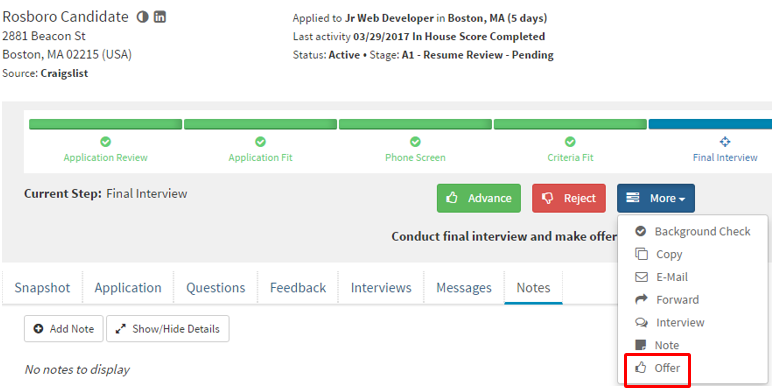
- Once you have selected "Offer" this will take you to the "Offer Editor"
- We will cover this page into small segments
- The offer editor page allows you to edit some candidate fields.
- This page also allows you to enter Hire Type and number or hours.

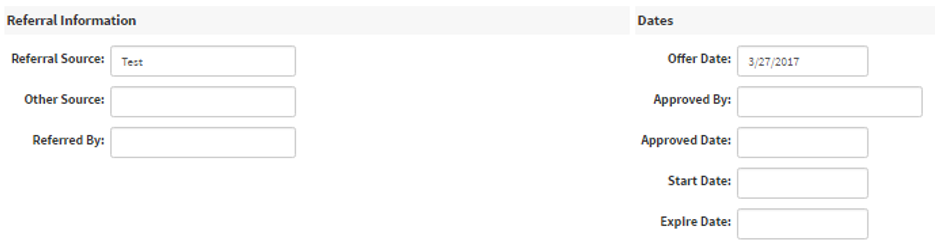
- Referral Information - who the candidate was sourced by.
- Dates - Information on who the offer was approved by, approval dates, start date and expiration dates
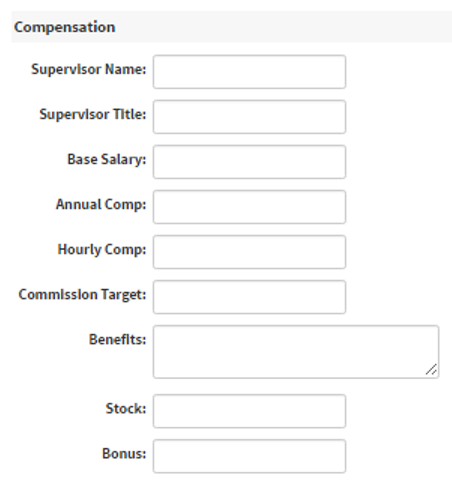
Compensation - This section allows you to enter candidate supervisor information and compensation. Along with bonus benefits, commission target number, stock number, and bonus.
After you have filled out the information for the candidates hire. At the end of the page, it will ask what type of documents to include in the candidate approval email. This list provides a checkbox and all of the candidate information. Certain fields can be selected to be included in the approval email. Once you have selected and filled out all of the information select the blue “Submit for Approval” button.

After you have reviewed the candidate offer information and submitted the application for approval. The next page you will be direct to is the "Offer Approval Routing" page.
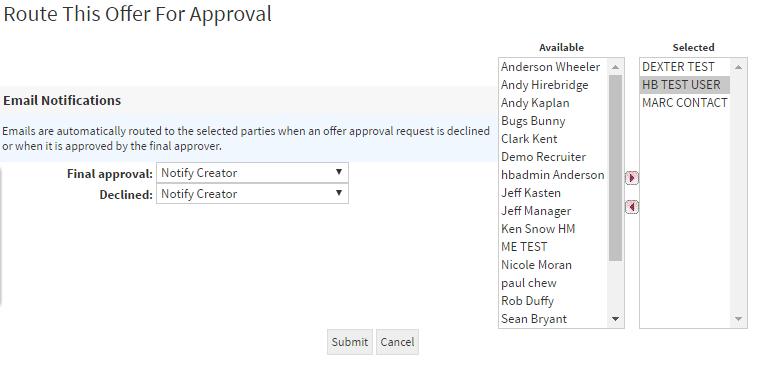
Final Approval - Allows you to choose who will be notified
- Notify Creator - will notify the creator of the requisition
- Notify Prior Approver - Approver will notify the last person that approved
- Notify Creator/Prior - will notify both Creator / Prior approver
- Notify All In Chain - Will notify everyone in the chain
Declined - Allows you to choose who will be notified when the candidate has declined.
- Notify Creator - will notify the creator of the requisition
- Notify Prior Approver - Approver will notify the last person that approved
- Notify Creator/Prior - will notify both Creator / Prior approver
- Notify All In Chain - Will notify everyone in the chain
The chain list goes in order from the top being the first to approve the bottom being the last one to approve.
After you have submitted the chain, the approvers will receive an email like the one displayed below.
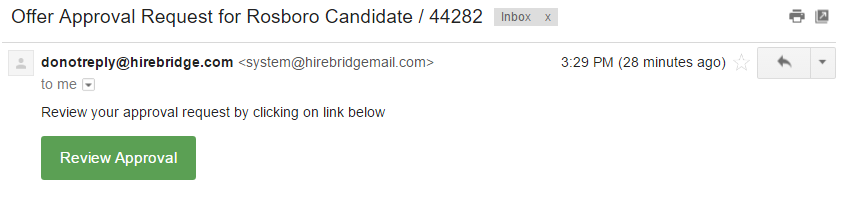
When the "Review Approval" is selected, it will take them to the Hirebridge website. This is where the chained approver will either "Approve" or "Decline" the offer.
Video Tutorial