This article will cover how to add edit and delete question sets
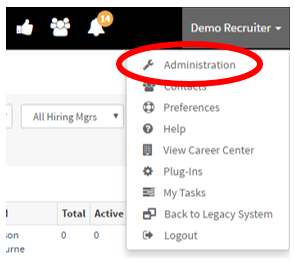
- Once you are logged into your Hirebridge account click on your name in the top right corner. A drop-down menu will appear.
- Select the “Administration” tab in the drop-down menu.
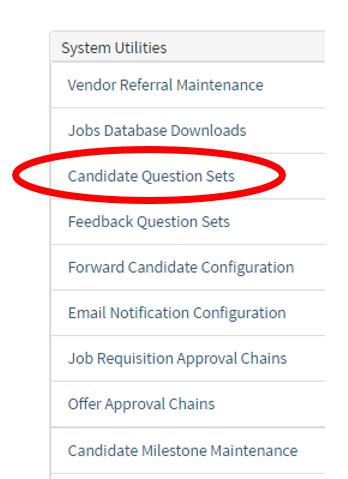
- This will now take you to the Administration Control Panel where you will select the “Candidate Question Sets” link in the System Utilities section.
- This will now take you to the "Question Set Manager" page.

- This page allows you to do the following -
 |
- Edit a template |
 |
- Copy template to new one |
 |
- Delete template |
- At the bottom left corner of the page, there is an "Add New Candidate Question Set Title"
- This is where you create a new question set, by creating a title name and selecting "Add Question Set".

Next, you will be on the "Candidate Question Set Editor" page.
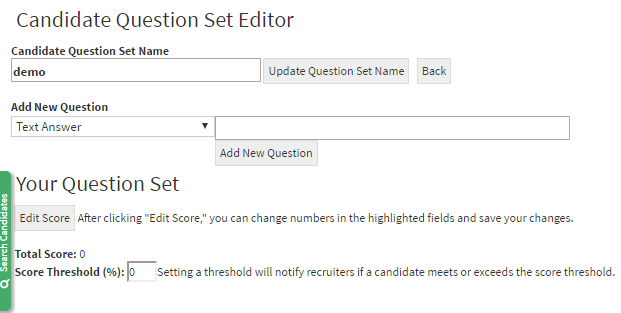
- This page allows you to add the questions.
- The "Candidate Question Set Name" field allows you to edit/update the question set name.
- Under "Add New Question" there is a drop-down menu. This allows you to choose what kind of question you are going to ask.
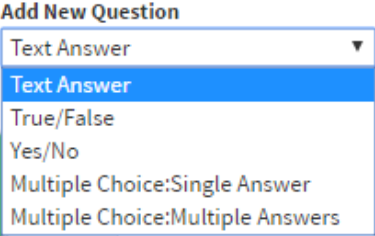
To add a specific question, select what kind of response you would like to receive from the drop-down list. Then type in the box provided the question you would like to ask. After you have added a question select "Add New Question" button.
- Text Answer - Allows you to ask a question and receive a text response
- True/False - Allows you to ask a question with a true or false answer
- Multiple Choice: Single Answer - This allows you to ask a multiple choice question but receive a single text answer
- Multiple Choice: Multiple Answers - Allows you to ask a question and set multiple answers to the question.
Edit Score -
- Score Threshold - a threshold is a limit that will notify recruiters if a candidate meets or exceeds the score threshold
After you have created a question you can now do the following with each question/answer.
 |
- Edit the question |
 |
- Delete the question |
 |
- Move the question up |
 |
- Moves the question down |
 |
- Mark answer as wrong |
 |
- Mark answer as correct |
To edit, add, and delete scoring to certain answers follow the below
- To set the score threshold select the "Edit Score" button this will enable you to edit the scores. The next step is to type in the percentage limit to which the candidate meets or exceeds the question set.
- Example - The candidate has to receive a minimum of 80% in order to meet or exceed the question set threshold.

- For multiple choice questions, you can also set points that are associated with each answer.
- For example, below I have added that if the candidate chose 2,3, and 5. The candidate would receive 25 points for each answer. If they chose other options they would not have scored points.
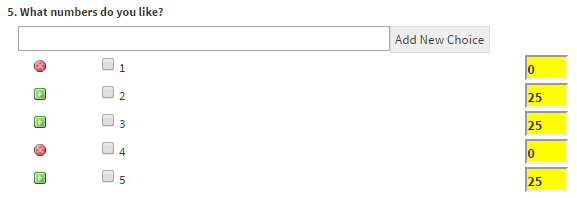
Once you have set your questions and scoring select the save score button.(Pictured below)

It will show you the total amount of points in the question set and show you the set threshold.