How to Add a Vendor Referral
Vendor referrals allow third-party recruiters or agencies to submit candidates directly into your system. This article will guide you through the steps to add a new vendor referral account.
-
Steps to Add or Manage Vendor Referrals
-
Log into your Hirebridge account.
-
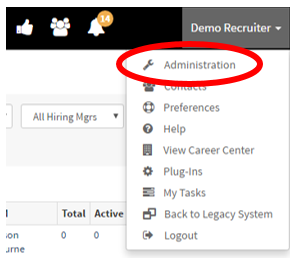
Click on your name in the top right corner to open a drop-down menu.
-
Select Administration from the drop-down.
-
-
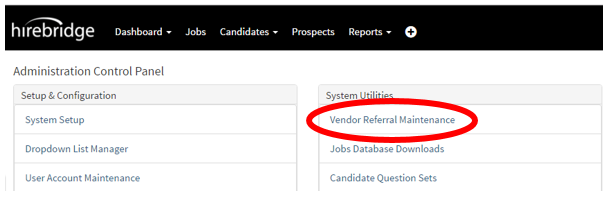
You’ll be taken to the Administration Control Panel.
-
Click on Vendor Referral Maintenance.
-
-
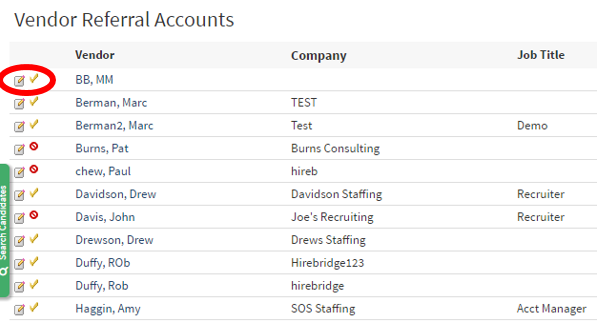
This will display a list of all vendor referral accounts associated with your company.
Managing Existing Vendors
-
Edit a vendor: Click the notepad and pencil icon next to the vendor’s name.
-
Activate/Deactivate a vendor:
-
A checkmark icon indicates the vendor is active. Click it to deactivate.
-
A crossed-out circle icon indicates the vendor is inactive. Click it to activate.
-
-
-
Adding a New Vendor
-
Scroll to the bottom center of the Vendor Referral Maintenance page.
-
Click the Add button.
-
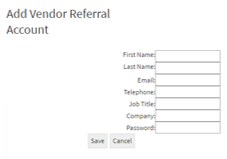
You’ll be taken to the Add Vendor Referral Account page.
-
Fill in the vendor’s information.
-
Once complete, click Save at the bottom of the page.
An email will automatically be sent to the vendor with their login credentials and a link to access the system.
-